
Best Streaming & TV Apps for iPhone (2026)
Your iPhone is probably the screen you reach for first, whether you are catching the last ten minutes of a game in line for coffee or finishing an episode in bed. We installed every app below, paid for the subscriptions, and lived with them for a few weeks to see which ones actually earn a spot on the Home Screen. Below are the streaming and live TV apps we kept, grouped from the everyday essentials to the niche picks worth knowing about.
If you want the wider picture, browse the full streaming and TV category or our roundup of the best iPhone apps. Watching on a bigger screen too? We also cover the best streaming apps for iPad and the best streaming apps for Mac.
1. Netflix
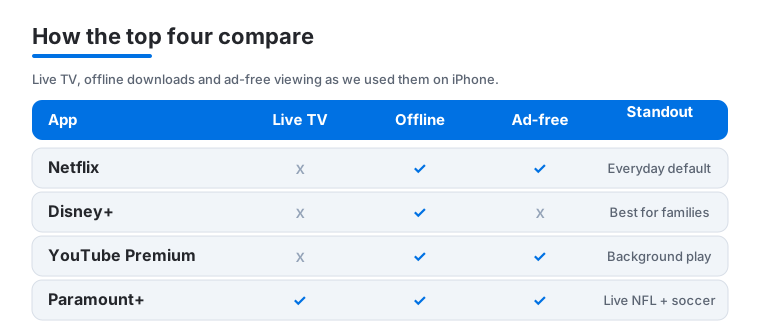
Still the one we open without thinking. On iPhone the download button is the real hero, letting you stash a few episodes for the subway or a flight, and playback resumes across devices without a hiccup. The cheapest ad tier is fine on a phone screen, though we paid up to drop the ads. One detail we love: long pressing a title surfaces a quick preview.
2. Disney+
The app the whole household ends up using. Marvel, Star Wars, Pixar and a deep National Geographic shelf make it our pick for families, and the GroupWatch feature is genuinely fun for watching with friends remotely. It is a paid subscription with bundle options that include Hulu. If you share it with kids, take five minutes to set up parental controls, which lock profiles behind a PIN.
3. YouTube Premium
If you watch a lot of YouTube on your iPhone, Premium changes the experience completely. No ads, true background play so audio keeps going when you lock the screen, and offline downloads for long trips. It is a monthly cost and includes YouTube Music, which quietly became our second music app. The background play alone made it impossible to go back to the free version.
4. ESPN
The home base for sports fans. Live games, scores, highlights and the bottom line ticker all live in one tidy app, and the alerts are smart enough to ping you only for teams you follow. Some content needs a cable login or the paid ESPN plan, but plenty of scores and clips are free. We spent an afternoon personalizing the feed so it opens straight to our teams.
5. Paramount+
An underrated all rounder that punches above its price. You get CBS shows, a big movie library, plus live NFL on CBS and Champions League soccer, which is the combination that won us over. The cheaper Essential tier carries ads. On iPhone, picture in picture kept a match playing in the corner while we texted, and our tips for getting the most from it go deeper.
6. Fox Sports
Our go to for live sports on Fox networks, from NFL Sundays to weekend soccer and big fight nights. The app streams smoothly over cellular, and the scores and standings sections are quick to check between plays. A TV provider login unlocks the live streams, though scores and news are free. We leaned on it for game alerts, and our notes on the Fox Sports experience cover the setup.
7. NBA
For basketball diehards this is the one to have. Live games come through a League Pass subscription, but the free side gives you scores, news, classic games and surprisingly good highlight reels minutes after the buzzer. On an iPhone the multi game view is tight on space, yet it works in a pinch. We dug into the lesser known features that make following several games at once far easier.
8. CBS
The free CBS app is a quietly useful pickup if you watch network shows or local news. You can stream recent episodes the morning after they air, catch CBS News live, and follow along during awards season. A provider or Paramount+ login removes limits and adds live local stations. We used it to catch up on a primetime drama we kept missing, and it handled airplay cleanly.
9. Starz
A standalone subscription where the original dramas and a rotating film library live, from series like Power and Outlander to a movie shelf that changes month to month. The catalog is smaller than the giants, but the hit rate is high, which is what we want for a focused night in. Downloads worked reliably for offline viewing on a flight, and we walk through its best features in a separate piece.
10. Spectrum TV
If you are already a Spectrum internet or cable customer, this app turns your iPhone into a portable cable box at no extra cost. Live channels, a full guide and your on demand library travel with you, and in home streaming unlocks even more networks. It needs a Spectrum account, so it is strictly for existing subscribers. We found it handy for catching live news away from the TV.
11. WWE
Wrestling fans get a dedicated home for premium live events, pay per views and a huge vault of classic matches and documentaries. The app is clean and the search makes it easy to fall down a nostalgia rabbit hole. Much of the live content now lives on other services in some regions, but the on demand vault remains the draw. On iPhone the picture quality held up well.
12. Telemundo
The pick for Spanish language entertainment, telenovelas, news and live sports including major soccer tournaments. The interface is friendly and a lot of content streams free, with a provider login unlocking the full live lineup. We kept it on the Home Screen during the last big soccer summer and barely closed it. If you compare your options, our look at Telemundo versus other Spanish language apps helps you choose.
13. Roku
This one is less about watching on the phone and more about controlling what you watch everywhere else. If you own a Roku player or TV, the free app is a better remote than the plastic one, with voice search and quick app launching. The private listening feature, piping TV audio to your iPhone earbuds, is the trick we show off most, and our favorite Roku app features has more.
14. MLB Ballpark
A niche pick that baseball fans will appreciate. It is less a streaming app and more your digital ticket, mobile checkout and stadium guide, with live game info and ballpark offers baked in. It shines on game day, surfacing your seat, nearby concessions and team news in one place. The app is free, though tickets cost money. We ended up checking it all season.
Picking a streaming app for your iPhone is less about finding the single best one and more about matching a service to what you actually watch. A phone is a small, personal, often-on-the-move screen, so the things that matter here are a bit different from a living room television. Below is how we think it through, followed by an honest note on the apps you are better off avoiding.
What TV and movie streaming apps do on an iPhone
Almost every major service has a free app in the App Store. The app itself usually costs nothing to download. What you pay for is the subscription behind it, and most apps now let you sign in, browse, search, cast to a TV, and download titles for offline viewing. The differences come down to what is in the catalog, how much it costs, how well downloads work, and how good the video looks on a phone.
How to choose
Start with the catalog, not the brand
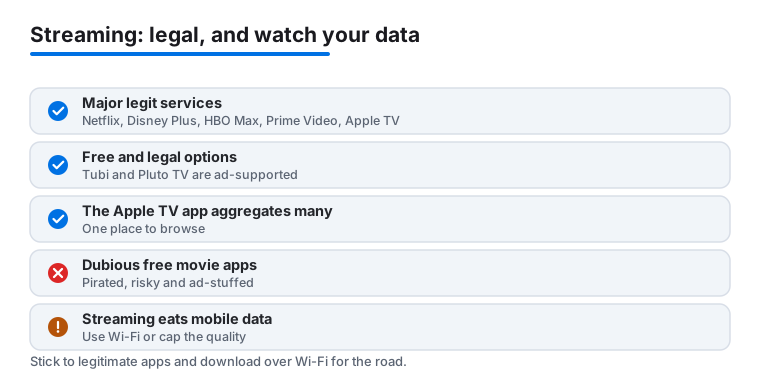
The most useful question is simple. What do you already want to watch? Make a short list of a few shows or films, then check which service carries them before you pay. Catalogs shift constantly as licensing deals come and go, so a title that was on one service last year may have moved. Among the major legitimate options, the names worth knowing are Netflix, Disney Plus, Max, Hulu, Prime Video, Apple TV, Peacock and Paramount Plus. Each has a different mix of films, original series, and network shows, so the right one really depends on your list.
Look hard at price and ad tiers
Most services now sell two versions of the same thing. A cheaper plan with ads, and a pricier plan without them. On a phone screen ads are less intrusive than they are on a big television, so an ad tier is often a sensible way to keep costs down. Be aware of two things. Prices tend to creep up over time, and subscriptions are easy to forget. It is worth checking your active subscriptions in the Settings app every few months and cancelling anything you have stopped using.
Check how downloads work
Downloads are one of the best reasons to watch on a phone. Most major apps, including Netflix, Disney Plus, Max, Prime Video and Paramount Plus, let you save episodes over Wi-Fi and watch them later with no connection at all. That is ideal for a flight, a commute underground, or anywhere the signal is poor. Two caveats are worth keeping in mind. Downloads take up storage, so a few films can fill a phone quickly, and many titles expire after a set period or once you finish them.
Think about video quality and data
Streaming uses a lot of mobile data. A single hour of high quality video can run through a meaningful chunk of a monthly plan, and on a phone screen the difference between the highest setting and a more modest one is often hard to notice. Most apps have a playback or data setting where you can cap the quality on cellular. We recommend setting that limit, downloading over Wi-Fi when you can, and saving the full quality streams for when you are connected to a network you are not paying for by the gigabyte. It is also worth opening the Settings app, tapping Cellular, and checking how much data each streaming app has used. That gives you a quick sense of which one is the heaviest, and you can switch off cellular access entirely for any app you only ever want to use on Wi-Fi.
Consider the Apple TV app as a hub
The Apple TV app, which is built into the iPhone, can pull many services into one place. It tracks what you are watching across apps, lets you add some channels directly, and gives you a single Up Next list so you do not have to open five apps to find where you left off. It does not cover everything, and a few services keep their content in their own apps only, but it is a tidy way to cut down on Home Screen clutter.
An honest note on free TV and movie apps
There is a real, legal free tier, and it is genuinely useful. Ad supported services like Tubi and Pluto TV offer a large library of films and live channels at no cost, paid for by advertising rather than a subscription. They will not have the newest releases, but for background viewing or filling a quiet evening they are a fair deal, and they are perfectly legitimate apps from established companies.
Be much more careful with apps that promise free access to brand new movies or free live streams of paid channels. If something is being given away that normally costs money, the content is usually pirated. These apps carry real downsides. They are legally risky, they are often stuffed with aggressive ads, and some are vehicles for scams or attempts to harvest your personal details. They also tend to vanish without warning. A good rule of thumb is that a streaming service should make money in a way you can see, through a subscription you pay or ads from recognisable brands. If you cannot tell how an app pays for itself, treat that as a reason to skip it.
A quick checklist before you subscribe
- The catalog carries the specific shows or films you already want.
- The price fits your budget, and you know whether you are on an ad tier.
- Downloads are supported if you watch offline often.
- The quality cap is set so you are not burning through mobile data.
- The app is legitimate, with a clear way it earns its money.
Get those five right and the rest is just personal taste. Start with one service that covers most of your list, add a second only when you find yourself running out of things to watch, and lean on the free legal apps to fill the gaps without another monthly bill.
Frequently asked questions
Which streaming app should I start with on a new iPhone?
For most people Netflix or Disney+ is the easiest first pick, since both have huge libraries and work flawlessly on iPhone. If you mostly follow sports, start with ESPN or the network app that carries your teams. There is no need to subscribe to everything at once, so add a second service only when you notice yourself running out of things to watch.
Can I download shows to watch offline on my iPhone?
Yes, and it is one of the best reasons to watch on a phone. Netflix, Disney+, Paramount+, Starz and YouTube Premium all let you download episodes over Wi-Fi to watch later without using data. Look for the download icon on a title's page. Just remember downloads take up storage and many expire after a set time or once you finish them.
Do I need a cable or TV provider login for the sports apps?
Often yes for live games. Apps like ESPN, Fox Sports and Telemundo show free scores, news and highlights to everyone, but the live streams usually require a TV provider login or a paid plan such as League Pass. If you have cut the cord, a streaming bundle like Paramount+ or a service that includes live channels is usually the simpler route.
How do I watch these iPhone apps on my TV?
You have two easy options. Most apps support AirPlay, so you can tap the AirPlay icon to send video to an Apple TV or a compatible smart TV on the same network. If you own a Roku device, the Roku app doubles as a remote and makes launching streaming services on the big screen quick. Either way the iPhone stays free to use while playback continues on the TV.
Are free movie and live TV apps safe to use?
It depends on the app. Legitimate free services like Tubi and Pluto TV are safe, since they are run by established companies and pay for themselves with ordinary advertising. Be wary of apps that offer brand new movies or paid channels for free, because that content is usually pirated. Those apps are legally risky and are often loaded with aggressive ads or scams, so it is better to stick with services where you can clearly see how they earn their money.
How can I stop streaming from using up all my mobile data?
Streaming video is one of the biggest data users on a phone, so a few habits help a lot. Download episodes over Wi-Fi before you head out, and open each app's playback or data settings to set a lower quality limit for cellular. On a small screen the drop in quality is hard to notice, and you can switch back to full quality once you are on Wi-Fi again.