
Best Utilities Apps for iPhone (2026)
Utility apps are the quiet workhorses of your iPhone, the ones you reach for without thinking when you need to print, sync a file, find the remote, or check the front door. We spent weeks living with these to sort the genuinely useful from the clutter. Below are the ones that stayed installed, with honest notes on what each does well and where it falls short. For more across the platform, browse the utilities hub or our wider best iPhone apps roundup.
1. App Store
It ships with every iPhone, so it is easy to overlook, but the App Store is still the best utility you own. In our testing the Today tab surfaces genuinely useful finds, and search makes tracking down a niche tool fast. It is free, and the account view that lists every subscription in one place has saved us money more than once.
2. Dropbox
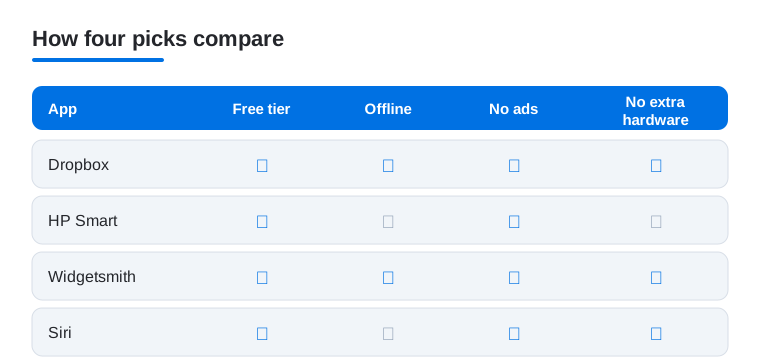
Dropbox is our go-to when files need to follow us between an iPhone, a laptop, and someone else's machine. The iOS app feels quick, offline files are reliable, and the document scanner tucked in the plus menu is better than it has any right to be. The free 2GB tier is tight, so most people will want a paid plan, but for cross-platform sharing it is hard to beat.
3. HP Smart
Printing from a phone used to be a small nightmare, and HP Smart is the app that finally fixed it for us. Setup over Wi-Fi took about two minutes, and printing a boarding pass or scanning a receipt to PDF now just works. It is free, though HP nudges you toward Instant Ink. If you own an HP printer it is essential, and the scanner replaces a separate app.
4. Siri
Siri is the utility you talk to rather than tap, and we lean on it for timers, hands-free messages while cooking, and triggering smart home scenes. It is built in and free. In June 2026 Apple announced Siri AI, a more conversational version that draws on personal context (surfacing a confirmation number from an old email, or a restaurant a friend texted you) and adds onscreen awareness and web answers. It rolls out as a beta later in 2026 for supported devices set to English. For quick voice control it is faster than the screen, especially with AirPods.
5. VIZIO Mobile
If you own a Vizio SmartCast TV, the VIZIO Mobile app (updated in 2026) turns your iPhone into a surprisingly complete remote. We reached for it when the physical remote vanished into the couch, and the on-screen keyboard makes searching shows far less painful than clicking letter by letter. It is free. Pairing can be fiddly, but for casting and volume from the phone in your hand, it earns its keep.
6. Widgetsmith
Widgetsmith is how you make the home screen genuinely yours. We built a weather and calendar stack in an afternoon, and the photo widgets that rotate through an album are a small daily joy. The basics are free, with a subscription for premium widgets and tide or astronomy data. It is fiddly at first, but few utilities give your iPhone this much personality, especially paired with lock screen widgets.
7. eero
For anyone running an eero mesh network, this app is mission control for your home Wi-Fi. We used it to pause the kids' devices at dinner, run a speed test, and spot which gadget was hogging bandwidth. It is free, with an optional eero Plus tier for security extras. You need eero hardware, but if you have it, this beats logging into a clunky router page.
8. Arlo
Arlo puts your security cameras on your iPhone, and in our testing the live feed loaded quickly even on cellular. Motion alerts are timely, and scrubbing back through a clip to see who rang the bell is genuinely reassuring. The app is free, but most useful features now sit behind an Arlo Secure plan. It only suits Arlo camera owners, yet for them it is the daily window into home.
9. Fire TV
The Fire TV app is a tidy way to control an Amazon streaming stick from your iPhone, and the voice search saved us from pecking out show titles one letter at a time. Mirroring photos to the big screen works well too. It is free, and navigation can lag, but as a backup remote that is always charged in your pocket, it does the job.
10. Fire TV Stick remote
When the plastic Fire Stick remote inevitably vanishes, turning your iPhone into the replacement is a small lifesaver. We found the on-screen D-pad responsive and the keyboard far quicker for logging into apps than the hardware remote. It is free and pairs over your home network. It does one thing, but that focus is the point: open it, point, click, and get back to watching.
11. SHAREit
SHAREit moves large files between an iPhone and other devices without burning through your data, which earns it a place when AirDrop is not an option. We shifted a batch of holiday videos to an Android phone in minutes. It is free, though the interface is busy with ads, and it asks for broad permissions, so grant access narrowly and treat it as a tool you reach for in a pinch rather than leave running. For fast cross-platform transfers when AirDrop will not do, it works.
12. Apple Watch faces
If you wear an Apple Watch, customizing faces from your iPhone is far comfier than poking at the tiny screen on your wrist. In the Watch app we swapped complications, built a workout face, and downloaded shared designs in a couple of taps. It is free and built in. It is easy to forget how much control lives here. Spend ten minutes and your watch shows exactly what matters.
Before you go hunting for a utility app, it is worth knowing how much your iPhone already does on its own. Over the years iOS has absorbed a lot of jobs that used to need a separate download, and the built-in versions are usually free, private, and well integrated. A short tour of what is already on your phone will save you from installing things you do not need.
What iOS already does for you
Start with the Files app. It gives you a real folder view of iCloud Drive and any other storage you connect, so you can move, rename, tag, and compress files without a third-party manager. The Notes app and Files both include a document scanner: open a note, tap the camera, choose Scan Documents, and you get a clean, cropped PDF with edges detected automatically. For a quick measurement, the Measure app uses the camera to size up objects and, on supported models, can read a person's height. It is not a laser tool, but for rough numbers it is handy. The same app includes a level, which is enough to hang a picture straight without digging for a separate tool.
A few more built-in helpers tend to go unnoticed. The Camera can read QR codes the moment you point at one, so a QR scanner app is rarely needed. Live Text lets you select and copy printed text out of a photo, including phone numbers and addresses you can tap to use. Spotlight, the search you pull down from the home screen, does quick math, unit and currency conversions, and dictionary lookups, which covers what a small calculator or converter app would. And the Clock app already holds a world clock, stopwatch, and timers, so there is little reason to add another.
Shortcuts is the big one for anyone curious about automation. It lets you chain actions together, so a single tap or a spoken phrase can set a timer, text someone an arrival message, and start a playlist. You can build automations that run when you arrive home, plug in a charger, or open a certain app. There is a learning curve, but the gallery of ready-made shortcuts is a gentle place to begin, and most people find one or two that genuinely save time.
The accessibility tools are useful for everyone, not just those who need them. Magnifier turns the camera into a zoom lens with a light, a freeze frame, and filters that boost contrast, which is quicker than squinting at small print. Translate handles text and live conversation in dozens of languages, on device, so it works without a signal. And the built-in password manager (now its own Passwords app) stores logins, passkeys, and Wi-Fi codes, fills them in across apps and Safari, flags reused passwords, and shares them with people you trust. For most users that removes the need for a separate password app entirely.
How to decide a utility is worth installing
Once you have ruled out what the system already covers, a few simple questions sort the keepers from the clutter. First, does it do one job well? The best utilities are narrow. A printer companion, a remote, a file mover. When an app tries to be ten things at once it usually does none of them cleanly, and it tends to nag you with prompts. Second, does it earn its space? If you open it once a month, a built-in alternative or a quick Shortcut may serve you better than a permanent home screen tenant.
Third, look at how it is paid for. A clear one-time price or an honest free tier is a good sign. Endless upsells, a subscription gate on basic features, or a wall of ads usually means the app is built to monetize you rather than help you. 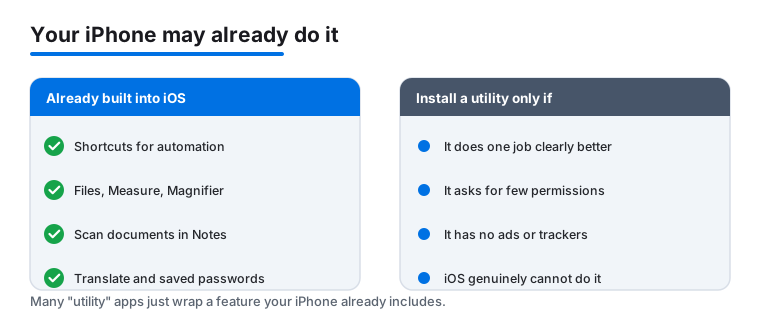
It also helps to be honest about the difference between a tool you need every day and one you reach for twice a year. A printer companion or a camera app you use constantly is worth a home screen spot. A file converter or a one-off measuring trick you rarely touch can usually live in the App Library, or be replaced by a built-in feature you forgot you had. Keeping the home screen to the handful of utilities you actually open makes the phone calmer to use, and it makes the apps you do keep easier to find.
A word on permissions and privacy
Utilities are some of the most common over-askers on the App Store. A flashlight or a file mover has no business requesting your contacts, your photo library, your location in the background, or your microphone. When an app asks for a permission, pause and ask whether the feature in front of you actually needs it. A scanner needs the camera. It does not need your location. You can grant access narrowly: choose Limited Photos instead of full library access, pick While Using the App rather than Always for location, and say no to tracking when the prompt appears.
It is also worth visiting Settings now and then to review what you have handed out. Under Privacy and Security you can see, app by app, which ones hold the camera, microphone, location, and contacts, and revoke anything that looks excessive. The App Privacy Report, if you turn it on, shows how often apps actually use those permissions and which domains they contact, which is a quiet way to catch a utility that phones home more than it should. None of this requires paranoia. It is just good housekeeping, and it keeps the small tools on your phone honest.
If you do reach the point of choosing among third-party options, the comparison below weighs four of our most broadly useful picks against the things we care about in a utility: a free tier, offline reliability, an ad-free experience, and whether it works without buying extra hardware.
Frequently asked questions
What counts as a utility app on iPhone?
Utility apps handle the practical jobs rather than entertainment: file syncing, printing and scanning, smart home and camera control, TV remotes, network management, and home screen customization. Many of the best ones, like the App Store and Siri, are built into iOS, while others fill specific gaps such as cross-platform file transfers or printer setup.
Do I need to pay for good iPhone utility apps?
Often no. Several picks here are free, including the App Store, Siri, and most TV remote and smart home companion apps. The paid catches tend to be storage tiers, as with Dropbox, or hardware subscriptions for cameras and networks. We suggest living with the free version first and only upgrading once you hit a real limit.
Are these utility apps a drain on battery or storage?
Most are light. Remotes and companion apps only work when open, so they sip power. Camera apps like Arlo can use more battery and data when you stream live feeds, and a scanner or file app grows as you store more. If space gets tight, offload the ones you rarely open from Settings and reinstall later without losing data.
What if I use an iPad or Mac too?
Many of these tools sync across your Apple devices, so a file scanned on your phone shows up everywhere. The picks differ by screen, though. For a tablet we cover the best utilities apps for iPad, and desktop users can check the best utilities apps for Mac for tools that suit a bigger display.