
Using Siri on Apple Vision Pro and iPhone: Our Hands-On Take
When we first slipped on the Vision Pro and quietly said "Siri, dim the lights," and the room actually dimmed, it felt a little like magic. After a few weeks of living with Siri across both the headset and an iPhone in our pocket, the shine settled into something more useful and more honest. Some of it is genuinely helpful, some of it still makes us repeat ourselves, and a chunk of the headline features Apple showed in June are still in beta as we write this. Here is what we found, the good and the awkward, so you can decide how much to lean on it.
Getting Siri running on your headset
The nice surprise is that there is nothing to install. Siri ships built into visionOS, so the real work is just flipping the right switches. After the initial setup we opened Settings, went to Apps, then Siri, and confirmed that "Listen for" was turned on. On Apple Vision Pro the wake word is just "Siri" now, not the old "Hey Siri" two-word phrase, so you say the name and then your request.
One thing the older guides get wrong, and worth correcting because we tripped on it ourselves: the top button does not start Siri. A single press of that button opens the Capture app for spatial photos and video, and a press-and-hold powers the headset on. To talk to Siri without the wake word, the reliable route is a connected Magic Keyboard, where Fn-S starts a request. There is no dedicated Siri button on the headset itself, which feels like an odd gap until you get used to just speaking.
If you want Siri to actually be useful, give it permission to see your stuff. We turned on access to Messages, Calendar, Reminders, and Home, and we signed into the same Apple Account on our iPhone so requests stayed in sync. A small gotcha: dictation language and Siri language are set separately, so if you talk to it in one language and it keeps answering in another, that is usually where to look. As of mid-2026, the smarter Apple Intelligence layer for Siri on the headset is mainly US English, so if your system language is set to something else you will get the older, more basic Siri rather than the new one.
What is new in visionOS 27, and what is still beta
At its June 2026 developer conference Apple showed a reworked assistant it now calls Siri AI, arriving with visionOS 27 in the fall. We have been running the developer preview, so treat this section as a look ahead rather than a finished feature you can rely on today. Apple has said the public version ships as a beta later in the year, and given that the personal-context Siri features slipped through most of 2025 and into 2026, we would not bet the farm on the exact date.
Three changes stood out in the preview. First, Siri appears as a 3D orb you can place in the room instead of a flat panel, and you can move it where you want. Second, there is Look-and-Talk activation: you glance at the orb and start speaking, with no wake word at all, which the headset can do because it already tracks your eyes. Third, Visual Intelligence lets you look at something, a real object on your desk or an element on a window floating in front of you, and ask Siri about it directly. In our short time with it, the eye-tracked start was the part that felt like it belonged on a headset rather than bolted on from the phone.
There is also a dedicated Siri app that keeps your conversations in one place, so a question you start on the iPhone can be picked up on the Vision Pro. That continuity is the kind of thing that sounds minor and then quietly saves you from repeating yourself. Just remember: in June 2026 this is preview software, the smarter answers lean on Apple Intelligence, and the deeper personal-context abilities Apple first teased back in 2024 are still rolling out in pieces rather than all at once.
The features that genuinely earn their keep today
Setting aside the previews, here is what worked reliably on shipping software. A voice assistant on a headset sounds like a gimmick until your hands are busy and you realize you cannot easily reach for anything. That is exactly where Siri helps. Because you are wearing the device, asking out loud is often faster than pinching through menus floating in front of you.
The requests we leaned on most, day after day:
- Opening and arranging apps. Saying "open Safari" or "take me home" beats hunting for an icon mid-air.
- Smart home control. Lights, blinds, and the thermostat all responded reliably, which made the headset feel less like a screen and more like part of the room.
- Quick capture. Setting timers, adding reminders, and firing off a short message without breaking focus on whatever we were doing.
- Dictation everywhere. Typing on a virtual keyboard gets old fast, so dictating notes and replies became second nature.
On the iPhone side, the same requests carry over, and handing a task between the two devices felt natural because Siri treats them as one account rather than two strangers. 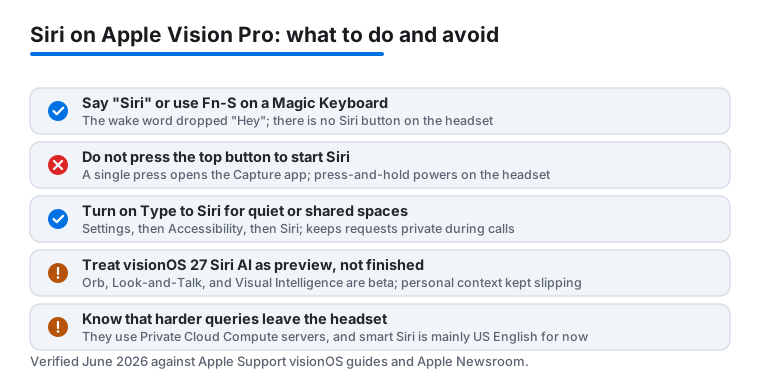
Practical tips we wish we had known sooner
A few small habits made Siri noticeably more pleasant to live with. First, slow down just slightly and finish your thought before pausing. Siri sometimes cuts in early when it hears a gap, so a steady cadence got us fewer half-heard requests. Second, use names it already knows. If you label your lights and rooms clearly in the Home app, commands like "turn off the kitchen" just work instead of needing a fight.
We also got real mileage out of stacking requests into one breath, like "set a ten minute timer and remind me to email Dana." In a quiet room, turning on Type to Siri was a lifesaver when we did not want to talk out loud, and it kept things private during a call. You enable it in Settings under Accessibility, then Siri, then Type to Siri, after which a text field shows up when you start a request. If a request keeps failing, check that the relevant app has permission, because nine times out of ten that was our problem, not Siri being stubborn.
One cost-and-privacy note worth keeping in mind: the harder questions, the ones that go beyond timers and home control, get handed off to Apple's servers through Private Cloud Compute. Apple says that data is used only to answer your request and is not stored, and outside researchers can inspect the server code. That is a stronger privacy stance than most assistants, but it still means some requests leave the headset, so it is not all happening locally.
Where it still stumbles
We want to be fair here, because Siri is not flawless and it would be silly to pretend otherwise. The most common frustration was rhythm. If you pause to think mid sentence, it sometimes decides you are finished and runs off with half a command. We learned to plan the sentence before speaking, which helped, but it should not be necessary.
Context memory is the other soft spot. Ask a follow up like "what about tomorrow" and Siri does not always hold onto what you were just talking about, so you end up repeating the whole request. This is exactly the gap the new Siri AI is meant to close, and it is also exactly the part Apple kept delaying through 2025 and 2026, so do not buy a headset today expecting a smooth back-and-forth on shipping software. Anything that needs a longer conversation still feels shallow compared to a dedicated chat tool.
And a practical reality of the headset: talking to your glasses in a shared space or on a train can feel awkward, which is exactly why we kept Type to Siri close at hand. There is also the cost of admission, since this all assumes you own a Vision Pro, which is not a casual purchase, and the smartest features assume a recent enough device for Apple Intelligence and a supported language. None of this is a dealbreaker, but it is worth knowing before you expect a perfect conversation partner.
Good alternatives and companions
Siri does not have to do everything alone, and pairing it with the right apps covered most of its blind spots. For smart home control we leaned on the manufacturer apps alongside it, and for the moments Siri felt thin we kept a couple of options open.
- The Home app: the backbone for any voice based smart home routine, and the more you set up here, the smarter Siri sounds.
- A dedicated browser: for real research and reading we reached for something built for it, and our notes on customizing Microsoft Edge cover that nicely.
- Carrier and security apps: for account tasks Siri cannot touch, like usage and billing, the Verizon app and its security tools handled what voice could not.
If you are still mapping out which utilities are worth your time, our best utilities apps for Vision Pro roundup is a good next stop, and the broader utilities hub has picks for iPhone, iPad, and Mac too. Treat Siri as the quick, hands free layer on top of all of them, and the whole setup gets a lot more comfortable.
FAQ
Do I need to download Siri on Vision Pro?
No. Siri comes built into visionOS, so there is nothing to install. You only need to open Settings, go to Apps then Siri, and make sure "Listen for" and your app permissions are switched on.
How do I trigger Siri on the headset without talking?
The top button does not start Siri, it opens the Capture app, so ignore older guides that say otherwise. If you have a Magic Keyboard connected you can press Fn-S, and you can also turn on Type to Siri in Settings under Accessibility then Siri. We found that combination handy in quiet rooms or shared spaces where speaking out loud felt awkward.
Is the new visual, eye-tracked Siri available right now?
Not fully. The orb you can place in the room, Look-and-Talk activation, and Visual Intelligence are part of Siri AI in visionOS 27, which was a developer preview in June 2026 and ships as a public beta later in the year. The deeper personal-context features have been delayed more than once, so treat them as coming rather than finished.
Does Siri sync between my Vision Pro and iPhone?
Yes, as long as both devices are signed into the same Apple Account. Reminders, messages, and smart home commands carried over cleanly for us, and the new dedicated Siri app in visionOS 27 is meant to let you start a conversation on one device and pick it up on the other.
Why does Siri keep cutting me off mid sentence?
It usually mistakes a thinking pause for the end of your request. We had the best luck planning the sentence first and keeping a steady pace, or typing the request with Type to Siri when we needed to be precise.