
iPhone Screen Mirroring to TV Not Working: How to Fix It
You tap the screen mirroring button, you wait, and nothing happens. Either the TV does not show up at all, or it appears, you pick it, and the connection just spins or drops. This is one of those problems where the fix is usually small, but you have to check things in the right order or you waste an hour. Below is the order I actually use, starting with the cause that trips up most people and ending with the one case where there is no fix because the TV simply does not support what you are asking it to do.
First, know what you are actually trying to do
There are two different things people call "mirroring," and they fail for different reasons.
Screen Mirroring shows your entire iPhone screen on the TV, live. Whatever you see on the phone shows up on the big screen, including the Home Screen, Settings, photos, and any app. You start it from Control Center by tapping the Screen Mirroring button (the two overlapping rectangles).
AirPlay from inside one app sends just that app's video or audio to the TV. In the Apple TV app, YouTube, or many streaming apps you tap the AirPlay icon and the phone keeps doing its own thing while the video plays on the TV. This often works even when full Screen Mirroring does not, because it uses a slightly different path.
Why this matters: if a streaming app like Netflix refuses to mirror, that is sometimes the app blocking it on purpose, not a broken connection. Try the app's own AirPlay button instead. And if full mirroring is glitchy but you only wanted to watch one video, the in-app AirPlay button may be all you need.
Same Wi-Fi network, and watch the band trap
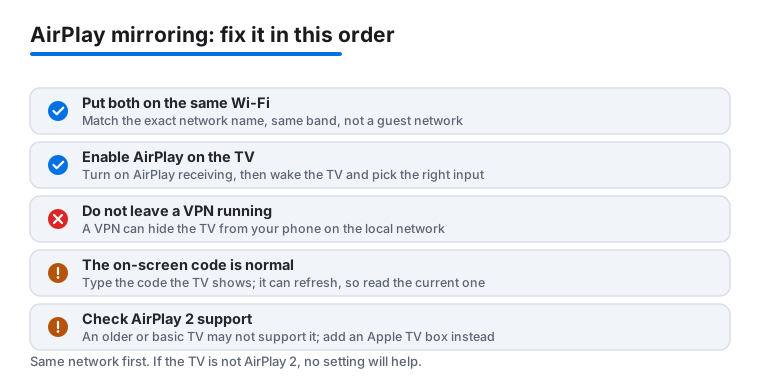
This is the number one cause. AirPlay needs your iPhone and the TV on the same Wi-Fi network. Sounds obvious, but it fails in ways that are easy to miss.
On the iPhone, open Settings, tap Wi-Fi, and note the network name. Then check the TV's network name in its own settings. They must match exactly.
The sneaky part is the band split. Many routers broadcast a 2.4GHz and a 5GHz network. If they have different names, your iPhone might be on the 5GHz one while the TV is stuck on 2.4GHz, and to AirPlay those look like two separate networks even though they come from the same box. Either join the iPhone to whichever band the TV uses, or log in to your router and give both bands the same name so they act as one network.
The other trap is a guest network. Guest networks usually isolate devices from each other on purpose, so the phone literally cannot see the TV. If your home Wi-Fi has a "Guest" option and either device is on it, move both onto the main network. The same goes for some public, hotel, or office Wi-Fi, where this isolation is built in and you cannot turn it off.
Turn AirPlay receiving on and check Continuity
If the TV is an Apple TV or a smart TV running the Apple TV experience, AirPlay can be switched off in its settings, and then it will never appear as an option on your phone.
On an Apple TV, open Settings, go to AirPlay and HomeKit, and make sure AirPlay is On. On a smart TV, the wording varies by brand, but look for an AirPlay or "Apple AirPlay" setting in the TV's general or connection menu and confirm it is enabled.
On the iPhone side, the relevant setting lives at Settings, then General, then AirPlay and Continuity. This controls automatic AirPlay behavior and Handoff. If you have been turning things off to save battery, this is worth a look. If you are trying to mirror from a Mac instead, the matching setting is under System Settings, then General, then AirDrop and Handoff.
Wake the TV and bring the devices close
An Apple TV that has gone to sleep, or a smart TV on a different input, sometimes drops off the network enough that it stops advertising itself for AirPlay. Pick up the TV remote and wake the screen. Switch the TV to the right input. Give it a few seconds, then check Control Center on your iPhone again.
Distance and walls matter too. AirPlay works over Wi-Fi, so a weak signal in the room where the TV sits can make the connection appear and then fail. The 5GHz band is faster but does not pass through walls as well as 2.4GHz, so if the TV is far from the router, the slower band can actually be the more reliable choice. Get the phone in the same room as the TV while you are troubleshooting so you can rule signal strength out.
The AirPlay code prompt, and why it is normal
When you connect for the first time, or after certain settings, the TV shows a four-digit code on screen and the iPhone asks you to type it in. This is not a malfunction. It is the TV confirming you are really in the room and allowed to connect.
If you never see the code, or the phone never asks for one and the connection just fails, the requirement might be set in a way that is blocking you. On an Apple TV, go to Settings, then AirPlay and HomeKit, then Allow Access (or the equivalent password setting), and choose something simpler like "Anyone on the Same Network" while you test. If a code does appear but the phone will not accept it, make sure you are reading the current code, because it can refresh, and type it again.
If you share the TV with family or housemates, leaving it on "Everyone" or requiring a one-time code is the safer setting long term, so people walking by cannot hijack the screen. Loosen it only while you are diagnosing, then put it back.
VPN, firewalls, and content blockers
A VPN running on your iPhone can break local discovery, because it routes your traffic somewhere else and the phone can no longer find a device sitting right next to it on the LAN. Open your VPN app and turn it off, or toggle it off under Settings, then General, then VPN and Device Management, then try mirroring again.
The same idea applies on the network side. Some routers, mesh systems, and security software have features with names like AP isolation, client isolation, or device-to-device blocking that stop gadgets on the same Wi-Fi from talking to each other. If you recently changed router settings or added a security app and AirPlay died at the same time, that is your suspect. Look for an isolation setting in the router admin page and turn it off. Built-in content or screen-time restrictions on the iPhone can also hide AirPlay, so if the button is missing entirely, check Settings, then Screen Time, then Content and Privacy Restrictions.
Restart both, then update both
If everything above checks out and it still will not connect, do the boring step that actually fixes a lot of cases. Restart the iPhone and restart the TV. For the TV, do a real power-off, and for many smart TVs that means unplugging it from the wall for about thirty seconds, not just using the remote, because the remote only puts it to sleep. Restart the router too while you are at it.
Then check for software updates on both ends. On the iPhone, that is Settings, then General, then Software Update. On an Apple TV, it is Settings, then System, then Software Updates. Here is the honest catch: updates cut both ways. Most of the time a newer version fixes AirPlay bugs, but now and then an iOS or tvOS update has temporarily broken AirPlay with older Apple TVs or third-party receivers until a follow-up patch landed. If mirroring stopped working right after you updated and nothing else changed, you may be waiting on Apple or the TV maker for a fix rather than doing anything wrong. Search the exact version number plus "AirPlay" to see if others hit the same wall.
When the TV just does not support it
Sometimes the reason nothing works is the simplest one. The TV does not do AirPlay at all, or it only does a limited version.
Plenty of smart TVs from Samsung, LG, Sony, and Vizio, plus Fire TV and Roku models, support AirPlay 2, but not every single set does, and older models often do not. "AirPlay 2" is the standard that lets your iPhone find the TV and stream or mirror to it. If your TV is not on the maker's AirPlay 2 list, no amount of Wi-Fi fiddling will make the mirroring button connect to it.
You have two honest options. Check your TV brand's support page for its list of AirPlay 2 models to confirm whether yours qualifies. If it does not, the reliable fix is to add a device that does support AirPlay, such as an Apple TV box plugged into the TV's HDMI port. Then you mirror to the Apple TV, and the TV just shows whatever is on that HDMI input. A cheap HDMI adapter from the iPhone to the TV is the wired fallback if you would rather not buy a streaming box, though that ties you to a cable.
FAQ
Why does my TV not show up in Screen Mirroring at all?
Usually one of three things. The TV is on a different Wi-Fi network or band than your iPhone, AirPlay is switched off in the TV's settings, or the TV does not support AirPlay 2 in the first place. Confirm both devices are on the same named network, enable AirPlay on the TV, and check that your TV model is on its maker's AirPlay 2 list.
Why can I stream a video but not mirror my whole screen?
In-app AirPlay and full Screen Mirroring use slightly different paths, and full mirroring is more sensitive to weak Wi-Fi. Some streaming apps also block full mirroring on purpose to protect their content. Move closer to the router, restart both devices, and if you only wanted to watch one video, just use the AirPlay button inside that app.
Does a VPN really stop AirPlay?
It can. A VPN reroutes your phone's traffic, which can stop it from finding a device on your local network. Turn the VPN off, try mirroring, and turn it back on afterward. If it works only with the VPN off, that was the cause.
The TV asks for a code. Where do I find it?
The code appears on the TV screen itself when you start the connection, and you type it into the prompt on your iPhone. It can refresh, so read the current one. If you would rather not enter a code every time, an Apple TV lets you change the access setting under Settings, then AirPlay and HomeKit, though leaving some protection on is safer in a shared home.
Do I need 5GHz Wi-Fi for screen mirroring?
No. AirPlay works on both 2.4GHz and 5GHz. The 5GHz band is faster but does not travel through walls as well, so if your TV is far from the router the 2.4GHz band can be steadier. The real rule is that the iPhone and TV must be on the same network, whichever band that is.
Mirroring broke right after an iOS update. What now?
First redo the basics, restart both devices and confirm the Wi-Fi network. If it still fails and nothing else changed, an update sometimes temporarily breaks AirPlay with older or third-party receivers until a follow-up patch ships. Make sure both the iPhone and the TV are fully updated, then search the exact version number with "AirPlay" to see if a known issue and fix are being reported.