
How to Set Up Call Screening and Hold Assist on iPhone
iOS 26 gave the Phone app two features that change how you deal with calls you did not ask for. Call Screening answers unknown numbers for you, asks who is calling and why, and shows a live transcript so you can decide whether to pick up. Hold Assist waits through hold music so you can put the phone down. Neither is obvious in Settings, and Call Screening has a list of conditions that can stop it from triggering at all. This guide covers turning both on, what they look like in real use, the fixes when screening stays silent, and the cases where plain old blocking is still the better tool.
Before iOS 26, your only built in defense against unknown numbers was Silence Unknown Callers, a blunt switch that sent everything not in your contacts to voicemail. That killed spam, but it also killed the plumber calling back, the pharmacy, and the delivery driver outside your building.
Call Screening is different in kind. When an unknown number calls, your iPhone answers the call itself, asks the caller for their name and reason for calling, and transcribes the answer in real time. Your phone does not ring until the caller has actually responded. You then see who it is and what they want, and you choose to answer, decline, or ask a follow up question, without saying a word yourself.
Two details worth knowing up front. It all runs on device, so screening works with no data connection and no audio goes to Apple. And robocallers usually cannot handle the prompt and hang up, so a large share of junk calls end before your phone ever makes a sound, leaving only a line in Recents.
The setting lives in the Phone app's settings page, not in a top level menu:
- Open Settings, scroll down and tap Apps, then tap Phone.
- Tap Screen Unknown Callers.
- Select Ask Reason for Calling.
That is the entire setup, no carrier app, no per number configuration. Note what counts as unknown: a number that is not in your contacts and that you have not recently called yourself. If you dial a business and they ring back shortly after, that call comes through normally. Contacts, numbers you recently called, and Siri suggested numbers from your email and messages also skip screening, which is why it misfires less often than people expect.
If Screen Unknown Callers shows no Ask Reason for Calling option, or the whole section is missing, jump to the troubleshooting section below, it is almost always a language, region, or update issue rather than a missing feature.
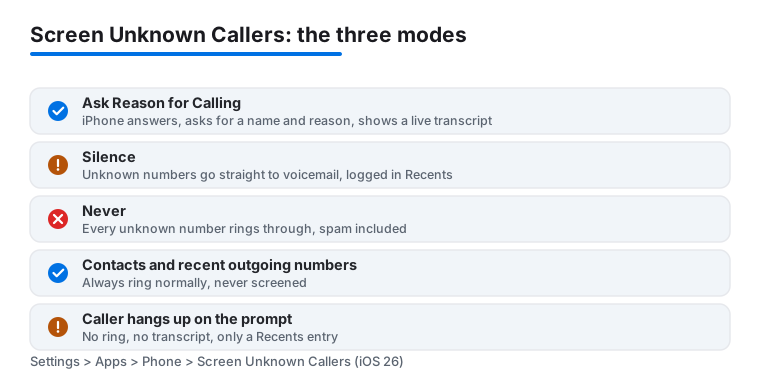
The Screen Unknown Callers screen offers three modes, and the names undersell how different they are.
Never is the pre iOS 26 default. Every call rings through, spam included. Choose this only if a third party screening app or your carrier's filter already owns the job.
Silence is the old Silence Unknown Callers behavior under a new name. Unknown numbers never ring, they go to voicemail and appear in Recents. It is the strictest option and costs the most missed legitimate calls, though with Live Voicemail on you can watch the transcript as a message is left and pick up mid message if it matters.
Ask Reason for Calling is the actual Call Screening feature and the mode most people should run. Real humans with a real reason get through after a ten second detour, machines mostly do not. The tradeoff: some callers, especially older relatives ringing from a new number, get confused by a phone that talks back and hang up. If you get nothing but junk from unknown numbers, Silence may serve you better.
When a screened call comes in, the iPhone answers silently, plays the prompt, and waits. Once the caller responds, your phone rings and the screen shows their transcribed answer, updating live as they speak.
You can accept, decline, or respond without picking up, using suggested quick replies or a typed message that the phone reads to the caller. That last option is genuinely useful when you are in a meeting and the transcript says it is the garage about your car.
If the caller says nothing or hangs up, the call ends without ringing and gets logged in Recents. Check Recents for the first week you run screening, and if a legitimate number got caught, add it to Contacts so it rings normally from then on.
Hold Assist is the second half of the iOS 26 Phone update, and it is for calls you actually want to be on, the bank, the airline, any support line that parks you in a queue. Detection is on by default after updating, but confirm it, because if the toggle is off you will never see the automatic prompt:
- Open Settings, tap Apps, then tap Phone.
- Find Hold Assist Detection and make sure it is switched on.
With detection on, the Phone app listens for hold music during your calls. After roughly ten to fifteen seconds of it, a prompt appears asking whether you want to hold the call. Nothing is configured per call and no carrier feature is involved. It works on any iPhone that runs iOS 26, meaning iPhone 11 and later plus the second generation iPhone SE and later.
There are two ways in. Automatic: when the hold music starts, wait for the on screen prompt and tap Hold. Manual, for when you dismissed the prompt or detection never fired: on the in call screen, tap the More button (the three dots), then tap Hold Assist.
Once it is running you can leave the Phone app entirely. On iPhones with the Dynamic Island the hold shows as a Live Activity, on older models you get the green call indicator in the corner. Your iPhone keeps the line open and stays muted on your end so the queue system does not hear your kitchen.
When a live person picks up, you get a notification with sound and vibration, plus a transcript of what the agent said while you were away. Tap it and you are back on the call. Hold Assist also tells the agent you are on your way, which buys you the seconds it takes to grab the phone.
Three caveats from real use. If your phone is on silent or a Focus is filtering notifications, you can miss the pickup alert, so check the ringer before you walk away. The line stays active, so a forty minute hold uses forty minutes of call time. And detection keys off hold music, so queues that loop spoken announcements, or music with prominent lyrics, can trigger the agent alert early or never offer the prompt, which is when the manual route earns its keep.
The most common complaint is not bad transcripts, it is calls sailing straight through or dropping to voicemail with no screening step. Work through these in order:
- Confirm the mode. Settings, Apps, Phone, Screen Unknown Callers must say Ask Reason for Calling. Silence looks similar in the list but never screens anything.
- Restart the phone. After updating, the option or the behavior often does not appear until a reboot. This fixes a surprising share of cases.
- Check Language and Region. Screening supports a fixed set of languages, including English, French, German, Spanish, Portuguese, Japanese, Korean, Mandarin, and Cantonese, and availability varies by region. An unsupported combination hides or disables the feature.
- Turn off Low Power Mode. Users have consistently reported that Ask Reason for Calling stops intercepting calls while Low Power Mode is on and resumes when it is off.
- Disable third party caller ID apps. Go to Settings, Apps, Phone, Call Blocking & Identification and switch off spam filter apps. When one of these intercepts a call first, Apple's screening can be skipped. Pick one system and let it own the job.
- Remember the exemptions. Contacts, numbers you recently dialed, and Siri suggestions are never screened by design. If your test call comes from a second phone you called yesterday, it rings straight through and nothing is broken.
Screening is a filter, not a wall. The same spam operation can call from a fresh number every day, and each call gets its ten second interview. If a specific number keeps coming back, block it from Recents, and if you get waves of junk, layer carrier filtering on top. The full toolkit is covered in our guide to blocking spam calls on iPhone, and the combined call plus SMS strategy lives in how to stop spam calls and texts.
Screening also cannot protect you from calls you answer willingly. A transcript claiming Apple support is calling about suspicious account activity is a scam script, not a reason to pick up, Apple does not cold call you. The same pattern shows up over SMS, covered in how to spot fake Apple scam texts. Screening buys you a moment to think, use it.
Live Voicemail, on by default since iOS 17, gives you a live transcript when a screened or silenced caller leaves a message, so leave it on. If you rely on Hold Assist, allow the Phone app Time Sensitive notifications in your work Focus, or the agent pickup alert can sit unseen until the agent gives up. And if you take iPhone calls on a Mac, the Phone app in macOS Tahoe carries Call Screening and Hold Assist too, with calls relayed from your nearby iPhone, so the same filtering follows you to the desk.