
iCloud Storage Full: Clean Up or Pay for iCloud Plus
That little "iCloud storage is full" banner shows up at the worst moments, usually right when your phone is trying to back itself up overnight. The good news: you almost never need to panic, and you often do not need to pay. In the next few minutes you can see exactly what is eating your space, clear out the stuff you forgot about, and decide calmly whether a paid plan makes sense for you. Apple gives every Apple Account 5GB free, and that fills up fast for one simple reason: it has to hold your phone's entire backup, all your synced photos, and your files at the same time. Let's walk through it together.
Why 5GB disappears almost immediately
Five gigabytes sounds like a lot until you see what has to fit inside it. Apple has handed out the same 5GB free since 2011, while a single modern iPhone backup plus a year of photos can easily run past that on its own. Three things share that small space, and any one of them can fill it.
The first is your device backup. A backup is a nightly snapshot of your phone so you can restore everything if it is lost or replaced. The second is iCloud Photos, which keeps every photo and video in sync across your devices. The third is iCloud Drive, where files from apps quietly pile up. Add iCloud Mail (your @icloud.com inbox), Messages in iCloud, and voice memos, and 5GB is gone. A worked example: a 64GB iPhone with 4,000 photos might need 2GB just for the backup and another 6GB for photos. That already overshoots the free tier before you have saved a single document.
See exactly what is using your space
Before deleting anything, look at the breakdown. Guessing leads to deleting the wrong things.
On iPhone or iPad: open Settings > [your name] > iCloud > Manage Account Storage (on slightly older software it reads Manage Storage). You will see a colored bar at the top and a list underneath, sorted biggest first. Usually Photos and Backups sit right at the top.
On a Mac: open the Apple menu, choose System Settings > [your name] > iCloud, then click Manage next to the storage bar. Same list, same order.
Spend thirty seconds reading that list. It tells you where the real weight is, so you only clean what matters instead of deleting precious photos by reflex. Apple's own walkthrough lives at Manage your iCloud storage if you want it open in another tab while you work.
What actually counts against your storage (and what does not)
This trips people up constantly, so here is the honest picture. Your quota is shared by: device backups, iCloud Photos, iCloud Drive files, iCloud Mail and its attachments, Messages in iCloud, and any app that syncs its own data.
A few things do not count, which is a relief. Anything you bought from Apple (apps, music, movies, TV shows) does not use your iCloud storage. Shared Albums in Photos are free and do not touch your quota. So is content stored in My Photo Stream on older setups. If you are weighing privacy alongside storage, the paid features Apple bundles in are worth a look, and our roundup of the best security and privacy apps for iPhone covers tools that work nicely alongside them.
One common mistake: people delete apps from their Home Screen hoping to free iCloud space. That frees space on the device, not in iCloud. The two are separate, which is the next thing to understand.
iCloud storage is not the same as iPhone storage
These two are easy to confuse because both can fill up and both nag you. Here is the plain difference. iPhone storage is the physical space inside the phone, the 128GB or 256GB you paid for. You manage it at Settings > General > iPhone Storage. iCloud storage is space on Apple's servers, the 5GB you got free. You manage it at Settings > [your name] > iCloud.
Deleting a big game frees room on the phone but does nothing for iCloud. Deleting an old backup frees iCloud but nothing on the phone. When a message says "iCloud storage" specifically, work in the iCloud screens below, not the General one. Knowing which screen you are on saves a lot of wasted effort.
Trim your backups, the fastest win
Backups are where most people find their biggest, easiest savings, especially if you have owned more than one iPhone or iPad. Old devices often leave backups behind that you will never restore.
- Go to Settings > [your name] > iCloud > Manage Account Storage > Backups.
- You will see a backup for each device tied to your account. Tap any device you no longer own.
- Tap Turn Off and Delete from iCloud and confirm. That backup is gone and its space is yours again.
For the phone you do use, you can shrink the backup without deleting it. Tap your current device in that same Backups list and you will see apps ranked by how much backup space they take. Switch off the ones with their own cloud (Dropbox, Google Drive, OneDrive) plus heavy ones like podcast or audiobook apps, then tap Turn Off to confirm. Those apps keep your data in their own clouds, so you are not losing anything important. A real example: turning off backup for a podcast app holding 30 downloaded episodes can claw back 1GB to 2GB instantly. One caution: do not switch off backup for apps that store data only on the device, such as some journaling or notes apps, or you could lose that data if the phone dies.
Tame your photo library
Photos are usually the other giant on the list. The aim here is not to lose memories, just to clear the obvious clutter: screenshots, duplicates, blurry shots, and long videos you no longer need.
Important to know first: when iCloud Photos is on, deleting a photo on one device deletes it everywhere you are signed in with the same Apple Account. So if a photo truly matters, save a copy somewhere else before removing it. To delete on iPhone: open Photos, tap Select, tap the photos you want gone, then tap the trash icon and confirm. Apple spells out the steps and the cross-device behavior in Delete photos on your iPhone or iPad.
Here is the part people miss. Deleted photos sit in Recently Deleted for 30 days, and during those 30 days they still count against your storage. To get the space back now, open Photos, tap Collections at the bottom, swipe up, and tap Recently Deleted under Utilities. Open it with Face ID or Touch ID, tap Select, then the More (...) button, and choose Delete or Delete All. Now the space is freed. If you would rather keep every photo but lighten the phone itself, turn on Settings > [your name] > iCloud > Photos > Optimize iPhone Storage, which keeps full versions in iCloud and smaller copies on the device. Note that this helps the phone, not your iCloud quota. Apple's guide to managing photo and video storage explains the difference in plain terms. For editing and organizing what you keep, our list of the best photo and video apps for iPhone can help you tidy before you delete.
Clear out iCloud Drive and Mail
These two are smaller but worth a sweep, and they are often full of things you forgot existed. iCloud Drive collects PDFs, downloads, and documents from apps over the years.
To clean Drive on iPhone or iPad: open the Files app, tap Browse, choose iCloud Drive, then sort by size and delete what you do not need. On a Mac, open Finder, click iCloud Drive in the sidebar, and do the same. Deleted files go to a recently deleted area for 30 days here too, so empty that if you want the space straight away.
For iCloud Mail, big attachments are the usual culprit. In the Mail app, search your inbox, sort by largest, and clear out old newsletters and big attachments, then empty the Trash folder so it actually leaves your account. If you rely on cloud files for work, a free Google Drive account pairs well as overflow, and our guide to using the Drive app on iPad for teams shows how to keep shared files out of your iCloud quota entirely.
The honest cost of iCloud Plus in 2026
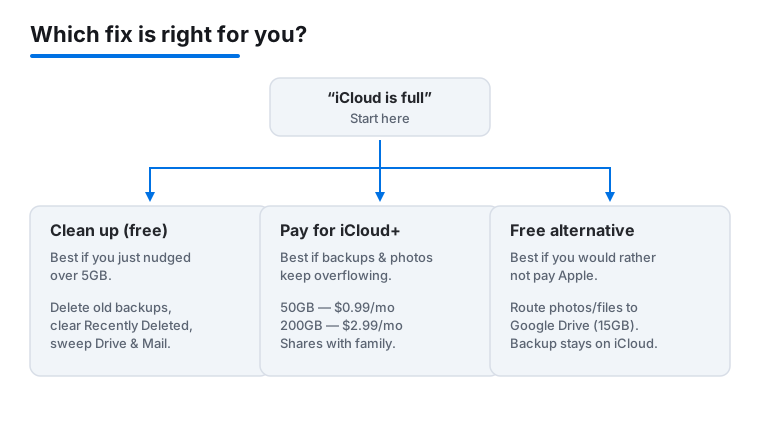
Sometimes cleaning is not enough, and that is fine. If you shoot a lot of photos or video, paying is often cheaper than your time. The paid service is called iCloud+, and as of 2026 the US prices are: 50GB for $0.99 a month, 200GB for $2.99, 2TB for $9.99, 6TB for $29.99, and 12TB for $59.99. There is no annual discount; it is billed monthly. To subscribe, go to Settings > [your name] > iCloud > Manage Account Storage > Change Storage Plan (or Upgrade to iCloud+) and pick a tier. Apple lists every current tier and feature on its iCloud+ plans and pricing page, which is the place to double-check prices for your country.
Plain advice: the 50GB tier at under a dollar a month is the right call for most people who just want their backup and photos to stop complaining. Step up to 200GB if you take a lot of video, and that tier shares comfortably across a family. Only go to 2TB and beyond if you are storing a serious photo or video archive. Every paid tier adds genuinely useful privacy extras at no extra cost: iCloud Private Relay (hides your browsing from networks and sites), Hide My Email (creates throwaway addresses that forward to you), and a Custom Email Domain. The 50GB plan also covers one HomeKit Secure Video camera, 200GB covers up to five, and 2TB and up cover unlimited cameras. You can share any paid plan with up to five other family members through Family Sharing, so one 200GB plan can cover a whole household.
Free alternatives if you would rather not pay Apple
You are not locked in. Other clouds give you a free tier you can use for files and photo backups, taking pressure off iCloud. The catch is that none replace your device backup, which only iCloud does automatically over the air; for that, a free option is plugging your iPhone into a Mac or PC and backing up locally through Finder.
For files and photos, the free tiers in 2026 are: Google Drive at 15GB (shared across Gmail, Google Photos, and Drive, so a long-time Gmail user may have less free than they think), Microsoft OneDrive at 5GB, and Dropbox at 2GB. A side-by-side breakdown of the three sits in this Dropbox vs Google Drive vs OneDrive comparison if you want the finer print. Google Drive is the most generous and works well for documents. A sensible setup for a tight budget: keep iCloud on the free 5GB just for your device backup, and route photos and big files to a free Google account. If you go that route, it is worth tightening your account settings too, and our walkthrough of Google app privacy settings on iPhone keeps that data locked down.
A simple cleanup routine to stay ahead of it
Once you are back under the limit, a five-minute habit keeps the banner away for good. You do not need fancy tools, though a couple of the best utilities apps for iPhone can help spot duplicates if you want to go further.
Once a month, do three things. First, open Settings > [your name] > iCloud > Manage Account Storage and glance at the bar to see if anything new is climbing. Second, empty Recently Deleted in Photos so deleted shots actually leave. Third, delete any device backups for phones you no longer own. That is the whole routine. Most people who do this never see the full-storage message again, and the ones who still do usually find the 50GB plan ends the problem for the price of a song.
FAQ
Will I lose my photos if I delete a backup?
No. A device backup and your photo library are separate. Deleting an old backup, especially for a phone you no longer use, does not touch the photos syncing through iCloud Photos. Those only disappear if you delete them in the Photos app itself.
Why is my iCloud full when my phone has plenty of free space?
Because the two are different places. Your phone's storage (Settings > General > iPhone Storage) is the chip inside the device. iCloud storage is space on Apple's servers, and the free tier is only 5GB. Having room on the phone does nothing for iCloud, and the reverse is also true.
What is the cheapest iCloud Plus plan and is it enough?
In 2026 the cheapest paid tier is 50GB for $0.99 a month in the US. For most people who just want their backup and photos to stop overflowing, that is plenty. Move up to 200GB for $2.99 if you shoot a lot of video or want to share storage with family.
Does deleting photos free space right away?
Not immediately. Deleted photos sit in the Recently Deleted album for 30 days and still count against your storage during that time. To reclaim the space now, open Photos, go to Collections, swipe up to Recently Deleted under Utilities, and permanently delete from there.
Can I use Google Drive or Dropbox instead of paying Apple?
Partly. Free accounts like Google Drive (15GB), OneDrive (5GB), and Dropbox (2GB) are great for files and photos, and they take pressure off iCloud. The one thing they cannot do is the automatic over-the-air device backup, which is iCloud only. For a free backup, connect your iPhone to a computer and back up through Finder.
How do I stop iCloud Backup from filling up so fast?
Go to Settings > [your name] > iCloud > Manage Account Storage > Backups, tap your current device, and switch off backup for apps that keep their own cloud copy, such as Dropbox, Google Drive, or podcast apps. They will not lose data, and your nightly backup shrinks. Just avoid turning off apps that store data only on the device.