
Why Is My iPhone Storage Full When I Deleted Everything
You cleared out hundreds of photos, deleted apps you never open, and emptied your texts. The storage bar barely moved. It is one of the most frustrating things a phone can do to you, and you are not imagining it. The space is being held by categories you cannot see in your photo roll or app library, mostly the gray bands labeled System Data and Other. Here is what actually lives in there, what genuinely frees it, and the few myths that waste your afternoon. Every path below is written for iOS 26 in 2026; older versions are almost identical, with a note where they differ.
First, look at the real breakdown
Before changing anything, see where the space went. Go to Settings > General > iPhone Storage (on an iPad it reads iPad Storage). Give it a moment. A colored bar appears at the top, and underneath it a list of every app sorted by size.
The bar splits your storage into bands: Apps, Photos, Media, Mail, Messages, iCloud Drive, System Data, and System (the operating system itself). Apple groups Siri voices, fonts, dictionaries, the Spotlight search index, and assorted caches under a label it calls Other. Tap and hold a band, or just read the list, to see what is biggest.
This screen is your map. If your photos are eating 40 GB, no amount of cache clearing helps; you have a photo problem, not a System Data mystery. Sort by the biggest offender first. That one habit saves more time than any trick in this article.
What System Data and Other actually contain
Apple defines Other as the non-removable assets your phone needs to run: Siri voices, fonts, dictionaries, the Spotlight index, plus system pieces like the Keychain (your saved passwords) and the CloudKit database. System Data is the catch-all for caches, logs, and temporary files that build up as you use the phone.
The key word is temporary. When you stream a show or a song, your iPhone saves pieces of it so the next few seconds load instantly. That cache counts as System Data. The same happens when you scroll a busy social feed, open photo-heavy texts, or browse the web. None of it is junk in the moment; it is the phone trying to feel fast.
System Data on a healthy phone usually sits somewhere between 5 GB and 20 GB. If yours has ballooned past that, something is hoarding. The usual suspects, in order, are streaming caches, message attachments, and a single misbehaving app. Apple is clear that the system is supposed to clear these files automatically when space runs low. The honest truth, echoed across Apple's own support forums, is that it does not always do this well, which is why your number keeps climbing. Apple lists the full set of storage categories and what each one holds in its guide to checking iPhone and iPad storage.
Clear the caches that grow the fastest
Two apps generate more cache than anything else: Safari and Messages. In iOS 26 their settings moved out of the old top-level menu and now sit under Settings > Apps, so the paths look slightly different from older guides.
Safari. Go to Settings > Apps > Safari > Clear History and Website Data. Pick a time range, then confirm. This wipes browsing history, cookies, and the cache, but it leaves your saved AutoFill details and passwords alone, as Apple notes in its page on deleting Safari history and cache. If you want to manage those saved logins more carefully while you are in here, our picks for the best security and privacy apps for iPhone are a good next stop. If you would rather keep your history and only dump the cache and cookies, go to Settings > Apps > Safari > Advanced > Website Data > Remove All Website Data instead.
Other apps. Most apps do not give you a clear-cache button. Streaming and social apps are the worst for this. Spotify, Netflix, Instagram, and TikTok all stash gigabytes you cannot see from the storage screen. Some bury a cache control in their own settings (look inside the app, not the phone's Settings), but many do not. For those, the offload trick in the next section is the cleanest fix.
On iOS versions before 26, the same options live at Settings > Safari. If you do not see an Apps section, that is why.
Tame message attachments, the quiet space eater
Every photo, video, voice memo, and meme anyone has ever sent you in Messages is stored on your phone, often forever. On a chatty group thread this adds up to many gigabytes without you noticing.
Two things help. First, set messages to expire. Go to Settings > Apps > Messages > Keep Messages and change it from Forever to 1 Year or 30 Days. One catch worth knowing: this deletes the text of old conversations too, not just the attachments. If your old chats matter to you, choose 1 Year rather than 30 Days. Apple walks through both message expiry and manual removal in its Messages support guide.
Second, delete the big files directly. From Settings > General > iPhone Storage, tap Messages, then look for Review Large Attachments. It lists your bulkiest videos and photos by size. Swipe left on the giant ones and delete. A worked example: a friend's storage screen showed Messages at 14 GB. Review Large Attachments turned up eleven videos from an old group chat totaling 9 GB. Two minutes of swiping got almost all of it back.
Offload apps instead of deleting them
This is the trick most people miss. When an app hoards cache that you cannot reach, offloading clears it without losing your data. The difference matters:
- Offload removes the app's program files but keeps its documents and settings. Reinstall later and you pick up exactly where you left off. Your bloated cache, though, does not come back.
- Delete removes the app and most of its local data. You reclaim more space, but you start fresh on reinstall unless the app syncs to the cloud.
To offload one app, go to Settings > General > iPhone Storage, tap the app, then tap Offload App. The fastest way to shrink a stubborn streaming or social app is to offload it and reinstall it from the App Store; you keep your login and settings but shed the accumulated junk.
To let the phone do this automatically for apps you ignore, go to Settings > App Store and turn on Offload Unused Apps. Offloaded apps stay on your Home Screen with a small cloud icon and tap to reinstall.
Restart, then give it a day
Some of System Data is files the phone wants to clear but cannot while it is running. A simple restart often releases a chunk of it. Hold the side button and a volume button until the power slider appears, slide to turn off, wait ten seconds, then turn it back on.
Here is the part nobody tells you: storage numbers on iPhone are slow to update. After you delete attachments or offload apps, the bar can take minutes to hours to reflect the change, and System Data sometimes only shrinks the next time the phone is locked, charging, and idle overnight. If you cleared real space and the number looks unchanged, plug in, lock the screen, and check again in the morning before you panic. This single misread sends a lot of people down a rabbit hole chasing space they already freed.
The reserved-update space surprise in iOS 26
If you are running iOS 26 and System Data looks oddly inflated, part of it may be space the system has quietly set aside to install future updates. Apple reserves a buffer so an update never fails halfway for lack of room. It releases this space on its own when the update installs or when you genuinely need the room.
You usually should not fight this; it is the phone protecting itself. But if you are desperate for a few gigabytes today, you can turn off automatic updates at Settings > General > Software Update > Automatic Updates and toggle off Download and Install, then restart. Treat this as temporary. Leaving updates off long term means missing security fixes, so turn it back on once you have sorted your storage.
The last resort that actually shrinks System Data
When System Data is stuck at 30, 50, or 80 GB and nothing above touches it, one method reliably works: back up, erase, and restore. Erasing forces the phone to rebuild its storage index from nothing, sweeping out corrupted and stale temporary files it otherwise refuses to delete.
Do it in this order:
- Make a fresh backup. The easiest is Settings > [your name] > iCloud > iCloud Backup > Back Up Now. If you are short on iCloud space, plug into a Mac and back up in Finder instead, which is free.
- Confirm the backup finished and check its date before going further.
- Go to Settings > General > Transfer or Reset iPhone > Erase All Content and Settings.
- When the phone restarts, choose Restore from iCloud Backup (or from your computer).
One important distinction. Restoring from a backup brings your apps and data back in a cleaned-up state, because the system rebuilds the index during the restore. Setting up as new produces the absolute smallest System Data possible but leaves you with nothing, rebuilding from scratch. For most people, restore from backup is the right call. Choose set-up-as-new only if you suspect a deeply broken backup. Either way, set aside an hour and keep the phone on Wi-Fi and charging throughout. Apple's restore-from-backup instructions cover the exact prompts you will see. If your photos turn out to be the real culprit before you get this far, our roundup of the best photo and video apps for iPad includes tools for thinning a bloated library on a bigger screen.
What does not work, and what to skip
A few popular fixes are a waste of time, and one category is worth avoiding outright.
Third-party cleaner apps. Any app promising to clear system junk, free RAM, or cool your phone is overstating what iOS allows. Because the system sandboxes every app, a cleaner cannot reach another app's cache or any system files. It can find duplicate photos and large videos, which the built-in storage screen already shows you for free. Many of these apps lean on alarming claims to push expensive subscriptions. Apple's own guidance is to use the storage tools built into Settings instead. For a deeper, vendor-independent look at what System Data really holds and why it grows, Macworld's explainer on Other storage is a clear read.
Force-quitting apps to save storage. Swiping apps out of the App Switcher closes them from memory; it does nothing for storage and can actually make the phone slower, since it has to cold-launch everything again.
Deleting and reinstalling iOS itself. There is no button for this, and you do not need one. The erase-and-restore above is the supported version.
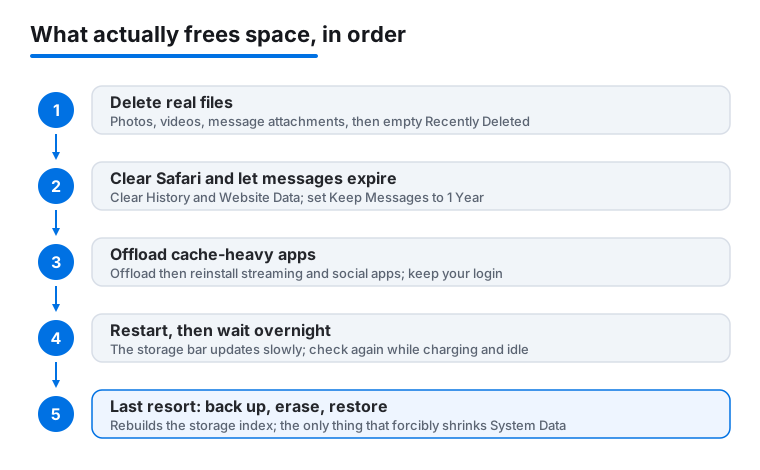
What genuinely frees space, in plain terms: deleting real files (photos, videos, attachments), offloading or reinstalling cache-heavy apps, clearing Safari, letting messages expire, and the full erase-and-restore as a last resort. Everything else is noise. If your goal was really to clean house, our guide to the best utilities apps for iPhone covers the legitimate file-management tools, and the best photo and video apps for iPhone can help you find and remove duplicate shots, usually the single biggest drain after System Data.
FAQ
Why did my storage barely change after I deleted hundreds of photos?
Two reasons. Deleted photos sit in a Recently Deleted album for up to 30 days and still count against your storage until you empty it. Open Photos, go to the Recently Deleted album, and choose Delete All. Also, the storage bar updates slowly, so give it a few hours, ideally overnight while charging, before judging the result.
Is it safe to clear System Data myself?
You cannot delete System Data directly, and that is by design; it holds things your phone needs. What you can safely do is clear the caches that feed it, by clearing Safari data, offloading heavy apps, and letting messages expire. Those are all reversible and harmless. The only way to forcibly shrink the whole category is the back-up, erase, and restore method, which is also officially supported.
What is the difference between offloading and deleting an app?
Offloading removes the app's program files but keeps your documents and settings, so reinstalling restores everything as it was. Deleting removes the app and most of its local data, freeing more space but starting you fresh unless the app syncs to the cloud. To shed a bloated cache while keeping your login, offload the app and reinstall it.
Will buying more iCloud storage free up space on my iPhone?
Not on its own. iCloud is separate from your device storage. But turning on iCloud Photos and choosing Optimize iPhone Storage at Settings > [your name] > iCloud > Photos lets the phone keep smaller versions locally while full-resolution copies live in iCloud. That genuinely frees on-device space if photos are your problem. iCloud plans in the US start at 99 cents a month for 50 GB.
Do cleaner apps from the App Store actually help with System Data?
No. Because iOS keeps every app walled off from the rest of the system, a cleaner app cannot reach other apps' caches or any system files. At best it finds duplicate photos and large videos, which Settings > General > iPhone Storage already shows you for free. Be wary of any app advertising system-junk cleaning, which usually exists to sell a subscription.
How much free space should I keep on my iPhone?
Aim to keep at least 10 percent free, and ideally a few gigabytes more. The phone needs working room to install updates, cache streams, and edit photos. When free space drops near zero, performance suffers and apps can crash. If you are always at the edge, the erase-and-restore reset plus offloading unused apps will give you the most lasting breathing room.