
How to Transfer Your eSIM to a New iPhone and Fix a Stuck Transfer
Every US iPhone sold since the iPhone 14 is eSIM only, so there is no SIM tray to swap and your number has to move digitally. Usually that takes two minutes during setup. When it does not, you get a new iPhone with all your data and no cellular service, the most common place upgrades get stuck. Here are the three transfer paths Apple supports in the iOS 26 era, why transfers hang, the Airplane Mode and line toggle fixes that clear most stalls, and the two numbers to have ready before you call your carrier.
An eSIM transfer moves your cellular plan, meaning your number and the carrier profile behind it, from the old iPhone to the new one. The moment it activates on the new phone it deactivates on the old one, so expect a few minutes without calls or texts.
This is separate from moving apps, photos and settings, which we cover in our guide to transferring everything to a new iPhone; this article picks up the one step that guide does not, the cellular line itself.
Two rules first. Never delete the eSIM from your old iPhone to "free it up"; deleting a profile does not release the number and can strand the line. And keep the old iPhone powered on, unlocked and nearby until the transfer confirms.
This is the path Apple steers you into during a fresh setup, and the one with the highest success rate.
- Power on the new iPhone near your old one with both connected to Wi-Fi and Bluetooth enabled on the old phone.
- Follow Quick Start until the Set Up Cellular or Set Up eSIM screen appears.
- Choose Transfer from Nearby iPhone (or tap your phone number if it is listed directly).
- Confirm the prompt on the old iPhone by tapping Transfer; if a verification code shows on the new phone, enter it on the old one.
- Wait for signal bars on the new iPhone. This can take thirty seconds to several minutes depending on the carrier.
Dual SIM users can select which numbers to move, then check the default line for calls and data afterward in Settings > Cellular. If the Set Up Cellular screen never appeared, or you skipped it, the same transfer is available after setup, which is path 2.
Use this if you finished setup already, restored from a backup, or the setup screen transfer failed and you want to retry.
- On the new iPhone, open Settings > Cellular.
- Tap Set Up Cellular or Add eSIM (the wording depends on whether any line is already active).
- If your number appears in a list of plans from your other devices, tap it. If not, tap Transfer from Nearby iPhone.
- Confirm on the old iPhone when it prompts, entering the verification code if asked.
- When the line shows as active, send a test text and place a call before wiping or trading in the old phone.
The requirements are stricter than they look: both iPhones need Bluetooth on, both should be on Wi-Fi, both must be unlocked and near each other, and your carrier has to support what Apple calls eSIM Quick Transfer. The feature shipped in iOS 16, but carriers expect recent builds, so update both phones first. If Transfer from Nearby iPhone never appears, that is not a bug; your carrier almost certainly does not support direct transfer, which sends you to path 3.
When Quick Transfer is not supported, the carrier issues the eSIM to the new phone itself, in one of three flavors.
QR code. Your carrier emails a QR code or shows one in your account portal. On the new iPhone, go to Settings > Cellular > Add eSIM > Use QR Code and point the camera at it on a computer screen or printout. Treat carrier codes as single use; if a scan fails halfway, do not keep rescanning, ask for a fresh code.
Carrier app. Many carriers, especially prepaid brands and travel eSIM providers, activate through their own app. Install it on the new phone, sign in, and follow the transfer or reissue flow.
eSIM Carrier Activation. Some carriers push the eSIM automatically once the phone is registered to your account, common when you bought it from the carrier. A notification says a cellular plan is ready to install; tap it and follow the prompts.
Coming from a physical SIM in an older iPhone? Check Settings > Cellular on the old phone for a Convert to eSIM option under the line. Converting on the old phone first often smooths the move; if the option is absent, your carrier requires their QR or app flow.
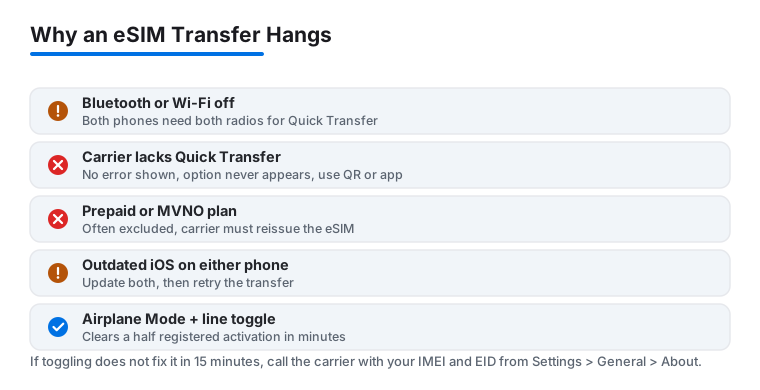
A stalled transfer nearly always traces back to one of five causes.
Bluetooth is off, or the phones are too far apart. Quick Transfer negotiates the handoff over Bluetooth and Wi-Fi. If either radio is off, the old iPhone never receives the confirmation prompt and the new one spins forever on "Transferring." It is the most common cause.
The carrier does not support Quick Transfer. The big three US carriers support it on standard postpaid plans; many MVNOs and international carriers do not, and the phone gives no clear error, it just never shows the option.
Prepaid plans. Even carriers that support Quick Transfer on postpaid often exclude prepaid accounts. If yours fails repeatedly on prepaid, stop retrying and go to the carrier's app or support chat for a reissued eSIM.
Outdated iOS on either phone. Carrier activation servers expect current iOS builds, and an old phone several versions behind is a frequent silent culprit. Update both before assuming anything worse.
A half completed activation on the carrier side. Sometimes the carrier moved the line but the new phone has not re registered on the network. This is what the Airplane Mode fix is for.
If the transfer sits on "Activating" or the line shows but has no service, run these in order. They clear most stalls without a support call.
- Toggle Airplane Mode. Open Control Center, turn Airplane Mode on, wait ten seconds, turn it off, then give the phone twenty seconds to re register. This forces a fresh network handshake and clears half registered states.
- Toggle the line itself. Go to Settings > Cellular, tap the affected number, switch Turn On This Line off, wait ten seconds, switch it back on.
- Restart both iPhones. Still effective, because activation callbacks sometimes only complete on boot.
- Check for updates twice. Install any pending iOS update in Settings > General > Software Update, then open Settings > General > About; if a carrier settings update is waiting, a prompt appears after a short wait. Accept it.
- Verify Wi-Fi is stable. Activation traffic runs over Wi-Fi when you have no cellular service yet, so a flaky connection can stall it. If your network drops intermittently, fix that first with our guide to iPhone Wi-Fi that keeps disconnecting, or use a different network.
Do not delete the eSIM profile from either phone while troubleshooting. A stuck profile can usually be revived; a deleted one needs a carrier reissue, turning a five minute fix into a support ticket.
If the fixes above do not clear it within fifteen minutes, the block is on the carrier side and no amount of toggling helps. Calling prepared saves real time, because the first thing every carrier asks for is device identifiers.
- IMEI of the new iPhone. Find it in Settings > General > About, or dial *#06# on the keypad. eSIM capable iPhones list two IMEIs; give the carrier IMEI1 unless asked otherwise.
- EID of the new iPhone. This 32 digit number identifies the eSIM chip itself and is what the carrier binds the profile to. It is on the same About screen, and *#06# shows it too, usually with a barcode you can screenshot.
- Your account number and PIN or passcode. Number transfers are a phishing target, so expect strict verification.
- The old iPhone, powered on. Support may need to confirm the line's state or push a deactivation.
Ask the agent specifically to "release and reissue the eSIM to this EID." That phrasing names the exact operation that fixes a wedged transfer. Also confirm the new IMEI is registered on your account; an unregistered device is a common silent rejection reason.
The old iPhone is dead, wiped or traded in. Quick Transfer is off the table, but the carrier can issue a fresh eSIM to the new phone's EID; sign into your account online or call with the identifiers above.
Coming from Android. With iOS 26 and Android 16, participating carriers, including AT&T, T-Mobile and Verizon in the US, support direct eSIM transfer, started from the Android phone's settings. Otherwise, get a QR code from your carrier.
Travel and data only eSIMs. Roaming eSIMs from providers like Airalo or Holafly generally do not Quick Transfer. Most let you reinstall from their app, but policies vary, so check before wiping the old phone.
Apple Watch with cellular. The watch plan does not move automatically. After the phone transfer completes, open the Watch app, go to Cellular, and re add the plan.
After the transfer succeeds. Give iMessage and FaceTime a few minutes to re register. If texts arrive as green bubbles or from an email address instead of your number, that is a registration hiccup, not a transfer failure; our iMessage troubleshooting guide covers the reactivation steps.