
How to Set Up Find My and Locate a Lost iPhone
The time to set up Find My is now, while your iPhone is in your hand. Not the morning you leave it in a taxi. The setup takes about two minutes, and it is the difference between watching your phone move across a map and just hoping someone hands it in. This guide walks you through turning Find My on properly, the small settings most people skip, and exactly what to do when a phone goes missing. It also covers the honest limits, because Find My cannot do everything, and there is a nasty scam aimed at people who have just lost a phone.
Turn on Find My iPhone first
Everything starts in Settings. Open Settings, tap your name at the very top (this is your Apple Account, which is what Apple now calls the old Apple ID since iOS 18), then tap Find My.
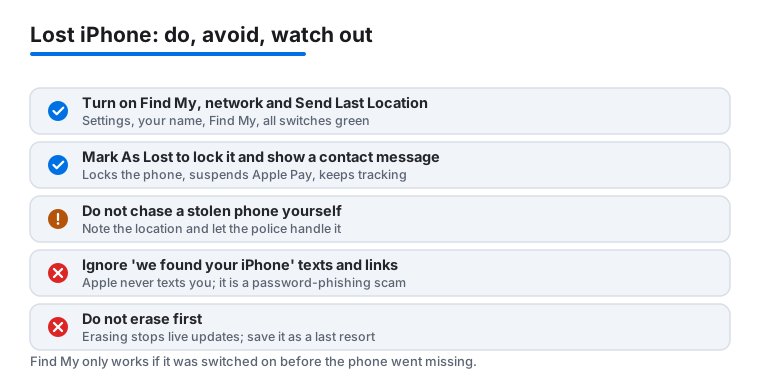
Tap Find My iPhone and make sure the switch is green. If it is off, your phone cannot be located at all, so this is the one setting you must not leave alone. While you are there, you will see two more switches. Leave both on. We will cover why in a moment.
Find My also needs Location Services running. It usually is by default, but if you have turned it off at some point, go to Settings, then Privacy & Security, then Location Services, and switch it on. Without location access, the map has nothing to show you.
The two switches people skip
Under Find My iPhone there are two extra options that do the real heavy lifting, and most people glance past them.
- Find My network. This lets your iPhone be found even when it is offline or switched off. Other people's Apple devices passing nearby quietly relay its location to you, all encrypted, none of them seeing where it is. On a supported iPhone this keeps working for up to 24 hours after the phone is turned off, and up to 5 hours when it drops into power reserve mode. Leave it on.
- Send Last Location. When the battery gets critically low, the phone sends its final location to Apple automatically, just before it dies. So even if the battery runs flat in a bush somewhere, you get one last pin instead of a blank map.
Both are on by default on a new phone, but it is worth checking. They cost you nothing and they are the features that save you when the phone is no longer answering.
Check it actually works before you need it
Do not wait for a crisis to find out your setup was wrong. Open the Find My app on your iPhone right now (it comes preinstalled, the icon is a green radar circle), tap Devices along the bottom, and confirm your iPhone is listed with a location. If you have an iPad, a Mac or AirPods signed in to the same Apple Account, they should show up too.
It also helps to know where else you can reach Find My from. You can sign in at iCloud.com from any web browser and open Find Devices, or borrow a friend's iPhone and use the Help a Friend option inside their Find My app to log in to your own account temporarily. That last one matters, because when your phone is gone you will not have your phone to look on.
Locate a missing phone on the map
Say the phone has vanished. Open Find My on another device, or sign in at iCloud.com, and tap Devices. Select your iPhone. If it is online you get a live location. If it is offline you get its last known spot, and a powered-off phone shows that last location for up to seven days.
From here you have a few moves. Pick the one that fits the situation.
- Play Sound. Best when the phone is close, down the back of the sofa, in another room, under a car seat. It rings even on silent. Do not use this if you think the phone was stolen, because it just tells the thief where it is.
- Directions. Opens the location in Maps so you can navigate to it. Handy if you left it at a cafe across town.
- Find Nearby. On iPhones with Ultra Wideband, this gives you distance and an arrow as you get within a few metres, like a hot-and-cold game.
One rule worth burning in: if a phone has genuinely been stolen, do not go and collect it yourself. Note the location, tell the police, and let them deal with it.
Use Lost Mode to lock it down
If you cannot put your hands on the phone in the next few minutes, mark it lost. In Find My, select the device and tap Mark As Lost, then Activate. This is the single most useful thing you can do for a phone that is out of reach.
Lost Mode does several things at once. It locks the phone with a passcode (or your Apple Account password), so nobody can poke around in it. It suspends any payment cards and passes in Wallet, so Apple Pay cannot be used. And it lets you put a message and a contact number on the lock screen, something like "Lost phone, please call 0xx xxx xxxx." You keep getting location updates while it is in Lost Mode, and the moment the phone comes back online you get a notification.
Read the next section carefully before you decide what number to display, because that lock-screen message is exactly what scammers go fishing for.
The scam texts to ignore
This part is important and it catches a lot of people at their most anxious. Within hours, sometimes minutes, of a phone being lost or stolen, you may get a text or iMessage saying your iPhone has been found. It might name the model, the colour, even the lock-screen message you set. It will include a link to what looks like an Apple or Find My sign-in page asking for your Apple Account email and password.
It is a phishing scam, and it has been running heavily through 2025 and into 2026. The thief cannot use or resell your locked phone because of Activation Lock, so the whole game is to trick you into handing over your password. If you type it in, they remove Activation Lock and your phone is theirs to sell. Apple does not text or email you to say a device has been found. Ever.
So: do not tap the link, do not reply, do not enter your password anywhere except in Apple's own Settings app or directly at apple.com or iCloud.com that you typed yourself. If you are nervous about your lock-screen message feeding the scam, use a contact number that is not tied to your Apple Account, like a partner's phone.
Activation Lock, your quiet bodyguard
Activation Lock turns on automatically the moment Find My is enabled. It ties the iPhone to your Apple Account at a deep level. Even if someone erases the phone completely, it will not activate and set up as new without your Apple Account password. That is why a stolen iPhone is close to worthless to a thief, and why they resort to phishing instead.
There is a flip side worth knowing. If you sell or give away your iPhone, you must turn Find My off and sign out of your Apple Account first, or the new owner will be locked out. Do it properly: back up, then Settings, your name, Sign Out, and follow through with a full erase. Never sell a phone that still has your account on it.
Erase as a last resort
If you are sure the phone is gone for good, or it held sensitive information, you can wipe it remotely. In Find My, select the device, scroll down and tap Erase This Device. This deletes everything on the phone.
Two things to understand before you press it. First, on iPhones running iOS 15 or later you can still see the phone in Find My after an erase, because Activation Lock and the locator survive the wipe. On older software, erasing makes the phone disappear from the map for good, so only erase when you have truly given up on getting it back. Second, while the phone is erased and offline, you will not get live updates, only the last location until it reconnects.
Treat erase as the final step, not the first. Lost Mode keeps your data locked and your phone trackable, which is almost always the better position to be in.
FAQ
Where do I turn on Find My iPhone?
Open Settings, tap your name at the top, tap Find My, then Find My iPhone, and switch it on. Turn on Find My network and Send Last Location while you are there. Both help you locate the phone when it is offline or out of battery.
Can I find my iPhone if it is turned off or dead?
Often, yes. With Find My network on, a supported iPhone can be located for up to 24 hours after it is switched off, and up to 5 hours in power reserve mode. A fully powered-off phone also shows its last known location for up to seven days. If the battery died, Send Last Location gives you the final spot before it shut down.
What does Mark As Lost (Lost Mode) actually do?
It locks the phone with a passcode or your Apple Account password, suspends Apple Pay cards and passes, and lets you show a message and contact number on the lock screen. You keep getting location updates, and you are notified the moment the phone comes back online.
I got a text saying my lost iPhone was found. Is it real?
No. Apple never texts or emails to say a device has been found. These messages are phishing scams trying to steal your Apple Account password so they can remove Activation Lock and resell the phone. Do not tap the link, do not reply, and never enter your password on a page you reached from a message.
If a thief erases my iPhone, can they use it?
Not without your Apple Account password. Activation Lock ties the phone to your account even through a full erase, so it cannot be set up as new. That is why stolen iPhones are hard to resell, and why thieves try to phish your password instead of cracking the phone.
Should I erase my iPhone straight away if it is lost?
Usually not. Lost Mode already locks your data and keeps the phone trackable, which is the stronger position. Save Erase This Device for when you are certain the phone is gone or it held sensitive information, since erasing stops live updates until the phone reconnects.