
AirDrop Not Working: How to Fix It (and Use It Right)
You are standing next to a friend, you tap Share, and their name simply will not appear. AirDrop is supposed to be the easy part of owning Apple devices, so when it goes quiet it feels broken in a way that is hard to explain. The good news: almost every failure comes down to one of about six small settings, and you can check them in under two minutes. This guide walks through how AirDrop actually works, the blockers most people never think to look at, and a fix order that gets you sending again without a factory reset or a trip to the store.
What AirDrop is actually doing behind the scenes
Knowing the mechanics makes every fix below make sense. AirDrop uses two radios at once. Bluetooth handles the discovery part, so your iPhone can notice that another Apple device is nearby and wants to talk. Once the two devices agree, they build a tiny private Wi-Fi link directly between themselves to move the actual file. This is peer-to-peer Wi-Fi, which means a direct wireless bridge between the two devices, not a connection through your router. Apple's own AirDrop security notes describe the same two-stage setup: Bluetooth Low Energy for discovery, then peer-to-peer Wi-Fi for the encrypted handover.
Two things follow from that. First, both Wi-Fi and Bluetooth must be on, even though you do not need to be joined to any Wi-Fi network. Second, the two devices need to be close. The commonly cited working range is about 30 feet, or roughly 10 meters, but walls, microwaves, and crowded rooms shrink that fast. If discovery fails, you see the dreaded No People Found. If the transfer stalls at a percentage, the Wi-Fi link is the weak point.
The visibility setting that quietly blocks most people
This is the number one cause, and it hides in plain sight. AirDrop has three states for who can find you: Receiving Off, Contacts Only, and Everyone for 10 Minutes. If your phone is set to Contacts Only and the person sending to you is not saved in your contacts (or you are not saved in theirs), you will be invisible to each other. Nothing looks wrong. The radios are on. The name just never shows.
To check and change it on iPhone or iPad:
- Go to Settings > General > AirDrop.
- Pick Everyone for 10 Minutes if you are sharing with someone new, or Contacts Only if it is a friend already in your phone.
You can also reach it faster from Control Center. Swipe down from the top-right corner, press and hold the box of connection toggles in the top-left, then tap AirDrop and choose your option. Apple's guide to using AirDrop walks through these same three states if you want to follow along on screen.
One detail that trips people up every single time: since iOS 16.2, Everyone for 10 Minutes is a timer, not a permanent setting. After ten minutes it drops back to Contacts Only (or to Receiving Off if you are not signed in to your Apple Account). So if a transfer worked earlier and now fails, the window may have simply closed. Just turn it back on.
The new AirDrop codes feature in iOS 26.2
If both devices are on iOS 26.2, iPadOS 26.2, or macOS 26.2 (released over the winter of 2025 to 2026), there is an extra layer worth knowing about. Apple added AirDrop codes: a way to share with someone who is not in your contacts without flipping to Everyone every time.
It works like this. The receiver shows a short code on their screen, and the sender types it in once. After that, the two devices recognise each other for 30 days, so repeat sharing just works. This was built for teachers, tour guides, conference booths, and anyone who hands files to the same group of near-strangers often.
If you ever want to clear that trust, open Settings > General > AirDrop, where a management area lets you review and remove the people your device has saved this way. They also show up under an Other Known list in the Contacts app, so you can pull them out from there. Worth a look if AirDrop is behaving oddly with a specific device, since a stale entry can occasionally cause confusion.
The hotspot trap and the Focus trap
Two settings can switch AirDrop off without ever touching the AirDrop menu, and almost nobody connects the dots.
Personal Hotspot. If your iPhone is sharing its internet as a hotspot, AirDrop cannot run, because the Wi-Fi radio is busy being a hotspot. This is the classic gotcha: you turned on a hotspot earlier for your laptop, forgot about it, and now sharing a photo fails for no visible reason. Turn it off at Settings > Personal Hotspot > Allow Others to Join (toggle off), then try again. Check both devices, not just the sender. This one comes up so often that MacRumors lists it among its main AirDrop fixes.
Do Not Disturb and other Focus modes. A Focus can suppress the incoming AirDrop prompt so you never get the chance to tap Accept. The file is offered, but the banner is silenced. Either turn the Focus off from Control Center, or open Settings > Focus, tap the active mode, and review what it is allowed to show. If you rely on Focus modes a lot, our notes on calming down a busy iPhone interface in this readability guide may help you see prompts more clearly too.
The fix order: work through this list, stop when it works
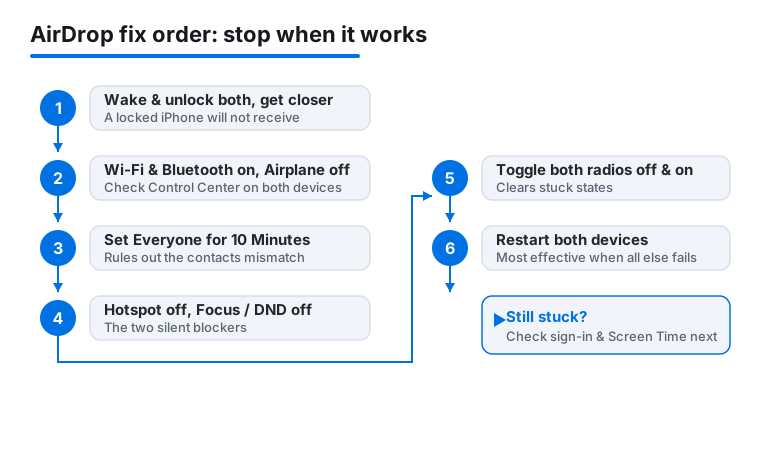
Do these in sequence. Most problems clear by step four. After each step, try sending again before moving on.
- Wake and open both devices. A locked iPhone will not receive AirDrop. Make sure the screen is on and signed in with Face ID, Touch ID, or your passcode.
- Get closer. Move within a few feet of each other, ideally with a clear line of sight. Step away from microwaves and crowded Wi-Fi.
- Confirm Wi-Fi and Bluetooth are on for both. Open Control Center and check that neither is greyed out. If Airplane Mode is on, turn it off.
- Set the right visibility. On the receiving device, set AirDrop to Everyone for 10 Minutes (see the section above). This rules out the contacts mismatch instantly.
- Turn off Personal Hotspot on both devices.
- Turn off any Focus or Do Not Disturb on the receiver.
- Toggle the radios off and on. In Control Center, tap Wi-Fi off then on, and Bluetooth off then on. This clears a surprising number of stuck states.
- Restart both devices. A normal power-off and on resets the AirDrop service cleanly. This is the single most effective fix when everything looks correct but still fails.
If you are still stuck after a restart, the problem is usually account-related or a deeper restriction, covered next.
Sign in, and check Screen Time restrictions
Contacts Only relies on knowing who you are, which means your Apple Account needs to be signed in and your own Apple ID email or phone number needs to be in the relevant contact cards. If you are signed out, set both devices to Everyone for 10 Minutes as a workaround, or sign in at Settings (tap your name at the top).
Screen Time can also hide AirDrop entirely, which is common on a child's device or a phone set up from an old backup. Check here:
- Open Settings > Screen Time > Content & Privacy Restrictions.
- If that switch is on, tap Allowed Apps (on some versions, Allowed Apps & Features).
- Make sure AirDrop is turned on.
If AirDrop was switched off here, it will not appear in the Share sheet at all, which sends people down a long troubleshooting path for what is really a one-tap fix. If you manage a family device, our roundup of privacy and safety tools pairs well with getting these restrictions right.
When the trouble is on the Mac
Macs add one extra suspect: the firewall. If your Mac is set to block all incoming connections, it will refuse the AirDrop handshake.
- Open System Settings > Network > Firewall and click Options.
- Turn Block all incoming connections off.
- Turn Automatically allow built-in software to receive incoming connections on.
If you prefer to keep the firewall strict, leave it on but make sure the built-in software option is enabled, since that covers Apple's own sharing service. Apple's firewall instructions for Mac explain both switches in more detail.
To set who can reach your Mac, open a Finder window and click AirDrop in the sidebar. At the bottom you will see Allow me to be discovered by, with Contacts Only and Everyone options, the same idea as on iPhone. Keep the Finder AirDrop window open while you wait for a transfer; on older Macs, discovery is more reliable when that window is in front. For more Mac housekeeping, see our utility app picks.
How to use AirDrop the right way, step by step
Once it is working, here is the clean way to send, so you avoid the small mistakes that make it look broken.
Sending from iPhone or iPad:
- Open the item, for example a photo in the Photos app or a page in Safari.
- Tap Select if you are choosing several photos, then tap the Share button (the square with the up arrow).
- Tap AirDrop.
- Under People, tap the name of the person nearby.
- They tap Accept, and the file lands in the matching app.
A small worked example: to send three holiday photos, open Photos, tap Select, tap the three images so each gets a blue tick, tap Share, tap AirDrop, then tap your friend's name. They accept once and all three arrive together.
The hold-together shortcut. If both devices run iOS 17 or later, you can bring the top edges of two iPhones close and a NameDrop or AirDrop prompt appears, letting you share without opening the Share sheet at all. If nothing happens, the devices may be too far apart or one of them has the bring-together feature switched off.
For ideas on what to share and capture in the first place, browse our photo and video app guide or the broader everyday utilities list.
Common mistakes that look like a broken feature
Before you assume hardware is at fault, rule out these, since each one is a frequent false alarm:
- The receiver's screen is asleep or locked. Wake it first.
- You are too far apart. Bluetooth discovery fades well before 30 feet in a crowded room.
- One device still has a hotspot running from earlier in the day.
- The Everyone window expired after its ten minutes. Switch it back on.
- You are sending to the wrong device. If your friend has several Apple devices signed into one account, several of their devices may appear. Pick the right one.
- You skipped the Accept tap. When sharing between two different Apple Accounts, the receiver must accept; only same-account transfers go through automatically.
If every box is ticked and it still will not work after a restart, the issue may be a software bug tied to a specific release. It is worth checking whether an update is waiting at Settings > General > Software Update, and being cautious about beta builds, which can carry rough edges. If you are running pre-release software, our walkthrough on installing and managing iOS betas explains how to step back to a stable version.
FAQ
Why does AirDrop say No People Found even though my friend is right next to me?
Almost always a visibility mismatch. If your friend's device is set to Contacts Only and you are not saved in their contacts, you will not appear to each other. Have the receiving device open Settings > General > AirDrop and choose Everyone for 10 Minutes, then try again. If it still fails, confirm Wi-Fi and Bluetooth are on for both and that neither has Personal Hotspot running.
Does AirDrop need an internet or Wi-Fi connection?
No internet is needed. AirDrop builds a direct wireless link between the two devices, so you do not have to be joined to any network. You do, however, need the Wi-Fi radio switched on (along with Bluetooth), because that radio carries the actual file transfer. Airplane Mode with everything off will stop it.
Why does my Everyone setting keep switching back to Contacts Only?
That is intentional. Since iOS 16.2, Everyone for 10 Minutes is a timer that protects you from unwanted files in public. After ten minutes it reverts to Contacts Only if you are signed in to your Apple Account, or to Receiving Off if you are not. Just turn it back on when you need it again.
What are the AirDrop codes in iOS 26.2 and do I need them?
They are an optional convenience for sharing with people who are not your contacts. The receiver shows a short code, the sender enters it once, and the two devices then recognise each other for 30 days so repeat sharing is automatic. You do not need them for normal use. To remove someone's access, open Settings > General > AirDrop and review the people your device has saved, or take them out of the Other Known list in the Contacts app.
AirDrop works on my iPhone but not my Mac. What is different?
The most common Mac-only blocker is the firewall set to block all incoming connections. Open System Settings > Network > Firewall, click Options, turn off Block all incoming connections, and turn on Automatically allow built-in software to receive incoming connections. Also open a Finder window, click AirDrop in the sidebar, and set Allow me to be discovered by to Everyone while you test.
How close do two devices need to be for AirDrop to work?
Roughly 30 feet, or about 10 meters, but that is a best case. Walls, large crowds, and other wireless interference cut it down quickly. If discovery is flaky, move within a few feet of each other with a clear line of sight, and the connection usually appears right away.