
How to Install the iOS 27 Beta on Your iPhone (Safely)
Apple flipped the switch this week. iOS 27 was announced at WWDC 2026 on Monday, June 8, and the developer beta is already live, free for anyone willing to tap through a few screens. With it comes Siri AI, the biggest change to the iPhone's assistant in a decade, plus a genuine speed boost for older phones. We have installed every iOS beta for years, and the routine never changes: excitement, a big download, then a week of small regrets if you skipped the prep. This guide covers the safe way to install iOS 27 today, who should wait for July's public beta instead, and what your specific iPhone model will actually get out of it.
What Apple announced, and why this beta is the hot ticket
At the WWDC 2026 keynote, Apple introduced iOS 27 alongside iPadOS 27, macOS 27, watchOS 27, visionOS 27, and tvOS 27. The headline act is the next generation of Apple Intelligence and a rebuilt assistant Apple simply calls Siri AI. The new Siri can see what is on your screen, search your personal context across Messages, Mail, and Photos, pull current information from the web, and it finally gets its own app, with conversation history that syncs between your devices through iCloud. The details are in Apple's announcement.
The quieter news matters just as much. Apple is pitching iOS 27 as a quality and stability release. Its own numbers claim apps launch up to 30 percent faster, new photos show up in your library up to 70 percent faster, and AirDrop transfers run up to 80 percent faster, thanks largely to a redesigned CPU scheduler. TechCrunch's WWDC roundup has the full list. The developer beta is downloadable right now, the public beta lands in July, and the finished update ships free this fall, most likely September if Apple keeps to its usual calendar.
Check your iPhone first: what your model actually gets
Good news first. iOS 27 supports every iPhone that runs iOS 26, all the way back to the iPhone 11 from 2019, with the SE models included. Nothing got dropped this year, as Tom's Guide confirms. But support comes in three tiers, and knowing yours saves disappointment before you spend an evening installing.
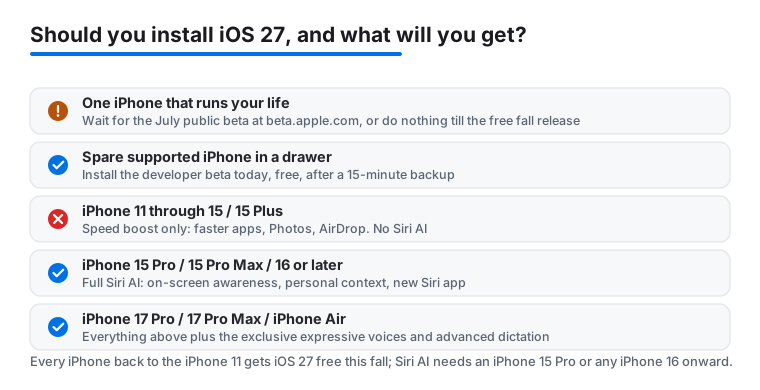
- iPhone 11 up to the iPhone 15 and 15 Plus. You get iOS 27 and the full speed pass: faster app launches, faster Photos, faster AirDrop. You do not get Siri AI or any other Apple Intelligence feature. Your Siri stays the classic one.
- iPhone 15 Pro, 15 Pro Max, and any iPhone 16 model or later. These have the hardware Apple Intelligence needs, so they get the full Siri AI: on-screen awareness, personal context search, and the new Siri app.
- iPhone 17 Pro, 17 Pro Max, and iPhone Air. A small extra tier. A few features, such as the expressive voices and the more advanced dictation, are exclusive to these newest models.
A quick worked example. Say your daily phone is an iPhone 13. Installing iOS 27 gets you the snappier feel and the much faster AirDrop, which is genuinely worth having on a four-year-old phone, but your assistant will not change at all. If you want an AI helper on older hardware today, a third-party app is the honest route, and our guide to using Microsoft Copilot on iPhone covers a good free one.
Developer beta or public beta: which one fits you
There are two beta tracks, and the right choice depends on how much chaos you can absorb.
The developer beta is available today and it is free. Apple dropped the paywall years ago: you sign in at developer.apple.com with your regular Apple Account, accept the developer agreement, and you are enrolled. The 99 dollar a year Apple Developer Program is only for people who publish apps, as MacRumors explains. The catch is that developer betas, especially the first few, are the roughest software Apple ships all year. Expect battery drain, a warm phone, and at least one app you rely on misbehaving until updates arrive.
The public beta opens next month, in July 2026, through beta.apple.com. It usually trails the developer build by a week or two and skips the worst bugs, because Apple has shipped a few rounds of fixes by then. If your iPhone is the only phone you own, and it holds your boarding passes, your banking, and your two-factor codes, the public beta is the sensible line to stand in. If your work depends on a specific set of tools, scan our best productivity apps for iPhone list and ask yourself how your week looks if two of them break tomorrow. That answer usually makes the decision for you.
The 15-minute prep that saves your month: backups
Here is the part people skip, and the part that matters most. Once your iPhone is on iOS 27, every new backup it makes is an iOS 27 backup, and an iOS 27 backup will not restore onto a phone running iOS 26. If the beta treats you badly and you want out, the road back is a full erase and reinstall, and you only get your old life back if a backup made on iOS 26 still exists somewhere. So make one now, and make it the kind that cannot be silently overwritten.
- Run a fresh iCloud backup. Go to Settings, tap your name, then iCloud, iCloud Backup, Back Up Now. Quick, but not enough on its own, because iCloud keeps rolling backups that will soon be replaced by iOS 27 ones.
- Make an archived backup on a computer. On a Mac, plug the iPhone in, open Finder, select the phone, choose to back up all data to the Mac, and tick the encryption box so health data and saved passwords come along. When it finishes, click Manage Backups, right-click the new backup, and choose Archive. Archiving freezes that backup so future ones cannot overwrite it. On Windows, the Apple Devices app from the Microsoft Store handles the backup; copy the backup folder to a safe place afterward for the same effect.
- Clear some room. The beta download is large, several gigabytes, and the installer needs working space on top of that. Check Settings, General, iPhone Storage, and aim for a comfortable cushion before you start.
While you are tidying up, a good file manager or cleanup tool makes the storage job faster. The ones we actually keep installed are in our best utilities apps for iPhone roundup.
Step by step: installing the iOS 27 developer beta
The whole process takes around an hour, most of it waiting for the download. Plug the phone into power and stay on Wi-Fi for the duration, because the download is big and a dying battery mid-install is the one failure that genuinely hurts. Engadget's walkthrough follows the same path. Here are the steps:
- Enroll your Apple Account. In Safari, go to developer.apple.com, tap Account, sign in with the same Apple Account your iPhone uses, and accept the developer agreement. That is the entire enrollment. No payment screen should ever appear, and if one does, you have wandered into the paid program by mistake.
- Open the beta menu. On the iPhone, go to Settings, then General, then Software Update, then tap Beta Updates.
- Select iOS 27 Developer Beta. Tap it so the checkmark moves, then go back one screen.
- Download and install. The update now appears in Software Update. Tap Update Now, agree to the terms, and let it run. The phone will restart a couple of times and sit on a progress bar longer than feels comfortable. That is normal. Do not panic and do not unplug it.
- If Beta Updates does not appear, restart the iPhone and look again. Also confirm that the Apple Account signed in under Settings is the same one you enrolled at developer.apple.com. Those two fixes solve this for almost everyone.
Your first hour on iOS 27: settling in
Resist judging the beta on day one. Right after a major update, the iPhone reindexes photos, rebuilds search, and on supported models starts pulling down Apple Intelligence models in the background. The phone may run warm and drain faster for a day or two. That is indexing, not your new normal.
A few things worth doing in the first hour:
- Join the Siri AI waitlist if asked. Apple is rolling the new assistant out gradually, so even on an eligible iPhone you may see a waitlist screen before Siri AI switches on. Check the Apple Intelligence and Siri section of Settings.
- Open your critical apps. Banking apps, two-factor authenticators, and anything tied to a hardware key are the usual early casualties on a new beta. Better to find out on the couch than at a checkout.
- Find Feedback Assistant. The feedback app appears automatically on beta installs. Filing a bug takes two minutes, and it is the entire point of running prerelease software.
- Walk through your privacy choices. Major updates often add new permission prompts and occasionally reset old ones. Five minutes here is well spent.
Siri AI, Google Gemini, and your privacy
This is the part of iOS 27 that deserves a clear-eyed look before you get attached. The new Siri is not one brain but three. Simple requests, like timers and settings changes, stay on the iPhone itself. Mid-weight tasks go to Private Cloud Compute, Apple-run servers built so requests are processed and then discarded. The heaviest questions are answered by a custom Google Gemini model, reported at roughly 1.2 trillion parameters, a partnership Apple and Google first announced together on January 12, 2026 and reaffirmed at WWDC in June, as covered by MacRumors. Apple says those Gemini queries run under its privacy rules rather than your Google account, but the honest summary is this: a Google model now sits in the chain for your hardest questions, and you should decide how you feel about that.
Two limits worth knowing before you install. Siri AI will not be available on iPhone and iPad in the EU at launch, though it does work on Mac and Vision Pro there, and Apple Intelligence remains unavailable in China while regulatory approval is pending. If the Gemini connection gives you pause, you can still run iOS 27 with the assistant reined in: Siri's access can be switched off app by app in Settings, and the new Siri app is entirely optional. For a wider cleanup, our walkthrough of Google app privacy settings on iPhone and our picks for the best security and privacy apps for iPhone pair nicely with a fresh install. And if you are curious where Apple's assistant is heading beyond the phone, we looked at Siri's evolution on Vision Pro earlier this year.
Common beta mistakes, and how to fix them
We see the same handful of mistakes every June. All of them are avoidable.
- Installing on your only phone on day one. The first developer beta is the buggiest build of the entire cycle. Use a spare device if you have one, or wait for beta 2 or 3, which historically arrive within a few weeks and fix the loudest problems.
- Trusting iCloud alone. iCloud backups get replaced on a schedule, and once they are iOS 27 backups they cannot rescue a phone you want back on iOS 26. The archived computer backup is the only true escape hatch.
- Confusing leaving the beta with downgrading. To stop receiving beta builds, go to Settings, General, Software Update, Beta Updates, and turn it off. Your phone then sits on its current build until the official release catches up in the fall, which is painless. Actually downgrading to iOS 26 today means a recovery-mode restore with a computer, a full wipe, and that archived backup. Plan for the first option, not the second.
- Expecting Siri AI on the wrong hardware. Installing the beta on an iPhone 14 will not unlock the new assistant. The floor is an iPhone 15 Pro or any iPhone 16 or later. It is a hardware line, not a software switch you can flip.
- Judging battery life in the first 48 hours. Indexing settles. If heavy drain continues after a few days, open Settings, Battery, look for an app stuck in the background, then file it in Feedback Assistant.
Our honest verdict: install now or wait for July?
If you have a spare, supported iPhone in a drawer, install the developer beta today. It costs nothing, the prep takes 15 minutes, and the speed work plus Siri AI on eligible hardware makes this the most interesting iOS beta in years.
If you carry one iPhone and it runs your life, wait for the public beta at beta.apple.com in July 2026, and even then take the backup step seriously. The public build will arrive with a month of fixes and far fewer sharp edges. And if what you really want is just a faster phone with no drama, do nothing at all: iOS 27 ships free this fall for every iPhone back to the iPhone 11, and waiting costs you only patience. There is no wrong answer here, just a question of how much beta you want with your summer.
FAQ
Do I need to pay 99 dollars for the iOS 27 developer beta?
No. The developer beta is free in 2026. Sign in at developer.apple.com with your regular Apple Account, accept the developer agreement, and the beta appears under Settings, General, Software Update, Beta Updates. The paid Apple Developer Program is only for people who distribute apps on the App Store, not for anyone who simply wants to test iOS 27.
Which iPhones can install iOS 27, and which ones get Siri AI?
iOS 27 installs on every iPhone from the iPhone 11 onward, the same list as iOS 26, so no models were cut this year. Siri AI is stricter: it needs Apple Intelligence hardware, meaning an iPhone 15 Pro or 15 Pro Max, or any iPhone 16 or later. A few extras, such as the expressive voices, are exclusive to the iPhone 17 Pro, 17 Pro Max, and iPhone Air.
Can I go back to iOS 26 if I do not like the beta?
Yes, but it is not a one-tap affair. You connect the iPhone to a computer, reinstall iOS 26 through a recovery-mode restore, and the phone is wiped in the process. Your data then comes back only from a backup made while the phone was still on iOS 26, which is exactly why the archived computer backup before installing is non-negotiable.
Will the iOS 27 beta hurt my battery or break my apps?
Expect heavier battery use and a warm phone for the first day or two while background indexing finishes, and expect a small number of apps to misbehave through the summer. Banking and two-factor apps are the most common trouble spots in early builds. That is the normal price of beta software, and it improves noticeably with each new build through July and August.
When do the public beta and the final version of iOS 27 arrive?
Apple says the public beta opens in July 2026 through beta.apple.com, free for anyone who enrolls. The finished iOS 27 then ships as a free update in the fall, and Apple's pattern for more than a decade has been mid-September, timed alongside the new iPhone lineup.
Does Siri AI send my conversations to Google?
Only the heaviest requests reach the custom Google Gemini model, and they run under Apple's privacy arrangement rather than your Google account, with Apple stating requests are not stored or used for advertising. Simple requests never leave the iPhone, and mid-tier ones run on Apple's own Private Cloud Compute servers. If that chain still bothers you, limit what Siri can access app by app in Settings, or skip the new Siri app entirely.