
Best Productivity Apps for iPhone (2026)
Getting real work done on a phone used to feel like a compromise, but the right apps turn an iPhone into a pocket office that keeps up with you between meetings, on the train, and in the queue for coffee. We lived inside these for weeks, writing, replying, scanning and automating, and we kept the ones that launch instantly, sync without a hiccup, and never make you pinch and squint to tap a button. Below are our favorites, roughly ordered from the tools we open every single day to the clever extras worth knowing about. If you also work on a bigger screen, our productivity apps for iPad and productivity apps for Mac guides cover the same ground, and you can browse the wider productivity category or our full best iPhone apps roundup whenever you like.
1. Gmail
Gmail is the first app we open most mornings, and on iPhone it stays fast no matter how stuffed the inbox gets. Swipe gestures for archive and snooze feel great, search finds a buried message in seconds, and multiple accounts live side by side. It is free, with paid Google One storage if you hoard attachments.
2. Outlook
Outlook is the mail app we recommend for anyone whose calendar and inbox are tangled together. It puts your schedule one tap from your messages, and the Focused inbox quietly tucks newsletters aside so real mail rises to the top. In our testing the calendar swipe view made a quick day plan easy. It is free and handles Gmail and iCloud too.
3. Microsoft Word
Word on iPhone is far more capable than its tiny icon suggests, and it is our pick for editing a serious document away from a desk. Microsoft Word keeps formatting intact, syncs through OneDrive, and lets you dictate a paragraph when typing is a chore. Reading and light edits are free, while heavier editing wants a Microsoft 365 subscription.
4. Google Docs
For anything you write with other people, Google Docs is the one we trust on iPhone. Edits sync the instant you make them, comments thread cleanly, and you can keep drafting offline on a flight and watch it catch up later. It is free with a Google account. Seeing a collaborator's cursor move in real time makes remote edits feel personal.
5. Google Sheets
Spreadsheets on a phone sound painful, yet Google Sheets makes quick edits genuinely doable on iPhone. Tapping a cell brings up a sensible keyboard, formulas autocomplete, and shared budgets update live for everyone. It is free with a Google account and pairs naturally with Docs and Drive. We found it perfect for updating a shared expense sheet right at the table.
6. Google Slides
Google Slides is less about building a deck on a phone and more about the save when you need one. On iPhone you can tweak a headline, fix a typo, or rehearse with speaker notes minutes before you present. It is free with a Google account. We liked using the phone as a remote to advance slides while a laptop drove the projector.
7. Microsoft Teams
Microsoft Teams is how a lot of us stay reachable away from the desk, and the iPhone app does the essentials well. Chats, calls, and meeting joins sit a tap apart, and background blur keeps a hallway join tidy. It is free for the basics, with full features through a Microsoft 365 plan. Call quality held up on a patchy signal between buildings.
8. Microsoft Copilot
Microsoft Copilot is the AI helper we keep handy for drafting, summarizing, and untangling a knotty email on iPhone. Ask it to soften a message's tone or boil a long thread down to three points, and it answers in seconds. The app is free, with a Copilot Pro tier for priority access. We use it for a quick first draft we then make our own.
9. Notability
Notability is the note taker we reach for when typing will not do, and on iPhone it shines for jotting, sketching, and recording at once. Scribble an idea, snap a photo into a page, or record a voice memo that syncs to your handwriting as you replay it. A free tier covers basic notes, with a subscription for unlimited edits and handwriting search.
10. Apple Reminders
Apple Reminders is the free to do app already on your iPhone, and it has quietly become good enough that we stopped hunting for alternatives. Tags, smart lists, and location based nudges remind you of the shopping list the moment you reach the store. Asking Siri to add a task while driving is the killer feature. It syncs across every Apple device at no cost.
11. Apple Shortcuts
Apple Shortcuts is the free automation tool that makes your iPhone feel custom built once you give it a chance. String a few actions together and one tap can text your partner you are leaving, start a focus mode, and open Maps home. It comes preinstalled at no cost. In our testing a morning routine that read the weather and started a playlist took ten minutes to build.
12. Samsung apps
Plenty of people live across an iPhone and Samsung gear, and a handful of Samsung apps appear in the App Store to bridge that gap. SmartThings for home devices and Samsung's file and notes tools let you keep one foot in each ecosystem without friction. They are free to download. We found them most worthwhile if you own a Samsung TV or smart home kit.
How to choose productivity apps for iPhone
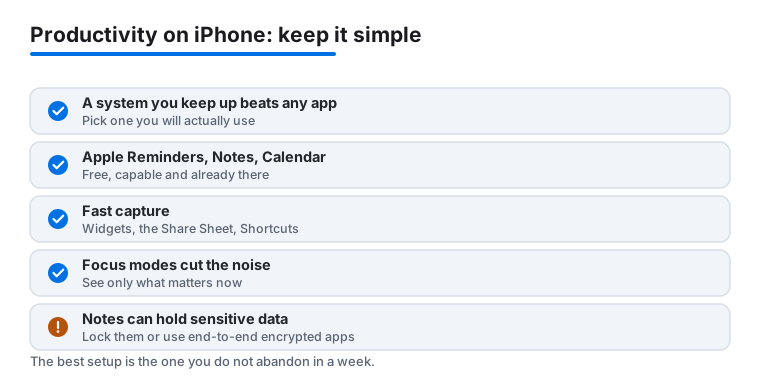
Before you install anything, it helps to say the quiet part out loud. A simple system you actually keep up with beats any app you download in a burst of enthusiasm and abandon in a week. The phone is not the bottleneck. The habit is. If you have tried five task managers in a year, the problem was never the app, and the sixth will not fix it either. So the honest first step is to pick the lightest setup you can imagine yourself sticking with, then add to it only when a real limit gets in your way.
It also helps to remember that Apple already gives you a capable kit for free on every iPhone. Reminders, Notes and Calendar are not consolation prizes. Reminders handles tags, smart lists and location nudges. Notes does checklists, scanned documents, tables and quick sketches. Calendar syncs cleanly through iCloud. For a lot of people, those three plus a little discipline cover everything, and you never open the App Store at all. Reach for a third party app when you have a specific need those tools cannot meet, not because a new icon feels productive.
One reason the built in apps are worth a real try is that they are wired into the rest of the phone in ways outside apps cannot quite match. Siri can add a reminder or a calendar event without you touching the screen. Notes appears in the Share Sheet of almost every other app. Reminders can nudge you when you leave a place, not just at a set time. None of that is flashy, but it is exactly the kind of friction free behavior that keeps a habit alive over months. Before you pay for anything, give the free tools a fortnight of honest use and see what they genuinely cannot do for you.
What actually matters when you compare apps
Once you do go looking, a few traits separate an app you will keep from one you will delete in a month.
- Reliable sync. The whole point of phone productivity is that a note you jot at lunch is current on your other devices by the time you sit down. iCloud, Google and OneDrive all sync well now, but mixing accounts is where confusion creeps in. Pick a home for each kind of work and stay there.
- Fast capture. The best app is the one you can dump a thought into before it slips away. Look for a Home Screen widget and a Lock Screen widget that drop you straight into a new task or note, solid Share Sheet support so you can save a link or photo from any other app, and a hook into Shortcuts so a single tap can start your capture. If saving an idea takes more than a couple of seconds, you will stop doing it.
- Focus modes. A productivity app cannot help you if notifications keep dragging you back out. Apple's Focus modes let you silence everything except the one or two apps that matter for the next hour, and you can tie a Focus to a time, a place or a tap. This is often a bigger win than any feature inside the apps themselves.
- A format you will stick with. Some people think in lists, some in plain notes, some in calendar blocks. Match the tool to how your head already works rather than forcing yourself into someone else's method. The most elegant system in the world is useless if it feels like a chore.
- Speed and battery manners. An app you open twenty times a day needs to launch instantly and behave in the background. If it stutters, drains the battery, or buries the action you need under three taps, you will quietly stop reaching for it. Pay attention to how an app feels in the first week, because that feeling rarely improves later.
Notice that only one of these traits is about features. The rest are about whether the app fits into your life without you having to think about it. A modest app you open without friction will always beat a powerful one you have to talk yourself into using. When you read a glowing list of capabilities, ask how many you will touch in a normal week. The honest answer is usually two or three.
Do not drown in tools
It is tempting to run a dedicated app for tasks, another for notes, another for calendar, another for habits, and a couple of AI helpers on top. Resist it. Every extra app is one more place to check, one more thing to sync, one more decision about where something belongs. Two or three apps you trust will serve you far better than ten you half remember. When you add something new, ask what it replaces, not just what it adds.
A short word on privacy
Your notes and tasks quietly accumulate sensitive details. Passwords jotted in a hurry, account numbers, medical reminders, half formed thoughts about people and money. It is worth knowing how protected they actually are. Apple Notes can lock individual notes with Face ID, and locked notes are end to end encrypted, meaning even Apple cannot read them. Some third party apps go further by encrypting everything: Standard Notes, for example, is end to end encrypted by default across the whole app, and it is available on the iPhone App Store. Many ordinary cloud notes and task apps are not end to end encrypted, which means the provider can, in principle, read what you store. That is fine for a grocery list and worth a second thought for anything you would not want a stranger to see. The practical rule is simple. Keep the sensitive things in something you know is locked or encrypted, and do not assume a free cloud notebook is private just because it has a password on the login screen.
Putting it together
Start with what is already on the phone. Add one app only when Apple's tools genuinely fall short, usually for shared documents through Google or Microsoft, or for serious handwriting through something like Notability. Set up fast capture and one Focus mode in the first week, because those two habits do more for your day than any feature list. Then leave it alone and let the system earn its place. The goal was never a beautiful collection of apps. It was getting the thing done and getting on with your life.
A quick visual comparison
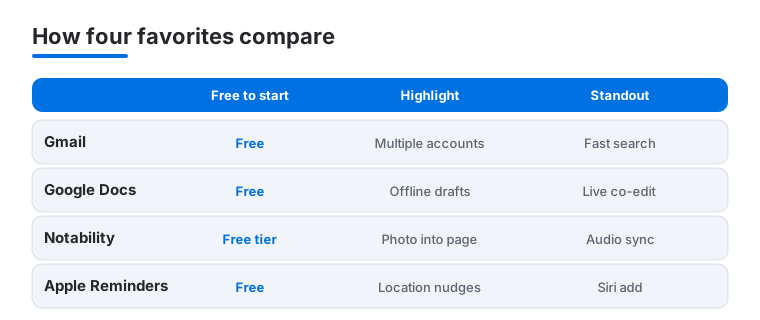
Not sure where to start? Here is how four of our daily drivers compare on the things that matter most when you are working from a phone.
Frequently asked questions
Do I really need third party productivity apps, or are Apple's enough?
Apple's own Reminders, Notes and Shortcuts are genuinely strong now and free on every iPhone, so for many people they cover the basics beautifully. The case for adding Google or Microsoft apps comes down to where your work already lives. If your team runs on Google Docs or a Microsoft 365 account, matching apps keep everything in sync without exporting and re importing. We mix both, using Apple tools for personal tasks and the others for shared work.
Which of these apps are free and which need a subscription?
The Google apps, Gmail, Outlook, Copilot, Teams, and every Apple app here are free for everyday use. The paid lines appear when you want more. Microsoft Word's full editing wants a Microsoft 365 plan, Notability's unlimited edits and handwriting search sit behind a subscription, and Copilot Pro adds priority access. Google charges only if you outgrow the free storage. Start free, and upgrade only once a limit actually gets in your way.
Will my work sync between my iPhone and my computer?
Yes, and this is where these apps earn their keep. Google Docs, Sheets and Slides sync through your Google account, Word and the rest sync through OneDrive, and Apple's apps ride iCloud across your devices. Start a document on the iPhone at lunch and it is waiting, current, on your Mac by the time you sit down. We cover the larger screen experience in our productivity apps for Mac and iPad guides.
What is the best app for taking notes on an iPhone?
It depends on how you think. If you type, Apple Notes is free, instant and syncs everywhere, so we start most people there. If you handwrite, sketch diagrams, or like recording a meeting alongside your notes, Notability is worth the subscription for its audio sync and handwriting search. For shared, collaborative notes that others can edit, a Google Doc often beats a dedicated notes app. Try the free options first before paying for anything fancier.
How many productivity apps should I actually keep on my iPhone?
Fewer than you think. Most people are well served by two or three apps they genuinely trust, often one for tasks, one for notes, and one for documents, plus whatever Apple already builds in. Every extra app is another place to check and another thing to sync, so the system gets heavier without getting better. When you are tempted to add a new tool, ask what it will replace rather than what it adds, and only keep it if it earns the spot.
Are my notes and tasks private if they sync to the cloud?
Not automatically. Apple Notes lets you lock individual notes with Face ID, and those locked notes are end to end encrypted so even Apple cannot read them. Apps like Standard Notes encrypt everything end to end by default. Many ordinary cloud notes and task apps are not end to end encrypted, which means the provider could in principle read what you store. That is fine for a shopping list, but for passwords, account numbers or medical details, keep them in something you know is locked or encrypted.