
Microsoft Teams for Remote Work on Mac, iPhone, and iPad
If you work from home and your company runs on Microsoft 365, Teams is probably the app you open first and close last. We spent a few weeks living inside it on a Mac, an iPhone, and an iPad to see how it really holds up for daily remote work, not just for the occasional video call. The short version: it keeps a scattered team in one place, it syncs cleanly across all three Apple devices, and it has a handful of quirks worth knowing before you commit your whole workday to it. One thing to settle first, because the device labels confuse people: Teams is a real Mac app, a real iPhone app, and a real iPad app, all three downloaded separately. There is no special iMac version. The Mac client is the same build whether you run it on an iMac, a Mac mini, a MacBook, or a Mac Studio, so anything we say about the Mac applies to your iMac too.
Getting Teams running on your Mac, iPhone, and iPad
Installation is painless. On the Mac, grab the app from the Mac App Store or download it straight from Microsoft, sign in with your work or school account, and you are in. On iPhone and iPad you do the same dance through the App Store. In our testing the first launch on the Mac asked for microphone, camera, and notification permissions all at once, so approve those up front or you will be hunting through System Settings later when a call goes silent. If you skip them, the path back is System Settings, then Privacy and Security, then the relevant list, where you flip Teams back on.
Worth knowing before you install: Microsoft retired the old Teams "classic" client and the standalone desktop app it once shipped, and the current Mac app is the rebuilt version that Microsoft spent 2024 and 2025 rolling out. If you have an ancient Teams icon sitting in your Applications folder from years back, delete it and pull the current one, because the old codebase no longer receives updates. The 2026 builds are noticeably lighter than the version that earned Teams its sluggish reputation; Microsoft reported roughly a fifth less lag when switching between chats and about a third fewer app freezes on macOS and iOS over the first half of the year, and in daily use that tracks.
The part we appreciated most is that everything follows you. Sign in on all three devices with the same account and your chats, teams, files, and meeting history are simply there. We started a message on the iPad over coffee, kept typing on the iPhone on a walk, and finished the thought on the Mac at the desk without losing a word. If your job hands you several accounts, the Mac app lets you add them and swap between them from your profile picture in the top corner. In the 2026 Mac builds you can also switch accounts and organizations straight from the Dock icon and the menu bar, which is faster than opening the window first. One caveat on the free side: a personal Teams account and a work or school account are separate worlds. They do not merge, and your company chats will not show up under a personal login, so be deliberate about which account you sign each device into.
The features that actually matter day to day
Teams tries to be everything, so it helps to know which parts earn their keep. After weeks of real use, these are the ones we leaned on constantly:
- Channels over endless group chats. Organizing conversations by project or team keeps the noise down. We stopped losing decisions in a flood of direct messages once we moved them into named channels. The newer channels experience separates posts from shared files and a planner tab, so a busy project channel is easier to scan than it used to be.
- Threaded replies. Replying inside a thread instead of the main feed keeps a topic together. It sounds small, but on a busy day it is the difference between following a discussion and losing the plot.
- Meetings with background blur. Video on the Mac was sharp, and the blur and custom background options saved us when the room behind us was a mess. On the Mac you now share your screen through the native macOS screen picker, so choosing a single window or a full display feels like the rest of the system rather than a Teams-only panel.
- Files that live with the conversation. Drop a document into a channel and it lands in the shared SharePoint library behind that team, where everyone can open and co-edit it in Word, Excel, or PowerPoint. No more digging through email attachments. Note that this puts the file on company storage, not your personal drive, which is usually what you want at work but worth understanding.
- Search that finds the thing. Press Command and E on the Mac to jump straight into the search and command box at the top, then type to pull up old messages, people, and files. You can also type a forward slash there for quick actions like /goto to jump to a person or channel, /call to ring someone, or /chat to start a new conversation by name.
On the iPad, the larger screen makes channel browsing and document review feel close to the Mac, and an iPad with a keyboard and trackpad covers most of a workday. The iPhone is for quick replies and joining a call when you are away from the desk, not for heavy editing. A small privacy improvement landed across the apps this year: Teams now strips EXIF metadata from images you share by default, so the location and device details baked into a photo no longer travel with it into a chat.
Practical tips we wish we had known sooner
A few habits turned Teams from busy to genuinely calm. First, set Quiet time on the mobile apps. Remote work blurs the line between on and off, so on the iPhone open your profile picture, then Settings, then Notifications, and look for the Quiet time section. You can mute push notifications for certain hours each day and for whole days like weekends. During Quiet time the app stays silent but still collects everything, so nothing is lost; you just see it when you open Teams. There is a toggle to sync that schedule across your Teams and Outlook mobile apps signed into the same account, which is handy if you carry both.
Second, learn a couple of keyboard shortcuts on the Mac. Pressing Command and the period key opens the full shortcut list so you can see what is available on your build, and Command and E drops your cursor into the search and command box at the top without touching the trackpad. Third, pin the channels and chats you touch every day so they sit at the top of the list. Fourth, turn on read receipts only if your team genuinely wants them, because they cut both ways and some people find the pressure unwelcome.
Finally, if you share a screen often, get comfortable with giving control to a teammate during a call. Hover at the top of the screen while sharing, choose Give control, and pick the person; they can edit your shared window until you take control back. Two honest caveats here. It works most reliably when both people are in the Mac or Windows desktop app rather than the web version, and your company admin can switch the feature off entirely through policy, so if you do not see the option that is usually why rather than a bug. For deeper Microsoft 365 habits, our look at hidden features in the Microsoft Word app pairs nicely with this workflow.
Where Teams falls short
It is not all smooth. The Mac app is lighter than it was, but it is still a hungry program. On older machines we noticed memory use climbing during long video calls and the fans picking up, so if your Mac is a few years old expect Teams to be one of the heavier things you run alongside a browser full of tabs. Quitting other demanding apps and turning off background video effects you do not need both take some pressure off.
Notifications, while configurable, can overwhelm you out of the box. Every channel mention, reaction, and reply wants your attention until you take ten minutes to tame the settings, and the defaults lean noisy. The interface also has a learning curve. Channels, teams, chats, and the activity feed live in slightly different places, and newcomers on our test team needed a day or two before they stopped getting lost.
Then there is the cost and lock-in picture, which matters more than the marketing lets on. The free Teams version covers chat, one-on-one and group calls, and meetings for personal use, but the features most companies actually depend on, like channel-based teams, the shared file library, and meeting recording, require a paid Microsoft 365 plan through your work or school. Recording in particular is not part of the free tier; you need a Microsoft 365 subscription for it. And Teams is at its strongest only when your whole organization lives in Microsoft 365. If your collaborators are spread across other tools, you will find yourself bouncing between apps anyway. None of these are dealbreakers, but they are worth weighing before you treat Teams as your single source of truth.
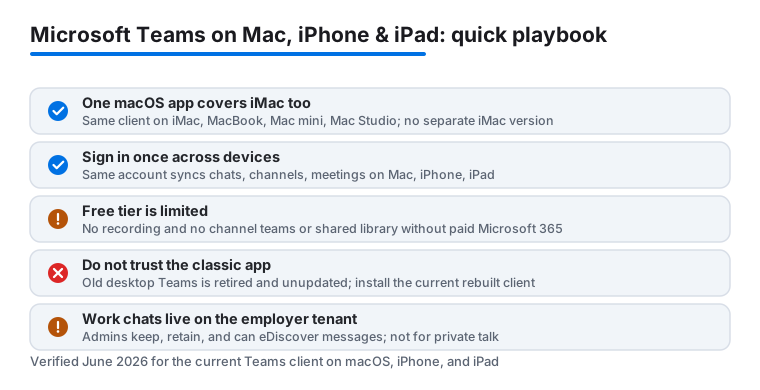
One more practical note on privacy at work: anything you type in a work or school Teams account sits on your employer's tenant, and admins have retention, compliance, and eDiscovery tools that can surface old messages. Teams is a fine place for work talk and a poor place for anything you would not want your company to keep.
Good alternatives worth a look
Teams is not the only way to run a remote team, and the right pick depends on what your company already pays for. If you live in Google Workspace rather than Microsoft 365, Google Meet is the more natural fit for calls, and we walk through that setup in our guide to using Google Meet on your iMac. For teams that want a lighter, chat-first feel, Slack remains the friendliest option for fast conversation, though it leans on add-ons for the deeper file and video tools Teams bundles in, and Slack's own pricing has crept up over the years. Zoom is still the one to beat purely for video reliability if meetings are the bulk of your day.
That said, if your files, calendar, and email already run on Microsoft, Teams is hard to argue against because everything connects without extra wiring, and you are likely already paying for it inside a Microsoft 365 plan. To see how it stacks up beside the rest of the lineup, browse our best productivity apps for Mac roundup, or explore the wider productivity app category to find the mix that fits how your team actually works.
FAQ
Is Microsoft Teams free to use on Mac, iPhone, and iPad?
There is a free version that covers chat, one-on-one and group calls, and meetings for personal use, and it installs the same way on all three devices. Most of the business features we relied on, like channel-based teams, the shared file library, and meeting recording, come with a paid Microsoft 365 subscription through your work or school account. Recording specifically is not part of the free tier.
Is there a separate Teams app for iMac?
No. There is one Teams app for macOS, and it runs the same on an iMac, a Mac mini, a MacBook, or a Mac Studio. When people say "Teams for iMac" they mean the Mac app. Download it from the Mac App Store or from Microsoft, and skip any old "classic" Teams icon you may still have, since that version is retired and no longer updated.
Does Teams sync properly across all my Apple devices?
Yes. In our testing, signing in with the same account on the Mac, iPhone, and iPad kept chats, channels, and meeting history identical everywhere. We started messages on one device and finished them on another without losing anything. Just remember that a personal Teams account and a work or school account stay separate and do not merge.
Why does Teams slow down my Mac during video calls?
The current app is lighter than the old one, but it is still resource hungry, especially on older Macs. Long video calls push memory and processor use up, which is when you notice the fans. Closing other heavy apps, keeping Teams updated, and turning off background effects you do not need all help keep things steady.
Can I stop Teams from sending so many notifications?
You can, and you should. In Settings, then Notifications, turn off alerts for channels you do not follow closely. Then set Quiet time on the iPhone, under your profile picture, Settings, Notifications, Quiet time, so the app goes silent during the hours and days you choose. A few minutes of tuning turns a constant buzz into only the pings that genuinely need you.