
How to Set Up Focus Modes on iPhone
Focus is the iPhone feature that decides who and what can reach you at any given moment. It grew out of the old Do Not Disturb, and by now it does a lot more than mute your phone. You can build different versions of your iPhone for work, sleep, the gym, or family time, each with its own list of people and apps that get through, its own Lock Screen, and its own schedule. The catch is that a Focus is only as good as the exceptions you set. Done carelessly, it can hide the one call you needed to take. This guide walks through setting one up properly, including how to make sure urgent calls still break through.
Do Not Disturb vs a custom Focus
Do Not Disturb is still here, and it is now just one Focus among several. Think of it as the blunt option: it silences almost everything. A custom Focus is the precise option. You pick exactly who can call, which apps can buzz you, and what your screen looks like while it is on.
Apple ships a handful of ready-made Focuses: Do Not Disturb, Sleep, Personal, Work, Driving, Fitness, Gaming, Reading, and Mindfulness. You do not have to use any of them. For most people, building one or two custom Focuses that match real parts of your day works better than fighting the defaults. Sleep and Driving are worth keeping, since they tie into other features, but the rest you can ignore or delete.
Create your first Focus
Open Settings, tap Focus, then tap the plus button in the top right corner. You can pick one of the suggested Focuses or tap Custom to start fresh. If you go custom, give it a name, a color, and an icon. The color and icon are not just decoration. They show up in Control Center and on your Lock Screen, so you can tell at a glance which Focus is running.
Once the Focus exists, you land on its setup screen. This is where the real work happens. Everything from here on is about deciding what gets through and what your phone looks like while the Focus is active.
Choose who and what can reach you
On the Focus screen you will see two sections that matter most: People and Apps. Tap People and you get a choice between Allow Notifications From and Silence Notifications From. Allow mode is a small guest list: only the people you add get through, everyone else is quieted. Silence mode is the opposite, a blocklist where everyone gets through except the people you name. Most people want Allow mode for a Work or Sleep Focus, since it is far easier to name the five people who matter than to list everyone who does not.
Under People there is also a setting for calls. Tap Calls From and you can let calls come from your Allowed People, your Favorites, or all contacts. Below that, turn on Allow Repeated Calls. This is the single most useful safety switch in the whole feature. With it on, a second call from the same number within three minutes rings through even if that person is not on your list. If someone is trying to reach you in an emergency, they usually call twice.
Then tap Apps and do the same thing. Allow mode lets only chosen apps notify you. A Work Focus might allow Slack, Mail, and Calendar and silence everything else. There is also a toggle for Time Sensitive Notifications. Leave this on. It lets apps mark genuinely urgent alerts, like a food delivery at your door or a two-factor security code, so they slip past the Focus.
Set the Lock Screen and Home Screen for a Focus
Here is where Focus stops being just a mute button. Each Focus can show its own Lock Screen and its own Home Screen pages. A Work Focus can surface your calendar and email, while a Personal Focus pushes those out of sight and brings forward messages and photos.
On the Focus setup screen, look for the Customize Screens section. Tap the Lock Screen box to pick which Lock Screen appears when this Focus is on, or the Home Screen box to choose which Home Screen pages stay visible. The link works both ways. Once a Lock Screen is tied to a Focus, swiping to that Lock Screen turns the Focus on, and turning the Focus on brings up that Lock Screen. If you have set up several Lock Screens by long pressing the Lock Screen and swiping between them, this is how you connect each one to a mood or a task.
One honest note: hiding Home Screen pages does not hide the apps entirely. They are still in your App Library and still searchable. This reduces temptation, it does not lock anything away.
Schedule and automate when it turns on
A Focus you have to remember to turn on is a Focus you will forget. The point is to let it switch itself. On the Focus screen, scroll to Set a Schedule and tap Add Schedule. You get three kinds of trigger:
- Time: turn the Focus on between set hours on chosen days, like a Work Focus from 9 to 5 on weekdays.
- Location: turn it on when you arrive somewhere, like your office or the gym.
- App: turn it on when you open a specific app, like a Reading Focus when you open Books.
You can stack more than one schedule on a single Focus. There is also a Smart Activation option that lets the iPhone turn the Focus on at relevant times based on your habits. It is convenient but unpredictable, so if you want tight control, set your own time or location triggers instead and leave Smart Activation off.
For anything more elaborate, the Shortcuts app has a Focus action you can drop into a personal automation. That is how you would, say, turn on a Focus only when a time and a location both match.
Share your Focus status so people know
When a Focus is on, you can let other people see that you have notifications silenced. In Messages, anyone texting you sees a small note saying you have notifications silenced, with a Notify Anyway button if their message is genuinely urgent. This is a quiet way to set expectations without explaining yourself.
To turn it on, go to Settings, tap Focus, then tap Focus Status. Turn on Share Focus Status and pick which Focuses share it. The other person never sees which Focus you are in or why, only that you are not getting alerts right now. If there is someone you would rather not signal this to, you can open their chat in Messages, tap their name at the top, and switch off Share Focus Status just for them.
Use Reduce Interruptions when you cannot pick a list
Sometimes you do not know in advance which notifications will matter. That is what the Reduce Interruptions Focus is for. Instead of you naming people and apps, Apple Intelligence reads each incoming notification and decides whether it is important enough to show. A message about picking your kid up early gets through. A coupon from a shopping app does not.
It needs Apple Intelligence, which means an iPhone 15 Pro or any iPhone 16 or newer, with Apple Intelligence switched on. You can still add your own allowed people and apps on top of the automatic filtering, which is the safer way to use it. The feature that does the deciding is called Intelligent Breakthrough and Silencing, and in this particular Focus it is always on.
Be realistic about it. The system guesses, and guesses are sometimes wrong. It can mute something you wanted or let through something you did not care about. Treat it as a helper for low-stakes stretches of the day, not as the thing standing between you and an emergency call.
How to avoid silencing something important
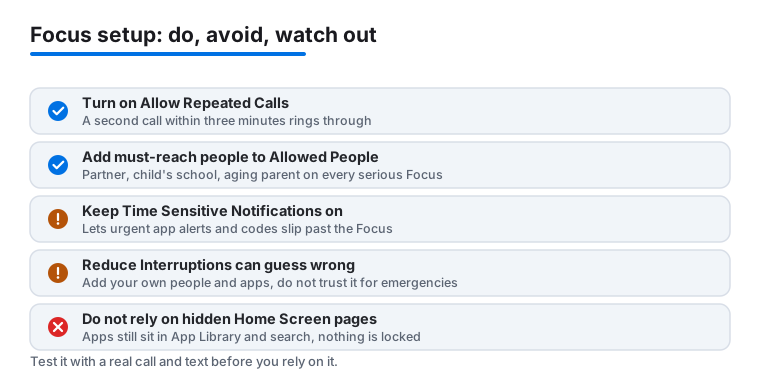
The whole risk with Focus is a missed call that mattered. A few habits keep that from happening. Always turn on Allow Repeated Calls, so a person calling twice rings through no matter what. Add the two or three people you can never miss, a partner, a child's school, an aging parent, to the Allowed People list of every serious Focus, especially Sleep. Keep Time Sensitive Notifications on so urgent app alerts are not buried.
Test it before you rely on it. Have someone call and text you while a Focus is on and watch what happens. It is far better to find a gap during a dry run than during a real emergency. And remember you can always turn a Focus off fast: open Control Center, tap the Focus button, and tap the active one to switch it off.
FAQ
What is the difference between Do Not Disturb and a Focus?
Do Not Disturb is one type of Focus. It silences nearly everything. A custom Focus lets you choose exactly which people and apps get through, set its own Lock Screen and Home Screen, and turn on by schedule. Use Do Not Disturb when you want quiet fast, and a custom Focus when you want control over what still reaches you.
How do I let urgent calls through while a Focus is on?
Open the Focus in Settings, tap People, then add the people you cannot miss to your Allowed People list and set Calls From to include them or your Favorites. Most important, turn on Allow Repeated Calls. That lets a second call from the same number within three minutes ring through even if the caller is not on your list.
Can each Focus have its own Lock Screen?
Yes. In the Focus setup screen, use the Customize Screens section to link a Lock Screen to that Focus. After that, switching to that Lock Screen turns the Focus on, and turning the Focus on brings up that Lock Screen. You can do the same with Home Screen pages.
Will people know my notifications are silenced?
Only if you let them. Go to Settings, Focus, Focus Status, and turn on Share Focus Status. People texting you in Messages will see that you have notifications silenced, with a Notify Anyway option. They cannot see which Focus you are in. You can switch this off for individual contacts in their Messages chat.
What is the Reduce Interruptions Focus?
It is a Focus that uses Apple Intelligence to decide which notifications are important and show only those, instead of you naming people and apps in advance. It needs a compatible iPhone with Apple Intelligence turned on. It can make mistakes, so add your own allowed people and apps and do not rely on it for emergency calls.
How do I make a Focus turn on automatically?
Open the Focus, scroll to Set a Schedule, and tap Add Schedule. You can trigger it by time of day, by location when you arrive somewhere, or by opening a specific app. You can add more than one schedule to the same Focus. For combined conditions, use the Focus action inside the Shortcuts app.