
Google Sheets on iPhone and iPad: A Practical Workflow Guide
Spreadsheets on a phone sound like a compromise, and for years they were. So we spent a few weeks actually living in Google Sheets on an iPhone 15 and an iPad Air, building budgets on the train, fixing a client tracker from a coffee shop, and checking formulas one handed while standing in line. The short version: it is far better than you expect for quick edits and genuinely good on iPad, with a couple of rough edges worth knowing before you commit. One thing to clear up first, since people ask: there is no separate Google Sheets app for a Mac or MacBook. On a Mac you use Sheets in a browser at sheets.google.com. The App Store app we are talking about here is for iPhone and iPad only. Here is how to get it running smoothly and where it pays off.
Getting it set up and signed in
Grab Google Sheets from the App Store, open it, and sign in with the same Google account you use on the desktop. If you already have Gmail or Google Drive on the device, Sheets usually picks up that login automatically, so you are editing within seconds. In our testing the first launch pulled down every spreadsheet we owned and kept them in sync without a single nudge. The app updates often, roughly every couple of weeks, so if a feature looks missing it is worth checking the App Store for a pending update before you blame the app.
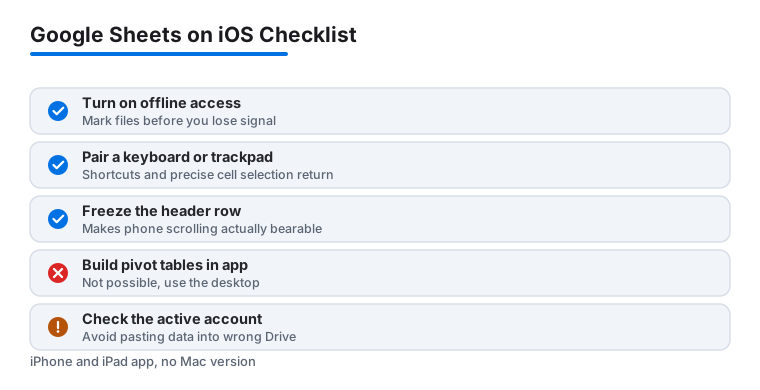
Two small things make the experience much nicer from day one. First, turn on offline access so a flaky signal does not lock you out of a file you need. Open the file list, tap the three dots next to a sheet, and turn on Make available offline. If you want this to happen by itself for the files you use most, open the menu, go to Settings, and switch on Make recent files available offline. Your offline copies then live under the Offline section of the menu, which is handy when you are about to lose signal on a flight or a long tunnel ride.
Second, if you juggle a work and personal account, add both in the app and learn the avatar tap in the top corner to switch between them. We got burned once editing the right file in the wrong account, and that one habit fixed it. A privacy note while you are in there: anything you mark offline is stored unencrypted in the app's own space on the device, so if you carry sensitive financial data, lean on your phone's passcode and Face ID rather than assuming the file itself is locked.
On iPad, the app feels closest to the desktop. Pair a keyboard and the familiar shortcuts come back, including copy, paste, undo, and arrow key navigation across cells, which is the moment Sheets stops feeling like a phone toy. Trackpad support works too, so a Magic Keyboard or any Bluetooth trackpad gives you a real pointer for picking cells, which sidesteps the biggest annoyance of touch editing.
The features that actually matter on the go
You will not rebuild a financial model on a phone, and you do not need to. The point of Sheets on iOS is the quick, high value edit, and a handful of features carry that load well:
- Real time collaboration. Open a shared sheet and you see teammates' colored cursors moving live. We fixed a pricing typo while a colleague watched the cell update from her laptop, no refresh, no resend. Edits from the phone land in the same file everyone else is in, so there is no separate mobile copy to reconcile later.
- Comments and assignments. Tap a cell, open the menu, and add a comment, then type a plus sign and someone's email to assign it to them. Good for flagging a number you are not sure about without stopping the meeting. Replies thread the same way they do on the web.
- Formula entry that is genuinely usable. Start typing an equals sign and the app suggests functions with argument hints. It is slower than a physical keyboard, but SUM, VLOOKUP, IF, and the rest work the way you remember. The function list on mobile matches the web, so a formula that runs on the desktop will run here.
- Filter views, sorting, and freezing. You can sort a column, apply a filter, and freeze the top row so a long list stays readable on a small screen. Freezing a header row is the single change that made phone scrolling bearable for us.
- Version history. Open the menu and tap Version history to see earlier states and roll back a bad edit, which has saved us more than once after fat fingering a delete. You can name a version too, so a clean checkpoint is easy to find later.
For deeper editing, the same files live in your Drive, so anything you start on the phone is waiting on the desktop later. If you lean on Google's suite, our look at the iPad Drive app for teams pairs nicely with this, since that is where your spreadsheets actually sit. One quirk worth knowing: charts created on the desktop display fine on mobile, but the controls for editing a chart's type or styling are limited, so treat charts as view mostly on the phone.
Practical tips we wish we had known sooner
A few habits turned Sheets from fiddly to fast for us. Pin the files you touch daily by starring them, so they float to the top of the Starred view instead of making you hunt through Drive. When you need to add rows or columns quickly, tap a row number or column letter to select the whole thing, then use the toolbar that pops up rather than the tiny long press menu, which is easy to miss on a phone.
For data entry, rotate the iPhone to landscape. The extra width shows more columns and shrinks the amount of scrolling, which matters a lot when you are reconciling numbers. On iPad, use Split View or Stage Manager to keep an email or a PDF invoice next to the sheet so you can copy figures across without app hopping. We also lean on the share menu to export a tab as a PDF or send a link when someone just wants the summary. A link share lets people view without editing, and you can set it to expire or revoke it later from Drive, which is safer than mailing a file around.
One genuinely underrated trick: if you collect numbers from receipts often, dictate them. Tap the cell, hit the microphone on the iOS keyboard, and speak the figure. It is faster than thumb typing decimals, and accuracy held up well in our runs, though it does send audio to Apple's dictation service, so skip it for anything confidential. For repeated entries, the autofill handle works the same as on the desktop: select a cell, grab the small square at its corner, and drag down to copy a pattern. It is fiddly with a fingertip but precise with a trackpad or Apple Pencil.
Last habit: keep an eye on which account is active before you paste anything sensitive. The avatar in the corner shows it, and a two second glance there beats discovering a client's numbers landed in your personal Drive.
The limits and downsides worth knowing
This is where honesty matters. The mobile app is a trimmed version of the desktop, and a few gaps show up fast. The big one people get wrong: you cannot create a pivot table in the iOS app at all. Google's own help pages tell you to open sheets.google.com on a computer to build one. A pivot table made on the desktop will show its results on your phone, but you cannot add, edit, or refresh its setup from there. Conditional formatting is similar. On iPhone and iPad you can see the colors a rule produces, but you cannot create or edit the rule itself; that also needs the web version. So if a coworker tells you the mobile app can build these, gently correct them, because it has not for a while and still does not in 2026.
Macros and Apps Script are desktop only as well. Scripts attached to a sheet will keep running, but you cannot record, edit, or trigger them from the app, so treat anything automation heavy as read and tweak on the phone.
Big sheets also tax the app. A file with tens of thousands of rows and lots of live formulas scrolled with a noticeable lag on the iPhone, though the iPad handled the same file more gracefully. Precise selection is the other recurring annoyance, since grabbing exactly the range you want with a fingertip takes patience, and we occasionally nudged the wrong cell. An external keyboard, a trackpad, or an Apple Pencil for tapping helps a lot here.
Finally, you need a Google account and, for the best experience, a connection. Offline editing works for files you prepared in advance, but you cannot open a brand new shared sheet for the first time without data, and brand new offline created files only sync once you reconnect. Plan ahead if you are heading somewhere with no signal. On cost: the app is free, but it counts against your 15 GB of free Google storage shared across Gmail, Drive, and Photos, so a heavy spreadsheet habit can nudge you toward a paid plan over time.
Good alternatives to consider
Sheets is not the only way to wrangle data on iOS, and the right pick depends on your habits. If you are deep in Microsoft's world, Excel for iPhone and iPad is strong, with pivot table creation that does work on the device, unlike Sheets, though you will want a Microsoft 365 login to unlock the full feature set and larger files. For people who live inside Apple's ecosystem, Numbers comes free, looks clean, handles touch well, and exports to Excel when you need to share, but its collaboration is not as smooth as Google's and it has its own quirks moving files in and out of other formats.
If your real need is documents rather than grids, do not force a spreadsheet. Google Docs covers writing and light tables far more comfortably, and our walkthrough on Google Docs tips for iOS users is a better starting point there. For anyone weighing the broader toolkit, our roundup of the best productivity apps for iPhone puts these side by side, and you can browse the full productivity hub for more hands on guides.
FAQ
Is Google Sheets free on iPhone and iPad?
Yes. The app is free to download and use with a standard Google account, and that covers everything most people need, including collaboration, offline files, and version history. You only pay if you want extra Google Drive storage, which the app shares with Gmail and Photos, or a Workspace plan for business features. There is no Mac app to buy either; on a Mac you just use Sheets in a browser.
Can I edit Google Sheets without an internet connection?
You can, as long as you turn on offline access for that file ahead of time. Open the file list, tap the three dots beside a sheet, and turn on Make available offline, or switch on Make recent files available offline in Settings so it happens automatically. Your edits sync the next time the device reconnects. You cannot, however, open a brand new shared sheet for the first time while offline.
Can the iPhone app create pivot tables and conditional formatting?
No, and this trips people up. Formulas work well on iOS, with suggestions and argument hints as you type. But you cannot build a pivot table in the mobile app at all; Google directs you to sheets.google.com on a computer for that. Conditional formatting is view only on iPhone and iPad too, meaning you see the colors a rule creates but cannot add or edit the rule. For pivot tables, conditional formatting, macros, or Apps Script, use a desktop browser.
Should I use Google Sheets or Apple Numbers on my iPhone?
Choose Sheets if you collaborate with others or already keep files in Google Drive, since live editing is its strongest feature. Pick Numbers if you work mostly solo, want a polished touch interface, and stay within Apple's ecosystem. Numbers exports to Excel format when you need to hand a file off, though that conversion can shift some formatting, so check the result before you send it.