
Practical Microsoft Copilot Tips for Your iPhone, iPad, and Mac
Microsoft Copilot started life on the desktop, so a lot of people assume the iPhone version is an afterthought. It is not. We spent a few weeks running it as our day to day assistant on an iPhone 15, with a side of iPad and a Mac mini, drafting emails on the bus, summarizing long PDFs, and talking to it hands free while cooking. It earned a spot on the home screen, but only after we learned where it helps and where it quietly falls short. One thing to clear up first: the app you want on iPhone and iPad is the free consumer app simply called Microsoft Copilot. There is also a separate native Mac app now, but it has its own requirements, and we will get to that. Here is what actually helped.
Getting Copilot running and signed in
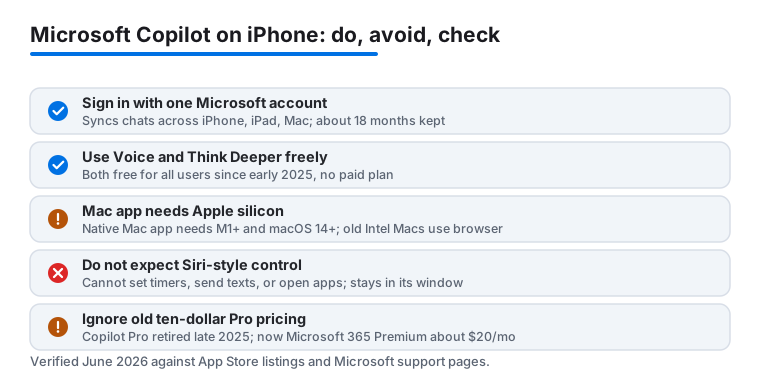
Grab the free Microsoft Copilot app from the App Store. It is a small download and it runs on any iPhone or iPad on a recent version of iOS or iPadOS. You can poke around as a guest, but do not stop there. Sign in with a Microsoft account, either a personal one or your work or school login, and the app becomes far more useful. Your chat history is saved on Microsoft's servers and follows you to other devices, you get longer conversations, and your settings stick.
A quick note on the Mac, because the page title mentions it and people get confused. As of early 2025 there is a real native Microsoft Copilot app in the Mac App Store, separate from the iPhone one. The catch is that it needs an Apple silicon Mac, an M1 chip or newer, running macOS 14 or later. If you are on an older Intel iMac or MacBook, the native app will not install and you are stuck using Copilot in a browser instead. So when we say we used it across devices, the Mac piece only works on the newer machines. Worth checking before you go hunting for it.
In our testing the single best setup move was signing in with the same account everywhere. Start a research thread on the laptop at your desk, then pick it up on the phone at the bus stop, and the conversation is simply there. Copilot keeps roughly the last eighteen months of your chats, which is longer than we expected and genuinely handy when you want to find that thing you asked about last month. If you pay for a Microsoft 365 plan, log in with that account so Copilot can reach your Word, Excel, and Outlook content when you ask it to. One small thing: turn on notifications during onboarding only if you want the daily nudges, otherwise skip them and keep your lock screen calm. You can change that later in the iPhone Settings app under Notifications if you regret it either way.
The features that earn their keep
Copilot does a lot, so it helps to know which parts are worth your thumb taps. After a few weeks, these are the ones we kept returning to on the phone.
- Voice. Tap the microphone or headphone icon and just talk. We used this constantly while driving and cooking, asking for a recipe substitution or a quick unit conversion without touching the screen. The back and forth feels natural, and you can cut in mid sentence. Voice is free for everyone now, which was not always the case, so do not let an old article tell you it is locked behind a subscription.
- Copilot Vision. During a voice session you can share your phone's camera so Copilot sees what you are looking at and answers in context. Point it at a parking sign, a wine label, or a chart in a report and ask what it means. It reads printed text well and handles handwriting better than we expected, though messy writing still trips it up.
- Think Deeper. This is the slower, more careful reasoning mode for harder questions, the kind where you want it to actually work through a problem rather than fire back the first thing. Microsoft made Think Deeper free for all users in early 2025, so you no longer need a paid plan to use it. We reach for it on planning questions and anything with a few moving parts.
- Long document summaries. Share a PDF or paste a wall of text and ask for the three things that matter. This alone saved us real time on contracts and meeting notes.
- Image generation. It draws pictures from a text prompt, handy for a quick birthday card or a slide visual. Quality is fine for casual use, not for anything you would print large.
- Drafting and rewriting. Emails, captions, a polite reply to a tricky message. Ask it to match a tone and it usually lands close, then you nudge it.
One feature people miss: in a chat you can sometimes pick which underlying model answers, choosing a faster general model or a heavier one for deep analysis and long documents. The exact wording shifts as Microsoft updates the app, so look for a model or mode selector near the top of a conversation rather than expecting a fixed label. If you live in the Microsoft world, Copilot pairs naturally with the other apps we cover, like the Microsoft Word app on iPhone for finishing a draft you started by voice.
Tips that make it faster on a phone
A phone screen rewards a few small habits. First, add the Copilot widget to your home screen so a question is one tap away rather than buried in a folder. Press and hold an empty spot on the home screen, tap the plus button in the corner, search for Copilot, and drop the widget where your thumb naturally lands. Small change, but you ask more questions when it is right there.
Second, be specific in your very first message. Instead of asking it to help with an email, tell it who the email is to, the tone you want, and the one outcome you need. We found the first reply gets noticeably better when the prompt carries that context, which saves you a round of corrections.
Third, use voice for input even when you plan to read the answer on screen. Talking out a messy idea is faster than typing it with thumbs, and Copilot is good at tidying the result into something readable. Fourth, when a thread wanders off, start a fresh chat rather than fighting the old context. Long, drifting conversations make the answers worse, not better. Fifth, if you bounce between devices, remember the Mac and iPad versions handle big spreadsheets and side by side documents far more comfortably than a phone ever will, so save the heavy reading and editing for a larger screen and keep the phone for quick hits, voice questions, and camera lookups while you are out. We treated the phone as the catch all and let the bigger screens do the slow work.
The limits and the new pricing worth knowing
Copilot is genuinely helpful, but it is not magic, and a little honesty here will save you frustration. The free tier covers most of what we have described, including voice, Vision, Think Deeper, and document summaries. During very busy periods you may still get nudged to a faster, lighter model or asked to wait a moment on the heaviest requests, but day to day the free app does plenty.
The pricing picture changed in late 2025, so ignore older guides that quote a ten dollar Copilot Pro plan. Microsoft retired the standalone Copilot Pro subscription. If you already pay for it, it keeps working until support ends on August 1, 2026, after which it will not renew. The replacement for individuals is Microsoft 365 Premium at about twenty dollars a month, which folds the old Pro perks, priority access and higher limits, in with the full Office apps and a large chunk of OneDrive storage. So the upgrade now costs more but bundles a lot more. If you only want the AI and not the Office suite, that math may not work for you, and the free app might be all you need.
It also gets things wrong with full confidence. We caught it inventing a citation and fumbling a date during one research session, so we never paste its output into anything that matters without a quick check. On iPhone specifically it cannot reach into your phone the way Siri can. It will not set a timer, send a text, or open another app for you, because it lives inside its own window. And anything you share with it travels to Microsoft's servers and can be retained in your history for many months, so think twice before pasting sensitive personal or client information. A work Microsoft 365 plan adds business data protections, but a free personal account does not carry those, so read your employer's policy before you upload anything from the office. Treat Copilot as a sharp, fast intern, not an oracle.
Good alternatives if Copilot is not your match
Copilot is one of several solid choices, and the right pick depends on what you already use. If you are deep in the Apple world, Apple Intelligence and the newer Siri can handle on device requests, set reminders, and act across your apps in ways Copilot cannot, so the two complement each other rather than compete. ChatGPT remains the obvious rival for conversational quality and has a polished iPhone app with its own voice mode. Google Gemini is the natural fit if your life runs on Gmail and Google Docs.
For most people, the honest answer is to keep Copilot for anything tied to Microsoft 365 and pair it with whichever assistant matches the rest of your tools. There is no rule that you pick only one. If you want to see how these productivity helpers stack up against the wider field, browse our best productivity apps for iPhone guide and the full Productivity hub. For another Microsoft tool we leaned on across the same devices, our take on Microsoft Teams essentials is a useful companion read.
FAQ
Is the Microsoft Copilot iPhone app free?
Yes, the app is free to download and covers most everyday tasks, including voice, Copilot Vision through the camera, Think Deeper reasoning, and document summaries. Microsoft made voice and Think Deeper free for all users in early 2025. The standalone Copilot Pro plan was retired in late 2025, so the current paid upgrade for individuals is Microsoft 365 Premium at about twenty dollars a month, which bundles the Office apps and extra storage along with priority AI access.
Can Copilot control my iPhone like Siri does?
No, and this trips people up. Copilot lives inside its own app, so it will not set timers, send texts, or open other apps for you. It is good at thinking, drafting, and answering, while Siri and Apple Intelligence handle the on device actions. In our testing we ended up using both, each for what it does best.
Is there a Microsoft Copilot app for Mac, or only iPhone and iPad?
Both, but they are different apps. The iPhone and iPad use the consumer Microsoft Copilot app from the App Store. There is also a separate native Mac app, released in early 2025, but it needs an Apple silicon Mac, an M1 chip or newer, on macOS 14 or later. Older Intel Macs cannot run the native app, so on those you use Copilot in a web browser instead.
Does Copilot sync between my iPhone, iPad, and Mac?
It does, as long as you sign in with the same Microsoft account everywhere. Your chat history is stored on Microsoft's servers and follows you across devices, with roughly the last eighteen months kept. We routinely started a thread on one device and finished it on the phone without losing a beat.
Is it safe to share work documents with Copilot?
For most everyday files it is fine, and a paid Microsoft 365 plan adds business data protections. That said, anything you paste travels to Microsoft's servers and can sit in your history for months, so we avoid sharing highly sensitive client or personal data on a free personal account without checking the organization's policy first. When in doubt, summarize the gist yourself rather than uploading the raw file.