
Best Productivity Apps for Mac (2026)
A Mac is a wonderful machine for getting real work done, but the App Store is crowded and most lists read like they were written by someone who never opened the apps. We spent a few weeks running our actual workday on one, juggling email, calls, docs and calendars, to see which tools earned a permanent spot in the dock and which we quietly quit. Below are the ones we kept open, with honest notes on free versus paid and what each feels like on a big screen and a keyboard. For more, browse the wider Productivity hub or our full roundup of the best Mac apps.
1. Apple Mail
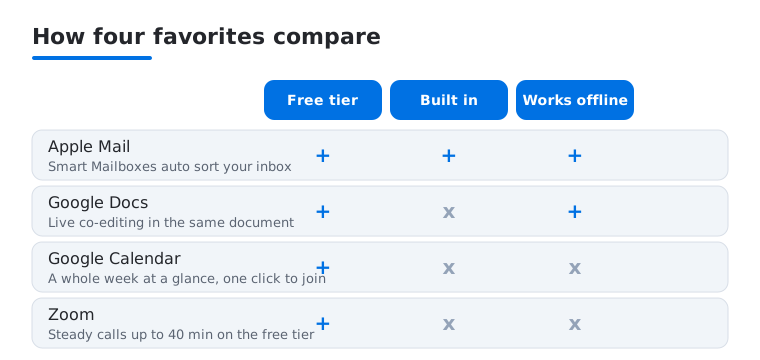
Apple Mail is the quiet default that does more than people expect. On a Mac it opens up, with Smart Mailboxes that auto sort by sender or flag and a roomy three column layout that beats a phone. We loved scheduling sends and using rules to file newsletters before they hit the inbox. It is free and built in, the first app we set up on a new Mac.
2. Google Docs
Google Docs is where most of our writing and shared drafts happen. On a Mac the keyboard shortcuts fly, and watching colleagues edit live in the same document still feels a little magical. We wrote and revised this kind of guide in it. The web app is free with a Google account, and Workspace adds storage for teams. Offline mode in Chrome saved us on a long flight.
3. Google Calendar
Google Calendar became our planning backbone, and a Mac is the right place to see a whole week at a glance. We used keyboard shortcuts to jump dates, dragged events to reschedule, and layered work and personal calendars in different colors. It is free with any Google account. The touch we liked most was how cleanly it pulls meeting links in, so joining a call is one click.
4. Microsoft Word
Microsoft Word is still the standard when a document has to look exactly right, and on a Mac it feels like the full desktop app it is. We used it for tracked changes, real formatting and clients who live in .docx files. It needs a Microsoft 365 subscription for the good stuff, though a free web version handles basics. For long, heavily styled documents, nothing else matched its control.
5. Microsoft Teams
Microsoft Teams is the hub a lot of workplaces cannot avoid, and the Mac app is far calmer than the browser tab. We ran chats, channels and video calls from it, and screen sharing on a large display made walkthroughs easy to follow. It is free for basic use, with more in paid Microsoft 365 plans. Notifications get noisy, so we muted the channels we did not need.
6. Zoom
Zoom remains the call we join without thinking, and a Mac is the comfortable seat for it. Gallery view across a big screen, easy screen sharing and reliable audio make long meetings less draining than on a phone. The free tier covers group calls up to forty minutes, with paid plans lifting the limit. In our testing the Mac app handled background blur and multiple shared windows easily.
7. Google Meet
Google Meet is our pick when a call should just start from a link with no app to install. It runs right in the browser on a Mac, which suits quick chats with people outside your company. It is free with a Google account, and Workspace adds longer meetings and recording. We found it the least fussy way to invite a client, since the link simply opens and works.
8. Google Drive
Google Drive is the filing cabinet behind everything else, and the Mac desktop app keeps it out of the way. We let it sync folders in the background so files showed up in Finder, then shared links instead of emailing attachments. You get 15GB free, with paid plans for more. The standout was streaming large files on demand, so the drive stayed full without filling the Mac.
9. Google Slides
Google Slides handled our quick decks and any presentation that needed two people building it at once. On a Mac the editing is roomy, and presenter view on a second screen kept our notes hidden from the audience. It is free with a Google account. It will not replace heavyweight design tools, but for a clear collaborative deck built fast, we kept reaching for it.
10. Google Chat
Google Chat is the messaging layer that ties Workspace together, and it earns its keep on a Mac for teams already living in Gmail. We used it for fast back and forth that did not deserve an email, with spaces keeping project threads tidy. It is free with a Google account. Sharing a Drive file straight into a chat, with permissions sorted automatically, won us over.
11. Microsoft Copilot
Microsoft Copilot is the AI helper we leaned on for first drafts, summaries and untangling a messy spreadsheet. On a Mac the roomy window makes it easy to read a long answer next to your work. There is a capable free tier, with Copilot Pro unlocking more. We treated it as a fast brainstorming partner rather than a final author, and there it genuinely saved time.
12. Google Translate
Google Translate is the app we open the moment a message or document arrives in another language. On a Mac in the browser, pasting a block of text and getting a clean translation back is instant, with both languages side by side. It is completely free. For international colleagues we kept it in a pinned tab, and document upload handled a whole foreign language PDF in one go.
13. Cisco
Cisco covers the Webex calls and secure connections that a lot of larger companies run on, and the Mac apps are steady performers. We joined Webex meetings with clear audio and used Cisco Secure Client (formerly AnyConnect) to reach work systems from home without drama. The apps are free, though they assume your employer provides the accounts. If your office lives in the Cisco world, these make logging in each morning painless.
14. Apple Calendar
Apple Calendar is the built in option that quietly keeps every Apple device in sync, and on a Mac it is clean and fast. We liked how it pulls events from Mail and shows them across iPhone and iPad instantly. It is free and already installed. For anyone living inside Apple's world rather than Google's, it is the natural pick, and typing lunch Friday at noon just works.
15. CleanShot X
CleanShot X is the screen capture tool we reached for whenever a screenshot needed to do real work. On a Mac it lives in the menu bar, captures a region or a scrolling window, lets you annotate with arrows and text, and hides desktop clutter before the shot. It is a paid app with a one time license. For walkthroughs, bug reports and quick visual notes, it saved us steps over the built in capture.
How to choose productivity apps for a Mac
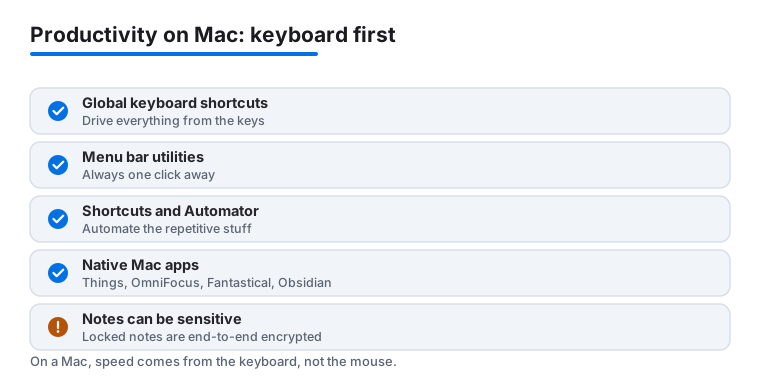
The Mac rewards a different way of working than the iPhone or iPad. It is keyboard first. The best productivity apps on macOS understand that, and they let you do almost everything without reaching for the trackpad. Before you install another to do list, it helps to know what actually makes an app pleasant to live in on a Mac, and what to ignore.
The Mac is keyboard first
Four things separate a great Mac app from a phone app wearing a bigger window.
- The menu bar. Many of the most useful Mac tools live up in the menu bar rather than the dock. A small icon near the clock can hold a clipboard history, a quick note field, a timer or a calendar peek, always one click away no matter which app is in front. Utilities like this stay out of your way until you need them, which is the whole point.
- Global keyboard shortcuts. A real Mac app lets you summon it, capture a thought or jump to a view from anywhere, even when a different app is focused. Look for a setting that lets you assign a system wide hotkey. Once you can hit one key combination to capture a task without leaving your email, you stop losing ideas between apps.
- Shortcuts and Automator. macOS ships with two automation tools. Shortcuts is the newer, friendlier one, shared with iPhone and iPad, and it can chain actions across apps (grab the current Safari link, add a calendar event, file a note). Automator is older and handles file and Finder chores well, like renaming a folder of images in one pass. The apps worth keeping usually expose actions to one or both, so you can wire them into routines.
- Real window management. A big screen is only useful if you can place windows quickly. Recent macOS versions snap windows to halves and corners, and several menu bar utilities add tighter control with keyboard shortcuts. An app that remembers its size and plays nicely beside others earns its place faster than one that always opens tiny and centered.
What to look for before you install
When you are weighing one app against another, hold each up to the same short checklist.
- Strong keyboard control. Can you do the core actions without the mouse? Open the keyboard shortcut list on day one. If it is long and sensible, the app was built by people who use it all day.
- Fast capture. The point of a task or note app is to catch a thought before it escapes. The gap between deciding to write something down and it being saved should be close to zero. A global hotkey and a tiny capture window beat a slow launch every time.
- iCloud or cross device sync. If you also use an iPhone or iPad, pick something that syncs cleanly. Native apps often use iCloud, which is quiet and built in. Others use their own accounts. Either is fine, as long as a note you start on the Mac is on your phone moments later without a manual export.
- Focus modes. macOS Focus can hush notifications and even hide distracting apps while you work. The apps that respect Focus, staying quiet during a Do Not Disturb block and surfacing what matters when you switch back, are the ones that protect your attention rather than tax it.
Many of the best are native Mac apps
You can run an entire workday in a browser, and plenty of people do. But the apps that feel best on a Mac are usually built for it. A native task manager such as Things or OmniFocus opens instantly, captures with a hotkey and syncs across your Apple devices. Fantastical turns calendars into something you can drive from the keyboard, including natural language entry like typing out a meeting in plain words. Obsidian keeps your notes as plain text files on your own Mac, which makes them yours to back up and search forever. And Raycast replaces the basic launcher with a command bar that opens apps, runs Shortcuts, manages your clipboard and snaps windows, all from the keyboard. None of these are required, but each shows what a Mac first design feels like compared to a web tab.
The general purpose suites still matter, of course. Apple Mail and Apple Calendar are built in and sync over iCloud with no setup. Google Docs, Drive and Meet run in any browser and are easy to share with people outside your company. Microsoft Word, Teams and Copilot feel like full desktop software on the Mac when your workplace lives in Microsoft 365. The right mix usually follows whichever ecosystem your colleagues already use, with a native capture or notes app layered on top for your own thinking.
A note on privacy
Notes and tasks are not throwaway data. They can hold passwords you jotted in a hurry, half formed business ideas, health reminders and the names of people you are dealing with. It is worth knowing how each app protects them. Apple Notes lets you lock individual notes, and those locked notes are end to end encrypted, meaning not even Apple can read them. Some third party apps, including certain notes and task tools, are end to end encrypted as well, so the contents are scrambled before they leave your Mac. Many mainstream cloud services are not. Your data may be encrypted while stored and while traveling, but the company can still technically read it on their servers. That is not automatically a problem for a grocery list, but it is worth a thought for anything sensitive. Check the app's own privacy page, look for the phrase end to end encryption when it matters, and keep your most private notes in something that offers it.
Choosing well on a Mac comes down to this. Favor apps that you can run from the keyboard, that capture fast, that sync without fuss and that respect Focus. Lean toward native tools where the difference shows. And give a moment's thought to where your words actually live.
Frequently asked questions
Are these productivity apps free on a Mac?
Many are. Apple Mail and Apple Calendar come built in, and the Google tools, Docs, Calendar, Drive, Meet, Slides and Chat, are free with a Google account. The catch is the heavier hitters. Microsoft Word and the best of Teams and Copilot want a Microsoft 365 subscription, and Cisco apps assume your employer supplies the accounts. So your real cost depends on which ecosystem you live in.
Do I need the Microsoft or Google ecosystem to make this work?
Not entirely, but picking a lane helps. If your workplace runs on Microsoft 365, Word, Teams and Copilot will work well together. If it runs on Google Workspace, Docs, Drive and Meet click into place instead. We happily mixed both, using Apple Mail and Calendar as neutral glue. Most people end up favoring whichever suite their colleagues already use, since collaboration is the whole point.
Why use a Mac for these instead of my iPhone?
Room and a keyboard. Writing documents, running video calls, sorting files and scanning a full week of calendar are simply easier on a large display. We found anything involving lots of typing or reading goes noticeably faster on a Mac, while quick replies and on the go checks still suit a phone. In practice we used both together, with the heavy lifting on the Mac.
What about the same apps on iPhone or iPad?
They travel well. Most of these tools sync across Apple devices, so a doc you start on the Mac is ready on your phone in seconds. An iPad sits nicely in between, giving you a touch screen with more space than a phone. See our guides to the best productivity apps for iPhone and the best productivity apps for iPad to round out your setup.
How do I get fast capture and keyboard control on a Mac?
Two settings do most of the work. First, in any task or notes app, open its preferences and assign a global keyboard shortcut so you can capture a thought from anywhere without switching apps. Second, learn three or four of the app's built in shortcuts rather than all of them. Native tools like Things, Fantastical, Obsidian and Raycast lean hard into this, but even Apple Notes and Reminders support a quick capture hotkey. A launcher like Raycast or the built in Spotlight ties it together by opening apps and running Shortcuts from the keyboard.
Are my notes and tasks private in these apps?
It depends on the app. Apple Notes lets you lock a note, and locked notes are end to end encrypted, so only you can open them. Some third party notes and task apps are end to end encrypted too, which means your text is scrambled before it leaves your Mac. Many mainstream cloud services are not. Your data is usually encrypted in transit and in storage, but the provider can still read it on their servers. For anything sensitive, check the app's privacy page and prefer one that clearly offers end to end encryption.