
Best Productivity Apps for iPad (2026)
An iPad sits in a sweet spot between phone and laptop, and with the right apps it becomes the machine we actually finish work on, whether that is on the sofa, at a cafe table, or docked to a Magic Keyboard. We spent weeks writing, replying, presenting and collaborating across these, keeping the ones that handle Split View gracefully, sync without drama, and feel built for a bigger canvas rather than a stretched phone screen. Below are our favorites, roughly ordered from the tools we open every day to the handy extras. If you also work on other Apple gear, our productivity apps for iPhone and productivity apps for Mac guides cover the same ground, and you can browse the wider productivity category or our full best iPad apps roundup any time.
1. Google Drive
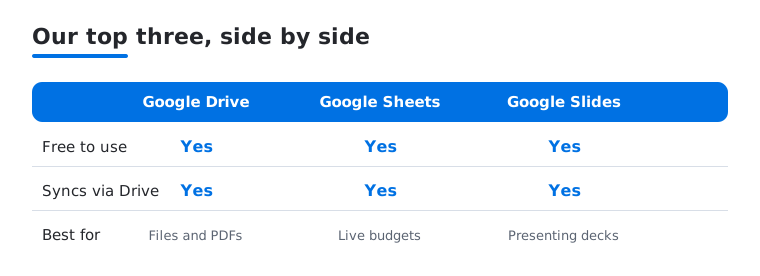
Google Drive is the first thing we set up on a new iPad, keeping every document and shared folder one tap away. The file grid is easy to scan on the bigger screen, previews open fast, and you can drag a file into another app in Split View. It is free with 15GB, more on Google One. We loved saving a PDF from Safari without leaving the page.
2. Google Sheets
Spreadsheets finally feel comfortable on a tablet, and Google Sheets is the one we trust for live budgets on iPad. With a keyboard attached, tabbing between cells and entering formulas is nearly desktop quick, and shared sheets update for everyone instantly. It is free with a Google account. In our testing the extra width made wide tables far less of a squint than on a phone.
3. Google Slides
Google Slides turns the iPad into a tidy presentation studio, whether you are building a deck on the train or rehearsing speaker notes before a meeting. The touch screen makes nudging a title or reordering slides feel natural, and it syncs through the same Drive as Sheets. It is free with a Google account. We liked using the iPad as presenter view while a Mac drove the projector.
4. Google Meet
Google Meet is our go to for a quick video call when the iPad is the nearest screen. The front camera frames you well, the tile layout uses the larger display nicely, and you can take notes beside the call in Split View. It is free for personal use, with longer group calls on a Workspace plan. The noise cancellation kept a cafe meeting surprisingly clear.
5. Google Chat
Google Chat is where a lot of our team coordination happens, and on iPad it keeps conversations and shared files in one place. The roomier layout shows your spaces down the side and the active thread beside them, so following a busy room is far easier than on a phone. It is free with a Google account. We kept it parked in Split View next to a document.
6. Microsoft Outlook
Outlook is the mail app we recommend on iPad for anyone whose calendar and inbox live tangled together. The split layout puts your schedule beside your messages, and the Focused inbox tucks newsletters away so real mail rises up. It is free, works beautifully with a Microsoft 365 account, and handles Gmail and iCloud too. We leaned on the calendar peek to plan a day without leaving the inbox.
7. Microsoft Teams
Microsoft Teams keeps you reachable when the iPad is your work screen, and it does the essentials well. Chats, calls and meeting joins sit a tap apart, background blur tidies a join from the kitchen, and you can read a shared file beside the chat. It is free for the basics, with full features on a Microsoft 365 plan. It held a steady call over patchy cafe Wi-Fi.
8. Microsoft Copilot
Microsoft Copilot is the AI helper we keep handy for drafting and untangling a knotty email on iPad. Ask it to rewrite a note in a warmer tone or boil a long thread into three points, and it answers in seconds. The app is free, with a Copilot Pro tier for Office features. We found it best as a first draft you make your own.
9. Yahoo Mail
Yahoo Mail is the inbox to consider on iPad if you juggle several addresses and like generous free storage. The tablet layout reads cleanly, the built in tools for unsubscribing and sorting receipts are genuinely useful, and search digs out old messages quickly. It is free, with an ad free Plus tier. We liked how the wider view let us triage a backlog with the message open beside the list.
10. Asana
Asana is the one we point project minded readers toward when a plain to do list is not enough on iPad. It pulls tasks, timelines and team updates into a single view that the bigger screen really flatters, so a week shapes up at a glance. There is a free tier, with paid plans for larger teams. Its board view made dragging tasks between stages feel natural on the touch screen.
11. calendar apps
The right calendar app keeps an iPad week from sliding into chaos, and the App Store has strong options to match how you plan. Apple's free Calendar syncs everywhere and shows a full month beautifully, while Fantastical adds natural language entry for typing plans in plain words. Most have a free tier with paid extras. We keep one in Split View beside mail for fast day planning.
12. Flow
Flow is worth a look if you want a calmer, more visual way to organize creative work on iPad. It leans on boards and a clean timeline that the touch screen suits well, so moving a task with the Apple Pencil feels light. There is a free tier, with paid plans for bigger projects. We found it pleasant for mapping a week of ideas without the clutter heavier tools bring.
13. journaling apps
An iPad makes a lovely journal, and journaling apps turn a few quiet minutes into a habit that sticks. Apple's free Journal nudges you with prompts from your day, while Day One adds photos and the option to write by hand with the Apple Pencil. Most offer a free tier with a subscription for extras. We liked jotting a few lines on the couch rather than a desk.
14. presentation apps
The wider field of presentation apps gives an iPad real range. Apple's Keynote is free, gorgeous, and lets you build slides by touch or Apple Pencil, while Google Slides keeps shared decks in sync and PowerPoint suits a Microsoft workplace. Most are free to start, with subscriptions for advanced features. In our testing the iPad doubled neatly as both the editor and the handheld remote during a run through.
Productivity apps for iPad
The iPad earns its keep when you stop treating it as a big phone and start treating it as a flexible work surface. Several features come together to make that happen, and the apps you choose should lean into them rather than ignore them. A document app that cannot share the screen, or a notes app that does not feel the Apple Pencil, leaves most of the hardware unused. The good news is that the apps which use the iPad well are usually the same ones that feel calm and uncluttered, so picking for the hardware tends to pick for your sanity too.
Before you fill the home screen, it helps to be honest about what you do on a tablet versus a laptop. Most of us reach for the iPad for reading, replying, light writing, sketching and meetings, and only occasionally for the kind of many window work a Mac handles better. Choosing apps around that reality, rather than around a wish list, is what keeps the device feeling light instead of like a laptop that lost half its features.
What the iPad does that the phone cannot
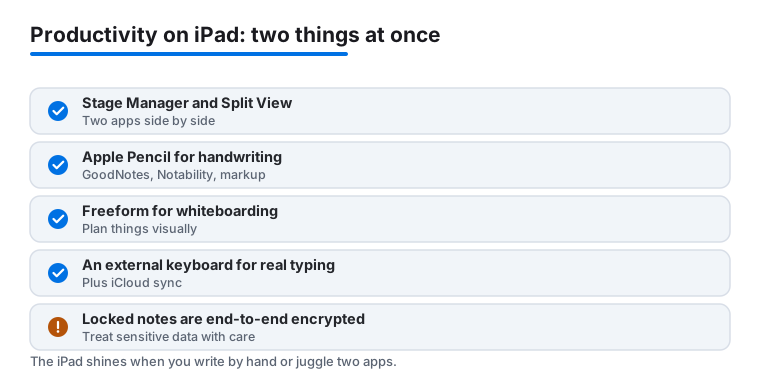
Four things change the math on an iPad. Together they decide whether a tool feels cramped or genuinely useful, and each one points toward a different kind of app.
- Stage Manager and Split View. Both let you keep two apps on screen at once, which is the heart of real iPad work. Split View pins two apps side by side at a fixed ratio, while Stage Manager floats resizable, overlapping windows and groups them into sets you can switch between. We reach for Split View to read a document beside a chat thread, and for Stage Manager when a task needs three or four windows arranged the way a desktop would. When you test a new app, drag it into a half width pane straight away and see whether it adapts or just shows a squashed phone layout.
- Apple Pencil for handwriting and markup. A Pencil turns the screen into paper. It is the difference between typing notes and actually writing them, sketching a diagram, or marking up a PDF with a red circle and an arrow. Handwriting apps like GoodNotes and Notability are built around this, with the Pencil as the primary input rather than an afterthought, and both let you search your own handwriting later. Even outside dedicated note apps, the Pencil is handy for signing a document, annotating a slide, or correcting a draft the way you would on a printed page.
- Freeform for whiteboarding. Apple's free Freeform gives you an endless canvas for sticky notes, shapes, images and handwriting, which suits planning, brainstorming and mapping out a project before it has structure. It works well solo and shines when two people draw on the same board at once. We use it for the messy early stage of a plan, then move the result into a tidier doc or task app once the shape is clear.
- An external keyboard for real typing. A Magic Keyboard or any Bluetooth keyboard turns the iPad into something you can write a long email or a report on without fighting the glass. Pair it with the trackpad cursor and most apps respond to the same shortcuts you expect on a Mac, so copy, paste, switch apps and select text all feel familiar. If you write more than a paragraph or two a day, this single accessory does more for productivity than any app.
How to choose
Match the app to how you actually work rather than to a feature list. A few questions sort most decisions quickly, and they are worth running through before you commit to a subscription.
- Multitasking that fits your workflow. If you mostly reference one thing while working in another, Split View support is enough, so check the app behaves in a half width pane. If you juggle several windows, make sure the app resizes cleanly under Stage Manager instead of locking to one size. There is no point paying for a powerful tool that becomes unusable the moment you put it beside another app.
- Pencil support if you write by hand. If handwriting matters to you, treat it as a requirement, not a bonus. GoodNotes and Notability handle pages of handwritten notes, search across them, and let you mix typed text and ink. If you only ever type, you can skip this entirely and pick a lighter notes app, since Pencil features you never touch are just extra menus in the way.
- iCloud sync, or whatever account you already live in. The point of these apps is that work follows you. Apple's own apps sync over iCloud, the Google apps ride your Google account, and the Microsoft apps ride your Microsoft sign in. Pick tools that match the account you already use so a note started on the iPad is current on your phone and Mac without a manual export. Mixing too many ecosystems is the fastest way to end up hunting for the file you swear you wrote down somewhere.
- Quick capture. The best productivity habit is writing things down before they slip away. Look for an app you can open and add to in a couple of seconds, whether that is a fast note, a new task, or a line in a journal. If capturing an idea takes more than a moment, you will stop doing it. A widget on the home screen or a keyboard shortcut that jumps straight to a blank note is worth more than any clever organizing feature.
A note on privacy
This is the same caution we give for the iPhone, and it matters just as much on a tablet you carry everywhere. Notes can hold genuinely sensitive data, account numbers, health details, passwords jotted in a hurry, plans you would not want read over your shoulder. Two facts are worth keeping in mind. First, Apple Notes locked notes are end to end encrypted, so a note you lock with a password or Face ID is readable only on your devices, not by Apple and not by anyone who gains access to your account. Second, some apps are end to end encrypted while many cloud notes are not. A lot of cloud notebooks store your text in a form the provider can read, which is fine for a grocery list and a poor choice for anything truly private. Before you trust an app with sensitive material, check whether it offers end to end encryption or a locked note, and lean on Apple Notes locked notes or Freeform stored privately when you are unsure. It is also worth a quick look at the App Store privacy labels, which spell out what each app collects, and at whether the app lets you set a separate passcode so a borrowed iPad does not hand over your inbox along with the screen.
Our everyday picks at a glance
Not sure which to set up first? Here is how our three everyday Google picks stack up on the things that matter on an iPad.
Frequently asked questions
Is an iPad good enough to replace a laptop for productivity?
For a lot of work, yes, especially with a keyboard attached and a few of these apps in place. Writing, email, spreadsheets, video calls and presentations all run comfortably, and Split View lets you keep two of them on screen at once. Where it gets tighter is heavy multitasking with many windows or specialist desktop software. We happily run a full workday on iPad, then move to a Mac only for the occasional task that wants more room.
Which of these iPad apps are free and which need a subscription?
The Google apps, Outlook, Teams, Copilot and Yahoo Mail are all free for everyday use, as are Apple's Calendar, Journal and Keynote. The paid lines appear when you want more, such as a Microsoft 365 plan for full Office features, Copilot Pro for priority access, or extra Google One storage once you outgrow the free space. Asana, Flow and the journaling picks offer free tiers too. Start free and upgrade only once a limit gets in your way.
Will my work sync between my iPad and my other devices?
Yes, and that is where these apps earn their keep. The Google apps sync through your account, Outlook, Teams and Copilot ride OneDrive and your Microsoft sign in, and Apple's own apps sync over iCloud. Start a document on the iPad at lunch and it is waiting and current on your phone or Mac later. We cover the same tools on other screens in our productivity apps for iPhone and Mac guides.
Do these apps work well with a keyboard and Apple Pencil?
They do, and pairing the iPad with both changes how it feels. A Magic Keyboard makes Outlook, Sheets and Docs genuinely fast for typing and shortcuts, while the Apple Pencil shines in Flow, journaling apps and Keynote for sketching, marking up and handwriting. Most of these apps respond to the same gestures and trackpad cursor you expect. We found the keyboard best for the writing heavy tools and the Pencil best for anything visual.
What is the best way to take handwritten notes on an iPad?
Pair an Apple Pencil with a dedicated handwriting app. GoodNotes and Notability are the two we reach for, since both are built around ink rather than treating it as an add on, and both let you search your handwriting, mix in typed text, and mark up imported PDFs. Apple Notes also accepts Pencil input if you want something free and already installed. Keep a notebook open in Split View beside the document you are annotating and the workflow feels natural.
How do Split View and Stage Manager differ on iPad?
Split View places two apps side by side at a fixed split, which is simple and predictable for reading one app while working in another. Stage Manager instead gives you resizable, overlapping windows that you can group into sets and switch between, closer to how a desktop behaves. Use Split View for a quick two app pairing, and turn on Stage Manager when a task genuinely needs three or four windows arranged at once. Not every older iPad supports Stage Manager, so check your model if you do not see it.