
Best Finance Apps for iPad (2026)
The iPad sits in an odd spot for money apps. The screen is gorgeous for reading statements and reconciling a budget, yet plenty of banks still ship a stretched iPhone layout and call it done. We spent a few weeks paying bills, moving cash and checking balances on iPad to find the apps that genuinely earn a spot on the home screen.
Below are our favorites, ordered best first. For more picks across categories, browse the wider finance hub or see everything we recommend in our best iPad apps roundup.
1. Chase
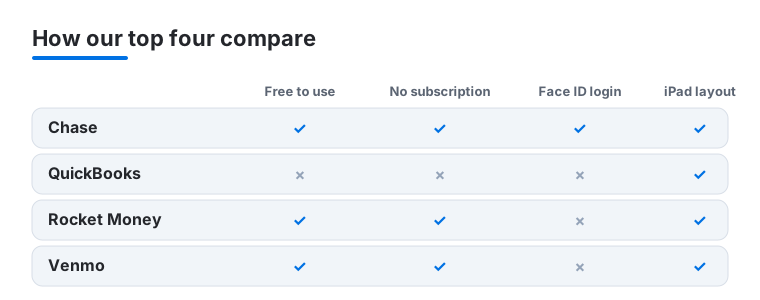
Chase is the bank app we kept coming back to. On iPad the dashboard breathes, with balances, recent activity and Zelle transfers laid out without endless scrolling. Mobile check deposit works cleanly with the rear camera, and Face ID login is instant. It is free with your account. One nice touch: the spending breakdown by category actually makes the larger canvas feel useful rather than padded.
2. QuickBooks
If you run a small business or freelance, QuickBooks on iPad is close to a portable back office. Invoicing, expense capture and profit snapshots all read well on the bigger display, and pairing it with a keyboard makes month-end far less painful. It is subscription based, starting around twenty dollars a month, with introductory discounts sometimes available. In our testing, snapping receipts and watching them auto match to transactions saved real time each week.
3. Rocket Money
Rocket Money is the app we hand to anyone leaking cash to forgotten subscriptions. It surfaces recurring charges, flags price creep and can even negotiate some bills for you. The iPad layout gives those charts room to breathe. The core tracker is free, while bill negotiation sits behind a pay what you want tier. Genuinely eye opening the first time you scan a year of charges.
4. Venmo
Venmo is built for the phone, but on iPad it shines for one job: settling up at the kitchen table while everyone splits a trip or dinner. Requesting and sending money is quick, and the social feed reads nicely on the wider screen. It is free for standard transfers, with a small fee for instant cash out. Handy too for typing notes on a bigger keyboard.
5. Coinbase
For dipping into crypto, Coinbase is the approachable starting point we recommend most. Buying, selling and tracking coins is straightforward, and the price charts genuinely benefit from iPad screen space when you want to study a trend. The app is free, though trading carries fees that vary by amount. We liked the watchlists and the clear, jargon light explanations sprinkled throughout for newcomers.
6. Apple Pay
Apple Pay is less an app than a quiet backbone, living in Wallet and Settings on your iPad. You will not tap your tablet at a register, but it powers fast, secure checkout across countless apps and Safari sites, with Face ID confirming each purchase. It is free and baked into iPadOS. We use it constantly for in app buys, and managing cards feels effortless on the larger display.
7. Klarna
Klarna is the buy now, pay later option we found easiest to live with on iPad, mostly for planning purchases on a roomier screen before you commit. You can split a buy into installments, track upcoming payments and browse partner shops. The app is free, though late fees apply if you miss a payment. Treat it as a budgeting aid, not free money, and the calendar keeps you on track.
8. Truist
Truist is a solid pick if it is your bank, and the iPad app handles the everyday essentials without fuss. Balances, transfers, bill pay and mobile deposit all sit a tap away, and biometric login keeps things quick. It is free with your account. In our testing the layout stayed readable in both orientations, unlike some bank apps that simply blow up the phone view.
9. State Farm
Insurance is not glamorous, but State Farm on iPad makes policy admin painless. You can view coverage, pay premiums, file a claim with photos and pull up your ID cards in seconds. The larger screen is genuinely nice when you are reviewing policy documents side by side. The app is free for customers. We appreciated how quickly roadside help and claim status surfaced when we went looking for them.
10. Navy Federal
For members, Navy Federal is one of the more capable credit union apps we tested on iPad. Transfers, mobile deposit, card controls and loan management are all present, and the security prompts feel reassuring without being annoying. It is free with membership. The dashboard reads cleanly on the bigger screen, and freezing a card on the spot when one went missing took only a couple of taps.
11. PNC
PNC earns its place on its Virtual Wallet approach, which splits your money into spend, reserve and growth buckets. On iPad those calendars and balance bars have room to be read at a glance. Standard tasks like deposits and transfers work as expected, and the app is free with your account. We found the cash flow calendar a clever way to spot a tight week before it arrives.
12. Fetch Rewards
Fetch Rewards turns grocery receipts into gift cards, and it is the rewards app we leave running for low effort points. Snap any receipt, earn points, redeem for cards from popular brands. On iPad it is more of a couch companion than a checkout tool, which suits scanning a pile of receipts at once. It is free, earning its keep through brand offers. Easy, occasionally generous, and zero strings attached.
13. Underdog Fantasy
Underdog Fantasy is for the sports minded, blending daily fantasy with pick em style contests. On iPad the bigger board makes comparing player props and building entries far less fiddly than on a phone. It is free to download, though contests involve real money where legal, so set a budget and stick to it. The drafting interface is smooth, and the extra screen space helps when lineups get busy.
14. Budget apps
Beyond any single brand, a dedicated budgeting app may be the most valuable thing here. We walk through the trade offs in our guide to free versus paid iPad budget apps, since the right pick depends on whether you want hands on envelopes or automatic tracking. Many offer a free tier, with paid plans around five to ten dollars a month. The extra room makes planning feel easy.
15. EBT apps
If you rely on SNAP benefits, an EBT balance app saves you the hassle of calling an automated line. These let you check your balance, review recent purchases and watch for the monthly deposit, all on a screen large enough to read comfortably. The good ones are free, though we suggest sticking to your state issued or officially endorsed app for safety. A quick check before shopping beats guessing.
How to choose finance apps for iPad
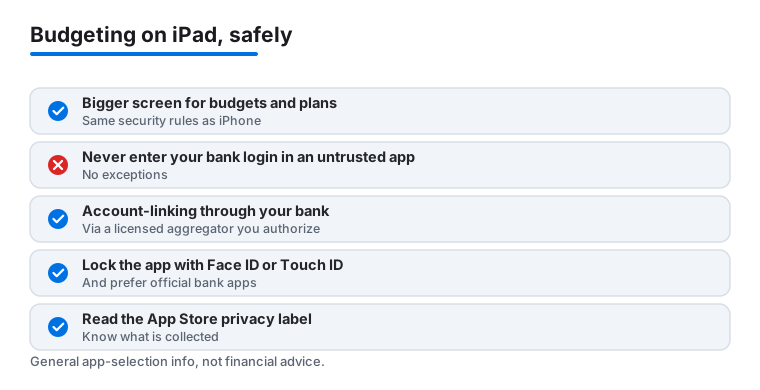
Choosing a finance app for iPad is mostly about choosing what you trust with your money information. The bigger screen is a real benefit for budgets, spreadsheets and statements, since you can see more rows at once and read the fine print without squinting. The security rules, though, are exactly the same as they are on iPhone. The data these apps hold is some of the most sensitive you own, so it pays to slow down and pick carefully. This is general information to help you compare apps, not financial advice, and your own bank or a qualified professional is the right place to take questions about your specific situation.
It helps to think about three jobs an iPad does well for money: banking (checking balances, moving cash, depositing checks), budgeting (tracking where money goes and catching waste), and planning (looking ahead at bills, goals and cash flow). Different apps are built for different jobs, and a single tool rarely does all three well.
Start with official apps from your own institution
The simplest safe choice for banking is the official app from your own bank, credit union or card issuer. When you want a banking app, look it up through your bank's website or confirm the developer name on the App Store listing matches the institution. Lookalike apps with similar names and logos do appear, so a quick check of the developer is worth the few seconds it takes.
A few habits make official apps safer to use day to day:
- Lock the app behind Face ID or Touch ID. Most banking apps offer biometric sign in, and turning it on means a glance or a fingerprint stands between your accounts and anyone who picks up the iPad.
- Keep iPadOS and the app updated. Updates carry security fixes, not just features. Leaving automatic updates on is the easiest way to stay current.
- Use a strong device passcode. Biometrics fall back to your passcode, so a long one matters. Avoid simple four digit codes for a device that holds money apps.
- Be careful on shared or public networks. Doing banking on your home connection or cellular is safer than an open coffee shop network.
The rule that matters most: never hand over your bank login
This is the single most important point on the page. Never type your bank username and password into an untrusted third party app. A legitimate budgeting or planning tool should never ask you to enter your online banking credentials directly into its own login screen. If an app does that, treat it as a red flag and stop.
The safe way that apps connect to your accounts is through a licensed account aggregator that you authorize through your bank. In that flow, you are sent to your bank's own login page or a recognized provider, you confirm the connection there, and the third party app receives read access without ever seeing your password. You stay in control, and you can usually revoke that access later from your bank's settings. If a budgeting app wants to pull your transactions, this authorized linking is the only kind you should accept.
For anything involving real money or sensitive linking, prefer apps with a clear track record and a developer you recognize. New or obscure apps that promise to manage all your accounts deserve extra scrutiny before you connect anything.
Read the App Store Privacy Nutrition Label
Before installing any finance app, scroll down its App Store page to the privacy section. Apple requires developers to disclose what data they collect and how it is used, and that summary is a quick way to spot mismatches. A simple balance checker that wants to collect your contacts, location and browsing habits is worth a second look.
When you read the label, a few questions help:
- What does it collect, and does that match what the app does? A receipt scanner needing camera access makes sense. A calculator wanting your financial history does not.
- Is data linked to your identity? The label notes whether collected data is tied to you personally.
- Is anything used to track you across other apps and sites? Tracking for advertising is common, and you may prefer apps that do less of it for something this sensitive.
The label is not a guarantee, but it is an honest starting point that Apple holds developers to, and pairing it with the developer name and a look at how long the app has existed gives you a reasonable read on what you are installing.
Matching the app to the job
Banking
For balances, transfers and deposits, your institution's own app is usually the best fit. The iPad layout, when a bank bothers to build one, makes reviewing activity and reconciling against your budget genuinely pleasant. If your bank only offers a phone sized app, its website in Safari is a fine backup.
Budgeting
Budgeting apps shine on the larger canvas because charts and category breakdowns have room to breathe. Whether you prefer hands on envelope style budgeting or automatic tracking, the key safety step is the same: any account connection should run through authorized linking, never a direct password entry. Many budgeting apps offer a free tier so you can try the workflow before paying.
Planning
Planning tools that surface upcoming bills, recurring charges and cash flow ahead of time benefit from the iPad's space, since calendars and projections are easier to scan. Treat these as aids to your own thinking rather than instructions, and remember that none of them know your full picture the way you and your bank do.
A calm checklist before you install
When a finance app catches your eye, run through this quickly. Confirm the developer matches the institution or is a name you recognize. Read the Privacy Nutrition Label and make sure the data collection fits the job. Check that any account linking uses authorized bank connections, not a password handoff. Turn on Face ID or Touch ID once installed. Keep the app and iPadOS updated. None of this takes long, and it turns a guess into a sensible decision. Again, this is general app selection guidance, not financial advice.
Frequently asked questions
Do banks make proper iPad apps or just enlarged iPhone ones?
It varies. Chase, Truist and Navy Federal handled the larger screen well in our testing, with readable layouts in both orientations. Others simply scale up the phone view, which still works but wastes the space. When a bank lacks a polished iPad app, its website in Safari is often a fine backup.
Is it safe to do banking on an iPad?
Yes, provided you take sensible steps. Keep iPadOS updated, lock the app behind Face ID or a passcode, and avoid logging in over public Wi Fi without a trusted connection. For more, see our roundup of security and privacy apps in the wider finance section. The banking apps here all use strong encryption and biometric sign in.
Can I use these apps across my iPhone and Mac too?
Most sync automatically once you sign in, so your accounts and budgets follow you. If you split your time across devices, our best finance apps for iPhone and best finance apps for Mac guides cover the standout picks on each, including a few that are stronger on one device than another.
Which app should I start with if I just want to spend less?
Start with Rocket Money to catch forgotten subscriptions and creeping bills, then layer in a dedicated budgeting app once you can see where your money actually goes. Together they cover the two halves of spending less: plugging leaks and planning ahead. Both read especially well on the iPad screen.
A budgeting app is asking for my bank username and password. Is that normal?
No, and it is the clearest warning sign to watch for. A trustworthy app links to your accounts through an authorized connection that sends you to your bank's own login, so the app never sees your password. If an app asks you to type your online banking credentials directly into its own screen, stop and do not enter them. This is general guidance, not financial advice, so check with your bank if you are unsure.
How do I know a finance app is trustworthy before I install it?
Confirm the developer name on the App Store matches your bank or a company you recognize, since lookalike apps exist. Read the Privacy Nutrition Label on the listing and make sure the data it collects fits what the app actually does. Prefer apps with a clear history over brand new ones for anything that touches your accounts. None of this is a guarantee, but together these checks weed out most of the questionable options.