
Best Utilities Apps for iPad (2026)
Utilities are the unglamorous apps that quietly make an iPad more useful: the browser you read in, the widgets that reshape your Home Screen, the camera feed you glance at over coffee. After months of daily use we pulled together the ones that actually earned a spot on our dock, with plain notes on what is free and what is worth paying for. Browse the wider utilities collection for more, and if you carry an iPhone too, our best utilities apps for iPhone picks up the same thread.
1. Google Chrome
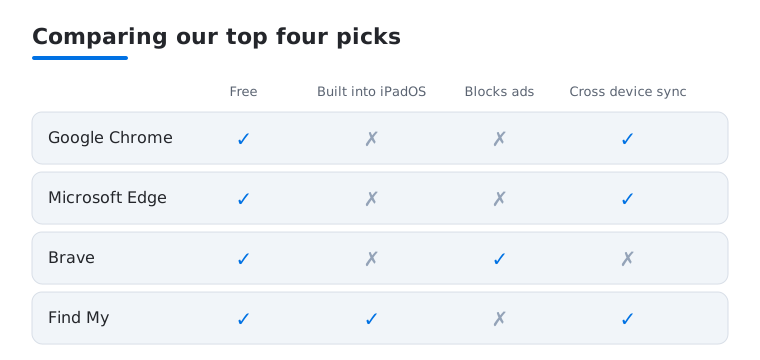
Chrome on iPad is the browser most of us default to, mostly for how cleanly it syncs open tabs, passwords and history with whatever laptop you use. It is free. On the big screen the tab grid finally feels roomy, and split view alongside a notes app makes it a real research tool. The honest tradeoff is battery, which it drains faster than Safari, so we keep it for longer sessions and reach for something lighter when unplugged.
2. Microsoft Edge
Edge surprised us on iPad. It runs the same engine as Chrome so your extensions and logins carry over, but the reading view and vertical tab list feel built for a tablet. Free, with a quick import from whatever you use now. We reach for it when an article is buried in clutter, since the clean reading mode strips it back beautifully. We dug into the setup in our iPad Edge guide.
3. Brave
Brave is the browser for people who want privacy without fiddling. It blocks ads and trackers out of the box, which on iPad means pages load faster and use less data on cellular. It is free, with optional rewards you can ignore entirely. We found the difference most obvious on news sites, where Brave loaded in a fraction of the time. For the deeper settings we walked through it in our Brave privacy tips.
4. Find My
Find My is built into iPadOS and quietly does one of the most reassuring jobs on the device: showing where your iPhone, AirPods, keys and family members are on a single map. It is free. On an iPad the larger map is genuinely easier to read than a phone, and we like it propped on the kitchen counter when someone is driving home. Pairing it with an AirTag turns a lost set of keys into a thirty second search.
5. Google Lens
Google Lens turns the iPad camera, or any photo already in your library, into a search bar for the real world. Point it at a plant, a landmark, a wine label or a page of foreign text and it identifies or translates it. It is free, tucked inside the Google app. We use it most for copying text out of a printed page or a whiteboard photo, which on the big screen is far easier to read back and edit than on a phone.
6. Widgetsmith
Widgetsmith is how you bend the iPad Home Screen to your taste, building custom widgets for the calendar, weather, photos and battery in fonts and colors that actually match. The core app is free, with a subscription for premium styles and weather. On the iPad canvas there is real room to design a clean dashboard, and we lost a happy afternoon laying out a calm, photo led screen that we still smile at every morning.
7. Widgetable
Widgetable leans into the playful side of widgets, with shared status widgets you can link with a partner or friend plus pixel pets and countdowns that live on your Home Screen. It is free with paid extras for the cuter content. We tested the shared distance and battery widgets with a family member and found them a sweet, low effort way to stay connected, and the bigger iPad layout gives the little characters proper space to breathe.
8. AirPods
There is no separate AirPods app, but the controls baked into iPadOS Settings are a genuine utility once you go looking. From there you rename the buds, remap the press and hold gesture, and switch on features like spatial audio and Find My tracking. It is free with the hardware. We found taking five minutes to set the long press to skip tracks transformed how we listen while reading or working at the desk on a long stretch.
9. Arlo
Arlo runs home security cameras, and the iPad is a lovely place to watch them: several live feeds side by side, recorded clips you can scrub through, and motion alerts you can actually read. The app is free, though most useful features sit behind an Arlo Secure subscription. In our testing the larger screen made reviewing a day of front door clips far quicker than a phone, and it pairs naturally with the wider productivity apps for iPad we keep on a home dashboard.
10. Blink
Blink is the budget friendly camera system, and its app turns an iPad into a tidy little security hub for the front door, garage or nursery. The app is free, with optional cloud storage if you want clips saved beyond local. We like Blink for renters and first timers, since setup took minutes and the live view loaded fast over Wi Fi. On the iPad it makes a natural always on monitor when propped in a stand on the counter.
11. Wyze
Wyze packs an impressive amount of smart home gear, from cameras to plugs to sensors, into one app that feels right at home on an iPad screen. It is free, with an optional Cam Plus plan for richer recording. We found the bigger layout genuinely easier for arranging multiple camera tiles and reading event timelines than a cramped phone. For the price, having every Wyze device in one clear dashboard on the tablet is hard to argue with.
12. SHAREit
For Apple to Apple transfers, reach for the built in AirDrop first: it is free, needs no install, and sends photos, videos and files between an iPad, iPhone or Mac in seconds. SHAREit fills the gap AirDrop cannot, since it happily talks to Android devices over a direct connection with no cloud upload and no cables, which helps when you live in a mixed household. It is free. One caution: SHAREit had documented security flaws, including remote code execution and data leakage reported in 2021, so keep it updated, grant it only what it needs, or use Xender or AirDrop as lighter alternatives.
13. Xender
Xender does much the same job as SHAREit, beaming files between an iPad and nearby devices at speed. It is free. For Apple to Apple sharing, AirDrop is the built in, no install first choice; Xender earns its place for the cross platform transfers to Android that AirDrop cannot do. We tested it sending a couple of gigabytes of clips to an Android phone and it finished while a cloud upload was still thinking about it. Beyond plain transfer, the built in tools for cleaning up duplicate files and managing storage on the iPad are a quiet bonus.
14. Verizon
The My Verizon app lets you manage your plan, watch data usage, pay bills and lock down account security from the iPad, which beats squinting at a cramped mobile site. It is free for customers. We found the roomier layout genuinely clearer for comparing plan changes or digging into a confusing charge, and the security settings are easier to tighten with the larger keyboard. We covered the safety side in our Verizon security guide.
15. Samsung TV Remote
A Samsung TV remote app pairs your iPad with a Smart TV for volume, channels, app launching and, best of all, typing without the plastic wand. These apps are free and connect over your home network. In our testing the on screen keyboard was the standout, since searching for a show by tapping out letters on a tablet is so much quicker than nudging a cursor one square at a time. A smart backup for when the real remote vanishes down the sofa.
16. Fire TV Stick remote apps
If a Fire TV Stick lives behind your television, a remote app on the iPad means you are never stranded when the physical remote dies or wanders off. These apps are free and connect over Wi Fi. We found the on screen keyboard the real win again, since searching by tapping out letters on a tablet beats nudging a tiny clicker one square at a time. Having it ready on the iPad you already keep on the coffee table just makes sense.
Utility apps for iPad: the everyday helpers
Utility apps are the quiet tools you open without thinking: the thing that scans a receipt, measures a shelf, holds your passwords, or marks up a PDF before you send it back. They rarely make a splash, and that is the point. A good utility does one job, does it fast, and gets out of the way. The good news on iPad is that a lot of this is already built in, so the honest first step is to learn what iPadOS does on its own, then add an app only for the gap that is left. That order saves money and clutter, because the built in tools are free, kept up to date with the system, and usually respect your data better than a free download you have never heard of.
Files and a document scanner
The Files app is the home base for anything you download, save, or move around. It reads iCloud Drive, plus folders from services you connect, and on a larger screen the column and list views give you room to drag items between folders without losing track. You can tag items, mark favorites, and scrub through recent downloads in one place. Spend a few minutes learning it before you reach for a separate file manager, because most people do not need one.
For scanning, you may not need a dedicated app at all. Notes has a built in scanner: open a note, tap the camera button, choose Scan Documents, and it detects the page edges, straightens the image, and saves a clean PDF. You can stack several pages into one file and share it straight away. The Files app can scan directly into a folder too, which is handy when you are filing paperwork rather than jotting a note. If you scan often and want extra control, Adobe Scan and Microsoft Lens both run on iPad and add text recognition so you can copy words out of a photographed page. A scanner needs your camera, and that is all. If one asks for your contacts or location before it will let you photograph a page, that is a reason to pause and look for a simpler option.
A calculator, a tape measure, and quick math
For a long time the iPad shipped without a calculator, and people installed third party ones to fill the gap. That changed: in iPadOS 18 Apple added a native Calculator app, and it brought Math Notes, which lets you write a sum by hand with the Apple Pencil and watch it solve as you go. You can set up simple variables, so changing one number updates the result, and you can even sketch a basic graph from an equation. It is genuinely useful for working out a budget, splitting a bill on the couch, or checking a quick conversion without leaving the page you are reading.
The Measure app uses the camera to act as a rough tape measure. Point it along an edge, drop the start and end points, and it reads back a length. On iPad Pro models with a LiDAR Scanner it can take a few measurements at once, and that automatic person height reading, where it estimates how tall someone standing in frame is, also needs the LiDAR Scanner found on those iPad Pro models. Treat it as a quick estimate for hanging a picture or checking whether a box will fit through a doorway, not as a substitute for a real tape when precision matters. It is handy precisely because it is always there in your pocket of built in tools, with no install and no account.
PDFs, markup, and the Apple Pencil
Reading and signing PDFs is one of the most common iPad jobs. iPadOS 26 added a dedicated Preview app, the same name Mac users know, for opening PDFs and images, filling forms, and signing without printing anything. Even outside Preview, the system Markup tools appear in Mail, Files, and the share sheet, so you can scribble on a document, add a signature, and send it back in a minute. This is where an Apple Pencil earns its keep. Handwriting a signature or circling a paragraph feels natural, and the same Pencil drives Math Notes and freehand sketches. None of this needs a paid app for everyday use.
A password manager
A password manager is the one utility worth setting up deliberately, because it touches every other app you sign in to. Apple now ships a standalone Passwords app, introduced in iPadOS 18, which stores logins, passkeys, Wi Fi codes, and verification codes, and fills them in across Safari and other apps. It syncs through iCloud and is free. It can also warn you when a password has shown up in a known leak or when you have reused the same one in two places, which is a quiet nudge toward better habits. If you want something that works the same way on Windows or Android, 1Password and Bitwarden both run on iPad and cover cross platform households where not everyone carries Apple gear. The right choice is mostly about where else you log in. Whichever you pick, the point is the same: long, unique passwords you do not have to remember, locked behind one strong key and your Face ID or Touch ID.
Useful widgets
Widgets are a small utility that pays off daily. iPadOS lets you place them on the Home Screen and on the Lock Screen, so a glance shows the weather, your next event, a reminders list, or battery levels for connected gear. You can stack a few of the same size and flick between them, which keeps the screen tidy. The built in widgets cover most needs. When you want more control over look and layout, Widgetsmith (further down this list) lets you build custom widgets in fonts and colors that match your screen. On the iPad canvas there is real room to lay out a calm, readable dashboard rather than a cramped phone grid, and because the iPad often sits on a stand or a desk, a good widget layout turns it into a glanceable home panel.
Permissions: grant only what a tool needs
One honest habit ties all of this together. A utility should ask for only the permissions the job requires. A scanner needs the camera. A measuring tool needs the camera. A password manager does not need your photos, and a flashlight does not need your contacts. On modern iPadOS you are not stuck with all or nothing: when an app asks for photos you can grant access to selected items only, and you can give an approximate location instead of an exact one. Before you install anything, scroll to the App Privacy section on its App Store page and read what it collects. After installing, open Settings and check what you granted. A tool that wants far more than its job explains is a tool worth skipping. 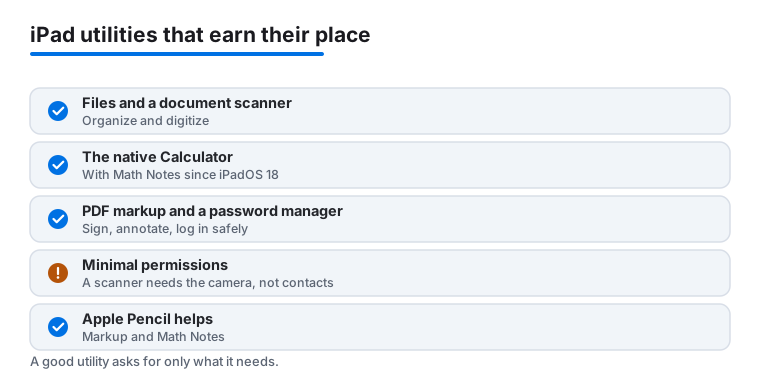
Frequently asked questions
Do I really need utility apps, or does iPadOS already cover this?
iPadOS handles the basics well, with Find My, AirPods controls and a capable browser built in. For sharing files between Apple devices, the built in AirDrop already covers it free and with no install. Where third party utilities earn their place is the stuff Apple does not touch: smart home cameras, TV remotes, custom widgets, and moving files to Android devices that AirDrop cannot reach. Start with what is built in, then add only the apps that solve a problem you genuinely hit day to day.
Are these iPad utility apps free?
Most here are free to download, including Chrome, Edge, Brave, Widgetsmith, SHAREit, Xender and the various remote apps. A few charge for their best features, such as Arlo Secure for camera recordings or Wyze Cam Plus for richer clips. We have flagged the free versus paid line in each write up so there are no surprises after you install.
Which browser is best on an iPad?
It depends on what you value. Chrome wins if you live in Google's ecosystem and want tabs synced everywhere. Edge is gentler on battery and has a lovely reading mode. Brave is the pick for privacy, blocking ads and trackers by default so pages load faster on cellular. We keep all three installed and switch depending on whether we are reading, researching or browsing on data.
Will smart home and TV remote apps work over any network?
In our testing they connect best when your iPad and the device share the same Wi Fi network, since most pair locally rather than through the cloud. The remote apps for Samsung and Fire TV, and the Arlo, Blink and Wyze camera feeds, all leaned on a shared home network. If something will not link, checking that both are on the same Wi Fi band is almost always the fix.
Does the iPad have a built in calculator now?
Yes. Apple added a native Calculator app in iPadOS 18, and it includes Math Notes, which solves handwritten sums when you write them with an Apple Pencil. For everyday math you no longer need a third party calculator. Pair it with the built in Measure app and the Notes scanner and a surprising amount of utility work is already covered before you install anything.
How do I keep a utility app from taking more data than it needs?
Check the App Privacy section on the App Store page before you install, then review Settings after the fact. On modern iPadOS you can grant limited access, for example selected photos only or an approximate location, so a scanner gets the camera and nothing more. If a simple tool asks for contacts, photos, or precise location it does not need, that is a fair reason to choose a different one.