
Best Photo & Video Apps for iPad (2026)
The iPad has quietly turned into one of the best places to edit photos and video, and a big touchscreen with an Apple Pencil makes retouching feel direct in a way a laptop never quite does. We spent weeks pushing sliders, masking skies, and cutting clips on an iPad Pro and a base iPad to see which apps actually earn a spot on your Home Screen. Below are our favorites, ordered best first, with notes on what each one feels like to use and whether the free version is enough.
If you want the wider picture, browse our photo and video apps hub or the full list of best iPad apps. On a desktop instead? See our picks for the best photo and video apps for Mac.
1. Adobe Lightroom
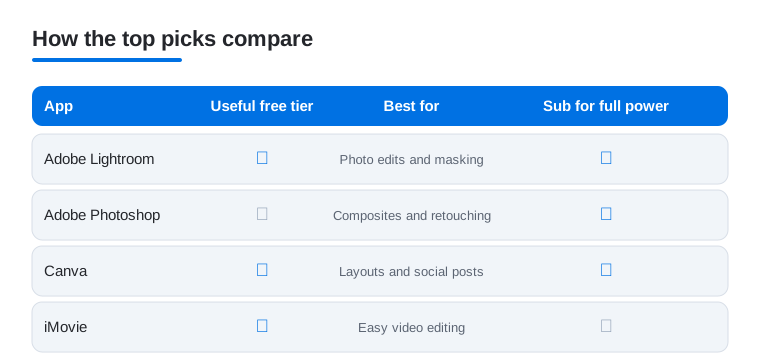
This is the one we reach for first. Lightroom turns the iPad into a proper editing desk, with masking that genuinely understands skies and subjects, plus raw support that keeps your highlights alive. Pencil users can dodge and burn by hand, which feels lovely. It suits anyone who shoots a lot. Free covers the basics, while cloud sync and the best AI masks need a Creative Cloud plan.
2. Adobe Photoshop
Full Photoshop on iPad has grown up. Layers, real selections, generative fill, and a clone stamp that behaves all work with the Pencil, and in our testing the tablet build finally felt like the desktop app. It is for people doing composites, careful retouching, or detailed cleanup, not quick filters. There is no free tier worth counting on, so plan for a subscription before you commit to it.
3. Canva
Canva is the fastest way we found to make something look finished without design skills. Templates, drag and drop layouts, and background removal turn a stray photo into a poster, story, or thumbnail in minutes, and the touch interface suits it perfectly. Great for creators, teachers, and small businesses. The free plan is genuinely generous, and Canva Pro mainly adds premium assets, brand kits, and that one tap background eraser.
4. iMovie
Apple's free editor is the easiest on ramp to video on iPad, and dragging clips around a timeline with your finger just clicks. iMovie handles trims, titles, Storyboards, and simple color work without ever feeling fiddly, and it exports cleanly to your Photos library. It suits family movies, quick social cuts, and anyone learning the ropes. It is completely free with no catches, though serious creators will outgrow it eventually.
5. VSCO
If your photos look right but lack a mood, VSCO is where you give them one. The film inspired presets are tasteful rather than gaudy, and the larger iPad canvas makes fine grain and tone tweaks easy to judge. We love it for a consistent, understated look across a feed. The free app includes a starter pack, and the yearly membership unlocks the full preset library plus film tools.
6. EPIK
EPIK is the playful one we kept coming back to for portraits and group shots. It blends a clean photo editor with AI features like old photo restoration, sticker collages, and trendy profile picture styles, and it runs smoothly with a finger or Pencil. It suits anyone making content for social rather than print. Most editing tools are free, while the AI heavy features sit behind a subscription.
7. Umax
Umax is a niche pick for people who want structured feedback on selfies and portraits, scoring your shot and suggesting tweaks to lighting and framing. On the iPad's bigger screen the side by side comparisons are easier to read than on a phone. We found it more of a coaching tool than a daily editor. The core scan is free to try, but the detailed guidance is paywalled.
8. Video Star
Video Star is built for music driven edits, the beat synced, effect heavy clips that do well on social. It packs transitions, multilayer effects, and timing tools that reward a bit of patience, and the iPad's room to work makes lining everything up far less cramped than on a phone. It suits creators who like to tinker. The app is free to start, with effect packs sold separately.
9. collage apps
When you just want several photos in one tidy frame, a dedicated collage app beats wrestling with a full editor. We like having one on hand for trip recaps, before and after shots, and quick story posts, and the iPad's space lets you nudge each photo precisely. Most are free, with watermark free exports once you upgrade. For social layouts, Canva often covers the same ground.
10. color by number apps
Not every creative app is about editing photos, and color by number apps are the relaxing end of the spectrum. Tapping numbered cells to reveal an image is oddly soothing, and the iPad with an Apple Pencil makes the finer artworks comfortable to fill in. They suit unwinding, long flights, or keeping kids busy. Nearly all are free with ads, with optional subscriptions that remove them.
11. coloring apps
Full coloring apps give you real brushes, blending, and freehand control instead of preset cells, so they sit closer to digital art. On iPad the Apple Pencil's pressure sensitivity makes shading feel natural, and the wide canvas is far roomier than a phone. They are perfect for stress free creativity and a gentle path into drawing. Expect free pages, with a subscription for premium brushes and artwork.
Not sure where to start? This quick comparison lines up our four headline picks so you can see at a glance which one is free, what each is built for, and whether you really need a subscription.
The iPad as a real creative tool
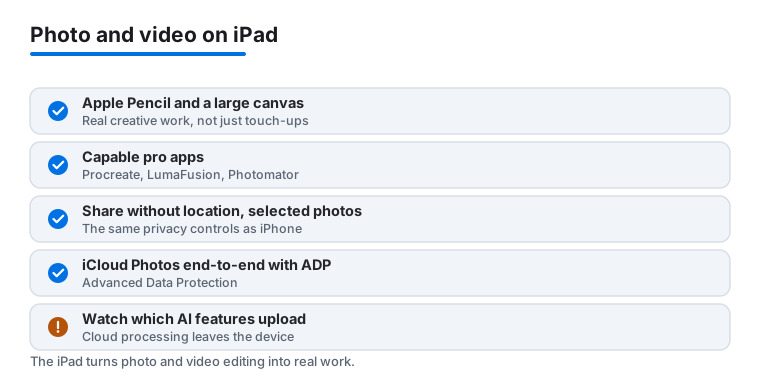
It is easy to think of the iPad as a phone with a bigger screen, but for photo and video work it sits much closer to a small studio. The extra canvas means you can see a full timeline or a layered composite without squinting, and Apple Pencil support turns retouching into something you do by hand rather than by trackpad. A few apps now run at a level that genuinely rivals desktop software. Procreate is the go to for illustration and hand drawn work, LumaFusion handles multi track video editing, and Photomator, Pixelmator Pro, and Affinity Photo cover serious photo work, all on iPadOS. You do not have to chase the pro tier to get good results, but it is worth knowing the ceiling is high.
What the Pencil actually changes
The Apple Pencil is most useful when an edit needs to land in a specific place. Dodging and burning, masking a tricky edge, cleaning up a blemish, or drawing a freehand selection all feel more natural with a tip than with a finger or a mouse. If you mostly crop and adjust exposure, you will be fine without one. If you retouch portraits or paint, the Pencil is the single thing that makes the iPad feel like the right tool.
How to choose a photo or video app for iPad
The right app depends on what you actually do, not on which has the longest feature list. A few questions sort most of it out.
- Layers and the Pencil. If you composite, retouch, or draw, look for true layer support and good Pencil handling. Procreate, Photoshop, Affinity Photo, and Pixelmator Pro all qualify. Lightweight filter apps usually do not, and that is fine if filters are all you need.
- RAW support. If you shoot with a camera or in ProRAW on an iPhone, you want an editor that opens RAW files and keeps the highlight and shadow latitude that a JPEG throws away. Lightroom, Photomator, Pixelmator Pro, and Affinity Photo all read RAW well on iPadOS.
- Timeline editing. For video, the question is how many tracks and layers you need. iMovie is single track and friendly. LumaFusion gives you many tracks, keyframing, and proper audio control when a project grows past the basics.
- Export quality. Check what you can actually get out. Look for full resolution exports, ProRes or high bitrate video where it matters, and color profiles that survive the trip. A great edit is wasted if the export is locked to a small size or stamped with a watermark you cannot remove.
Match two or three of these to your real work and the shortlist usually picks itself. You can always start free and upgrade once an app proves it earns the cost.
A few honest notes on accuracy and price
Two things are worth saying plainly. First, the on screen preview is not always the final result. Some apps soften or sharpen the preview to look pleasing, then export something slightly different, so judge an app by what comes out, not by what the canvas shows. If color accuracy matters, edit in good light and trust the histogram over the screen, since the iPad display is bright and can flatter shadows. Second, watch how the price works. Many of these apps are free to download and then charge a monthly or yearly fee, and a few sell effect packs one at a time. Neither is wrong, but it helps to know before you build a workflow around a tool you will have to keep paying for. On iPad, the pricing models differ even among the layer based editors. Procreate is still a one time purchase, so if you would rather own the app outright it is the one that fits that wish. Pixelmator Pro came to iPad in early 2026 and is now subscription based there, and Affinity Photo became free in 2025 after the Canva acquisition, so neither is a one time purchase on iPad anymore.
Keep your photos private while you edit
Photos carry more than a picture. They can hold the location where the shot was taken, the date, and the device, and editing apps often want broad access to your whole library. A few habits keep your work private without slowing you down. These are the same points that matter on iPhone, and they apply just as much on iPad.
Share without the location attached
Before you send or post a photo, you can strip the place it was taken. In the Photos app, open the image, tap the share button, then use Options and turn off Location so the file goes out without GPS data. This matters most for pictures taken at home, at a child's school, or anywhere you would rather not pin on a map for strangers to read.
Grant selected photos, not your whole library
When an app asks for photo access, iPadOS lets you choose Selected Photos instead of all of them. Pick only the images that app needs and it never sees the rest. You can change this any time in Settings under Privacy and Security, then Photos. It is a small step that limits how much any single app can read, and most editors work perfectly well with selected access.
Think about iCloud and encryption
If you sync your library with iCloud Photos, your images live on Apple servers so they reach every device. By default that data is encrypted, but Apple holds the keys. Turning on Advanced Data Protection in your Apple Account settings switches iCloud Photos to end to end encryption, which means only your trusted devices can read them. The trade off is real, so weigh it honestly. With Advanced Data Protection on, there is no way for anyone, including Apple, to recover your photos if you lose access to your devices and recovery methods, so set up a recovery contact or key first.
Watch which AI features upload your image
Many of the most impressive features, including some background removal, generative fill, restoration, and one tap enhance tools, do their work on a remote server rather than on the iPad. That means your photo, or a version of it, leaves your device and gets processed in the cloud. Often that is a reasonable trade for the result, but it is worth knowing the difference. On device editing keeps the image local. A cloud AI feature does not. If a photo is sensitive, prefer tools that state they run on device, or skip the cloud step entirely. Reading an app's privacy details on its App Store page tells you more than the marketing does.
Frequently asked questions
What is the best free photo editing app for iPad?
For everyday edits, Lightroom's free tier is hard to beat thanks to its raw support and masking, and Canva is the best free pick for layouts and social graphics. If you only need to color correct and crop, the built in Photos app already does more than most people expect.
Do I need an Apple Pencil to edit photos and video on iPad?
No, every app here works fine with just your fingers. That said, a Pencil makes a real difference for precise retouching, masking, and any kind of drawing or coloring, since you can dodge, burn, and erase exactly where you want. For video editing it matters less.
Can I edit video on an iPad without paying for anything?
Yes. iMovie is completely free and handles trims, titles, and basic color grading well, which is plenty for social clips and home movies. If you outgrow it, CapCut and Video Star add more effects, with the heavier creative features usually behind in app purchases or a subscription.
Is the iPad good enough for serious photo editing?
For most people, yes. With full Photoshop and Lightroom available, plus a bright screen and Pencil input, the iPad covers retouching, raw edits, and composites comfortably. Heavy professional batch work and certain plugins still favor a Mac, so check our iPhone photo and video picks too if you edit across devices.
How do I edit a photo on iPad without sharing its location?
Open the photo in the Photos app, tap the share button, choose Options at the top of the share sheet, and turn off Location before you send or post. The image then goes out without GPS data. You can also limit any editing app to Selected Photos in Settings under Privacy and Security so it only ever sees the images you pick.
Do AI photo tools on iPad upload my pictures to a server?
Some do and some do not. Many heavy features like generative fill, restoration, and one tap enhance run in the cloud, which means your image leaves the iPad to be processed. On device tools keep the photo local. If a picture is sensitive, prefer features that state they run on device, and check the app's privacy details on its App Store page before you rely on it.