
The Secret to Stunning Visual Stories: VSCO Techniques on iPad
VSCO has lived on our iPads for years, and it is still the app we open when a photo deserves more care than a quick filter. The bigger screen turns editing from a fiddly chore into something calmer, with room to see every adjustment as you make it. VSCO is a single universal app on the App Store, so the same download runs on iPhone and iPad from one purchase. After plenty of evenings nudging sliders and building our own looks, we want to share what actually helps you tell a stronger visual story, where VSCO works well on a tablet, and the handful of things that still trip people up in 2026.
Getting VSCO running on your iPad
Setup is quick. Open the App Store on your iPad, search for VSCO (the full name is VSCO: Photo & Video Editor), tap get, and you are editing within a minute. It is a universal iOS and iPadOS app, so there is no separate iPad edition to hunt for and nothing extra to buy if you already run it on your phone. The download is light, so even an older iPad with little free space copes fine. On first launch you create a free account, which we recommend doing properly rather than skipping, because your edits, saved looks and any work in progress then sync to your other Apple devices through that account.
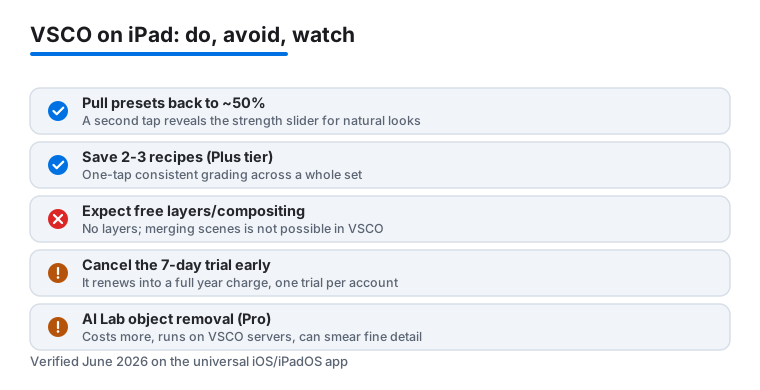
Two things are worth knowing before you start. First, VSCO opens straight into a seven day free trial of a paid membership, and the app does not make that obvious. If the trial runs out, you are charged for a full year, not a month, so if you only want the basics go into your iPad Settings, tap your name, then Subscriptions, and cancel the trial early. You keep the trial benefits until it ends, and you will not be charged. Second, VSCO only gives one free trial per account, so once you have used it you will not get another. Third on the practical side: the iPad layout puts your photo on a wide canvas with the tools tucked along the edge, which in our testing felt far more comfortable than squinting at a phone. Prop the tablet on a stand and you have a tidy little editing desk. One honest caveat we keep hitting is the social feed, which still glitches on iPad and feels built for the phone, so we treat the app purely as an editing studio.
How the membership tiers actually work in 2026
VSCO reshaped its plans, and the old single "VSCO Plus" picture is out of date, so here is the current shape. The free tier, now called Starter, gives you roughly fifteen presets and the core sliders for exposure, contrast and colour. That is genuinely enough to learn on and to keep using if you edit only now and then. Plus is the next step at about 29.99 US dollars a year, and it is the one most people actually want: it opens the full library of more than two hundred presets, the film inspired looks people associate with the app, and the ability to save your own recipes. For casual and keen hobbyists, Plus is the tier we point friends to.
Above that sits Pro at about 59.99 US dollars a year, which adds the AI Lab tools (more on those below), cloud sync with Adobe Lightroom, and a set of features aimed at people who shoot for clients, like portfolio sites and gallery delivery. In June 2026 VSCO also launched a One plan at about 499.99 US dollars a year, which bundles business tooling such as client management, scheduling and invoicing. That top tier is squarely for working photographers running a studio, and if you are editing holiday snaps on the sofa you can safely ignore it. The prices here are US figures and can shift, so check the in app screen before you commit, since the trial quietly defaults to one of the paid plans.
Presets are where your style begins
VSCO built its reputation on film inspired presets, and they remain the heart of the app. Import a photo, tap the presets row along the bottom, and you can swipe through looks that recolour and grade the image in one tap. The free Starter set is a fair starting point, while a Plus membership opens the much larger library, including the classic film emulations people love.
The technique that changed our results was treating a preset as a foundation, not a finished edit. After you apply one, tap it a second time and a strength slider appears. Pulling a heavy preset back to around half power almost always looks more natural, and it is the single habit we would pass on to anyone starting out. A consistent, slightly understated preset across a set of photos is also how you get that cohesive feed where every shot clearly belongs together. One naming note that trips people up: the film looks built into the app are not the same product as VSCO Film X, which is a separate set of presets sold for Adobe Lightroom, Camera Raw and Capture One on a desktop. If you only edit on the iPad, you do not need Film X; the in app presets are what you are paying for with Plus.
The manual tools that do the heavy lifting
Presets set the mood, but the manual sliders are where a good photo becomes a better one. After a preset is applied, tap the tools tab and you get the full set, from Adjust (crop and straighten) all the way through to HSL for individual colours. The iPad screen gives you the space to judge each change properly. These are the adjustments we reach for in almost every edit:
- Exposure and contrast. The first fix for a flat or murky shot. Small moves go a long way.
- White balance. Warming a cold image or cooling a harsh one instantly changes the feeling of a scene.
- Tone, for highlights and shadows. Lifting shadows to rescue detail is something we use constantly on backlit photos.
- Clarity and sharpen. A gentle touch adds bite and cuts haze, but push too far and skin and skies turn crunchy.
- HSL. This lets you nudge one colour at a time, say cooling a too orange skin tone or deepening a sky, without dragging the whole image with it.
- Grain. A little added grain gives that film texture and hides minor noise nicely.
Our advice is to make tiny adjustments and step back often. The temptation on a bright iPad display is to overcook everything, so we frequently set a photo down, look again a minute later, and dial it back. A few of these tools, HSL and Clarity among them, are gated behind a paid membership, so if a slider shows a lock icon that is the trial or Starter limit talking rather than a bug.
The recipe trick that saves real time
Once you land on an edit you love, do not lose it. With a Plus membership VSCO lets you save any combination of preset and slider settings as a recipe, and it is genuinely the feature that made the app stick for us. Finish an edit, tap the recipes icon, and save the current settings. From then on you can apply that exact look to a new photo with one tap, and you can batch a whole set the same way.
This is the real secret behind a consistent visual story. We keep a small handful of recipes, one warm and bright, one moody and muted, one clean and neutral, and run a whole shoot through whichever suits the mood. In our testing it turned an evening of editing a holiday album from an hour of repetitive slider work into a few relaxed minutes. Build two or three signature recipes early and your feed starts to look like it belongs to one person with one eye. Worth flagging honestly: recipes need at least the Plus tier, so on the free Starter plan you cannot save them, and you will be re building looks by hand each time.
The limits worth knowing before you commit
VSCO is a likeable app, but it is fair to flag the rough edges. The biggest is the paywall. So much of what people picture when they think of VSCO, the full film library and the deeper tools, sits behind a paid membership, and as mentioned the free trial starts the moment you open the app and renews into a yearly charge if you forget it. The free Starter tier is usable, but you will feel the walls fairly quickly if you edit often.
On capability, the picture has shifted and the old line that VSCO "cannot remove objects" is no longer quite true. The AI Lab feature can erase distractions, upscale and repair photos, but it lives in the Pro tier, not Plus, so you pay more to reach it, and like any AI clean up it can smear fine detail or invent texture if you ask too much of it. There is still no full layers or compositing system, so if you want to merge several images into one scene, VSCO is the wrong tool. AI editing also raises a reasonable privacy question, since those operations run on VSCO's servers rather than entirely on your iPad, so think twice before pushing sensitive images through it. The core slider and preset editing, by contrast, happens on the device. One last practical note: keep your own originals backed up, because relying on a single app's cloud for your only copy is a risk we would not take.
Good alternatives if VSCO is not the fit
If the subscription model or the lack of layers puts you off, there are strong options for the same iPad. For deeper, professional grade control with masking and selective edits, a full raw editor is the natural step up, and you can browse plenty of those in our best photo and video apps for iPad roundup. For graphics, text overlays and ready made templates rather than photo grading, our guide to creating social media content with Canva covers a more design led approach.
And if your visual stories are really about motion, stills only ever take you so far. Our walkthrough on editing videos in iMovie on iPad is the companion piece we point friends to when they want to move beyond photos. You can also explore the wider photo and video category for more picks in the same spirit. VSCO does have its own video trimming and grading now, but for longer cuts a dedicated editor still serves you better.
FAQ
Is VSCO free to use on iPad?
There is a free tier called Starter with about fifteen presets and the core editing sliders, and it runs on the same universal iPad app. When you first open VSCO it starts a seven day trial of a paid membership, which renews into a full year charge if you do nothing. If you only want the basics, cancel the trial early in your iPad Settings under Subscriptions, and you can keep using Starter for free.
How much does VSCO cost in 2026?
The paid tiers are roughly: Plus at about 29.99 US dollars a year, which unlocks the full library of over two hundred presets and lets you save recipes; Pro at about 59.99 US dollars a year, which adds AI Lab tools like object removal and Lightroom sync; and a One plan at about 499.99 US dollars a year aimed at professional photographers running a business. Prices are US figures and can change, so check the in app screen before subscribing.
How do I keep my photos looking consistent in VSCO?
Save your favourite edit as a recipe, which needs at least the Plus membership. After you finish adjusting a photo, tap the recipes icon and store the current preset and slider settings, then apply that same look to every shot in a set with one tap. We keep two or three signature recipes for different moods, and that is the real trick behind a cohesive feed. On the free Starter tier you cannot save recipes, so you would be rebuilding looks by hand.
Can I remove objects from a photo in VSCO?
Yes, but with caveats. VSCO added AI Lab tools that can erase distractions, upscale and repair photos, and they live in the Pro tier rather than the cheaper Plus plan. Like any AI clean up the results can smear fine detail, and the work runs on VSCO's servers rather than fully on your iPad, which is worth bearing in mind for private images. There is still no traditional layers or compositing system, so merging several photos into one scene is not possible here.
Why use VSCO on an iPad instead of an iPhone?
The larger screen is the main reason, and it is the same universal app, so there is nothing extra to buy. In our testing the iPad made it far easier to judge fine slider changes and to see how a preset affects the whole image, which leads to more careful, natural edits. Resting the tablet on a stand turns it into a comfortable little editing desk, and your work syncs back to your phone through your account. The one weak spot is the social feed, which still feels built for the phone.