
Customizing Your Tesla Experience With the Tesla App on iPad (and Why It Is Really an iPhone App)
Let me clear up the thing that trips up most people first. The Tesla app was built for the iPhone, and as of mid 2026 the App Store listing only declares support for iPhone, Apple Watch, and Apple Vision Pro. There is no iPad build and no real Mac version, whatever older guides tell you. You can still get it onto an iPad, and for planning and charging it is genuinely pleasant on the bigger screen, but you are running a phone app that has been stretched to fit. After living with it across an iPhone and an iPad for a few weeks of daily driving and one longer trip, here is the honest picture: what works, what to set up, and where it quietly lets you down.
Getting the app onto an iPad (it takes a small trick)
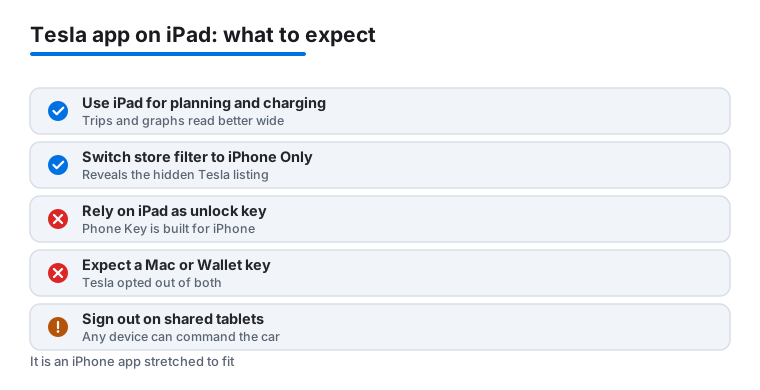
Open the App Store on the iPad and search for Tesla and you will probably come up empty, or you will find unrelated results. That is not a bug. Because Tesla does not publish an iPad version, the app is filtered out of normal iPad search. The way around it is to switch the store to show iPhone apps. Search for the app, then look for the filter near the top of the results that toggles between iPad and iPhone results, and pick iPhone Only. The Tesla app will appear, and you can install it from there.
Once it is on, sign in with your Tesla account and approve the two factor prompt. The session is tied to your Tesla login, not to a particular device, so the iPad picks up your car within a few seconds of launching, the same as the phone does. It runs full screen and looks fine at a glance, but you are looking at a layout drawn for a narrow phone: wide empty margins on the sides, controls grouped low, and the occasional pop up sheet sized for a smaller display. Nothing is broken. It just never feels like an app made for the iPad.
One thing worth saying plainly before you go further. Every device signed into your account can send commands to the car, and added devices show up in your account security list. If the iPad floats around the house, treat that as handing the household the keys. Sign out on any shared tablet when you are done, or keep it locked behind Face ID or a passcode.
About the Mac: it does not work the way people claim
You will find guides, including an earlier version of this one, telling you to grab the Tesla app on an Apple silicon Mac from the iPhone and iPad Apps tab in the Mac App Store. As of 2026 that route does not work for Tesla. Developers can choose whether their iPhone app is allowed to run on Mac, and Tesla has opted out. The app simply does not appear in that tab, so there is nothing to install. If you want Tesla controls in front of you at a desk, the practical answer is not a Mac app at all.
What you can do instead: keep the app on an iPhone or iPad nearby, or lean on Apple's Shortcuts and the Tesla widgets. The Apple Watch app, which I will come back to, also covers a lot of the quick desk side actions like preconditioning without needing a tablet open at all. I would rather tell you the truth here than send you hunting for an app that Apple will never show you.
The features that actually feel better on a bigger screen
Most people open the Tesla app for the same short list of things, and a few of them do read more clearly with more room. The extra space turns the live map and the charging graphs from a quick glance into something you can actually study while you plan.
- Climate preconditioning. Warming or cooling the cabin before you leave was the feature I reached for most. On the iPad the temperature dial and the seat heater toggles are easy to hit without fumbling, and you can see the cabin temperature climb in real time.
- Charging control. Setting the charge limit, scheduling off peak charging, and watching the session graph all read better on a wide screen. If you are matching charging windows to a time of use electricity tariff, this is the screen where that planning actually gets done.
- Trip and Supercharger planning. Browsing the map for stops the night before a long drive is far nicer on an iPad than squinting at a phone. You can see more of the route and more candidate stops at once.
- Profiles and customization. Saving driver profiles, naming the car, and choosing which quick controls sit on the main screen is fiddly setup work that suits a calm session on the couch rather than a tap or two at the curb.
- Vehicle status. Tire pressure, range, the software update notes, and recent service history are all there to skim. None of it is urgent, which is exactly why a tablet you read at leisure suits it.
The pattern that emerged for me was simple. The iPad is for the slow, deliberate jobs. The phone is for everything you do while standing next to the car.
Practical setup from a few weeks of daily use
A little setup pays off. The first thing I did was turn on notifications properly, because charging complete and security alerts are most of the app's day to day value and they are easy to miss if iOS is holding them back. Go into the iPad Settings, find the Tesla app, and allow notifications with sound or banners so a finished charge or an open door alert actually reaches you.
Adding the app to the iPad dock keeps it one tap away when you settle in to plan a route, and it stops you from hunting through a home screen folder every time. On the iPhone, the home screen and Lock Screen widgets are worth a minute of setup; they show range and let you precondition without fully opening the app, which on a cold morning is the difference between doing it and not bothering.
The other habit worth building is using Apple's Shortcuts to fire preconditioning or a charging routine on a schedule, so the car is warming up before you have touched a screen at all. It takes a few minutes to wire up an automation, and after that the car is simply ready when you are. I got into the rhythm of letting an automation handle the morning warm up and using the iPad only when I wanted to actually look at something, like a trip or a charging history. Warming the car from a schedule a few minutes before you head out is a small thing that genuinely changed how the morning felt.
The Apple Watch is the quiet workhorse
If you own an Apple Watch, do not overlook it. Tesla shipped a dedicated watchOS app at the end of 2024, and it has only gotten more reliable since. It needs watchOS 11 or later and a reasonably current car software version, and it installs automatically alongside the iPhone app. From the wrist you can lock and unlock, open the trunk and frunk, check the battery, and adjust climate. With the watch paired as a key it can unlock the car on approach much like Phone Key does, without you pressing anything.
I bring this up in an iPad article on purpose. The watch covers the fast, walk up actions far better than a tablet ever could, which frees the iPad to be the planning screen it is actually good at. If you have both, let each do the job it suits.
The limits and the honest caveats
This is where it matters to be straight with you. Because there is no native iPad version, you live with phone proportions for as long as you use it: big margins, controls clustered low, and sheets sized for a smaller display. It works, but it never feels designed for the iPad the way a first party app would.
Phone Key, the Bluetooth feature that turns a device into a proximity key, is built around the iPhone you carry in your pocket. An iPad is rarely the thing in your hand at the door handle, so do not lean on it as your unlock method; keep the phone, the watch, or your key card for that. Worth noting for 2026: there is no Apple Wallet car key for Tesla yet. Code spotted in the app late in 2025 hinted at native digital keys, but the early work points at the Chinese market and Huawei wallets first, and nothing has shipped for Apple Wallet. So if you read that you can add a Tesla key to Apple Wallet, that is not true today.
The app also depends on a live connection to the car. In a parking garage with thin signal, commands can sit and spin before they land. And any connected car app shares one flat reality: a car that has been parked and asleep wakes slowly, so the first command after a quiet night can take a few seconds longer than you expect. It usually lands; it just is not instant. None of this is dangerous. It is simply why the phone or watch stays the walk up device and the iPad stays the planning device.
One privacy note. The official app holds your Tesla login and can control the car, so be deliberate about which devices you sign into and remove any you no longer use from your account security list.
Good companions (not replacements)
The official app is the only thing that should ever hold your login and unlock the car, so treat third party tools as companions, never as replacements. Plenty of owners pair it with apps like TeslaFi or Stats for logging, trip history, and battery health trends in more depth than Tesla surfaces. Be aware that these connect through Tesla's official third party access system and you grant them scoped permission to your account, so only add ones you trust and review that access list now and then.
For navigation on a big screen, plain Apple Maps or a dedicated route planner often reads better than the in app map. And the most underrated companion is Apple's own Shortcuts, which can fire a preconditioning or charging routine on a schedule so the car is ready without you opening anything.
If you are still assembling your travel toolkit, it is worth browsing the wider best travel apps for iPad roundup and the full Travel app guides hub. For other connected services we have tested in the same spirit, our take on the Uber app and ride safety and our Hilton Honors recommendations cover the apps that tend to live right next to Tesla on a traveler's home screen.
FAQ
Is there a real Tesla app for iPad?
No dedicated one. As of 2026 the App Store listing only covers iPhone, Apple Watch, and Apple Vision Pro. You can still install the iPhone app on an iPad by switching the store filter to iPhone Only and downloading it from there. It runs full screen but keeps a phone layout, so expect wide margins and controls grouped low.
Can I run the Tesla app on a Mac?
Not really. Tesla has opted its iPhone app out of running on Apple silicon Macs, so it does not show up under the iPhone and iPad Apps tab in the Mac App Store and there is nothing to install. For desk side use, keep the app on an iPhone or iPad nearby, use the Apple Watch app, or set up Apple Shortcuts automations instead.
Can my iPad unlock the car like an iPhone?
Do not rely on it. Phone Key uses Bluetooth proximity and is built around the iPhone you carry on you. An iPad is rarely in your hand at the door, so keep your phone, your Apple Watch, or your key card as the unlock method and use the iPad for control and planning.
Can I add a Tesla key to Apple Wallet?
Not as of mid 2026. App code spotted in late 2025 hinted at native digital car keys, but the early work points at the Chinese market and Huawei wallets first, and nothing has shipped for Apple Wallet on Tesla. For now the key options are Phone Key over Bluetooth, the Apple Watch app, and the physical key card.
Why do commands sometimes take a while to go through?
The app talks to the car over the network, and a car that has been parked and asleep wakes slowly. Add a weak signal in a garage and the first command after a quiet night can sit and spin for a few seconds. It usually lands; it just is not instant.