
Navy Federal on iPhone and iPad: Squeezing More From Your Rewards
Navy Federal is the credit union I bank with day to day, and its app is where I track every cash back dollar and points balance from my cards. If you are a member, the app is the easiest place to redeem rewards, move money, and keep tabs on a More Rewards American Express or a cashRewards Visa card. I have used it on both an iPhone and an iPad for the better part of a year, so in this guide I will walk you through getting it set up, the features that actually earn you something, the habits that added up, the limits worth knowing, and a few alternatives if you bank elsewhere too. One note up front: this is a single universal app for iPhone and iPad. There is no separate Mac version, so if you want it on a Mac you are running the iPad build through Apple silicon, not a native desktop app.
Getting the app running on your iPhone and iPad
The setup is painless if you are already a member. Search the App Store for Navy Federal Credit Union, download it, open it, and sign in with the same username and password you use on the website. As of mid 2026 the app needs iOS 17 on iPhone and iPadOS 17 on iPad, so if you are on an older device you may need to update first. The first launch walks you through enabling Face ID or Touch ID, and I would say yes to both. Logging into a banking app with a glance instead of typing a password every time is the single biggest reason I actually open it daily.
The same app covers iPhone and iPad, so there is no second download to hunt for. On the iPhone it is the one I keep on my home screen for quick balance checks at the register. On the iPad the extra screen room makes reviewing statements and combing through transactions more comfortable, which is where I do my monthly rewards review. Signing in on the second device just took another Face ID enrollment and a one time security code sent by text, nothing painful. If you have an Apple silicon Mac, the same app can be installed from the Mac App Store, but it is the iPad layout in a window rather than a built for Mac experience, so do not expect anything different from what you get on the tablet.
One thing worth doing during setup: turn on push notifications. Those alerts are how you spot a card posting a purchase, and they are also your first warning if something you did not authorize hits the account. I will come back to which alerts are worth keeping and which ones just add noise, because turning on everything gets old fast.
The rewards features that actually matter
After months of regular use, these are the parts of the app I lean on to keep rewards flowing:
- The rewards balance. Tap your cashRewards or More Rewards card and your current cash back or points balance sits near the top, with no digging through menus.
- In app redemption. The app does not run the whole redemption itself. You tap your card, then choose Redeem Rewards on a cash back card or View Offers on a points card, and it hands you off to Navy Federal's rewards site inside the app. From there you can take cash back as a statement credit, send it to a checking or savings account, or put it toward gift cards, merchandise, or travel. It is a couple of extra taps but it works.
- Card controls. You can freeze a card, set a travel plan so a trip does not trip the fraud system, and report a lost card in seconds. That protects the account that holds all those rewards.
- Spending view. A simple breakdown shows where your money went, which helps you see whether you are putting the right card on the right purchase.
- Apple Pay setup. A 2026 update lets you add a debit or credit card straight to Apple Pay from inside the app, so you can start tapping to pay without leaving it.
A point worth getting right: cashRewards cards earn flat cash back, not points. The cashRewards Plus Visa Signature pays 2 percent and the standard cashRewards Visa pays 1.5 percent. The More Rewards card is the American Express points card, paying 3 points per dollar at supermarkets, gas stations, transit, restaurants, and food delivery, and 1 point on everything else. Those points do not expire while your account stays open, so there is no deadline pressure, though I still redeem regularly for reasons I will get to. The interface is plain and a little utilitarian, but everything that earns or starts a redemption is within a tap or two of the home screen.
Practical tips that added up for me
A few habits made the rewards grow faster than just swiping and hoping. First, I check which card earns the most in each category before a larger purchase. The More Rewards Amex pays its 3 points rate on groceries, gas, dining, food delivery, and transit, so I keep it on those and save the flat 2 percent cashRewards Plus for everything else. The app makes this easy because both cards sit on one screen, so I can glance and pick.
Second, I do my redemptions on a schedule rather than at random. For the cashRewards cards I take the cash back as a statement credit the moment it is worth grabbing, since there is no minimum to redeem and no reason to let it sit. For the More Rewards points, even though they do not expire, I still cash them out a few times a year because a balance that is just sitting there is doing nothing for you. When I want a little more value, I will check the travel option in the redemption site, since you can book flights, hotels, and rental cars through every program except the cashRewards Secured card.
Third, I keep alerts working for me. I set a low balance alert and a large transaction alert so I never carry a balance by accident, because interest charges wipe out any rewards you earned that month. Paying the card in full every cycle is the real trick to coming out ahead. No reward structure beats a paid balance.
One caution on the merchant offers and Member Deals you may have heard about. Navy Federal does run a Member Deals program, but in practice it leans on email and the web rather than being a slick in app offers feed, so do not expect a tap to activate stack of bonuses the way some big bank apps push them. Treat it as an occasional extra, not a core part of your earning plan. Also keep in mind that gift card purchases do not earn rewards, so do not try to game the categories by buying prepaid cards.
The limits and downsides to know
The app is solid, but a few things are worth being honest about.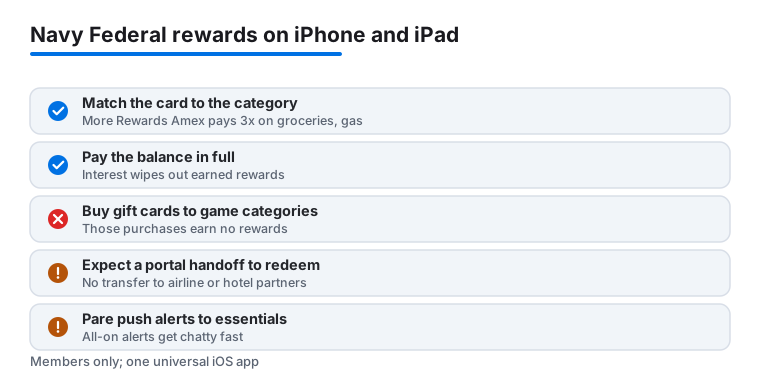
Redemption is flexible enough now, with cash, statement credit, deposit, gift cards, merchandise, and travel all on the table, but it is not in the same league as the transfer to airline and hotel partner programs that premium cards from the big issuers offer. You are booking travel through Navy Federal's own portal, not moving points to a frequent flyer account, so the ceiling on value is lower. If chasing maximum travel value is your thing, this is not the program for that.
Because redemption hands you off to the rewards website inside the app, it can feel a step removed, and I have hit the occasional maintenance window where transfers or sign in stall, usually overnight. So it is not the app to lean on at 3 a.m. before a flight. On privacy, the usual banking caveats apply: the app can collect data tied to your identity for fraud and analytics, and if you turn on every push alert it gets chatty fast. I pared mine down to purchases, low balance, and deposits to cut the noise while keeping the alerts that actually protect the account. There is no monthly fee for the app itself, but the cards carry their own terms, and the cashRewards Plus 2 percent rate is the one to read the fine print on before you assume it applies to everything.
Good alternatives worth comparing
If you bank beyond Navy Federal, or you are not eligible to join, a few other apps cover similar ground. The Chase app is the obvious comparison for rewards, with a broader card lineup and richer travel redemption, including transfer partners that Navy Federal does not offer, though you trade the credit union feel for a big bank one. If you want a regional bank that still handles cards and deposits cleanly on Apple devices, our look at the Truist app on iPad is worth a read before you switch anything.
For the bigger picture, browse our best finance apps for iPhone roundup to see how Navy Federal stacks up against the full field, or step up to the wider Finance hub to see every money app category we cover. My honest take is that if you are already a member, keeping your rewards in the same app as your checking and savings is the real win. The convenience is the perk, and for most members that is enough.
FAQ
Do I need to be a Navy Federal member to use the app?
Yes. The app is for existing members only, and eligibility runs through military service, veteran status, or a qualifying family connection. If you are not a member, you cannot sign in, so you would need to join first or pick a different bank's app.
How do I redeem my cash back or points in the app?
Open your cashRewards or More Rewards card on the home screen, then tap Redeem Rewards on a cash back card or View Offers on the More Rewards points card. That opens Navy Federal's rewards site inside the app, where you can take cash back as a statement credit, send it to a checking or savings account, or put a balance toward gift cards, merchandise, or travel. There is no minimum to redeem cash back, so I grab it as a statement credit whenever it is worth doing.
Can I use the same app on both my iPhone and iPad, or on a Mac?
It is one universal app that runs on iPhone and iPad, needing iOS 17 or iPadOS 17. Sign in with the same credentials and enroll Face ID or Touch ID on each device. On an Apple silicon Mac you can install the same app from the Mac App Store, but it is the iPad version in a window, not a built for Mac app, so it behaves just like the tablet does.
Is the Navy Federal app safe for everyday banking?
It is. The app supports Face ID and Touch ID sign in, lets you freeze a card instantly, and can push a real time alert for every purchase. Turning on those alerts is the fastest way to catch anything you did not authorize and protect the account holding your rewards. As with any banking app, it does collect some data tied to your identity for fraud detection, which is normal for this kind of service.