
iMessage Not Delivered or Not Working: How to Fix It
When iMessage stops working it almost never explains why. A message turns green when you expected blue, a chat says Not Delivered in red, or a group thread quietly stops showing replies. The good news is that the same short list of causes is behind most of these problems, and you can work through them in a few minutes without losing any of your conversations. This guide walks through the checks in the order we would actually do them, starting with the safe, quick ones and only moving to sign out and back in if you need to. None of the steps below delete your messages, and we will clearly flag the one place where a backup matters.
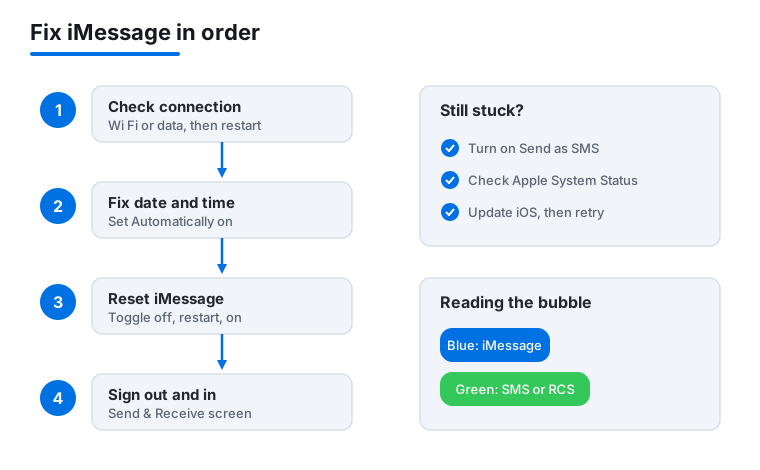
Green bubble or blue bubble: what they actually mean
Before you fix anything, it helps to read what your screen is telling you. The bubble color is the single biggest clue.
- Blue bubble: the message went over iMessage, Apple's internet based service, between two Apple devices. These support typing indicators, read receipts, high quality photos, and edits.
- Green bubble: the message went as a standard SMS or MMS text through your phone carrier. This is normal and expected when you are texting an Android phone, a landline, or anyone not using an Apple device. A green bubble to a non Apple phone is not a bug.
The problem to chase is when a message to someone you know uses an iPhone suddenly turns green, or when a blue message refuses to send and shows a red Not Delivered warning with an exclamation mark. That tells you iMessage itself is struggling, usually because of activation, your connection, or an account hiccup. Note that on recent iPhones running iOS 18 and later, texting between an iPhone and an Android phone can use RCS, which still appears green but adds typing indicators and better media. RCS is not iMessage, so if your blue chats break, the green RCS ones are a separate matter.
If you want Apple's own plain language explanation of the difference, their support article on iMessage and SMS texts is a reliable reference.
Start with the fast checks (do these first)
Most iMessage trouble clears up with the basics, and these are completely safe. Run through them before touching your account.
- Check that you are actually online. iMessage needs a working internet connection (Wi Fi or cellular data). Open Safari and load a page. If nothing loads, fix the connection first, because iMessage cannot deliver anything without it.
- Toggle Airplane Mode. Swipe into Control Center, turn Airplane Mode on, wait about ten seconds, then turn it off. This forces your iPhone to reconnect to the network and resends anything stuck.
- Restart the device. A simple restart clears more temporary glitches than any single setting. Hold the side button and a volume button until the slider appears, power off, wait a moment, and turn it back on.
- Make sure iOS or macOS is up to date. On iPhone go to Settings > General > Software Update. On a Mac open System Settings > General > Software Update. Apple fixes messaging bugs in updates more often than people realize.
If a single message shows Not Delivered, tap the red exclamation mark next to it and choose Try Again. If that fails repeatedly, you can choose Send as Text Message to push it through as a normal SMS instead, which we cover further down.
Fixing iMessage activation problems
iMessage has to activate with Apple before it can send anything, and activation quietly fails more often than you would expect. The classic sign is the message Waiting for activation under Settings > Apps > Messages (on older iOS it is Settings > Messages), or iMessage simply will not turn on.
The reliable activation reset
- Open Settings > Apps > Messages and turn iMessage off.
- While you are there, go into Settings > FaceTime and turn that off too. FaceTime activates through the same system, and resetting both together works better.
- Restart your iPhone.
- Turn iMessage back on and give it a minute or two. You may see Waiting for activation briefly, which is normal.
A few things that block activation:
- No working number or data. Activation can send a quiet text to Apple, so your line and cellular data both need to be active. If you just put in a new SIM or eSIM, give the carrier a few hours to finish provisioning.
- Date and time set wrong. This is a surprisingly common one, covered in its own section below.
- An Apple system outage. Check Apple's System Status page. If iMessage shows a colored dot rather than green, the problem is on Apple's end and you just wait.
If activation still hangs after a day, the official walkthrough on Apple's support site covers carrier specific cases worth checking.
Check your date, time, and time zone
This sounds unrelated, but a wrong clock is one of the most common reasons iMessage and activation silently break. The service checks your device time against Apple's servers, and if they disagree the secure connection can fail.
The fix is to let your device set the time automatically:
- On iPhone: go to Settings > General > Date & Time and turn on Set Automatically. Confirm the Time Zone shown is where you actually are.
- On Mac: open System Settings > General > Date & Time and enable Set time and date automatically.
If Set Automatically is greyed out, it is usually because Location Services for setting the time zone is off. You can leave automatic on in most cases. If you travel and the clock looks an hour off, toggle it off and on again to force a refresh. After fixing the clock, restart the device so iMessage reconnects with the corrected time.
Sign out of and back into your Apple Account
If the basics did not help, the next strongest fix is refreshing the account that iMessage uses. iMessage is tied to your Apple Account (the same login Apple used to call your Apple ID), and a stale sign in can stop messages flowing to the right place. Signing out of iMessage specifically does not delete any messages already on your device, but read the safety note below before signing out of the whole account.
The targeted way (safest)
- Go to Settings > Apps > Messages > Send & Receive.
- Tap your Apple Account at the bottom of that screen, then choose Sign Out.
- Wait a few seconds, tap the same spot, and sign back in with your Apple Account.
- On the same Send & Receive screen, check the list under You can be reached by iMessage at. Make sure your correct phone number and email address are ticked. If your number is missing or unchecked here, that alone can cause messages to misfire.
Safety first: the step above only signs you out of Messages, which is data safe. If a deeper problem pushes you to sign out of the entire Apple Account (Settings > [your name] > Sign Out), that can affect iCloud data on the device. Before doing that, make sure you know your password and have a recent backup. You can review what a full sign out touches on Apple's support pages and manage the account itself at account.apple.com.
Use send as SMS as a fallback
When iMessage is down but you still need a message to land, you do not have to wait. iPhones can fall back to a normal carrier text.
- For one stuck message: tap the red Not Delivered exclamation mark and choose Send as Text Message. It will go green and travel as SMS.
- To make this automatic: go to Settings > Apps > Messages and turn on Send as SMS. Now, whenever iMessage cannot deliver, your iPhone quietly sends a text instead so the other person still hears from you.
Two honest caveats. First, sending as SMS uses your carrier's texting allowance, and picture messages go as MMS, which can cost money on some plans or send at lower quality. Second, a plain text loses the iMessage extras like read receipts, edits, and full resolution photos. As a reliability net, though, Send as SMS is well worth leaving on.
When a group message stops working
Group chats add their own quirks because they mix people and, sometimes, mix iPhone and Android users. Here is how to sort the common ones.
You stopped getting group replies
If a group thread went quiet, first confirm you did not accidentally leave or mute it. Open the thread, tap the group name at the top, and check whether Hide Alerts is on (that silences notifications, it does not stop messages). To leave or rejoin you need an all iMessage group of three or more Apple users; if even one person uses Android, the chat is an MMS group text and you cannot formally leave it from the iPhone, only mute it.
The group turned green and broke up
When a group has any non Apple phone in it, the whole thread falls back to MMS group texting. Features like naming the group, adding or removing people, and reactions become limited or stop working. That is a limitation of mixed groups, not a fault you can fix. Make sure MMS Messaging and Group Messaging are turned on under Settings > Apps > Messages, or you may not receive group picture messages at all.
One person's replies are missing
If everyone but one contact shows up, that person likely has an iMessage or carrier issue on their end, or they were removed and re added in a way the thread did not sync. Ask them to run through the same connection and activation checks above. Sometimes the cleanest fix for a badly broken group is for someone to start a fresh thread with everyone added correctly.
Messages on Mac and iPad not syncing
If iMessage works on your iPhone but your Mac or iPad is out of step, the account settings on those devices usually need attention. They are separate sign ins, so each device has its own toggles.
- On Mac: open Messages, then Settings > iMessage, and confirm you are signed in with the same Apple Account as your iPhone. Check that Enable Messages in iCloud is ticked so conversations stay in sync, and look at the You can be reached for messages at list.
- On iPhone and iPad: turn on Settings > Apps > Messages > iMessage, and to share texts from your number across devices, check Text Message Forwarding and switch on the devices you want.
If everything is signed in correctly and messages still lag between devices, signing out of Messages on the troublesome device and back in (the data safe step from earlier) usually realigns it. For deeper account and device questions, Apple keeps current guidance on its support site.
FAQ
Why are my messages green instead of blue all of a sudden?
A green bubble means the message went as a normal SMS text rather than iMessage. If it only happens with non Apple phones, that is completely normal. If a chat with an iPhone user suddenly turns green, iMessage likely failed to send: check your internet connection, confirm iMessage is turned on under Settings > Apps > Messages, and make sure the recipient's iMessage is working too. A quick restart and an Airplane Mode toggle often bring blue back.
Will signing out of iMessage delete my messages?
Signing out of iMessage specifically (under Send & Receive in Messages settings) does not delete the conversations stored on your device, so it is a safe troubleshooting step. The thing to be careful with is signing out of your entire Apple Account from Settings, which can affect iCloud data on the device. Before doing that, know your password and have a recent backup.
What does Waiting for activation mean and how do I fix it?
It means iMessage is trying to register with Apple and has not finished. Turn iMessage and FaceTime off under their Settings screens, restart the iPhone, then turn iMessage back on and wait a minute or two. Confirm your date and time are set automatically and that you have a working data connection. If it still hangs, check Apple's System Status page for an outage and give a new SIM or eSIM a few hours to finish provisioning.
How do I make my iPhone send a text when iMessage fails?
Turn on Send as SMS under Settings > Apps > Messages. After that, whenever iMessage cannot deliver, your iPhone automatically sends the message as a normal carrier text so it still arrives. For a single stuck message, tap the red Not Delivered exclamation mark and choose Send as Text Message. Note that texts use your carrier's allowance and lose iMessage features like read receipts.
Why can I not leave a group message on my iPhone?
You can only formally leave a group that is all iMessage (every member uses an Apple device) and has three or more people. If even one person in the thread uses an Android phone or another non Apple device, the chat is an MMS group text, and the iPhone does not let you leave it. In that case you can use Hide Alerts to silence it, or ask the group to start a new thread without you.
iMessage works on my iPhone but not my Mac. What is wrong?
Your Mac signs into iMessage separately. Open Messages on the Mac, go to Settings > iMessage, and confirm you are signed in with the same Apple Account as your iPhone, with Enable Messages in iCloud turned on. On the iPhone, check Text Message Forwarding to allow texts from your number to appear on the Mac. If it still will not sync, sign out of Messages on the Mac and back in.