
iPhone Wi-Fi Keeps Dropping: Real Fixes
You are mid-video, mid-call, or mid-download, and the little Wi-Fi symbol blinks out. The phone hops to cellular, the page stalls, and you reconnect, only for it to drop again ten minutes later. It is a quietly maddening problem, and the good news is that most causes are ordinary and fixable in a few minutes. This walkthrough goes from the gentlest fix to the more involved ones, so you can stop at the first thing that works. Everything here matches how iOS 26 behaves in 2026 on current iPhones and iPads, and the same steps apply to an iPad almost word for word.
Start with the five-minute checks
Before changing anything deep, rule out the simple stuff. These take a couple of minutes and solve a surprising share of cases.
- Toggle Wi-Fi off and back on. Open Settings > Wi-Fi, switch it off, wait five seconds, switch it on. A quick flip in Control Center is not always the same thing, so use the Settings screen.
- Check that Airplane Mode is off in Settings > Airplane Mode. If it is on, the radios are disabled.
- Restart the iPhone. Hold the side button and a volume button until the slider appears, slide to power off, wait ten seconds, then turn it back on. A restart clears temporary network glitches better than anything else.
- Move closer to the router for a minute. If the connection holds up close but drops across the house, you have a range or roaming problem, not a phone fault. More on that below.
- Confirm you are on the network you expect. In Settings > Wi-Fi, the connected network shows a blue checkmark. Phones sometimes cling to a weak network from a neighbor or a guest SSID.
If the drops continue after a clean restart, work through the sections in order.
The private Wi-Fi address quirk
Since iOS 14, every iPhone presents a made-up hardware ID (a private Wi-Fi address, sometimes called a private MAC address) to each network so you are harder to track across locations. It is a good privacy feature, but it trips up some networks, and it is the single most common cause of mysterious drops on otherwise healthy hardware.
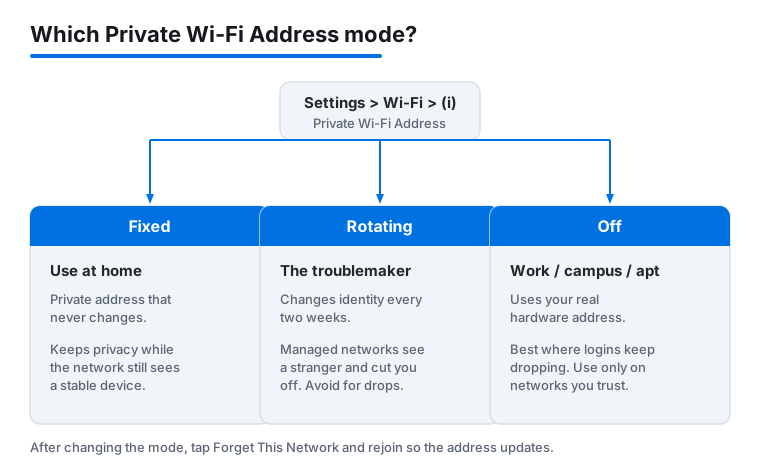
There are three modes, and the one labeled Rotating is the troublemaker. On a rotating address, your iPhone changes its identity to that network every two weeks. Networks that register a device by its address, such as university, office, dorm, and many guest portals, then see a stranger and quietly cut you off until you sign in again. The University of Miami documents exactly this conflict between Apple privacy features and managed networks. At home, a fixed address is the default for WPA2 or stronger networks, but it is worth checking.
To see and change the setting:
- Go to Settings > Wi-Fi.
- Tap the small information button (i) to the right of your network name.
- Tap Private Wi-Fi Address.
- Choose Fixed for a private address that never changes, Rotating for one that changes every two weeks, or Off to use your real hardware address.
For a home network, set this to Fixed. For a work, campus, or apartment network that keeps logging you out, set it to Off so the network always recognizes the same device. After changing it, tap Forget This Network and rejoin, because the address only updates on a fresh connection. One small caution: turning the feature Off means that network can see your true device ID, which is fine for places you trust and not ideal for coffee-shop Wi-Fi.
For the full detail on each mode, see Apple's own writeup on private Wi-Fi addresses, and for why managed networks struggle with it, the University of Miami IT notice lays out the conflict plainly.
Wi-Fi 6E and the 6 GHz band on newer iPhones
The iPhone 15 Pro and later, and several recent iPad Pro, iPad Air, and iPad mini models, support Wi-Fi 6E, which adds a third radio band at 6 GHz on top of the older 2.4 GHz and 5 GHz bands. The 6 GHz band is fast and clean, but it is also new, and 2026 saw a run of reports where late-model iPhones drop the 6 GHz connection while moving around the house, refuse to see a 6 GHz network at all, or in a handful of cases make a router reboot itself when the phone joins.
If you have a 6E-capable iPhone and a 6E router, try these in order:
- Make sure all bands share one network name. Apple recommends a single SSID for 2.4, 5, and 6 GHz so the phone can move between them smoothly. Two or three separate names force manual switching and cause drops.
- In your router settings, set the security type to WPA2/WPA3 Transitional rather than WPA3 Only. Several owners found their iPhone would only hold a 6 GHz connection once the router stopped demanding WPA3 exclusively.
- On the iPhone, forget the network and rejoin so it negotiates the band fresh. Go to Settings > Wi-Fi, tap the (i), tap Forget This Network, then reconnect.
- If drops persist only on 6 GHz, temporarily disable the 6 GHz band in your router and run the phone on 5 GHz for a day. If the drops stop, the issue is the 6E pairing, not your iPhone, and a router firmware update is the real fix.
What does not reliably work: there is no permanent per-network switch in iOS to force 2.4 or 5 GHz only. Some people disable 6E on the router as a workaround, but the iPhone has no setting that locks itself to one band forever, so treat band changes as a router-side job. Apple lists which models support the band and the router requirements in its note on using Wi-Fi 6E networks.
Forget the network and rejoin
A stored network profile can become corrupt: a stale saved password, an old address binding, or leftover settings from a router change. Forgetting and rejoining rebuilds that profile cleanly, and it is far less drastic than a full network reset.
- Open Settings > Wi-Fi.
- Tap the information button (i) next to the network.
- Tap Forget This Network and confirm.
- Go back to the Wi-Fi list, tap the network name, and type the password again.
A worked example: a reader's iPhone dropped every evening but their laptop was fine on the same router. Forgetting the network and rejoining once cleared a stale profile left over from a router password change months earlier, and the evening drops stopped. Have the password handy before you forget the network, since the phone will ask for it. If you do not know it, you can usually find it on a label on the router or in the account of whoever set it up.
Reset network settings, and what it actually clears
If forgetting one network does not help, the next step resets all network settings at once. This is the step people fear, so here is exactly what it does and does not touch, straight from Apple's guidance.
The path is Settings > General > Transfer or Reset iPhone > Reset > Reset Network Settings. You will enter your passcode and confirm.
What it clears:
- Every saved Wi-Fi network and its password.
- Cellular settings and any APN configuration.
- VPN settings that you added manually (a profile from work or an MDM system survives).
- The device name in Settings > General > About resets to "iPhone," and any certificates you manually trusted go back to untrusted.
What it does not touch: your apps, photos, messages, accounts, and personal files are all left alone. This is a settings reset, not an erase. Afterward, Wi-Fi turns itself off and on, so you will need to rejoin your networks and re-enter passwords, and re-pair anything that relied on a saved network. Set aside ten minutes and have your Wi-Fi password ready before you start. If the screen sits on the Apple logo for a while during the reset, that is normal; let it finish.
Apple's full checklist, including this reset, lives in its guide for when you cannot connect to Wi-Fi.
Check the router and the wider network
If the iPhone drops on one network but holds steady on another, such as a phone hotspot or a friend's house, the problem is almost certainly your router or modem, not the phone. Run these checks.
- Restart the router and modem. Unplug both, wait thirty seconds, plug the modem back in first and let it fully come online, then the router. This clears the most common router-side faults.
- Update the router firmware. Old firmware is behind a large share of the iPhone 6 GHz drop reports. In your router app or its web page, look for a firmware or software update and apply it, then turn on automatic updates if offered.
- Set security to WPA2/WPA3 Transitional. Apple recommends WPA3 Personal for best security, or WPA2/WPA3 Transitional for compatibility. Pure WPA3-only and the older WEP or TKIP modes both cause trouble with Apple devices; avoid them.
- Turn off MAC address filtering and hidden SSID. Apple recommends disabling both. A hidden network name offers no real security and makes phones reconnect poorly, and MAC filtering fights with the private address feature described earlier.
- Use one network name for all bands, set the channel to Auto, and leave WMM enabled. These match Apple's recommended router settings and they let the iPhone roam without dropping.
If your home is large and you have a single router, drops while walking around are a coverage gap, not a fault. A mesh system or a second access point with the same network name fixes that far better than any phone setting. This is also worth checking before you blame the phone for choppy streaming apps that stutter only in certain rooms.
When it is the carrier, not the Wi-Fi
Sometimes the Wi-Fi is fine and a phone setting is handing your connection to cellular without telling you. Two features are worth knowing.
Wi-Fi Assist automatically switches to cellular data when Wi-Fi is weak. It is helpful, but on a flaky Wi-Fi connection it can feel like constant dropping, and it quietly uses your cellular allowance. To see or turn it off, go to Settings > Cellular, scroll to the bottom, and toggle Wi-Fi Assist. Leaving it on is fine for most people; turn it off if you suspect it is masking a Wi-Fi problem or eating data.
Wi-Fi Calling routes calls over Wi-Fi. If calls drop the moment you walk out of range while Wi-Fi Calling is on, that is the handoff to the cellular network, not a Wi-Fi fault. You can review it under Settings > Cellular > Wi-Fi Calling (the wording can vary slightly by carrier).
A carrier-side issue is likely when several devices on the same Wi-Fi all stutter at once, when an outage is reported in your area, or when the modem's status lights show no internet even though Wi-Fi between your devices works. Check Settings > General > About for a pending Carrier Settings update; if one is available a prompt appears, and installing it can fix odd cellular and Wi-Fi handoff behavior. If your devices connect to the router but cannot reach the internet, the next call is to your internet provider, not Apple.
Keep iOS and your hardware current
Wi-Fi reliability fixes ship in iOS point updates. As of June 2026 the current release is iOS 26.5.1, and several of the 6 GHz drop reports earlier in the cycle were eased by updates. Check Settings > General > Software Update and install what is offered. Avoid running beta software on a phone you depend on, since betas can introduce the very networking bugs you are chasing; if you are curious about test builds, read up on installing an iOS beta safely first.
It is also worth a quick look at what else touches your connection. A misbehaving VPN or content-blocker is a common hidden cause; Apple suggests removing VPN or security software and testing again. If you rely on one, a well-built tool from the security and privacy category is less likely to interfere than a random free one. And a free Wi-Fi analyzer from the utilities apps can show you which channels are crowded in your building, which often explains evening slowdowns when every neighbor is online. Separately, if your drops coincide with a flood of spam, that is unrelated, and there are cleaner ways to cut down spam calls and texts.
FAQ
Should I just turn off the private Wi-Fi address?
At home, no, set it to Fixed instead so you keep some privacy and a stable connection. On a work, campus, or apartment network that keeps logging you out, turning it Off is the right call because the network needs to recognize the same device every time. Go to Settings > Wi-Fi, tap the (i) next to the network, tap Private Wi-Fi Address, and pick the mode. Forget and rejoin the network afterward so the change takes effect.
Does resetting network settings delete my photos or apps?
No. It removes saved Wi-Fi networks and passwords, cellular and APN settings, and manually added VPN settings, and it resets the device name and any certificates you trusted by hand. Your apps, photos, messages, and accounts are untouched. You will need to rejoin your Wi-Fi networks and re-enter passwords afterward, so have them ready.
My iPhone 15 Pro or newer keeps dropping the 6 GHz band. What helps most?
Two router changes do the most. Set your router's security to WPA2/WPA3 Transitional rather than WPA3 only, and give all bands a single shared network name. Then forget the network on the phone and rejoin. If drops continue only on 6 GHz, update the router firmware, since old firmware is behind most of these reports.
How do I know if the problem is my phone, my router, or my carrier?
Test the iPhone on a different network, like a phone hotspot. If it holds steady there, the router is the suspect. If every device on your home Wi-Fi stutters at once, or the modem shows no internet, it is the router or your internet provider. If calls drop only when you walk out of Wi-Fi range, that is the normal handoff to cellular, not a fault.
Why does my iPhone keep switching to cellular data on its own?
That is usually Wi-Fi Assist, which jumps to cellular when Wi-Fi looks weak. It is handy but can mask a flaky connection and use data. Turn it off under Settings > Cellular at the very bottom of the list. If switching stops, fix the underlying Wi-Fi signal rather than relying on the toggle.
I forgot my Wi-Fi password. Can I still rejoin?
Yes, but you need the password to rejoin after forgetting a network or resetting network settings. Check the label on the router, ask whoever set it up, or on another Apple device already on the network you can often share the password via the on-screen prompt when your phone tries to join nearby. If all else fails, log in to the router and read or reset the password there.