
How to Move Everything to Your New iPhone (Even After Setup)
Getting a new iPhone is a small thrill until you remember everything that lives on the old one: photos, texts, app logins, your phone number, that bus pass in Wallet. The good news is that Apple has made the move much gentler than it used to be. In most cases you hold the two phones near each other and let them talk. But a few things still trip people up, and one big one is what to do if you already tapped through setup before reading this. Let's walk through all of it, slowly, with the exact taps.
Before you start: a five-minute checklist
A move goes smoothly when four boring things are in place. Skip these and you will hit the same wall most people do.
- Charge both phones or keep them plugged in. A restore can run 20 to 60 minutes depending on how much you have.
- Get on solid Wi-Fi. Cellular works for some steps but is slower and can stall a large transfer.
- Know your Apple Account password. Not the phone passcode. The actual password for your Apple Account (Settings > [your name] at the top). You will be asked for it, and a forgotten password is the number one reason a move stops cold.
- Update the old iPhone. Go to Settings > General > Software Update and install whatever is waiting. Matching software versions prevents odd mismatches, especially with an Apple Watch later.
One more thing worth doing the night before: make a fresh backup of the old phone. Open Settings > [your name] > iCloud > iCloud Backup, then tap Back Up Now. If you are short on iCloud space, see the note further down about Apple's free temporary storage. While you are tidying up, it is a fine moment to review your security and privacy apps so you know which ones will need a fresh sign-in afterward.
The easy way: phone-to-phone with Quick Start
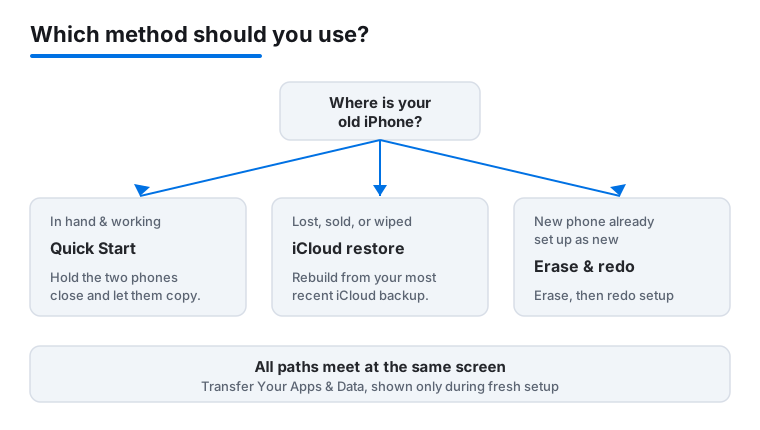
If you still have your old iPhone in hand, this is the method to use. It is called Quick Start, and it works on any pair of devices running iOS 11 or iPadOS 13 or later, which means essentially any iPhone from the last several years.
- Turn on the new iPhone and set it on the table next to your old one. Wake both screens and make sure Bluetooth is on.
- A card slides up on the old phone offering to set up the new one with your Apple Account. Tap Continue.
- A small swirling cloud of dots appears on the new phone's screen. Hold the old phone's camera over it so the pattern fits inside the circle. This is just a secure handshake.
- Enter your old phone's passcode on the new phone when asked, then follow the prompts for Face ID or Touch ID.
- You reach a screen titled Transfer Your Apps & Data. Choose From iPhone to copy directly between the two devices, or From iCloud Backup to pull from the cloud instead.
If both phones are nearby, the direct phone-to-phone option is usually fastest and does not depend on your iCloud backup being current. For an even quicker transfer of a large library, you can connect the two with a cable using a Lightning-to-USB or USB-C adapter, though Wi-Fi is fine for most people. Quick Start ties up both phones while it runs, so pick a window where you will not need either for a while. Apple's own walkthrough is here if you want it open on a third screen: Use Quick Start to transfer data to a new iPhone or iPad.
The other easy way: restore from an iCloud backup
Maybe the old phone was lost, sold, or already wiped. As long as you have an iCloud backup, you can rebuild the new phone from it.
- Turn on the new iPhone and follow the setup screens (language, Wi-Fi, and so on).
- At the Transfer Your Apps & Data screen, tap From iCloud Backup.
- Sign in with your Apple Account, then pick the most recent backup from the list. Check the date and size so you grab the right one.
- Stay on Wi-Fi and keep the phone charged. Apps, settings, and your home screen layout come back; your photos and large files keep downloading quietly in the background for a while after the phone is usable.
A worked example: say your backup ran at 2 a.m. and you took 30 photos at lunch before the old phone died. Those 30 photos are not in the backup. Anything created after the backup timestamp simply was not captured. That is why a fresh Back Up Now the night before a planned move is worth the two minutes. Apple covers this path in detail at Use iCloud to transfer data to your new iPhone or iPad.
Already finished setup? Here is how to redo it
This is the situation that sends people into a quiet panic. You tapped Set Up as New iPhone, breezed through the screens, and only now realized you wanted your old data. Take a breath. It is fixable, but there is no shortcut: the option to transfer or restore only appears during initial setup, so you have to send the phone back to that starting point.
First, make sure your old data still exists somewhere. If your old phone is alive, you can use Quick Start. If it is gone, you need a working iCloud backup. Confirm one exists at Settings > [your name] > iCloud > iCloud Backup on any device signed in to your account, or check that the old phone backed up before you parted with it.
Then erase the new phone and start fresh:
- On the new iPhone, go to Settings > General > Transfer or Reset iPhone.
- Tap Erase All Content and Settings.
- Enter your passcode, then your Apple Account password to confirm. This step turns off Activation Lock, so do not skip past it.
- The phone wipes and restarts to the Hello screen. Now go through setup again, and this time choose Quick Start or From iCloud Backup at the Transfer Your Apps & Data screen.
Erasing removes anything you added since you first set the phone up, but if you only just finished setup there is usually nothing of value to lose. Doing this is far less painful than manually re-downloading dozens of apps and signing in to each one.
Moving your phone number and eSIM
Most iPhones sold today use an eSIM, a digital SIM built into the phone instead of a plastic card. Your number lives with your carrier, and you bring it across one of three ways.
The quick way (eSIM Quick Transfer): Many carriers let you move the number between two iPhones with no phone call. Apple recommends having both phones on the latest iOS for this to work reliably. On the new iPhone, go to Settings > Cellular, tap Set Up Cellular or Add eSIM, then tap Transfer From Nearby iPhone and follow the prompts on both screens. Quick Start often offers to do this for you automatically during setup, so watch for that and you may not need to do anything here at all.
Carrier activation: Some carriers push a new eSIM straight to your phone. When you see a Finish Setting Up Cellular notification, tap it, or go to Settings > Cellular > Set Up Cellular and follow along.
QR code or a call: If neither works, contact your carrier. They can email a QR code you scan under Settings > Cellular > Add eSIM, or activate it on their end.
One thing to know: once the number moves to the new phone, it stops working on the old one. So do this when you are ready to switch over for good, not while you still need the old phone for calls. For the exact steps and which carriers support it, see Apple's Set up an eSIM on iPhone page.
What does NOT come across automatically
This is the part people wish someone had told them sooner. A backup or Quick Start moves the vast majority of your stuff, but a handful of things need your hands.
- Some app logins. Many apps remember you, but banking, streaming, and similar apps often log you out on a new device for safety. Have your passwords ready. Your banking and finance apps are the usual ones to expect a fresh sign-in from, sometimes with a text code to confirm.
- Two-factor authenticator codes. Apps like Google Authenticator or Microsoft Authenticator may not bring your saved accounts unless that specific app has its own cloud sync turned on. Before you wipe or hand off the old phone, open your authenticator and use its export or transfer feature. Lose these without a backup and you can lose access to those accounts.
- WhatsApp chats. WhatsApp keeps its own backup separate from your iCloud backup. Move chats using WhatsApp's own Chat Transfer tool: on the new phone it shows a QR code, and you scan it with the old phone's WhatsApp camera. Doing a plain iCloud restore alone may not bring your full chat history.
- Your Apple Watch. A watch is paired to one phone at a time, so it does not transfer like an app. More on this next.
A small mistake to avoid: do not erase or sell the old phone the same hour you set up the new one. Keep it for a day or two so you can grab any login or authenticator you forgot.
Re-pairing your Apple Watch
If you used Quick Start or an iCloud restore, setup often asks whether you want to use your Apple Watch with the new phone. If it does, make sure the watch is awake and on your wrist, then tap Continue and let it pair. That is the smooth path.
If it does not happen automatically, you pair by hand:
- Open the Apple Watch app on the new iPhone.
- Follow the prompts to pair, then choose Restore from Backup and pick a saved backup.
If the watch is still tied to the old phone, unpair it there first. On the old iPhone, open the Apple Watch app, go to All Watches, tap the small info button next to your watch, then Unpair Apple Watch. Unpairing automatically saves a fresh watch backup to that phone before it wipes the watch. Reassuringly, your long-term Health and Activity history lives on your iPhone and in iCloud, not only on the watch, so that record is not lost when you unpair. Apple's guide is Pair your Apple Watch with a new iPhone if you get stuck.
If your iCloud storage is full
The free iCloud tier is only 5 GB, which is rarely enough for a full backup. You do not have to pay to get past this when buying a new device. Apple gives you free temporary iCloud storage just for the move.
- On the old iPhone, go to Settings > General > Transfer or Reset iPhone.
- Under Prepare for New iPhone, tap Get Started.
- Follow the prompts to make a complete temporary backup, even if your normal storage is full.
You then have 21 days to restore that backup onto the new phone before it is deleted. If the new phone is delayed past that window, contact Apple Support and they can extend it by another 21 days. This is genuinely free and unlimited for the size of your device, so there is no need to buy extra iCloud space just to switch phones. The full terms are on Apple's Get temporary iCloud storage page.
After the move: a quick settling-in pass
Once the new phone is up and your photos have finished downloading over Wi-Fi, spend a few minutes confirming the important things landed.
- Open Messages and send yourself a test text to confirm your number is active.
- Check Mail, your calendar, and your photo library actually show up.
- Open your bank and authenticator apps and sign in while the old phone is still nearby.
- Glance at Settings > [your name] to confirm you are signed in to the right Apple Account.
If you moved up to a brand-new model, you may also be looking at the newest software. Our notes on adjusting the look and readability of recent iOS can help if the interface feels different, and curious early adopters can read about trying the iOS 27 beta. A new number also tends to attract junk, so it is worth knowing how to cut down on spam calls and texts while everything is fresh. Only after all of this checks out should you erase or trade in the old phone.
FAQ
Do I need the old iPhone to set up the new one?
No, but it helps. With the old phone in hand you can use Quick Start for a direct copy. Without it, you restore from an iCloud backup instead, so the only real requirement is a recent backup or both phones present.
I already set up my new iPhone as new. Can I still move my old data?
Yes. Go to Settings > General > Transfer or Reset iPhone > Erase All Content and Settings, confirm with your passcode and Apple Account password, then set the phone up again and choose Quick Start or From iCloud Backup. The transfer option only appears during fresh setup, so erasing is the way back to it.
Will my photos and texts definitely come across?
Yes, as long as they were in your backup or are copied during Quick Start. Anything created after your last backup is not included, which is why a fresh Back Up Now before switching is worth doing.
How long does the transfer take?
Usually 20 to 60 minutes for the main move, depending on how much data you have and your Wi-Fi speed. Photos and large files keep downloading in the background afterward, so the phone is usable before everything has fully arrived.
Why is my banking app or authenticator asking me to log in again?
Sensitive apps often log out on a new device for security, and many authenticator apps do not move their saved codes unless their own backup is on. Keep your passwords ready, and export or transfer your authenticator from the old phone before you erase it.
Do I have to pay for iCloud storage to back up before switching?
No. When you buy a new iPhone, Apple gives you free temporary iCloud storage for the move. On the old phone, go to Settings > General > Transfer or Reset iPhone, then tap Get Started under Prepare for New iPhone. You have 21 days to restore it.