
How to Spot a Fake Apple Text or Scam Message
A text lands on your iPhone. It says your Apple Account is locked, or a package is stuck, or you owe a small toll. There is a link, and there is a clock ticking. That mix of fear and hurry is the whole trick. These messages are called smishing, which is just phishing that arrives by SMS instead of email. The good news: once you know the patterns, they fall apart fast. This guide covers the scams making the rounds in 2026, how to check whether a message is genuinely from Apple, what to do with a bad one, and how to tighten your account so a stolen password does less damage.
Why scam texts work, and why your iPhone is a target
Scammers do not break into anything. They send the same message to millions of numbers and wait for a few people to react. The message is built to switch off your caution. It names a brand you trust, claims something urgent and scary, then offers one easy action that supposedly fixes it: tap this link, reply with a letter, call this number.
iPhone owners get targeted heavily for one reason. Almost everything ties back to one login, your Apple Account (the sign-in formerly called Apple ID). It holds your photos, backups, payment cards in Wallet, and your Find My location. A crook who gets that password plus your verification code can lock you out of your own phone and shop on your tab. So the bait almost always points there. The defense is not technical wizardry. It is a habit: slow down, never act inside the message, and verify on your own through an app or address you already trust.
The fake Apple Account lockout, and the support-number trap
The most common Apple-flavored text is some version of: Your Apple ID has been locked due to unusual activity. Verify within 24 hours to avoid permanent suspension. Sometimes the same script arrives as a call or a full-screen pop-up with a siren sound and a number to dial. Security researchers tracked a wave of these convincing fakes through early 2026, polished enough to fool careful people.
Here is what is really happening. The link goes to a page that looks like Apple's sign-in screen but is not. You type your account name and password, and the crooks capture them. Some pages then ask for the six-digit verification code your real phone just received, which lets them finish signing in as you. The phone-number version is the same con by voice: a fake agent walks you through handing over the code.
Two facts cut through all of it. Apple does not freeze accounts by unsolicited text and send a link to fix it. And Apple will never ask you to log in to a website from a message, tap Accept on a two-factor prompt for them, or read out your password, device passcode, or verification code. If a message or caller asks for any of those, it is fake.
Toll texts, package texts, and the reply-Y trick
Apple is not the only mask. Two non-Apple scripts flood iPhones right now, and they are convincing.
Unpaid toll texts. You get a note claiming you owe a small amount to a toll authority like E-ZPass, often a dollar or two, with a warning that fees climb if you ignore it. The link leads to a fake payment page that harvests your card. The FBI's Internet Crime Complaint Center has logged more than 60,000 reports of this scam, and toll agencies across many states confirm they do not collect overdue tolls by surprise text. A real unpaid toll shows up by mail or inside your account on the agency's own website.
Stuck package texts. These pose as USPS, UPS, FedEx, or a retailer, claiming a delivery failed over an address problem or a tiny fee. The U.S. Postal Inspection Service is blunt: USPS does not send tracking texts unless you signed up for them. An unexpected one is a red flag.
The reply-Y trick. This one is new and clever. A message says a delivery failed and tells you to Reply Y, then reopen the text to see a link. They want that reply for two reasons. On iPhone, replying to a number turns that sender into someone you have messaged, which can let blocked or filtered links through. And a reply proves a real person is reading, so your number gets hit harder. The rule is simple: do not reply to a text from a sender you do not recognize, not even one letter.
How to tell a real Apple message from a fake one
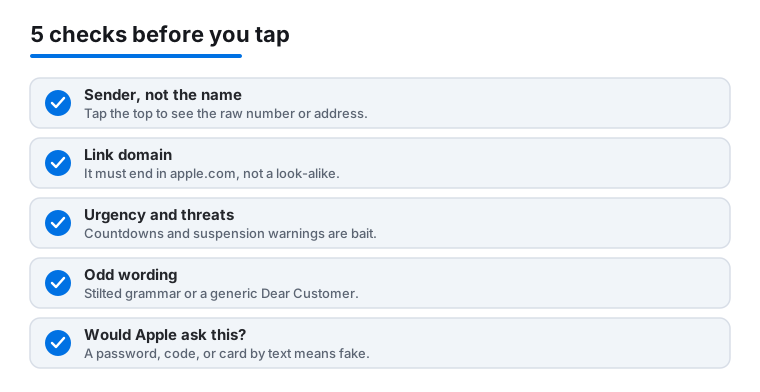
Run any suspicious message through this quick checklist before you touch anything.
- Check the sender, not the name. A real notice tends to come from a known short code or your account's email on file, not a random 10-digit or foreign number. Tap the sender at the top to see the raw address.
- Look at the link without opening it. On a Mac, hover your pointer over a link to see the true address at the bottom of the window. The real domain ends in apple.com (for example, support.apple.com). Scams hide behind look-alikes such as apple-id-verify.com or appleid-secure.net. If the part right before the first single slash is not apple.com, walk away.
- Watch for urgency and threats. "Within 24 hours," "account suspended," "final notice." Real notices rarely threaten you on a countdown.
- Notice odd wording. Stilted grammar, a generic "Dear Customer," or an off-looking logo are all tells.
- Ask: would Apple ever request this? A password, passcode, verification code, or card number by message means it is fake every time.
When in doubt, ignore the message and check your account yourself. On iPhone or iPad: Settings > [your name] > Sign-In & Security. On a Mac: System Settings > [your name] > Sign-In & Security. A genuine problem would show there. You can also sign in at account.apple.com by typing that address yourself, never by following a link from a text.
What to do the moment a scam text arrives
Keep it calm and mechanical. In order:
- Do not tap the link, call the number, or reply. Tapping a link can load a fake page or, in rare cases, trip up an out-of-date device. Replying confirms you are real.
- Do not paste anything into a page you reached from the text. No name, no password, no code. If you opened a page but typed nothing, you are fine.
- Take a screenshot if you plan to report it. On most iPhones, press the side button and volume up button together; on a Home-button iPhone, press the side and Home buttons. It saves to Photos.
- Delete and block. Open the message, tap the sender's name or number at the top, tap Info, scroll down and tap Block this Caller, then delete the conversation. Blocking one number will not stop a flood, because scammers rotate numbers constantly, but it quiets the one in front of you.
Receiving a scam text does nothing to your phone on its own. The danger starts only if you tap through and hand over information.
How to report it: 7726, Report Junk, and the agencies
Reporting is quick and it helps, because carriers and Apple feed these reports into filters that block the next batch.
Forward to 7726 (it spells SPAM). This is the free U.S. shortcode shared by the major carriers. In Messages, press and hold the scam text, tap More, tap the curved forward arrow at the bottom right, type 7726 in the To field, and send. You may get a reply asking for the sender's number; reply with it. It is free.
Use Report Junk in Messages. If the text is from a number not in your contacts, you will often see a Report Junk link beneath the conversation. Tap it, then confirm Delete and Report Junk. This sends the sender's number and the message to Apple and your carrier, and removes the thread.
Tell Apple directly. Apple asks you to take a screenshot of a suspicious text and email it to [email protected]. Phishing emails dressed up as Apple go to the same address. For a fake FaceTime call or link, use [email protected].
File with the regulators. In the U.S., report scam texts to the FTC at ReportFraud.ftc.gov. If you lost money or handed over account details, also file with the FBI's Internet Crime Complaint Center at ic3.gov.
Turn on message filtering so fewer ever reach you
Your iPhone can quietly sort messages from strangers into a separate list, away from your main inbox and notifications. On current iOS it is called Screen Unknown Senders.
- Open Settings, tap Apps, then tap Messages.
- Scroll to Unknown Senders and turn on Screen Unknown Senders (on older iOS this reads Filter Unknown Senders).
You can also flip it inside the app: in Messages, tap the filter icon (three lines) at the top right, choose Manage Filtering, and turn on the same setting. After that, texts from anyone not in your contacts land under a separate Unknown Senders filter. To check it, tap the Filters button at the top left of Messages and choose Unknown Senders. If a real message slips in, open it and tap Mark as Known. Verification codes still come through, so you are not locked out of normal sign-ins.
This does not delete scams, and it will not catch a message from a number already in your contacts. What it does is keep the noise out of your face, which makes the occasional scam easier to spot when it sits in a pile you already distrust.
Lock down your Apple Account so a slip is not a disaster
Even careful people get caught once. The aim is to make sure one mistake does not hand over everything. Three settings do most of the work.
- Confirm two-factor authentication is on. A sign-in on a new device then needs both your password and a six-digit code sent to a device you already own. On iPhone or iPad: Settings > [your name] > Sign-In & Security > Two-Factor Authentication. On Mac: System Settings > [your name] > Sign-In & Security. For most accounts it is already on and cannot be switched off. The flip side: that code is exactly what scammers fish for, so never type it into a page or read it to a caller.
- Set up a recovery contact or recovery key. In the same Sign-In & Security screen, add a trusted recovery contact or generate a recovery key. Either gives you a way back in if you are locked out, so a fake lockout text loses its grip.
- Use strong, unique passwords with the built-in Passwords app. The Passwords app (standalone since iOS 18; options at Settings > Apps > Passwords) stores a different password for every site. The quiet benefit: it only fills a saved password on the genuine site it was saved for. On a fake apple.com look-alike it stays silent, and that silence is a warning.
If you fear you did enter details on a fake page, do not wait. Change your Apple Account password at Settings > [your name] > Sign-In & Security > Change Password, and check that no unfamiliar devices are listed under your name there. For a wider sweep of your login and privacy settings, our guide to security and privacy apps for iPhone and the picks for Mac can help.
Common mistakes that turn a near-miss into a loss
A few habits trip people up more than the scams themselves.
- Calling the number in the message to "check." It belongs to the scammer. Look up Apple's real contact at apple.com/support, or use the Apple Support app.
- Trusting a message because the logo looks right. Logos are trivial to copy. Judge by the sender address and the link, not the artwork.
- Assuming a green or blue bubble proves anything. It does not. Both can carry scams.
- Reusing one password everywhere. If a phished password is the same one you use for email and banking, the damage spreads; unique passwords contain it. For more on unwanted contact, our piece on stopping spam calls and texts on iPhone goes deeper, and if you are tightening up Google sign-ins, see Google app privacy settings on iPhone.
Sources worth bookmarking
FAQ
Does Apple ever text me about my account being locked?
Not out of the blue with a link to fix it. Apple will never ask you to sign in from a message, approve a two-factor prompt on its behalf, or share your password, passcode, or verification code. To check for a real problem, open Settings > [your name] > Sign-In & Security, or type account.apple.com yourself. Any lockout warning that arrives by text and pushes you to a link is a scam.
I tapped the link but did not type anything. Am I in trouble?
Almost certainly not. Loading a page does not hand over your information; the risk begins only if you enter a password, code, or card number. Close the page, do not reply, and block and delete the sender. To be safe, check that your device is on the latest iOS or macOS under Settings (or System Settings) > General > Software Update.
What does forwarding to 7726 actually do?
7726 spells SPAM and is a free shortcode shared by U.S. carriers. Forwarding a scam text sends its content and the sender's number to your carrier, which uses them to detect and block similar messages for everyone. It costs nothing. You can also tap Report Junk under a message from an unknown number to send it to Apple and your carrier at once.
Should I just reply STOP to make the texts end?
Only for a real business you recognize, where STOP is a genuine opt-out. For an unknown scam sender, any reply, including STOP or a single Y, just confirms your number is active and read by a person, which brings more texts. For scams, do not reply; report to 7726, then block and delete.
How do I keep these messages out of my main inbox?
Turn on message screening at Settings > Apps > Messages, then switch on Screen Unknown Senders (called Filter Unknown Senders on older iOS). Texts from anyone not in your contacts move to a separate Unknown Senders list and stop sending notifications. Verification codes still arrive, and you can mark a real sender as known.
I entered my Apple password on a fake page. What now?
Change your Apple Account password immediately at Settings > [your name] > Sign-In & Security > Change Password. Confirm two-factor authentication is on, review the devices listed under your name and remove any you do not recognize, and update any other account that shared that password. If money was lost, report it at ReportFraud.ftc.gov and ic3.gov.