
How to Use the Passwords App and Passkeys on iPhone
Apple split passwords out of Settings and gave them their own app starting with iOS 18, and it carried over into iOS 26. If you have an iPhone running iOS 18 or later, you already have it. The Passwords app holds your saved logins, your passkeys, your two-factor verification codes, and your Wi-Fi passwords in one place. It is the same data iCloud Keychain has always stored, just with a real front door you can open. Here is how to actually use it, including the parts Apple does not spell out clearly and the one limit you should know before you lean on it.
Where the app lives and how to find a login
Look for the gray Passwords icon on your Home Screen or in the App Library. It is built in, so you cannot delete it, but you can move it. The first time you open it, and most times after, Face ID or Touch ID unlocks it.
Inside, your items are grouped: All, Passkeys, Codes, Wi-Fi, Security, and Deleted, plus any Shared Groups you create. The fastest way to find a login is the search bar at the top. Type the name of the site or app, tap the result, and you see the username, the password, and any verification code tied to it. Tap and hold the password to copy it, or tap the eye to reveal it.
If you ask Siri to show a password, it opens the app and asks you to authenticate first. Nothing shows on screen without your face, your fingerprint, or your passcode.
Turn on autofill so logins appear at sign-in
Autofill is what makes the app worth using day to day. When it is on, your saved logins pop up above the keyboard whenever a site or app asks you to sign in. You tap the suggestion, authenticate, and you are in.
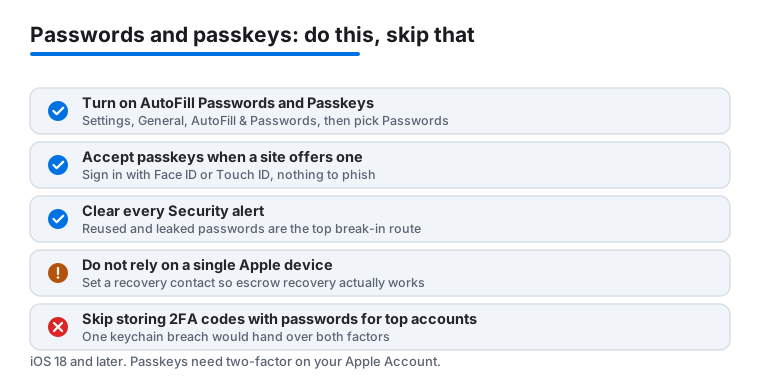
To switch it on, go to Settings, then General, then AutoFill & Passwords. Turn on the toggle for AutoFill Passwords and Passkeys, and make sure Passwords is selected as a source. If you use a different password manager too, you can have both listed here, and iPhone will offer logins from each.
One small thing that trips people up: autofill only works in Safari and in apps that support it. Most do. If a suggestion does not appear, tap the key icon above the keyboard to pull it up manually.
What a passkey is, in plain terms
A passkey replaces the password for an account. Instead of a string you type, your iPhone stores a secret that only unlocks with Face ID, Touch ID, or your passcode. There is nothing to remember and nothing for a phishing site to steal, because the passkey only works on the real site it was made for.
Passkeys live in iCloud Keychain, the same place as your passwords, and they sync to your other Apple devices signed in to the same Apple Account. Apple cannot read them. That is the security trade you are making: more protection, but tied to Apple's system unless you take steps to use them elsewhere.
Not every site supports passkeys yet. Plenty do now, including big names in banking, shopping, and email. When a site offers one, it is usually worth taking.
Create a passkey and sign in with one
You make a passkey on the site or app, not from inside the Passwords app. When you are logged in to an account, look in its security or sign-in settings for an option like Create a passkey or Set up a passkey. Tap it, confirm with Face ID or Touch ID, and the passkey saves to your iPhone. You will see it afterward under Passkeys in the app.
Signing in is the easy part. Next time the site asks you to log in, it offers to use your passkey. You confirm with your face or fingerprint and you are done. No password field, no code.
Some sites also generate a passkey for you automatically after you sign in with your old password. If that happens, you will get a prompt, and you can accept it.
To use a passkey on a Windows PC, an Android phone, or a friend's device, choose the passkey option at sign-in, pick the choice for another device, and scan the QR code it shows using your iPhone camera. The two devices talk over Bluetooth, you confirm on your phone, and the other device logs in. Your passkey never leaves your iPhone.
Store verification codes for two-factor logins
If an account uses two-factor authentication with a rotating six-digit code, the Passwords app can generate those codes for you, the same job an authenticator app does. The benefit is that the code autofills right alongside your username and password, so signing in is one smooth step.
To set it up, open Passwords, tap All, and select the website or app. Under Security, choose Set Up Verification Code. You can scan the QR code the site shows or paste the setup key it gives you. From then on, the current code appears in the app and offers to autofill when you sign in.
Worth saying plainly: keeping your password and your second factor in the same app is convenient but slightly weaker than splitting them. If someone gets into your iCloud Keychain, they have both. For most people the convenience wins, but for your most sensitive accounts you might keep the code somewhere separate.
Share logins with family using Shared Groups
Shared Groups let you share specific passwords and passkeys with people you trust, like a partner sharing the streaming and utility logins. Everyone in the group can see and use what is shared, and when someone changes a password it updates on everyone's device automatically.
To make one, open Passwords, tap the add button, and choose New Shared Group. Give it a name, tap Add People, and enter the names, emails, or phone numbers of people in your contacts who use Apple devices. Then pick which passwords or passkeys to move into the group. Anyone in the group can add their own logins to it later.
This only works between Apple devices and the people you add must be in your Contacts. It is built for a household, not for sharing one login with a large team.
Catch reused and leaked passwords
Open the Security section and the app flags real problems. It tells you which passwords you have reused across accounts, which ones are weak and easy to guess, and which have shown up in known data breaches. Apple checks your passwords against breach lists without sending the actual passwords anywhere readable.
Each warning comes with a Change Password button that takes you straight to the site to fix it. Make a habit of clearing these. Reused passwords are the single biggest way ordinary accounts get broken into, because one leaked site exposes every account that shares that password.
If you ignore the alerts, the app keeps showing them. They do not go away on their own, which is the point.
The honest take: Apple Passwords vs a dedicated manager
For most iPhone owners who live inside Apple's world, the Passwords app is genuinely good enough, and it is free and already there. It does the core jobs well: strong passwords, passkeys, codes, breach alerts, and sharing.
The limits show up at the edges. It works best on Apple devices. On Windows you can install iCloud for Windows to get your passwords in Chrome and Edge, but there is no real Android app, so an Android phone is awkward. There are no custom fields, no secure notes for things like passport numbers, no attachments, and the sharing is built for family rather than work. Dedicated managers like 1Password or Bitwarden cover all platforms evenly, store more than just logins, and offer team features. They cost money, and most charge a subscription.
So the rule of thumb: if your life is iPhone, iPad, and Mac, start with Apple Passwords and only switch if you hit a wall. If you split your time across Android or Windows, or you want to store more than logins, a cross-platform manager earns its fee.
FAQ
Do I need two-factor authentication on my Apple Account to use passkeys?
Yes. Passkeys live in iCloud Keychain, and iCloud Keychain requires two-factor authentication on your Apple Account. If you try to make a passkey without it, iPhone prompts you to turn two-factor on first. This protects the keychain itself.
What happens to my passkeys if I only have one Apple device and lose it?
You are not locked out. iCloud Keychain keeps an encrypted, escrowed copy on Apple's servers that even Apple cannot read. Sign in to your Apple Account on a new device, pass the recovery check, often a code sent to a trusted phone number, and your passwords and passkeys come back. That said, having a second device or a recovery contact is wise, because the escrow recovery depends on you still controlling your trusted phone number and Apple Account.
Is the Passwords app the same thing as iCloud Keychain?
It is the front end for it. iCloud Keychain still stores and syncs the data behind the scenes. The Passwords app is just the screen where you can see and manage everything, which Apple introduced in iOS 18. Turn off iCloud Keychain and the synced items disappear from the app.
Can I use my iPhone passkeys on a Windows PC or Android phone?
Yes, on a one-time basis. At sign-in on the other device, choose to use a passkey from a nearby device, then scan the QR code with your iPhone camera and confirm. The devices connect over Bluetooth and the passkey stays on your iPhone. There is no full Android app, so Android is for occasional use, not daily.
Should I keep my two-factor codes in the same app as my passwords?
It is fine for everyday accounts and very convenient, since the code autofills with the login. For your most sensitive accounts, such as banking or email, some people prefer to keep the second factor in a separate authenticator app, so a single breach of the keychain does not hand over both factors. Your call on the trade between convenience and separation.
How do I share a password with my partner without telling them what it is?
Use a Shared Group. Open Passwords, create a New Shared Group, add the person from your Contacts, and move the login into the group. They can use it to sign in, and if either of you changes it, it updates for both. Both people need Apple devices and must be in each other's Contacts.