
How to Use Hide My Email and Cut Spam on iPhone
Spam usually starts the same way. You hand over your real email address to sign up for something, that address gets sold or leaked, and a few weeks later your inbox fills with junk you never asked for. Hide My Email flips that around. Instead of giving out your real address, your iPhone hands the site a random one that quietly forwards to you. If the spam ever starts, you switch off that one address and the flood stops at the door. This guide shows you how to set it up, how to use it at sign-up and with Sign in with Apple, and how to clean up the mess already sitting in your inbox.
What Hide My Email actually does
Hide My Email gives you a throwaway-looking address that is real and works. Mail sent to it forwards straight to your normal iCloud inbox, and you can reply from the Mail app without ever showing your true address. To the company on the other end, you are just a string of random letters at a private domain.
Here is the honest part. Hide My Email is an iCloud+ feature, so you need a paid iCloud+ plan to create new addresses. iCloud+ starts at the 50GB tier for a small monthly fee, and anyone in your Family Sharing group can use it too. If you are on the free 5GB iCloud account, you will see the feature but you cannot generate new addresses until you subscribe.
One more thing to be clear about. Hide My Email hides your email address. It does not hide your name, your IP address, or anything you type into a form yourself. If a website asks for your name and you fill it in, the website gets your name. The alias only protects the one thing it is built to protect, which is your inbox.
Turn it on and create your first address
You can make an address straight from Settings, which is the easiest place to start.
- Open Settings and tap your name at the top.
- Tap iCloud, then tap Hide My Email.
- Tap Create New Address.
- Your iPhone shows a random address. Tap Continue, give it a label you will recognize later (for example "Shoe shop newsletter"), add a note if you want, then tap Next and Done.
The label matters more than it looks. Six months from now, a screen full of random addresses tells you nothing. A clear label tells you exactly which signup an address belongs to, which makes it painless to switch off the right one when spam shows up.
You can also manage everything from a browser. Go to icloud.com, sign in, and you can view, create, and edit your addresses there. The forwarding destination is set per address, and by default it points at the email on your Apple Account.
Use it at sign-up in Safari
This is where Hide My Email earns its keep. Most of the time you do not need to visit Settings at all.
When you are filling out a sign-up form in Safari and you tap into the email field, a Hide My Email option appears just above the keyboard. Tap it. Safari generates a fresh random address tied to that website and drops it into the field. Finish signing up as normal. Anything that site sends will land in your real inbox, but the site never sees your real address.
The same option shows up in Mail. Start a new message, tap the From field, and you can choose Hide My Email as the sender. That is handy when you want to email a stranger, a marketplace buyer, or a repair shop without giving away your personal address.
Use it with Sign in with Apple
When an app or site offers Sign in with Apple, you get a sheet that asks whether to share your email or hide it. Choose Hide My Email and Apple creates a private relay address for that app. The app can email you through it, and you stay anonymous on the email side.
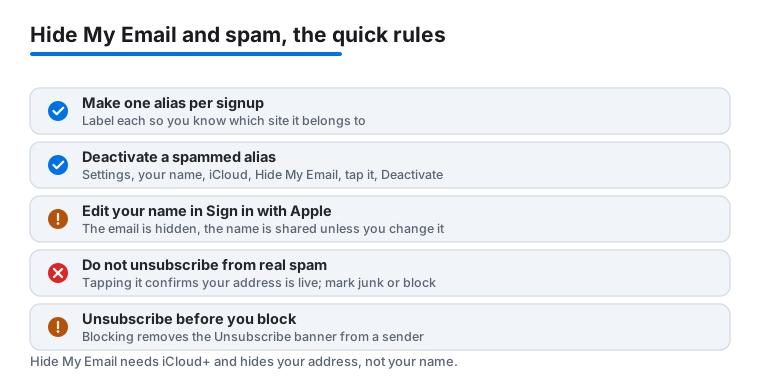
Be realistic about what this covers. Sign in with Apple still shares your name with the app unless you edit it on that sheet first. You can tap your name and change it before you tap to continue, so if you would rather not hand over your real name, edit it there. The email is hidden automatically. The name is on you.
One detail worth knowing in 2026: Apple is moving newly created relay addresses to a shared domain, private.icloud.com, that covers both Sign in with Apple and Hide My Email. Older addresses on the previous domains keep working and keep forwarding with no action needed from you. If you see a new address ending in private.icloud.com, that is expected, not a phishing trick.
Kill spam at the source by deactivating an alias
This is the move that makes the whole thing worth it. When one of your aliases starts pulling in junk, you do not block sender after sender. You shut off the alias and every message to it stops forwarding at once.
- Open Settings, tap your name, tap iCloud, then tap Hide My Email.
- Tap the address that is getting spammed. The label you gave it tells you which one.
- Tap Deactivate Email Address, then confirm.
From that moment, nothing sent to that address reaches you. The leak is sealed. If you ever need the address back, deactivated addresses sit in a separate list and you can reactivate them. You can hold up to 500 addresses, and Apple limits how fast you can create new ones, so do not burn through them on things you will never use.
Deactivating is also a clean way to find out who sold your data. If you used a unique alias per signup and the spam arrives at the one you made for a single store, you know exactly where the leak came from.
Clean the spam already in your inbox
Hide My Email stops new leaks, but it does nothing for the junk already arriving at your real address. For that, use the tools built into the Mail app.
Unsubscribe properly. When Mail recognizes a marketing list, it shows an Unsubscribe banner at the top of the message. Tap it and Mail sends the opt-out for you. This is the right first step for real companies you once signed up with, because it removes you from the list instead of just hiding the mail.
Mark junk. In your inbox, swipe left on a message, tap More, then tap Move to Junk. This teaches iCloud Mail filtering and helps it catch similar mail next time.
Block a sender. Open a message, tap the sender's name at the top, tap the name again to view the contact, then choose Block this Contact. Blocked mail gets pushed to the trash automatically.
Watch the order here. Blocking a sender removes the Unsubscribe banner from their mail. If you blocked someone and later want to opt out cleanly, go to Settings, Mail, Blocked, remove them, then open their message and tap Unsubscribe.
A simple habit that keeps your inbox clean
The strategy that works long term is one alias per place. Make a fresh Hide My Email address every time a site asks for your email, and label it for that site. It costs you nothing extra and it gives you a kill switch for each relationship you have.
Real companies you trust, like your bank or your doctor, are fine getting your real address. The throwaway-style aliases are for everything else: newsletters, one-time orders, free trials, contest entries, anything that asks for your email just to let you in the door. Those are exactly the sources that turn into spam later, and those are the ones you want a switch for.
Do not unsubscribe from mail you did not sign up for. If a message is plainly spam from a sender you never gave your address to, tapping Unsubscribe can confirm to a spammer that your address is live. For that kind of mail, mark it junk or block it instead.
FAQ
Do I need to pay for Hide My Email?
Yes. Hide My Email is part of iCloud+, which is a paid plan starting at the 50GB tier. If you are on the free 5GB iCloud account you can see the feature but cannot create new addresses. Anyone in your Family Sharing group can use it once one person in the family subscribes.
Can I reply to emails sent to a Hide My Email address?
Yes. Mail to an alias forwards to your normal inbox, and when you reply, Mail sends it back through the alias so your real address stays hidden. You can also start a new message and pick Hide My Email in the From field.
What does Hide My Email not hide?
Only your email address is protected. Your name, anything you type into a form, and your device details are not hidden. With Sign in with Apple in particular, your name is still shared with the app unless you edit it on the sign-in sheet before continuing.
What happens to mail after I deactivate an alias?
It stops forwarding to you immediately. Nothing sent to that address reaches your inbox anymore. The address moves to your inactive list, and you can reactivate it later if you change your mind. You must deactivate an address before you can delete it for good.
What is the difference between blocking a sender and marking junk?
Blocking is stronger. Blocked mail goes straight to trash. Marking a message as junk moves it to the Junk folder and trains iCloud filtering to catch similar mail. Note that blocking a sender hides the Unsubscribe banner, so if you want to opt out cleanly, unsubscribe first or unblock them.
Why are new addresses ending in private.icloud.com?
In 2026 Apple began issuing new relay addresses on a shared domain, private.icloud.com, for both Sign in with Apple and Hide My Email. Older addresses on the previous domains keep working and keep forwarding mail. A new address on this domain is normal and not a sign of phishing.