
How to Reset a Forgotten Apple ID Password and Recover Your Account
Forgetting the password to your Apple Account (the credential Apple used to call your Apple ID) is one of the worst kinds of stuck. In a single moment you lose iCloud, the App Store, iMessage, FaceTime, Find My, your photo backups, and every app you have ever bought. If you are reading this with a phone in your hand and a sinking feeling in your stomach, take a breath. In most cases you can be back in within a few minutes, and the fastest path is probably already in your pocket.
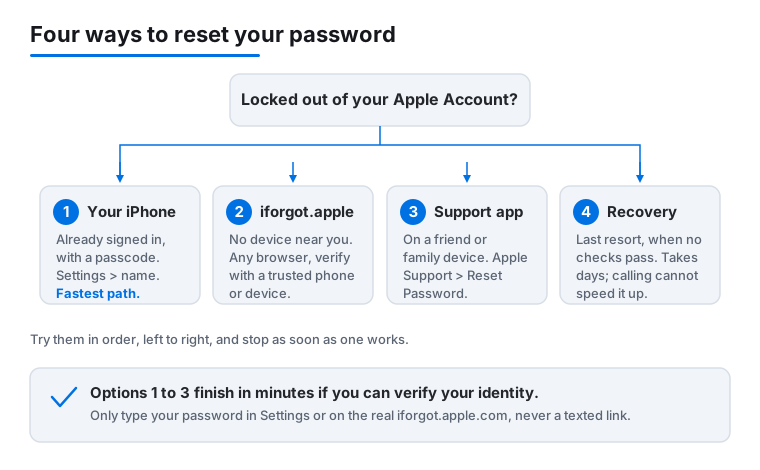
This guide walks through every recovery route in the order you should try them, from the quick fix on your own device to the slow multi-day path Apple uses when nothing else works. There are exact menu names and tap-by-tap steps, the real waiting times, and the mistakes that lock people out for longer than they need to be. Start at the top and stop as soon as one method works.
Start here: the fastest path is your own device
If you have an iPhone or iPad that you already use and it has a passcode set, you almost certainly do not need the web, a borrowed phone, or a phone call. You can reset the password right on the device, because that passcode already proves you are you.
Here is the exact path:
- Open Settings.
- Tap your name at the very top of the screen.
- Tap Sign-in & Security.
- Tap Change Password.
- Enter your device passcode (the four or six digit code you use to wake the phone), then type a new Apple Account password and confirm it.
That is the whole thing. Because the device is already signed in and trusted, Apple accepts the passcode as proof and lets you set a new password on the spot, a route Apple lays out in its own forgot your Apple Account password guide. No email, no security questions, no waiting. The same flow exists on a Mac under the Apple menu, then System Settings, then your name, then Sign-In & Security, then Change Password, where you enter your Mac login password instead.
One small but important note: a new password takes effect everywhere at once. After you change it, any other device signed in to your account (an iPad, an Apple Watch, an Apple TV, a Mac) will ask you to sign in again with the new password. That is normal and expected, not a sign something went wrong.
No device handy? Use iforgot.apple.com from any browser
If your phone is dead, lost, broken, or you simply are not near it, you can reset from a web browser on any computer or borrowed device. Open iforgot.apple.com, click Reset Password, and follow the onscreen steps. You will enter your Apple Account email address or phone number, then verify your identity using whatever you still have access to: a trusted phone number that receives a code by text, or a trusted device that shows a sign-in approval prompt.
If you can pass those checks, you get to set a new password immediately and you are done. If you cannot (for example, the trusted phone number is an old one you no longer use), the same page will offer to start account recovery instead. That is the slower path covered further down. The web tool is also where you return later to check the status of a recovery request at any time, so it is worth bookmarking even after you are back in.
A word of caution that matters more than ever in 2026: only ever type your Apple credentials on the real iforgot.apple.com or directly in Settings. Scammers send fake "your account is locked" texts and emails that lead to copycat login pages built to harvest exactly what you are panicking to type. If a link arrived by message, do not trust it. Type the address yourself. Our guide on how to spot fake Apple scam texts shows the tells.
Resetting on a borrowed iPhone or iPad
Sometimes the only thing nearby is a friend's iPhone, or a family member's iPad. Apple built a path for exactly this, and the key detail is that it does not sign you in on their device or leave any of your information behind on it.
Ask them to install the free Apple Support app from the App Store if it is not already there, then:
- Open the Apple Support app.
- Scroll down to the Support Tools section.
- Tap Reset Password.
- Tap Help Someone Else.
- Enter your own Apple Account email address or phone number, tap Continue, and follow the steps.
Apple states plainly that any information you enter here will not be stored on that device, which is what makes it safe to do on a phone that is not yours. Just like the web tool, if you can verify your identity you will set a new password right away; if you cannot, it routes you into account recovery. When you are finished, you can hand the phone straight back. Nothing of yours stays on it.
When normal resets fail: account recovery
Account recovery is the path Apple uses when it cannot confirm who you are through a trusted device or trusted phone number. This happens to real people for ordinary reasons: you changed phone numbers and never updated the trusted one, your only Apple device was stolen along with access, or you set the account up years ago and the recovery details are stale.
You start it from the same place, by going to iforgot.apple.com and following the prompts until it offers account recovery. From there it is mostly waiting. The process opens with an evaluation period that usually runs 24 to 72 hours. Apple then emails you with the next steps and the final wait time, and that final wait can be several days or, in some cases, weeks. Apple's account recovery page spells out how the timing works.
Here is the part people find hardest to accept: Apple says that for security reasons it can take several days or longer before you can use your account again, and that contacting Apple Support cannot shorten this time. That is by design. The whole point of the delay is to make sure a thief cannot fast-talk their way into your account by calling in. So calling will not speed it up. What you can do is make sure the account recovery request actually goes through, give Apple the most trustworthy contact details you have, and avoid doing anything that resets the clock.
What slows down or breaks recovery (real mistakes to avoid)
A few common missteps turn a quick reset into a long one. Knowing them ahead of time saves days.
- Starting recovery more than once. Submitting a second request, or trying a different method while one is already pending, can cancel the first and restart the waiting period from zero. Pick one path and let it run.
- Wiping or selling the device that proves your identity. A trusted device is worth more than gold during recovery. Do not erase, factory reset, or trade in your iPhone while you are locked out, even if a store offer is tempting. If you must replace it, finish recovery first.
- Guessing the password too many times. Repeated wrong attempts can push the account into a locked or disabled state, which is a separate problem to untangle (more on that next).
- Trusting a link in a text or email. During a lockout you are the perfect target. Real recovery never happens through a link someone sent you.
- Letting the trusted phone number go stale. The single most common reason recovery is needed at all is an old phone number. Once you are back in, fix it the same day.
One small example of how this plays out: a reader changes carriers, keeps the same iPhone, and never thinks about it. Months later the phone breaks. The text-message code now goes to a number they no longer own, so the quick reset fails and they are pushed into multi-day recovery. The fix would have taken thirty seconds back when the phone still worked.
If your account is locked, disabled, or shows as not active
A locked or disabled account is not the same as a forgotten password, even though they feel identical when you are staring at an error. Apple locks an account automatically when it looks like your password or other account details were entered incorrectly too many times, by you or by someone else trying to break in. You might see a message that says your account has been locked for security reasons, or that it is disabled or not active.
The recovery flow is slightly different. If you see an alert with a Request Access option, tap it and follow the prompts. Otherwise, go to iforgot.apple.com, where the flow for clearing a locked account lives alongside the password reset. In many cases clearing the lock and resetting your password happen together: prove your identity, set a new password, and the lock lifts at the same time. If you cannot verify your identity, you fall back into the same account recovery wait described above.
Treat a sudden lock you did not cause as a possible sign that someone is poking at your account. After you regain access, change the password to something completely new, check the list of trusted devices and phone numbers under Settings, then your name, then Sign-in & Security, and remove anything you do not recognize.
The recovery key: extra safety, with a sharp edge
If you ever turned on a recovery key for your account, your reset path changes in a big way, and you need to know this before you find yourself locked out. A recovery key is a 28 character code that replaces Apple's standard recovery, as described on Apple's recovery key setup page. With it switched on, resetting a forgotten password requires the recovery key plus access to a trusted device. That is more secure, because no one can start an account recovery request against you, but it cuts both ways.
Apple's warning is blunt: if you do not know your password and you have lost or do not have a trusted device, you need your recovery key to get back in, and if you cannot provide it, you will be locked out of your account permanently. There is no override and no support call that fixes this. The recovery key is the trade you made for tighter security.
So if you use one, store it somewhere you will actually find it later: written on paper in more than one place, or in a password manager, but never only inside iCloud, since iCloud is the very thing you would be locked out of. A good password manager is the cleanest home for a code like this. Our roundups of the best security and privacy apps for iPhone, iPad, and Mac cover managers that keep a recovery key safe and reachable.
After you are back in: lock the door behind you
Getting in is only half the job. The other half is making sure you never go through this again, which takes about five minutes. Once you can sign in:
- Open Settings, tap your name, tap Sign-in & Security, and confirm your trusted phone number is one you actually use today. Remove old numbers and add a current backup, such as a partner's phone.
- In the same screen, add a backup email address you can always reach, so Apple has another way to confirm it is you.
- Make sure two-factor authentication is on. It is the safety net that lets a future reset happen in minutes instead of days.
- Choose a new password you have never used anywhere else and save it in a password manager rather than your memory. Reusing the same password across sites is how most account takeovers start.
- If your iCloud is now nagging you about backups or storage, sort that out while you are here so your data is actually protected. Our guide on what to do when iCloud storage is full walks through the options.
If the whole scare came from a phone you no longer have, and you are setting up a fresh one, it is also a good time to read our walkthrough on how to move everything to a new iPhone so your new device starts clean and fully backed up.
When recovery truly fails: the last two options
It is rare, but sometimes every path comes up empty. The trusted number is gone, there is no trusted device, the recovery key is lost, and account recovery is denied because Apple cannot confirm you are the owner. At that point there are only two honest options left.
The first is to create a brand new Apple Account and move forward with it. You lose the purchases, subscriptions, and iCloud data tied to the old account, which is painful, but you regain a working sign-in for your apps and services going forward. The second applies if the real obstacle is a specific device caught behind Activation Lock: you can open an Activation Lock support request with Apple and provide proof of purchase, such as the original receipt showing you bought the device. If Apple verifies the proof, it can help you regain use of that hardware.
Neither is fun, but both are real exits. The lesson worth carrying away is that almost every permanent lockout traces back to one or two missing safety nets: a stale phone number, a lost recovery key, or a backup contact that was never added. Five minutes of setup now is the difference between a five minute reset later and losing an account for good.