
How to Use iPhone Mirroring on Your Mac and Fix It When It Fails
iPhone Mirroring puts a live, fully interactive copy of your iPhone screen in a window on your Mac. You can drive iPhone apps with the Mac keyboard and trackpad, answer iPhone notifications on the Mac, and drag files back and forth without touching the phone. When it breaks, it breaks vaguely: a spinner that never resolves, a Timed Out message, or the app refusing to see your phone. This guide covers the exact requirements, first-time setup, the file transfer trick most people miss, and a troubleshooting ladder ordered from least to most disruptive.
iPhone Mirroring is a Continuity feature, not something you install. On the Mac it lives as the iPhone Mirroring app in Applications, present on macOS Sequoia 15 and later, including macOS Tahoe 26. On the iPhone, iOS 18 or later handles it with nothing to add.
A few boundaries before you start. The connection is wireless only; a USB-C cable neither enables nor improves it. Your iPhone stays locked and dark while mirrored, so nobody near the phone sees anything. The iPhone camera and microphone do not pass through, so FaceTime and voice memos are poor candidates. And it mirrors an iPhone to a Mac only: no iPad in either direction, and no televisions, which is AirPlay's job.
Missing any single requirement produces the same unhelpful failure, so check each:
- Mac hardware: Apple silicon (any M-series chip) or an Intel Mac with the Apple T2 Security Chip. Intel Macs without T2 are out, full stop.
- Software: macOS Sequoia 15 or later, iOS 18 or later. Live Activities in the Mac menu bar needs macOS Tahoe 26.
- Same Apple Account: both devices signed in to the same account with two-factor authentication on. Some managed or child accounts do not support Continuity.
- Passcode: the iPhone must have one set.
- Radios: Bluetooth and Wi-Fi on for both devices. The same Wi-Fi network is not required, but keep the phone within roughly 30 feet of the Mac.
- Phone state: the iPhone must be locked. Charging or StandBy is fine; unlocking it pauses the session.
- Mac state: the Mac cannot be sharing its internet connection, AirPlaying, or using Sidecar.
The passcode and two-factor items trip people up most because they are assumed and rarely checked.
Setup takes about a minute:
- Lock your iPhone and set it near the Mac.
- Open iPhone Mirroring from the Dock or Applications folder.
- Click Continue, then confirm on the iPhone when it asks to allow the connection.
- Authenticate with your iPhone passcode, or Touch ID or the login password on the Mac.
- Choose whether iPhone notifications should also appear on the Mac.
You are then asked how future sessions authenticate: Ask Every Time or Authenticate Automatically. Ask Every Time means unlocking the window with Touch ID or your Mac password each session. Authenticate Automatically skips the prompt after you confirm once with your Mac login password. The trade-off is real: anyone who can log in to your Mac account can then open your phone remotely, so on a shared login pick Ask Every Time. While Authenticate Automatically is on, macOS also pins Require password after screen saver begins to Immediately. Change the choice later under Settings in the iPhone Mirroring menu.
Move the pointer to the top of the mirrored window and a toolbar appears with Home Screen and App Switcher buttons. Trackpad gestures mostly translate: scroll to scroll, click to tap, type with the Mac keyboard in any iPhone text field. Audio plays through the Mac speakers.
Window size lives under the View menu: Smaller, Actual Size and Larger. There is no free-form corner dragging, which surprises people; you get three presets.
On macOS Tahoe 26 there is a genuinely useful addition: Live Activities from your iPhone, such as a delivery countdown or flight status, appear in the Mac menu bar, and clicking one opens the relevant app inside iPhone Mirroring.
One quirk to expect: unlock the iPhone mid-session and the Mac window pauses with an iPhone in Use message. That is by design. Lock the phone and click to resume.
Since macOS Sequoia 15.1 and iOS 18.1 you can drag files between the Finder and the mirrored window. The rule that makes it work: you are not dropping onto the phone, you are dropping into an app on the phone.
- To send a photo, open Photos inside the mirrored window first, then drag the image from the Finder into it.
- To send a PDF or any document, open the Files app in the window and drop the file where you want it.
- Going the other way, click and hold a file in the iPhone's Files app, then drag it out onto your desktop or into a Finder folder.
Dropping onto the Home Screen does nothing, which is why people conclude drag and drop is broken. For one-off transfers AirDrop is often quicker; if that route misbehaves too, see our guide to fixing AirDrop when it stops working, since AirDrop and iPhone Mirroring share the same Bluetooth plus Wi-Fi plumbing and often fail together.
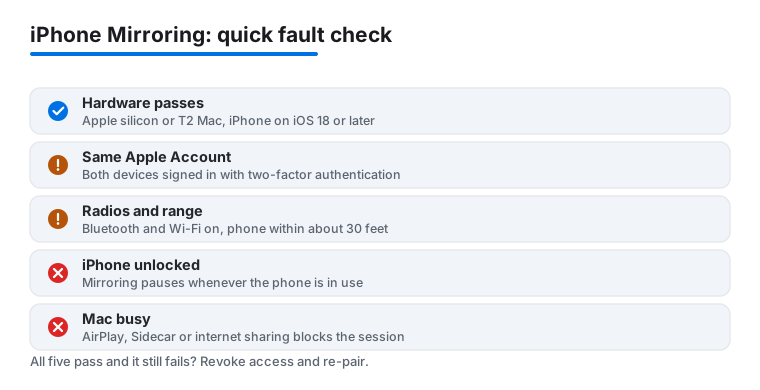
Work this ladder from the top; the fix usually lands in the first four steps.
- Confirm the blockers. Is the iPhone locked? Is the Mac AirPlaying, using Sidecar, or sharing its internet connection? Any of these silently blocks a session.
- Toggle the radios. Turn Bluetooth and Wi-Fi off and on, on both devices, from Settings on the iPhone rather than Control Center, which only disconnects. If the phone's Wi-Fi has been flaky in general, that alone starves Continuity; see our guide for an iPhone that keeps dropping Wi-Fi.
- Kill the VPN. A common culprit in user reports: VPN apps on either device can break the device discovery mirroring depends on. Disable the VPN on both devices and retry before blaming anything else.
- Check the Mac firewall. System Settings, Network, Firewall: Block all incoming connections prevents mirroring. Turn that option off.
- Verify the Apple Account. Confirm both devices use the same account with two-factor authentication on (Settings, your name, Sign-In and Security on the iPhone).
- Restart both devices. Boring, and it clears the stuck-spinner state more often than it should.
- Revoke and re-pair, covered next.
If sessions connect but stutter, that is load rather than pairing: a Mac gasping for memory renders the stream poorly. Our walkthrough on why your Mac is slow and how to speed it up is the right rabbit hole for that symptom.
When the pairing is corrupted rather than blocked, throw it away and start clean. There are two sides to clean up, and both matter:
- On the Mac: open iPhone Mirroring, choose iPhone Mirroring, Settings from the menu bar, and click Revoke Access.
- On the iPhone: go to Settings, General, AirPlay and Continuity, then iPhone Mirroring. Every Mac ever granted access is listed; delete the one you are fixing, plus any entries from Macs you no longer own.
- Restart both devices. Do not skip this between revoking and re-pairing; stale session state survives otherwise.
- Pair again by opening iPhone Mirroring on the Mac and walking the first-connection steps above.
If Revoke Access itself misbehaves, the escalation is signing out of the Apple Account on both devices, restarting, and signing back in. Tedious, and it re-syncs iCloud data, but it is what finally clears the cases where the pairing UI itself is wedged.
Notifications are where mirroring looks buggy but is actually following policy. iPhone notifications appear in the Mac's Notification Center with an iPhone badge, and clicking one opens the app inside the mirroring window. Control this under System Settings, Notifications, Allow notifications from iPhone, including per-app choices and sounds.
The quirks:
- Focus wins. If a Focus mode silences an app on your iPhone, it will not surface on the Mac either. Focus usually syncs across devices on the same account, so Do Not Disturb on the Mac can mute mirrored notifications too; check Focus on both devices first when notifications go missing.
- No duplicates by design. Apps installed natively on both platforms, Messages for example, notify through the Mac app instead of the mirrored channel.
- An unlocked phone changes the rules. While you are actively using the iPhone, forwarding to the Mac stops.
If one app never forwards, check its notification settings on the iPhone; mirroring forwards what the phone would show, nothing more.
If you live in the European Union and iPhone Mirroring shows an unavailable-in-your-region message, nothing above will fix it. Apple has withheld the feature in the EU since launch, citing regulatory uncertainty around the Digital Markets Act; the concern is that regulators could force the same Mac integration open to non-Apple phones. It is a policy block tied to account region and location, not a bug.
One honest note: region-change workarounds cost you local payment methods and media purchases, then can stop working after any update. In the EU, AirPlay to a Mac (viewing only, no control) still covers demo use cases.