
Why Is My Mac So Slow: Real Fixes
A slow Mac feels personal. The spinning beach ball shows up, apps take a breath before they open, and you start wondering if the machine is dying. Usually it is not. Most slowdowns come from a handful of ordinary causes, and almost all of them are fixable in a few minutes without spending money. This guide walks through what is really happening under the hood, in plain language, and gives you the exact steps to check each one. We will also be honest about the two cases where software cannot help: when the disk is genuinely full and when the hardware has simply run out of room to grow.
Work through the sections roughly in order. The early ones are the most common and the easiest, so you may not need to read all the way to the bottom.
The slowdown that fixes itself after an update
Here is the single most common scare. You install a macOS update, restart, and the Mac feels sluggish for hours. The fan spins on a laptop, everything is a half-second behind, and you assume the update broke something.
It almost certainly did not. After any major macOS update, a background process called Spotlight rebuilds its search index. Spotlight is the search feature behind the magnifying glass in the menu bar, and it keeps a catalog of every file so searches feel instant. When that catalog is wiped by an update, your Mac has to read through everything again. The process that does this is named mds or mds_stores, and you will see it eating CPU if you look.
This is normal and temporary. Reindexing usually takes anywhere from several minutes to a few hours, depending on how much you have stored and how busy the Mac is. The fix is patience: plug a laptop into power, leave it awake, and let it finish. If you want to watch the progress, click the Spotlight magnifying glass and start typing. While it is still working you will sometimes see an indexing progress bar at the top of the search window.
It crosses the line into a real problem only if it runs hot for more than about 24 hours. If that happens, you can force a clean rebuild yourself:
- Go to Apple menu > System Settings > Spotlight (on some versions this is labeled Siri & Spotlight).
- Scroll down and click Spotlight Privacy (older labels say Search Privacy).
- Click the add button (+) and choose your startup disk, usually called Macintosh HD. Click OK if asked.
- Wait a few seconds, select that same disk in the list, then click the remove button (the minus sign) to take it back out.
- Click Done and quit System Settings.
Removing the disk from the privacy list tells Spotlight to index it again from scratch, which clears out a corrupted catalog. Let it run, and the speed comes back. Apple documents this exact process in Rebuild the Spotlight index on your Mac.
When the disk gets too full to breathe
This is the cause people underestimate most. An SSD, the fast storage inside every modern Mac, needs free space to work well. macOS uses spare disk space for temporary files and for something called swap, which is disk space borrowed to act like extra memory. When the drive fills up, that room disappears and everything gets slower: apps launch late, saving stalls, and the whole system feels gummy.
A good rule of thumb is to keep at least 10 to 15 percent of your drive free. On a 256 GB Mac that means leaving roughly 25 to 35 GB open. Below that, you are in the danger zone.
Check where you stand:
- Go to Apple menu > System Settings > General > Storage.
- The colored bar at the top shows how full the drive is. Hover over each segment to see what is taking space.
- Look for a category called System Data (older macOS calls it Other). This is a catch-all for caches, logs, and files that do not fit a tidy label. If it has ballooned to many tens of gigabytes, see the next section.
To make room quickly, work through the recommendations Apple lists right on that same Storage screen, described in Free up storage space on Mac:
- Empty the Trash. Files you deleted do not actually free space until the Trash is emptied. Open the Trash in the Dock and click Empty.
- Move large files off the Mac. Photo libraries, video projects, and old downloads are the usual offenders. Copy them to an external drive, then delete the originals.
- Use Store in iCloud or Optimize Storage if you pay for iCloud space. This lets macOS keep full-resolution files in the cloud and free copies on disk when space runs low.
- Delete apps you do not use. Click the storage categories to see what is installed and remove the dead weight.
One worked example: a friend's MacBook with 1 GB free was crawling. Emptying the Trash recovered 18 GB, and moving a four-year-old Photos library to an external SSD freed another 90 GB. The Mac felt new again the same afternoon. If you want a head start on which utilities help with this kind of cleanup, our roundup of the best utility apps for Mac points to tools that show what is eating space without deleting things you need.
Taming that mysterious System Data category
When System Data swells to 50, 80, or more gigabytes, people panic and reach for a cleaner app. Hold on. macOS manages most of this on its own, and a lot of what lives there is supposed to be there.
The safe, free way to shrink it is to let macOS clear its own caches. The system removes caches and logs that are safe to delete whenever it needs the room, including temporary database files, interrupted downloads, staged updates, and old Safari website data. You can nudge it along:
- Restart the Mac. A normal restart clears a surprising amount of temporary clutter that builds up over weeks of sleep-wake cycles.
- If System Data is still huge, restart in safe mode, which makes macOS clear certain system caches automatically. On an Apple Silicon Mac, shut down, then press and hold the power button until you see startup options, choose your disk, hold Shift, and click Continue in Safe Mode. On an Intel Mac, restart and hold Shift until the login window appears.
- Restart normally afterward. The caches rebuild as needed, and System Data usually settles to a smaller, healthier size.
What does not help: deleting files by hand from deep system folders. It is easy to remove something macOS needs and cause a new problem. Let the system do this work.
The apps quietly loading every time you log in
If the Mac is slow specifically right after you log in, or if it is always a little sluggish, look at what launches automatically. Over the years, apps quietly add themselves to your login items, so cloud sync tools, updaters, menu-bar helpers, and old utilities all wake up the moment you sign in. Each one takes a slice of memory and processor time.
Clean house here:
- Go to Apple menu > System Settings > General > Login Items & Extensions.
- Under Open at Login, select anything you do not need starting automatically and click the remove button (the minus sign).
- Scroll to Allow in the Background. This lists hidden helpers from installed apps. Turn off the switch for software you no longer use. Leave on anything you recognize and rely on, such as your backup tool.
Be a little careful: removing a login item does not delete the app, it only stops it from launching on its own, so you can always reopen it manually. Apple covers this in Remove login items to resolve startup problems on your Mac. A typical cleanup of three or four stray helpers shaves real seconds off every startup and frees memory all day long.
Reading memory pressure honestly in Activity Monitor
Mac owners worry about RAM, the fast working memory apps use while they run. The instinct is to count how many gigabytes are free and panic when the number is low. That instinct is wrong for a Mac. macOS deliberately fills RAM with cached data to make things faster, so empty RAM is wasted RAM. The number that actually matters is memory pressure.
Find it:
- Open Activity Monitor. It lives in Applications > Utilities, or press Command-Space, type Activity Monitor, and press Return.
- Click the Memory tab at the top.
- Look at the Memory Pressure graph at the bottom left.
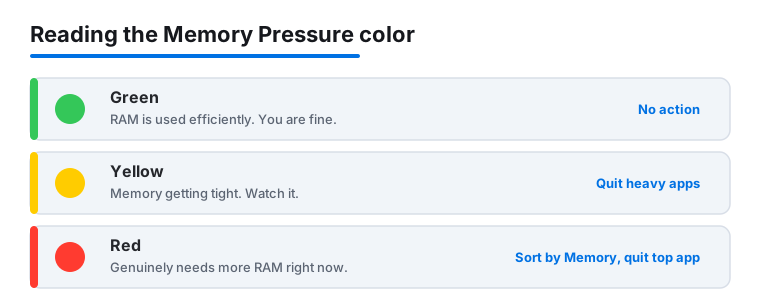
Apple explains the colors in Check if your Mac needs more RAM in Activity Monitor. Green means the Mac is using its RAM efficiently and you are fine. Yellow means it might eventually need more memory. Red means it genuinely needs more RAM right now, and you will feel the lag when switching apps.
Also glance at Swap Used in the same window. Swap is disk space used as overflow memory. A little is normal. Several gigabytes of swap combined with steady yellow or red pressure tells you the Mac is short on real memory for the way you use it. If the graph sits green even with a dozen tabs and a few apps open, your RAM is fine and the slowdown is coming from somewhere else on this list.
A practical move when pressure goes red: in the same Memory tab, sort by the Memory column to see which app is the biggest user. Web browsers with many tabs are the usual culprit. Quitting the heaviest offender often clears the red instantly.
What cleaner apps really do, and what they cannot
Search for a slow Mac and you will be flooded with ads for cleaner and optimizer apps promising to make it fast again. Here is the calm truth.
The genuinely useful thing some of these apps do is show you, clearly, what is taking up disk space and help uninstall apps completely. That part has value if you do not enjoy digging through folders yourself. But the headline features, like freeing memory and clearing caches, mostly duplicate work macOS already does on its own. Worse, some scans offer to delete files you should keep, and removing the wrong one can cause problems. Macworld's own long-running coverage of these tools, including its review of CleanMyMac, makes the same point: the cleanup tasks are ones you can do yourself, and the built-in macOS tools cover the basics.
So no cleaner app will fix a full disk you have not actually emptied, add memory you do not physically have, or speed up hardware that has reached its limit. If you choose to use one, treat its suggestions as a starting point, not gospel, and never let it auto-delete in folders you do not understand. Everything important these apps do, you have already done for free in the sections above.
When the real limit is the hardware
Sometimes the honest answer is that the machine has aged out, and no setting will change that. Two situations matter.
First, memory. On every Apple Silicon Mac, the M1, M2, M3, M4, and M5 models, the RAM is built into the chip and cannot be upgraded. The same is true of nearly all recent Intel laptops, where memory is soldered to the board. If Activity Monitor shows red memory pressure as part of your normal daily work, and you have already trimmed login items and quit heavy apps, the only real cure is a Mac with more memory. There is no aftermarket fix.
Second, the operating system itself. macOS Tahoe, released as version 26, is the current shipping release through 2026 and the last major release that supports any Intel Mac at all. Its successor, macOS 27, was announced in June 2026 and runs on Apple Silicon only, so future versions will require Apple Silicon. If your Mac cannot run the current macOS, it will gradually fall behind on security updates and app compatibility, and apps will keep getting heavier than the hardware was built for. You can check what you have, and whether an update is offered, under Apple menu > System Settings > General > Software Update, and see your model under General > About.
If a new Mac is not in the budget yet, there is one middle path that genuinely helps an older machine: a fast external SSD. Modern Thunderbolt or USB-C SSDs are quick, and moving your photo library, video projects, and large archives onto one frees the cramped internal drive, which on its own can bring back noticeable speed. Macworld keeps a current rundown of the best external SSDs for Mac if you want a place to start. If you edit on the Mac, keeping your working files on a fast external drive also pairs nicely with the heavier tools in our photo and video apps for Mac roundup. It will not fix a memory shortage, but it buys an aging Mac real breathing room. Once you have decided to invest, a fresh Mac pairs well with our picks for productivity apps for Mac and the security and privacy apps for Mac worth setting up from day one.
A short maintenance routine that keeps it fast
None of this needs to become a chore. A light habit prevents most slowdowns from ever showing up:
- Restart once a week. If you only ever close the lid, temporary files pile up. A weekly restart clears them.
- Keep 10 to 15 percent of the drive free. Glance at System Settings > General > Storage now and then and move large files off before it gets tight.
- Install macOS updates, but not on day one. Wait a week or two so early bugs are caught, then update and let Spotlight finish reindexing overnight.
- Review login items twice a year. Every new app is a chance for another background helper to sneak in.
- Quit, do not just minimize, the heavy apps you are done with, especially browsers with many tabs.
Do these and the beach ball mostly disappears, which is the whole point.
FAQ
My Mac got slow right after a software update. Did the update break it?
Almost certainly not. After a major update, macOS rebuilds its Spotlight search index in the background, which uses a lot of processor power for anywhere from minutes to a few hours. Plug a laptop into power, leave it awake, and let it finish. Only worry if it stays slow and hot for more than about a day, in which case you can force a clean rebuild from System Settings > Spotlight > Spotlight Privacy.
How much free disk space does my Mac actually need?
Aim to keep at least 10 to 15 percent of the drive free. On a 256 GB Mac that is roughly 25 to 35 GB. SSDs slow down sharply when they get close to full because macOS needs spare room for temporary files and swap memory. Check your level under System Settings > General > Storage.
Should I buy a cleaner app to speed up my Mac?
You do not need one. The genuinely useful part, showing what fills your disk and uninstalling apps cleanly, you can do yourself for free, and the memory and cache features mostly repeat what macOS already does on its own. A cleaner cannot fix a full disk you have not emptied or add memory the hardware does not have. If you use one, never let it auto-delete files in folders you do not understand.
How do I know if my Mac needs more memory?
Open Activity Monitor from Applications > Utilities, click the Memory tab, and look at the Memory Pressure graph. Green means you are fine. Yellow means memory is getting tight. Steady red during normal use means the Mac genuinely needs more RAM. Do not judge by how many gigabytes are free, since macOS deliberately fills memory with cached data to stay fast.
Can I add more RAM to my Mac to fix the slowness?
On any Apple Silicon Mac (M1, M2, M3, M4, M5) and nearly all recent Intel models, the memory is built in and cannot be upgraded. If you regularly see red memory pressure after trimming login items and quitting heavy apps, the only real fix is a Mac with more memory. A fast external SSD will not add memory, but moving large files onto one frees the internal drive and helps an older Mac feel quicker.
Why does my Mac slow down right after I log in, then improve?
Apps that launch automatically at login are competing for memory and processor time during those first minutes. Go to System Settings > General > Login Items & Extensions and remove anything under Open at Login you do not need, then turn off unused helpers under Allow in the Background. Removing a login item does not delete the app, so you can still open it manually whenever you want.