
How to Back Up Your Mac With Time Machine
Time Machine is the backup tool that already lives on your Mac. You plug in an external drive, point macOS at it, and from then on it quietly keeps copies of your files. The day a drive dies or you delete the wrong folder, those copies are what save you. This guide walks through choosing a drive, setting it up in System Settings, what actually gets saved, how the backups age out over time, and the two ways to get your stuff back. It also covers where Time Machine stops being enough, because no single backup is.
Pick and format the right external drive
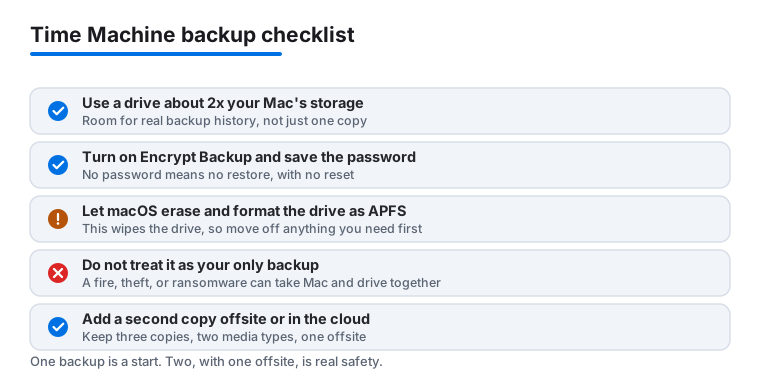
You need an external drive that Time Machine can call its own. The usual advice still holds: aim for at least twice the storage capacity of your Mac. If your Mac has a 512 GB drive, get a 1 TB drive or larger. The extra room is what lets Time Machine keep a useful history instead of overwriting last week to make space for today.
A USB or Thunderbolt external SSD is the simplest choice. A spinning hard drive works too and costs less per terabyte, just slower. You can also back up to a network drive that supports macOS backups, including a drive shared from another Mac, but a directly connected drive is the easiest to trust.
Format it as APFS. For years Time Machine wanted the older HFS+ format, but current macOS uses APFS for Time Machine and will offer to erase and format the drive correctly when you add it. If the drive holds nothing you care about, just let macOS erase it. If it has other files on it, move them off first, because that erase wipes everything.
Set up Time Machine in System Settings
Plug the drive in. Then open the Apple menu and choose System Settings. In the sidebar click General, then click Time Machine on the right. This is where Time Machine lives now; it is not its own top-level item anymore.
Click Add Backup Disk, or click the Add button with the plus sign. Select your connected drive and click Set Up Disk. macOS may ask to erase the drive so it can use it for backups. Let it, or pick a different drive if this one has files you need.
You will see an option to Encrypt Backup. Turn it on. It scrambles the backup so someone who steals the drive cannot read your files, which matters because a backup drive holds copies of everything. You set a backup password during this step. Write it down somewhere safe and do not lose it, because without it you cannot restore from an encrypted backup. There is no reset.
Once setup finishes, your Mac starts its first backup on its own. The first one copies everything and can take a while, from under an hour to several hours depending on how much data you have and how fast the drive is. Leave it plugged in and let it finish. After that, future backups only copy what changed, so they are quick.
If you ever want to start a backup by hand, add the Time Machine menu to your menu bar (the Options or menu bar settings let you show it), then choose Back Up Now.
What Time Machine backs up, and what it skips
By default Time Machine backs up your whole startup drive: your documents, photos, music, email, apps, system files, and settings. The idea is that you can rebuild a working Mac from it, not just recover a few files.
A few things are left out on purpose. The backup drive itself is not backed up. Temporary files and caches are skipped. You can also exclude folders you do not want copied, which is handy if you have huge files you can re-download or do not care to keep history of. Open Time Machine settings, click Options, and use the Exclude from Backups list. Click the plus button to add a folder or drive, or drag items in.
One honest catch: Time Machine on APFS works by taking snapshots of the entire volume, and a snapshot grabs everything on it at that moment. Your exclusions still control what gets copied to the external drive over time, but the local snapshot on your Mac is whole-volume by design. For most people this is invisible and fine.
iCloud is a separate question. Files you store only in iCloud and have not downloaded to your Mac may not be in the local backup, because they are not fully on the machine. If you rely on iCloud Drive or Optimize Mac Storage, do not assume Time Machine is holding a full copy of those files.
How often it backs up and how it frees space
Time Machine runs on a schedule you do not have to manage. When your backup drive is connected, it keeps hourly backups for the past 24 hours, daily backups for the past month, and weekly backups for every month before that. So you can step back to this morning, or to a Tuesday three weeks ago, or to roughly where things stood two months back.
You do not get every one of those points forever. As the drive fills, Time Machine deletes the oldest backups to make room for new ones. It warns you the first time it does this if you asked it to. The recent past stays detailed and the distant past gets thinner, which is the sensible tradeoff for a drive that is not infinite.
There is a second layer called local snapshots. When the backup drive is not plugged in, macOS still saves periodic snapshots on your Mac's own internal drive, so you have something to fall back on between backups. These live in space the system treats as free, and macOS clears them out automatically when it needs the room for real work like downloads or installs. You do not have to babysit them. They are a safety net, not a replacement for the external drive, because if the internal drive fails they go with it.
Restore a single file or folder
Most of the time you do not need a full restore. You deleted something, or saved over a good version with a bad one, and you just want that one thing back.
Open the folder where the file used to be. Click the Time Machine icon in the menu bar and choose Browse Time Machine Backups. You get a stack of windows going back in time, with a timeline on the edge. Use it to move back to a date when the file was still there, select the file, and click Restore.
Time Machine puts the recovered file back in its place without throwing away what you already have, so you are not gambling your current work to get an old version. If you would rather not overwrite, you can copy the old version somewhere else and compare. This is the everyday use of Time Machine and the reason it is worth setting up.
Restore everything with Migration Assistant or Recovery
The bigger job is moving everything: a new Mac, a wiped Mac, or a machine that will not start.
If your Mac is running fine and you just want your files, apps, and settings from a backup, use Migration Assistant. It is built into macOS, in the Utilities folder. It pulls your accounts, apps, files, and settings from the Time Machine drive into the current system without erasing what is already there. This is also what you use when setting up a brand new Mac: during first setup, choose to transfer from a Time Machine backup and plug the drive in.
If the Mac will not boot, or you want to return it to the exact state it was in on a past date, use macOS Recovery. On Apple silicon Macs you reach it by shutting down, then pressing and holding the power button until you see the startup options, then choosing Options. On an Intel Mac you hold Command and R at startup. From there you can reinstall macOS and then restore your files from the Time Machine backup. A full restore like this brings the Mac back to the chosen point, so it is the tool for serious recovery, not for grabbing one document.
Why Time Machine alone is not enough
Time Machine is good at the common disasters: a dead internal drive, a deleted file, a botched update. It is weak against the disasters that hit the backup and the Mac at the same time.
The backup drive usually sits right next to the Mac. A burglary, a fire, a flood, or a spilled drink can take both at once. Time Machine has no offsite copy and no cloud copy on its own. If the room is gone, the backup is gone with it.
Ransomware and other malware are the other gap. A backup drive that is always plugged in can be reached by the same attack that hits your Mac, and bad files can get backed up right alongside good ones. A backup you never disconnect is a backup that shares your Mac's fate.
So treat Time Machine as one leg of the stool, not the whole thing. Pair it with a second backup that lives somewhere else: an online backup service that copies your files to the cloud, or a second drive you keep at another location and swap now and then. A common approach is to keep three copies of anything you care about, on two different kinds of storage, with one of them offsite. Time Machine handles the fast local recovery. The second backup handles the day the local one is not there.
FAQ
How big should my Time Machine drive be?
Aim for at least twice your Mac's storage. If your Mac holds 512 GB, get 1 TB or more. The extra space is what lets Time Machine keep a real history instead of overwriting old backups to fit new ones. A drive the same size as your Mac will keep almost no history.
Can I keep other files on my Time Machine drive?
It is best not to. Time Machine wants the room to grow its backup history, and a drive shared with other files fills up faster and loses older backups sooner. If you must share, partition the drive so Time Machine gets its own dedicated volume to use.
Does Time Machine back up files that only live in iCloud?
Not reliably. If a file is stored in iCloud and not fully downloaded to your Mac, it may not be in the local backup, because it is not actually on the machine. If you use Optimize Mac Storage, do not assume Time Machine holds a full copy of your iCloud files.
What happens when the backup drive gets full?
Time Machine deletes the oldest backups to make space for new ones. It can warn you the first time it does this. Your recent backups stay detailed and the older ones thin out over time, which is normal. A larger drive simply keeps more history before it has to start trimming.
Do I need to leave the drive plugged in all the time?
You do not have to, but more frequent connection means more backup points. When the drive is unplugged, macOS keeps local snapshots on your Mac as a stopgap and backs up properly when you reconnect. For ransomware safety, some people deliberately keep a backup drive disconnected except when backing up.
Is Time Machine enough on its own?
No. It protects you well from a dead drive or a deleted file, but the backup drive usually sits next to the Mac, so a fire, theft, or ransomware can take both. Pair it with an offsite or cloud backup so you have a copy that survives when the local one does not.