
How to Free Up Space on a Mac When the Disk Is Full
When your Mac warns that the startup disk is almost full, apps start crashing, you cannot update macOS, and saving a file becomes a guessing game. The good news is that most of the space you need is hiding in plain sight: caches, old downloads, full-resolution photos, mail attachments, and a confusing category called System Data. This guide walks through exactly where the space goes, how to reclaim it safely using tools that are already built into macOS, what is genuinely safe to delete, and why a paid cleaner app is almost never worth the risk.
First, open the Storage panel and see where space actually goes
Before deleting anything, get an accurate picture. macOS has a built-in breakdown that beats guessing every time.
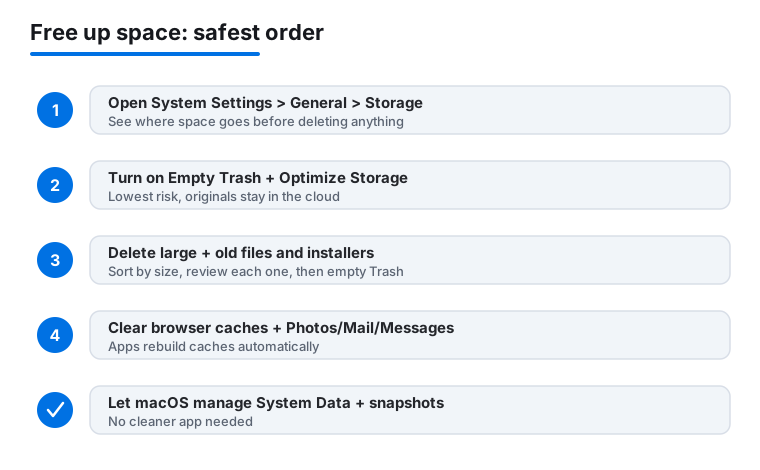
- On macOS Ventura, Sonoma, Sequoia and later: open the Apple menu > System Settings > General > Storage.
- On macOS Monterey and earlier: open the Apple menu > About This Mac > Storage > Manage.
You will see a colored bar split into categories like Applications, Documents, Photos, Mail, macOS, and System Data. Hover over each segment to see the exact size. Below the bar, macOS lists recommendations such as Store in iCloud, Optimize Storage, and Empty Trash Automatically.
Two important notes before you touch anything. First, the bar can take a minute or two to finish calculating, so let it settle. Second, the numbers are approximate and update on a delay, so do not panic if a category looks bigger than you expected. Apple documents these tools on its official support site at support.apple.com, and the panel layout is the most reliable starting point on every recent Mac.
What System Data really is (and why it is so large)
The category that scares everyone is System Data (called Other on older versions of macOS). It can balloon to 50 GB, 100 GB, or more, and Apple does not let you click into it the way you can with Photos or Applications. That is by design, not a bug.
System Data is a catch-all for everything that does not fit the other neat categories. It typically includes:
- Caches from the system, apps, and your web browsers.
- Temporary files and logs that apps create while running.
- Local Time Machine snapshots, which macOS keeps on your internal disk between backups.
- Disk images, installers, and virtual machine files.
- Downloaded but unplayed media, fonts, plug-ins, and app support files.
Here is the part most people miss: a lot of System Data is self-managing. macOS purges caches and old snapshots automatically when the disk gets tight, so a big number is not always a problem you need to solve by hand. The safest way to shrink it is to attack the real culprits (browser caches, old backups, large leftover files) through the methods below, rather than digging blindly into hidden system folders. Deleting files inside /System or /Library at random can break macOS, so leave those alone.
Turn on Optimize Storage and the built-in recommendations
The recommendations in the Storage panel are the lowest-risk, highest-reward step, so start here.
Empty Trash automatically
This deletes items that have been in the Trash for more than 30 days. Files you trashed recently are kept, so this is safe for almost everyone.
Optimize Storage
When you turn this on, macOS removes movies and TV shows you already watched from the Apple TV app (you can re-download them free) and keeps only recent email attachments on the Mac. The originals stay in the cloud, so nothing is permanently lost.
Store in iCloud
This moves the full-resolution versions of your Desktop, Documents, Photos, and Messages into iCloud, leaving smaller previews on the Mac. It can free a lot of space fast, but two cautions apply. First, you need enough iCloud storage, which means a paid iCloud+ plan for most people. Second, files are downloaded on demand, so you need an internet connection to open something that has been offloaded. Apple explains iCloud storage tiers at apple.com/icloud. If you travel without reliable internet, think twice before offloading documents you rely on.
Find large and old files you forgot about
The biggest single wins usually come from a handful of forgotten large files: old video projects, disk images, downloaded installers, and virtual machine drives.
- In the Storage panel, click Documents (or the small list icon next to it on newer macOS).
- Use the Large Files tab to sort everything on the Mac by size, biggest first.
- Check the Downloads tab for old .dmg installers and zip files you already used. These are almost always safe to delete once the app is installed.
- Use the File Browser tab to walk through folders and see which ones are heaviest.
You can also do this in Finder directly. Open a new Finder window, press Command + F, set the search to This Mac, and choose File Size > is greater than > 500 MB. Review each result before deleting. Look especially for old .dmg, .iso, and .pkg files, finished video exports, and duplicate downloads. When in doubt, move a file to an external drive instead of deleting it.
Clear caches and downloads the right way
Caches are temporary files apps create to load faster. They are generally safe to clear because apps simply rebuild them, but you should let the app or system manage them rather than mass-deleting folders.
Browser data (often gigabytes)
- Safari: open Safari > Settings > Advanced, turn on Show features for web developers, then use the Develop menu > Empty Caches. To clear history, use History > Clear History.
- Chrome: go to Settings > Privacy and security > Delete browsing data, and tick Cached images and files. Google documents this at support.google.com.
System and app caches
You can manually open the user cache folder by choosing Go > Go to Folder in Finder and entering ~/Library/Caches. You may delete the contents of subfolders here, but do not delete the Caches folder itself, and quit the relevant app first. Honestly, for most people this saves less than the browser step and carries more risk, so do it only if you are comfortable and short on space.
Empty the Trash
None of the above frees space until you empty the Trash. Right-click the Trash in the Dock and choose Empty Trash, or open it and click Empty.
Tame Photos, Mail, and Messages downloads
These three apps quietly store full-resolution copies of everything, and they are often the largest categories after System Data.
Photos
If you use iCloud Photos, open Photos > Settings > iCloud and select Optimize Mac Storage. Your full-quality originals stay in iCloud while smaller versions live on the Mac. Also check the Recently Deleted album inside Photos, because deleted images sit there for 30 days and still take up space until removed.
Mail caches every attachment you open. You can clear them in Storage > Mail > Review, or by deleting large emails with attachments you no longer need. Turning on Optimize Storage (above) also keeps only recent attachments locally.
Messages
Photos, videos, and GIFs sent in Messages pile up fast. In the Storage panel, click Messages to see and delete large attachments. You can also turn on Messages in iCloud via Messages > Settings > iMessage, which offloads the history to the cloud.
Handle local Time Machine snapshots and old backups
If you use Time Machine, macOS stores local snapshots on your internal disk so you can recover recent files even when your backup drive is unplugged. These can take many gigabytes and show up inside System Data.
You usually do not need to delete these by hand: macOS automatically thins them when free space runs low, and they protect your data, so removing them reduces your safety net. If the disk is critically full and you understand the trade-off, the cleanest approach is to connect your Time Machine backup drive and let macOS complete a normal backup, which lets it clear old local snapshots safely. Apple covers Time Machine on its support site at support.apple.com. Avoid third-party scripts that force-delete snapshots unless you know exactly what you are doing.
Why you do not need a cleaner app
Apps that promise to magically clean your Mac are a multi-million dollar industry built on fear. Here is the honest truth.
- They mostly delete the same caches you can clear for free. The big numbers they show in their dashboards are usually browser caches and logs that macOS already manages and rebuilds.
- They can cause real harm. Aggressive cleaners have been known to delete files that apps needed, break permissions, or remove language files and components you actually use.
- Many use scare tactics and subscriptions. Pop-ups warning that your Mac is at risk are marketing, not diagnostics. Some bundle extra background processes that slow the very Mac they claim to speed up.
- Apple already does the cleanup. macOS purges caches and thins snapshots automatically when space is needed. Apple discusses optimizing storage natively on its support site at support.apple.com.
If you genuinely want a visual map of what is using space, a well-reviewed free tool like a disk space visualizer can show you the heavy folders, but you should still do the actual deleting yourself, through Finder and the built-in Storage panel, so you always know exactly what is being removed.
Last resorts when the disk is critically full
If your Mac is so full it will not even boot properly or update, work through these in order.
- Restart the Mac. This alone clears many temporary files and triggers macOS to purge caches it was holding.
- Move big folders to an external drive. A USB SSD or hard drive is cheaper per gigabyte than iCloud and gives you offline access. Move video, photo libraries, and archives off the internal disk.
- Delete apps you never use. Open the Storage panel, click Applications, sort by size, and remove the ones you do not recognize or need. Drag them to the Trash or use the app's own uninstaller.
- Free up a few gigabytes first, then run updates. macOS needs free working space to install updates and even to delete files reliably, so reclaim a little before doing anything heavy.
Always keep a current backup before a big cleanup. The safest cleanup is one you can undo, and a Time Machine or external backup means a mistaken deletion is recoverable. Apple's official guidance lives at support.apple.com if you hit something this article does not cover.
FAQ
Is it safe to delete System Data on a Mac?
You should not try to delete System Data directly, and macOS does not give you a single button to do so for good reason. It contains caches, logs, local snapshots, and app support files, some of which apps need to run. The safe way to shrink it is indirectly: clear browser caches, remove old large files and installers, let Time Machine complete a backup, and restart the Mac. macOS then purges what it can on its own.
Will deleting caches break my apps?
Generally no. Caches are temporary files that apps rebuild the next time they run, so clearing them is usually harmless and just makes the next launch slightly slower. The safest approach is to quit the app first and clear its cache through the app's own settings (like a browser's delete browsing data option) rather than dragging system folders to the Trash.
Do I need a paid cleaner app like CleanMyMac?
No. For the vast majority of people, the free tools built into macOS (the Storage panel, Optimize Storage, Empty Trash, and Finder's size search) recover the same space more safely. Cleaner apps mostly delete caches macOS already manages, and aggressive ones can remove files you actually need. If you want, use a free visualizer to see what is large, but do the deleting yourself.
Where did all my Mac storage go if I barely have files?
The usual culprits are invisible: browser and app caches, full-resolution photos and Messages attachments, mail downloads, old .dmg installers in your Downloads folder, and local Time Machine snapshots inside System Data. Open System Settings, then General, then Storage and hover over each colored segment to see exactly which category is the biggest.
How much free space should a Mac have?
As a rule of thumb, try to keep at least 10 to 15 percent of your disk free, and never let it drop to almost zero. macOS needs working space to run smoothly, install updates, and even delete files reliably. If you are constantly at the limit, move large libraries to an external drive or upgrade your iCloud plan rather than living one file away from a full disk.
Does turning on Store in iCloud delete my files?
No, it moves the originals to iCloud and keeps smaller previews on your Mac. The full files download on demand when you open them, which means you need an internet connection and enough iCloud storage. Nothing is deleted, but if you travel without reliable internet, be cautious about offloading documents you depend on offline.