
How to Set Up Screen Time Parental Controls on iPhone
Screen Time is Apple's built-in tool for managing how an iPhone gets used. You can schedule quiet hours, cap time in specific apps, decide who your child can message during downtime, and block content that is too old for them. None of it costs anything, and it is already on every iPhone. The setup is a little fiddly, and a few of the screens have moved around in iOS 26, so this walks through each piece in order. There is also one trap worth knowing before you start: if you set a Screen Time passcode the wrong way, you can lock yourself out with no easy way back in. More on that at the end.
Two ways to run Screen Time: on the child's phone vs from yours
Before you touch any settings, decide where the controls will live. There are two setups, and they behave differently.
- Family Sharing (remote management). Your child has their own Apple Account inside your family group. You manage their Screen Time from your phone, and changes sync to their device over the internet. This is the right setup for younger kids and the only sensible one if you want to adjust limits without holding their phone.
- On the same phone (local). Screen Time is set up directly on the device with a passcode only you know. This works if the iPhone is shared, or if you are managing an older teen's hand-me-down phone that is not in a family group.
For anyone under 13, you need a child Apple Account, and only a parent or guardian can create one. On your own iPhone, open Settings > Family > Add Member > Create Child Account, then follow the prompts for their name and birth date. In iOS 26, age-appropriate protections get applied automatically as soon as the child account joins the family, so a lot of the blocking is already sensible before you change a thing.
Turn Screen Time on and set the passcode
If you are managing from your own phone through Family Sharing, open Settings > Screen Time, scroll to the Family section, and tap your child's name. Everything below applies to their device from there.
If you are setting it up directly on the child's phone, open Settings > Screen Time on that device. Tap App & Website Activity, then Turn On App & Website Activity so the phone starts tracking usage. Scroll down and tap Lock Screen Time Settings. You will be asked to set a four-digit passcode and confirm it.
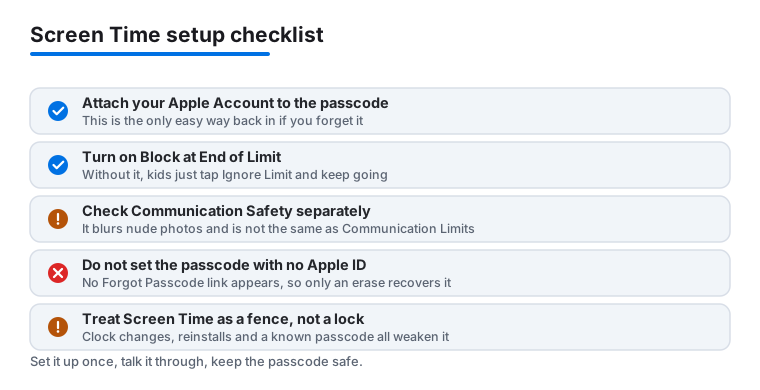
Use a passcode your child does not know and cannot guess. Do not reuse the phone's unlock code. When the phone asks whether you want to add your Apple Account for recovery, say yes and enter it carefully. That single step is what lets you get back in later if you forget the passcode. Skip it and you are relying on an erase to recover, which is covered further down.
Schedule Downtime for quiet hours
Downtime blocks apps and notifications during the hours you pick. During downtime only phone calls and the apps you specifically allow stay open, so it is good for bedtime and school hours.
In the Screen Time screen for the child, tap Downtime, turn it on, and choose Every Day for a single schedule or Customize Days if weekends differ. Set a start and end time. A reminder appears five minutes before downtime begins, which softens the cutoff a bit.
Downtime on its own is gentle. Apps show up greyed out, and your child can tap Ask For More Time or Ignore Limit. If you want it to actually hold, you need the next setting too.
Set App Limits so games and social apps run out of time
App Limits cap daily time for a whole category, like Games or Social, or for one named app. Tap App Limits > Add Limit, tick a category or expand it to pick single apps, then tap Next and set the daily amount. You can give weekends a longer allowance with Customize Days.
Here is the part people miss. By default, when a limit runs out, the child can tap through and keep going. To make a limit stick, open the specific App Limit you just created and turn on Block at End of Limit there (older versions called this Block at Downtime). This setting lives inside each individual limit, not on the main Screen Time screen, and it only appears once a Screen Time passcode is set. With it on, hitting the limit requires your passcode to continue, not just a tap.
Keep the list short at first. One limit on games and one on social apps teaches the pattern without turning the phone into a fight every afternoon.
Control who they can talk to with Communication Limits
Communication Limits decide who your child can call, text, or FaceTime, both during normal hours and during Downtime. It pulls from the contacts on the device, so it works best once you have added the people you trust.
Tap Communication Limits. Under During Screen Time you can allow Everyone or restrict to Contacts Only. Under During Downtime you can lock things down further to a specific approved list. Phone, FaceTime, Messages and iCloud contacts are covered. Emergency numbers always go through regardless of what you set, so you are not cutting off a real emergency.
Separately, look at Communication Safety. This is the on-device feature that blurs nude photos in Messages, AirDrop, FaceTime and a few other places, and warns the child before they send or open one. It runs on the device, so Apple does not see the images. For a child account in iOS 26 it is usually on already, but check it rather than assume.
Block grown-up content with Content & Privacy Restrictions
This is the big one. Content & Privacy Restrictions is where you block adult websites, set age ratings for apps, music and films, and stop your child from changing settings behind your back. Tap it, turn the switch on, then work through the rows.
The ones worth setting first:
- iTunes & App Store Purchases to require approval for installs and in-app buying.
- Content Restrictions > Web Content, where Limit Adult Websites filters most explicit sites automatically. You can also add specific allowed or blocked sites.
- Content Restrictions again for Apps, Movies, TV Shows and Music ratings by age.
- Allow Changes at the bottom, which locks things like the passcode, account changes and cellular data so they cannot be quietly undone.
If you are on iOS 26, Apple also added Ask to Browse, which makes a child ask permission before opening a new website in Safari, and it carries across iPhone, iPad and Mac. It is stricter than the adult filter and better suited to younger kids than teens.
The honest limits of Screen Time
Screen Time is useful, but it is not a wall. A determined teenager can change the device's clock to dodge Downtime, delete and reinstall an app to reset some counters, or simply learn your passcode by watching you type it. The web filter catches a lot, not everything. And the controls only cover Apple's own apps and the App Store, so a third-party browser or a friend's phone is outside its reach.
Treat it as a fence, not a lock. It removes the easy temptations and gives you a usage report to talk about, which for most families does more than any single setting. Pair it with an actual conversation about what the rules are and why. The tool works best when your child broadly agrees with the plan, not when it becomes a daily game of getting around it.
Reset a forgotten Screen Time passcode
This catches people out, so read it before you need it. If you set the passcode on iOS 13.4 or later and added your Apple Account for recovery, getting back in is straightforward.
Open Settings > Screen Time > Change Screen Time Passcode, then tap Change Screen Time Passcode again. On the screen that asks for the current passcode, tap Forgot Passcode? Enter the Apple Account email and password you used when you first set it up, then choose a new passcode and confirm it. Make sure it is the exact same Apple Account, not a different one you also own.
Now the trap. If the passcode was set up without an Apple Account attached, or on a device that had no Apple ID signed in at the time, there is no Forgot Passcode? link at all. Apple has no record to reset against, so nothing appears. The link is also hidden when Screen Time is managed through Family Sharing rather than set locally, so check on the phone where the passcode was actually created. In that case your only route is to erase the device and set it up fresh, which wipes everything that is not backed up. You can do that from Settings > General > Transfer or Reset iPhone > Erase All Content and Settings, or by restoring through a Mac or Windows PC. Back up first if there is anything on the phone you want to keep. The lesson is simple: always attach your Apple Account when you create the passcode, and write the passcode down somewhere safe.
FAQ
Can I set up Screen Time without Family Sharing?
Yes. You can turn it on directly in Settings > Screen Time on any iPhone and lock the settings with a passcode. Family Sharing only matters if you want to manage a child's separate device from your own phone and have age protections applied automatically.
Does Downtime block phone calls?
No. During Downtime, regular phone calls still come through, along with any apps you marked as Always Allowed. Downtime is about apps and notifications, not cutting off the phone entirely.
Why can my child still use an app after the limit runs out?
By default Screen Time lets them tap Ignore Limit and keep going. Open the specific App Limit you created and turn on Block at End of Limit there, which lives inside each individual limit rather than on the main Screen Time screen and only appears once a Screen Time passcode is set. With it on, passing a limit needs your passcode instead of a single tap.
What is the difference between Communication Limits and Communication Safety?
Communication Limits control who your child can call, text or FaceTime. Communication Safety is the separate feature that detects and blurs nude images in Messages and a few other places, all on the device. They solve different problems and you usually want both.
I forgot my Screen Time passcode and there is no Forgot Passcode option. What now?
That happens when the passcode was set without an Apple Account for recovery. There is no reset link in that case. The only way out is to erase the iPhone and set it up again, which deletes data, so back up first. To avoid this next time, attach your Apple Account when you create the passcode.
Can my teenager get around Screen Time?
Sometimes. Changing the device clock, reinstalling apps, or learning your passcode can all weaken it. Locking Allow Changes and keeping your passcode private helps, but treat Screen Time as a sensible fence rather than something nobody can climb.