
Discover the Hidden Features of the NBA App on iPad and iPhone
The NBA app looks simple when you first open it, a wall of scores and a few highlight reels. Spend a season with it the way we did, switching between an iPad on the couch and an iPhone on the train, and you start finding the tools that actually change how you watch. In our testing, the features that matter most are tucked two or three taps deep, and almost nobody turns them on. Here is what we found, how to set it up, and where the app still falls short. One thing to clear up first: this is the iPhone and iPad app, not a Mac program. There is no separate Mac version on the App Store, so if you want it on a desktop you watch through NBA.com in a browser instead.
Getting the NBA app running on your iPad and iPhone
Download is the easy part. Grab the app, listed as NBA: Live Games & Scores, from the App Store, sign in with an NBA account, and you land on the Home tab right away. The app is universal, so the same login carries your favorite teams, alerts, and any League Pass subscription across your iPad and iPhone with nothing to re-enter. We signed in on the iPad first, opened the iPhone an hour later, and every preference was already there. One requirement to know about: the current app needs iOS or iPadOS 17.2 or later, so an older iPad stuck on an earlier version will not run the latest build. If your tablet is a few years old, check Settings, then General, then Software Update before you assume the app is broken.
Two settings are worth changing before your first game. First, set your favorite teams under your profile so the Home feed leads with their scores instead of a generic league view. Second, open notification settings and turn off the firehose. By default the app pings you for close games across the entire league, which on an iPhone gets noisy fast. We narrowed alerts down to game start, final score, and red-hot moments for two teams, and it felt far more like a personal feed than a scoreboard shouting at you.
One practical note on the iPad. The app supports Split View, so you can pin a live game or the scoreboard to one side and keep a chat or notes app on the other. It is not flashy, but during a busy night with four games going, it became the way we kept up. The iPad also handles Picture in Picture, so you can shrink a game into a corner, check your email, and still watch the run that decides a quarter. We used that more than we expected.
The features that actually matter once the game tips off
If you pay for League Pass, the live viewing tools are where the app earns its keep. These are the ones we kept coming back to:
- Multiview (on the big screen, not the iPad). Added ahead of the 2024-25 season and still here in 2026, Multiview lets you watch up to four League Pass games at once and tap any one to bring its audio forward. The catch worth knowing: this is a connected-device feature, available through NBA.com and on supported TV platforms like Apple TV, Roku and Amazon Fire TV, not inside the iPhone or iPad app. The way to use it from your iPad is to push a game to an Apple TV, so think of Multiview as a living-room tool rather than something you run on the tablet itself.
- Alternate camera angles. During live League Pass games you can swap between the home and away broadcast and alternate views the NBA offers on select games, such as a sideline cam, a backboard cam, and a player cam. Not every game carries every angle, so do not expect all of them every night. There is also a Mobile View stream tuned for phone screens.
- Home or away broadcast pick. For most games you choose which team's announcers you want. If you cannot stand a particular crew, this alone is worth a look.
- Key Moments and smart rewind. Jump straight to the run that decided a quarter without scrubbing a four-quarter timeline. You can also rewind from any point and see the key plays flagged for you. On the iPad's larger screen the moment markers are easy to tap.
- Live stats overlay. Pull up shot charts, player lines, scores from other games, and play-by-play while the game runs. We leaned on this constantly on the iPad, where there is room for video and numbers at once.
The standout for us was combining an alternate angle with the live stats overlay on iPad. It turns a casual watch into something closer to how a coach reviews a game, and it costs you nothing extra once you are subscribed.
Hidden tools and practical tips we wish we knew sooner
Beyond the live broadcast, a few quieter features changed our routine. The app offers several recap formats under names like 10-Minute Condensed, All Possessions, and Key Highlights, so you pick how much catching up you actually want to do. The condensed cut replays a full matchup in roughly ten to fifteen minutes by stripping out the dead time, which is perfect on an iPhone when you missed a late game and just want the story of it. We used it on the train more than any other feature.
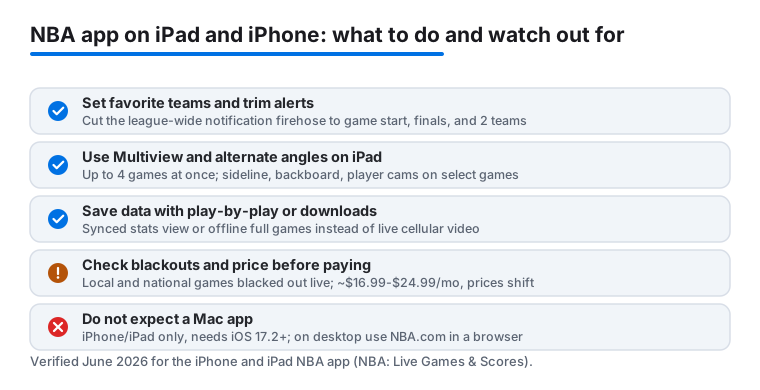
The app also lets you follow a game purely through its real-time play-by-play and a synced stats view, no video required. On a weak connection that mode sips data while still giving you every bucket as it happens. If you are watching on cellular, this is the trick that keeps you in the game without burning your plan. There is also an offline download option for full games, so you can pull one down on home Wi-Fi and watch it later on a flight with no signal.
One newer addition worth a mention is NBA Insights, an AI tool that runs on Microsoft Azure and posts short text updates about key narratives, standout performances, and milestones as a game unfolds. It is handy for following a game you are not watching closely, though like any automated summary it sometimes states the obvious. Treat it as a running notes feed, not a replacement for watching. For fans who like that layer, betting overlays surface live odds where that content is available in your region. It is optional and easy to ignore, and if you would rather not see odds you mostly just avoid tapping into it. Finally, AirPlay works from both devices, so when a game is worth the big screen you can push it to an Apple TV and keep the stats overlay on your iPad as a second screen.
Where the NBA app falls short
It is not all good news, and you should know the limits before you subscribe. League Pass is built around out-of-market games, which means your local team's games and nationally televised games are blacked out live. Locally broadcast games show up about three days later as a replay, not in real time. If you want to watch your hometown team on the night and you live in their market, the app will frustrate you, and no setting fixes that. We hit this wall repeatedly and it is the single biggest reason some fans bounce off the service. Outside the US and Canada the blackout rules are much looser, so your experience depends heavily on where you are.
Cost is the other catch. As of the 2025-26 season, standard League Pass runs about $16.99 a month, the Premium tier that drops in-game ads is around $24.99, and a single-team plan is roughly $13.99. Prices shift between seasons, so check the current figure before you commit. The single-team plan still locks you out of league-wide live action, and even Premium does not lift the local and national blackouts. The free tier gives you scores, news, standings, and highlights, but live full games sit firmly behind the paywall.
There is a privacy angle too. Signing in ties your viewing to an NBA account, and the betting overlays and personalized feed mean the app is tracking what you watch and tap. If that bothers you, keep the account light, skip linking any sportsbook, and review the data and tracking permissions iOS shows you on first launch. On the iPhone specifically, the live stats overlay that feels roomy on iPad gets cramped, so you end up toggling between video and numbers rather than seeing both. For a stats-heavy watch the iPad is the better device. We also saw occasional buffering during marquee national broadcasts when traffic was heavy, though it usually settled within a minute.
Good alternatives if the NBA app is not for you
The NBA app is the only place for League Pass, but it is not the only way to follow basketball, and depending on what you want another option may fit better.
- ESPN app. If you care about scores, analysis, and a slice of live games across many sports rather than wall-to-wall NBA, ESPN is the more rounded daily driver. Our guide to personalizing the ESPN app walks through tuning its alerts so basketball leads your feed.
- League-specific apps. If you follow more than hoops, the official apps for other leagues offer the same kind of live tools. Baseball fans, for example, will recognize the format in our piece on getting the most from the iPad MLB app.
- A broad streaming service. If you mainly want nationally televised games alongside movies and shows, a general live-TV streaming bundle may cover your needs without a second subscription, and it sidesteps the national-game blackout that trips up League Pass.
For a wider look at what pairs well with sports on a tablet, browse our best streaming and TV apps for iPad roundup, or the full Streaming and TV category for more hands-on app guides.
FAQ
Is there a Mac version of the NBA app?
No. The NBA app on the App Store is built for iPhone and iPad. There is no separate Mac program, so on a desktop you watch through NBA.com in a web browser instead. The iPad app needs iPadOS 17.2 or later to run the current build.
Is the NBA app free, and what do you get without paying?
The app itself is free to download and the free tier gives you live scores, news, standings, and highlight clips. Watching live full games requires a League Pass subscription, and even then your local team's games and national broadcasts are blacked out live, with local games appearing as a replay about three days later.
Can I watch multiple games or camera angles at once on iPad?
Camera angles, yes; four games at once, not directly in the iPad app. Multiview, which shows up to four League Pass games at the same time, is a connected-device feature available on NBA.com and on TV platforms like Apple TV, Roku and Amazon Fire TV, so the way to get it from your iPad is to push the game to an Apple TV. Within the app itself, select games still offer alternate angles such as sideline, backboard, and player cams, plus home and away broadcasts, and you can layer a live stats overlay on top, all of which is more usable on the larger iPad screen than on iPhone.
How can I follow a game on iPhone without using a lot of data?
Use the real-time play-by-play and synced stats view instead of the video stream, or watch a condensed replay such as the 10-Minute Condensed cut afterward. You can also download a full game over Wi-Fi and watch it offline later. All of these give you the story of the game while using a fraction of the data that live video does.