
Best Gaming Apps for iPad (2026)
The big screen and fast chips make the iPad the most comfortable place to play, somewhere between a phone and a console. We sat down with dozens of titles across our gaming coverage to find the ones that genuinely shine on the larger display, then cross-checked them against the rest of our iPad apps picks. Below are the games we kept reopening, with a quick note on what each costs and who it suits.
If you also play on other Apple gear, our companion guides to the best gaming apps for iPhone and the best gaming apps for Mac are worth a look.
1. Genshin Impact
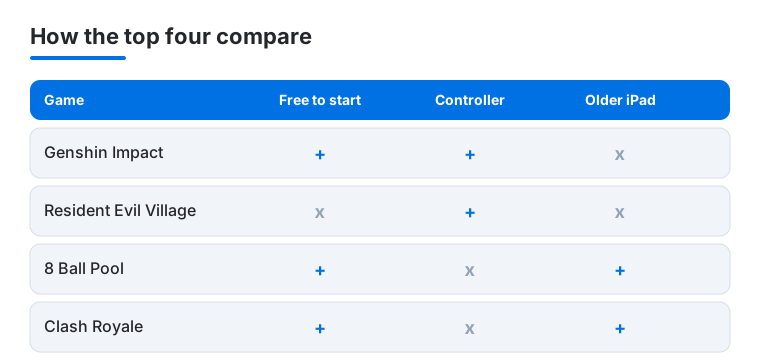
This is the game we reach for when we want to show off what an iPad can do. The open world looks gorgeous on a Pro panel, and combat stays smooth once you nudge graphics to High. It is free to start, with an optional gacha system for new characters. In our testing a controller transformed it, but touch works fine for casual sessions.
2. Resident Evil Village
Running this survival horror title natively on an M-series iPad still feels slightly unreal. The atmosphere and detail hold up on the bigger screen, and a paired controller makes aiming and movement far less fiddly than touch. It is a paid title rather than free to play, so you buy once and own it. Best saved for the recent iPad models with an Apple silicon chip.
3. Mario Kart
Tilt steering finally makes sense on an iPad, where two hands grip the frame like a wheel. We found the wider view genuinely helps you spot shortcuts and incoming shells. The base download is free with a few cups included, then races and characters unlock as you go. Pull in friends for multiplayer and a rainy afternoon disappears fast.
4. Clash Royale
The card battler that respects your time. Matches run three minutes, so it slots neatly between other tasks, and the extra screen real estate makes reading the arena and placing troops noticeably easier than on a phone. Free to download with optional chest and card purchases. We like it for short, competitive bursts rather than marathon sessions.
5. Free Fire
Free Fire keeps battle royale matches tight at around ten minutes, which suits the iPad for a quick drop-in. The roomier display gives you space to lay out controls so your thumbs do not crowd the action. It is free, with cosmetic bundles you can skip entirely. We found it runs well even on older iPads, a nice bonus.
6. PUBG Mobile
When we want a more serious shooter, this is the one. The full hundred player map benefits enormously from the iPad screen, where distant enemies and loot are simply easier to read. Free to play, with a season pass and skins that are purely optional. Spend a minute in the settings remapping buttons to the larger canvas and it feels superb.
7. Death Stranding
Death Stranding mixes careful traversal with delivery and connection, and the blend is oddly absorbing. The bigger display helps you read the terrain and manage your cargo without squinting. It runs natively on M-series iPads as a paid game here rather than free to play. In our testing a controller smoothed out movement and balancing loads, though touch handles the basics well enough.
8. Warcraft Rumble
A tower offence twist from the Warcraft universe that clicked for us quickly. You deploy minis onto lanes, and the iPad screen lets you track the whole board at a glance, which matters when a push goes sideways. Free to download with collectible leaders you can grind toward or buy. Great for bite sized strategy you can pick up and put down.
9. 8 Ball Pool
The iPad is the perfect pool table. 8 Ball Pool gives you a wide, steady surface to line up shots, and dragging the cue with a fingertip feels precise rather than cramped. It is free, with optional cues and coins for the competitive crowd. We keep a game running for those two minute breaks when we just want one quick rack.
10. Monopoly GO
Monopoly GO is the version of the board game we actually finish, because dice and boards roll along in short, cheerful bursts. The big screen makes the lively animations and events a treat to watch. Free to play, with dice top ups you can happily ignore. We found it a great couch companion for unwinding without much thinking.
11. Coin Master
Coin Master is a slot machine wrapped in a village building game, and it is far more fun than that sounds. Spin, raid, build, repeat, all rendered large and colourful on the iPad. Free with optional spins for sale. We treat it as a relaxed, low stakes habit rather than a game that demands focus, and it fits that role perfectly.
12. Subway Surfers
The endless runner that never really ages. Subway Surfers looks bright and fluid on the iPad, and swiping to dodge trains feels natural with the bigger area under your thumb. Completely free with optional cosmetics. It is our go to when we want zero commitment and instant fun, and it loads in a second.
13. Angry Birds
Angry Birds turns out to be one of the most relaxing things on the iPad. Pulling back the slingshot on a wide screen gives you room to aim, and the satisfying physics still land after all these years. Free to play with optional power ups. We found it genuinely calming for a few minutes of mindless, good natured destruction before bed.
14. Fruit Ninja
Few games suit a touchscreen as naturally as this. Fruit Ninja turns the whole iPad into a chopping board, and the extra width gives your slices real flourish. It is free with optional blades and cosmetics. We hand it to younger players constantly, but honestly we still enjoy chasing a high combo ourselves when no one is watching.
15. Tetris
Tetris remains the cleanest puzzle on the iPad. The taller screen shows plenty of the well, and tapping to rotate blocks feels crisp and immediate. Free to play with an ad free upgrade available. We find it perfect for a focused ten minutes, the kind of game that quietly clears your head while it fills the board.
16. Talking Tom
Talking Tom is a gentle pick for the youngest hands. The big friendly character fills the iPad screen, and tapping to feed or play with him is simple enough for a toddler. Free with optional outfits and mini games. We rate it as a low pressure, charming distraction for kids rather than anything you would play solo as an adult.
17. Pokemon apps
Beyond the headline games, a cluster of official Pokemon apps suits the iPad nicely, from the trading card game to companion tools. The larger display is a real help for managing cards and collections without endless scrolling. Most are free with optional in app purchases. We suggest them for fans who want more than just the main adventure on a single screen.
18. Pokémon GO
Pokémon GO is built around walking, so an iPad is a quirky home for it, but the bright map and roomy interface make managing your collection and battling a pleasure indoors. Free to play with optional items. We mostly use the tablet for the menu heavy parts and save the actual hunting for a phone in our pocket.
How to choose games for your iPad
The iPad sits in a useful middle ground. It has more screen and more processing headroom than a phone, but it stays light enough to hold in two hands on the sofa. Pair it with a controller and it starts to feel like a small console you can pick up and put down. Here is how we think about choosing what to play, followed by some honest notes on cost and on handing the tablet to a child.
Match the game to your iPad
Before anything else, check what your iPad can actually run. Casual titles such as 8 Ball Pool, Subway Surfers and Clash Royale run happily on models several years old. Heavier games like Genshin Impact, Resident Evil Village and Death Stranding want a more recent chip and will ask you to lower graphics settings on older hardware. The App Store listing for each game shows a Compatibility section near the bottom with the minimum iPadOS version and supported devices. It is worth a ten second look before you download something large.
Screen size matters too. The strategy and shooter games here, where you read a whole board or spot a distant enemy, reward a bigger panel. On a smaller iPad you can still play everything, but a larger model gives those games room to breathe.
Decide how you want to control it
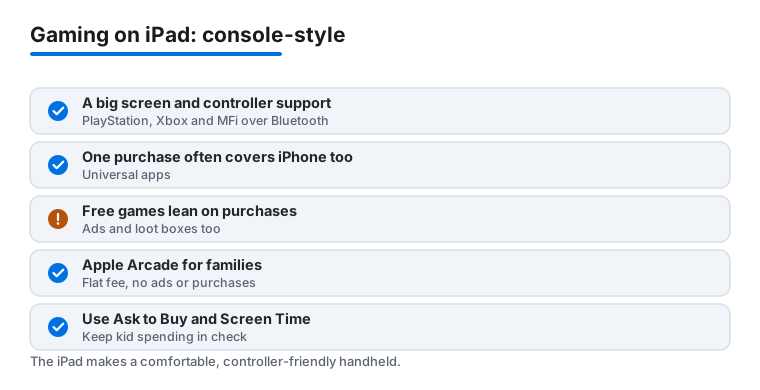
Touch is fine for casual and puzzle games, and many are designed for it. For the bigger action and driving games, a controller changes the experience. The iPad supports PlayStation and Xbox wireless controllers over Bluetooth, and it also works with MFi controllers made specifically for Apple devices. To connect a PlayStation or Xbox pad, put it in pairing mode, then open Settings, tap Bluetooth, and select it from the list. Once paired, games that support controllers pick it up automatically.
This is the feature that pushes the iPad closest to a handheld console. Genshin Impact, Resident Evil Village and Death Stranding all feel far more natural with sticks and buttons than with on screen taps. If you already own a console controller, try it before assuming touch is your only option.
Pick for the session you actually have
Be honest about when you play. If most of your time is short gaps between other things, lean toward games built for quick rounds, like Clash Royale, Tetris or a single rack of 8 Ball Pool. If you have longer evenings and want something to sink into, the open world and survival games suit you better. There is no point buying a sprawling adventure you will only ever open for five minutes.
What these games really cost
Most games on the iPad are free to download, and that word free does a lot of quiet work. Free games generally pay for themselves through one or more of three things: in-app purchases for currency, characters or cosmetics, ads between rounds or as optional rewards, and loot boxes or randomized rewards where you pay for a chance at an item rather than the item itself. None of these are hidden, but they are designed to be tempting, especially the randomized kind.
A few games take the older approach and charge once up front. Resident Evil Village and Death Stranding are paid titles here, so you buy them and own them with no further pressure to spend. That model is simpler, and for some players the fixed price is worth it.
There is also a cleaner option built into the platform. Apple Arcade is a subscription with a single flat monthly fee, and the games inside it carry no ads and no in-app purchases at all. Everything is unlocked as part of the membership. If you want gaming on the iPad without the constant nudge to buy, browsing Apple Arcade alongside the free titles is a sensible move. You trade a regular fee for a calmer experience.
Whatever you download, glance at two things on the App Store listing first: the age rating, and the in-app purchase list shown under the Information section. That list spells out exactly what the game sells and at what prices, so you are never surprised after installing.
Sharing the iPad with kids
The iPad is a natural family device, which means many of these games end up in small hands. A little setup beforehand keeps things calm.
- Ask to Buy through Family Sharing means a child cannot buy anything, in a game or otherwise, without a parent approving the request on their own device first. Nothing gets bought behind your back.
- Screen Time lets you set daily limits for games, schedule downtime, and restrict by age rating, so a younger child only sees content suited to them.
- Disable in-app purchases entirely in Screen Time under Content and Privacy Restrictions. With this on, the buy buttons inside free games simply stop working, which removes the pressure and the risk of accidental spending in one step.
For the youngest players, the gentlest picks here are Talking Tom, Subway Surfers, Fruit Ninja and Angry Birds. They have simple controls and no real pressure. Check the age rating on anything else before you hand it over.
One purchase, two devices
One last practical note. Many iOS games are universal, which means a single purchase or download covers both iPhone and iPad from the same Apple Account. You buy or install once, and the game appears on both, often syncing your progress through its own account or through iCloud. So you are rarely paying twice to play on the larger screen, and a game you already have on your phone may already be waiting for you on the iPad.
None of this needs to be complicated. Check what your iPad can run, decide whether you want a controller, read the age rating and the in-app purchase list, and lean on Apple Arcade or the paid titles when you want a break from the free game economy. Then pick something from the list below and enjoy it.
Frequently asked questions
Do these games run well on an older iPad?
Most do. Casual titles like 8 Ball Pool, Subway Surfers and Clash Royale run happily on iPads several years old. The heavier games, Genshin Impact, Resident Evil Village and Death Stranding, want a recent model and will ask you to dial graphics down on anything older. When in doubt, the App Store listing shows the minimum requirements.
Are these free, and how do the in app purchases work?
Most are free to download. Games like Free Fire, Monopoly GO and Coin Master earn money through optional cosmetics, currency or spins, none of which you need to enjoy them. Resident Evil Village and Death Stranding are paid titles you buy once. You can disable in app purchases entirely in Screen Time if you are handing the iPad to a child.
Can I use a game controller with these on iPad?
Yes, and we recommend it for the bigger games. The iPad supports PlayStation and Xbox controllers over Bluetooth, and titles like Resident Evil Village, Genshin Impact and Death Stranding feel far better with sticks and buttons. Pair it in Settings under Bluetooth. The casual and puzzle games here are designed for touch, so a controller is optional for those.
Which of these are good for younger kids?
Talking Tom, Subway Surfers, Fruit Ninja and Angry Birds are the gentlest picks, with simple controls and no real pressure. For older children, our best education apps for iPad guide pairs nicely so screen time stays a mix of play and learning. We also suggest setting up Screen Time limits before handing the tablet over.
Do I have to buy a game twice to play it on both iPhone and iPad?
Usually not. Many iOS games are universal, so a single purchase or download from your Apple Account covers both iPhone and iPad. The game appears on both devices and often syncs your progress through its own login or iCloud, so a title you already own on your phone is frequently ready to play on the iPad at no extra cost.
How can I play without ads or in-app purchases?
Look at Apple Arcade. It is a subscription with one flat monthly fee, and every game in it is free of ads and in-app purchases, with all content unlocked as part of the membership. It sits right alongside the free games in the App Store, so you can mix a few Arcade titles in when you want a quieter experience and skip the constant prompts to spend.