
Getting the Most Out of Pokemon GO on a MacBook and iPad
Pokemon GO was built to get you walking, so let me be straight with you from the start: there is no Pokemon GO app for macOS, and there is no separate, tablet-tuned build for iPad either. What you install on an iPad is the same iPhone app, and what you do on a MacBook is, at best, mirror a phone or open a planning page in a browser. None of that is a scandal, it just means the workflow people imagine when they picture catching Pokemon at a desk does not really exist. After spending a couple of weeks testing the realistic setups across a 14 inch MacBook and an iPad, I can tell you which parts are worth your time and which parts to skip. Set your expectations correctly and there is a modest, genuinely useful way to use both machines around the edges of the game.
What actually runs on each device
The iPad first, because that is where most of the confusion lives. The App Store listing for Pokemon GO is a universal app, so it will download and open on an iPad. That is not the same as an iPad version. Niantic ships the phone experience, and the interface simply stretches to fill the bigger screen. It works, and the catch screen does look larger, but Niantic itself warns that tablets can struggle to hold a strong GPS signal, especially in crowded places like a Community Day, a Pokemon GO Fest, or a Safari Zone where mobile networks get congested. A Wi-Fi-only iPad with no cellular GPS is even less reliable. If you have a cellular iPad with its own GPS chip, you are in better shape, but it is still the phone app on a slab that is awkward to hold up at a real raid.
One hard requirement to know: as of the mid-2024 client updates, Pokemon GO needs iOS 15 or later. Older iPads that top out at iOS 14, like the iPad Air 2, the iPad mini 4, and the 5th generation iPad, can no longer run the current app at all. Check your iPad's iPadOS version in Settings before you plan anything around it.
Now the MacBook. There is no native Mac build, full stop. The game leans on GPS and motion data that a laptop on a desk does not produce. The realistic, account-safe route is screen mirroring: open your iPhone or iPad, start AirPlay, and mirror it onto the Mac so you get a larger view. You can perform basic taps that way, like spinning a nearby PokeStop or tapping into a raid that is already on your map, but you cannot fake movement, and throwing a Poke Ball with a trackpad or mouse feels clumsy because of the input lag. The other thing the Mac does well is hold a planning tab in Safari or another browser. I did not touch emulators or location spoofing apps, and I would steer you away from them too. Niantic's anti-cheat is good at spotting emulated environments, and the popular Android emulators no longer run the game reliably anyway. The risk of a ban is real and the payoff is small.
The handful of things worth doing on a bigger screen
Once I stopped trying to force the Mac to be a game console, a few uses earned their place. These lean on the iPad for the live game and the Mac for planning.
- Roster and storage cleanup. This is the single best reason to pick up the iPad. Mass transferring, appraising, tagging, and renaming Pokemon is easier when the list is bigger. Sorting a few hundred catches after a Community Day went faster for me on the tablet than thumbing through them on a phone.
- Remote raids, with limits. Joining a five star or Mega raid remotely is more comfortable on a larger screen. Keep in mind Niantic caps Remote Raid Passes at 10 per day, and remote raids cost more passes than in-person ones, so this is a supplement, not a daily habit.
- Trade and gift housekeeping. Working through a gift queue and tidying your friend list is less fiddly on the iPad screen.
- Event planning in a browser. Niantic's Campfire has a web version at campfire.nianticlabs.com that opens fine on the Mac. Be clear on what it is: it shows local meetups and events and lets you RSVP and message friends. As of 2026 the web version does not display in-game Raids or Gyms, so do not expect a live raid map there. The phone Campfire app shows more.
Notice what is not on that list. There is no official Niantic web tool for managing friend codes. Friend codes live inside the app, under your Trainer profile and the Friends tab. The friend-code websites you will find are all third party, and I would be cautious about pasting personal details into them.
Practical setup tips from testing
A few small habits made the setup feel deliberate instead of like a hack. Sign in to the iPad with the same login provider you already use on your phone, whether that is Google, Apple, Facebook, Niantic, or a Pokemon Trainer Club account, so your progress stays in sync. The one rule that matters: do not be live in the game on two devices at the same moment. Log in on one screen at a time. There is no official multi-device live play, and bouncing between two active sessions is asking for trouble.
If you own a Pokemon GO Plus + accessory, pair it with whichever device you are actively playing on for hands-free spinning and catching. That is the only auto-catcher Niantic officially supports in 2026. The original Pokemon GO Plus and the Poke Ball Plus are discontinued and only show up secondhand at inflated prices, and the original GO Plus still needs a button press for every action. 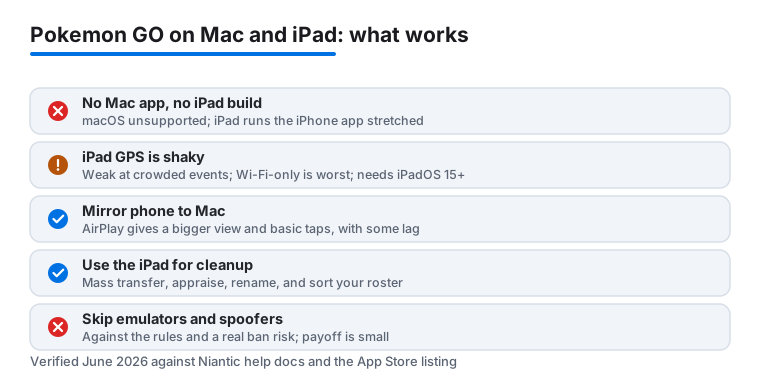
Turn on the in-game battery saver inside Settings on the iPad. Even on a tablet it trims a fair amount of drain during a long raid session. And when you mirror to the Mac, plug the source device into power, because mirroring on top of an active game burns through a battery quickly. One more honest note on mirroring: AirPlay adds a little latency, so anything that needs precise timing, like dodging in a raid or landing a curveball, is harder than playing directly on the device.
The honest limits and the privacy angle
Here are the catches, plainly. The game uses your real location, and a laptop sitting on a desk does not move. You cannot truly play Pokemon GO on a MacBook the way you would walk around with a phone. Hatching eggs, earning Adventure Sync distance, spinning new stops, and finding wild spawns all depend on physical movement, and the Mac cannot provide any of it. Mirroring a phone to the Mac does not change that, it just shows you a bigger picture of wherever the phone physically is.
The iPad is better but still compromised. The same iPhone app on a larger screen can lose GPS lock more easily, it is unwieldy to hold up in public, and a Wi-Fi-only model is the weakest option for a location game. Battery and heat are real on long sessions too.
On privacy, remember that Pokemon GO collects location data by design, and Campfire is a social layer that can show your activity and meetups to other people. Review what you are sharing in the app's settings, and think twice before posting a friend code or your location to a third-party site. On cost, the base game is free, but the parts that make a desk setup useful, like remote raids, run on Remote Raid Passes you buy, and the daily cap means there is a ceiling on how much of that you can do. And to say it once more: any tool promising GPS spoofing or full macOS play through an emulator breaks the rules and can get your account banned. I left those alone and suggest you do the same.
Better options if the Mac is really your main screen
If what you actually want is to sit at a MacBook and catch and battle creatures, there are friendlier paths than bending Pokemon GO into a shape it was never meant to take. For a collect-and-battle loop that is built for a laptop, the wider Mac gaming scene has real options, and our guide to gaming apps for Mac covers titles that run well on the hardware. If you would rather play console games on your screen, streaming is the cleaner route, and we walk through it in our look at PS Remote Play on a MacBook.
For a casual, tap-friendly game that moves easily between a tablet and a desk, a collect-and-build title like the one in our Coin Master guide for iPad scratches a similar itch without asking you to leave your chair. And if you just want to see what else is worth your time, the full gaming category has more first-hand picks. Pokemon GO is at its best on a walk with a phone in your pocket. Pairing it with an iPad for cleanup and a planning tab on your Mac is a modest setup, but it is the honest one, and it is the one I kept using.
FAQ
Can you actually play Pokemon GO on a MacBook?
Not really. There is no native Mac app, and the game depends on real GPS and movement a laptop does not have. The account-safe approach is mirroring your phone or iPad to the Mac for a bigger view and basic taps, and using a browser tab for planning. You cannot fake movement, and ball throws with a mouse feel clumsy.
Does Pokemon GO have a real iPad version?
There is no separate iPad-tuned build. The App Store app is universal, so the same iPhone app runs on an iPad and stretches to the bigger screen. It works, but Niantic warns tablets can lose GPS more easily, especially at crowded events, and a Wi-Fi-only iPad is the weakest option. You also need iPadOS 15 or later.
Will my progress sync between my phone, iPad, and Mac tools?
Yes, as long as you sign in with the same login provider everywhere, such as Google, Apple, Facebook, or a Pokemon Trainer Club account. Just never be live in the game on two devices at the same time, because there is no official multi-device live play.
Is it safe to use an emulator or GPS spoofer to run the game on macOS?
No. Spoofing your location or running the full game through an emulator breaks Niantic's rules and can get your account banned. The anti-cheat detects emulated environments, and most Android emulators no longer run the game reliably anyway. Sticking to the official app and the Campfire web page kept my account safe.