
Best Travel Apps for Mac (2026)
A Mac is a surprisingly calm place to plan a trip. There is room to compare flights across tabs, read a long route on a real map, and sort out parking before you ever leave the house. We spent a few weeks booking travel, checking in for flights, and plotting drives from a laptop to see which apps hold up on a big screen and which clearly still want your phone at the gate. Below are the ones we kept coming back to, with notes on free versus paid and how each feels day to day. For more, browse the wider Travel hub or our full roundup of the best Mac apps.
1. Airbnb
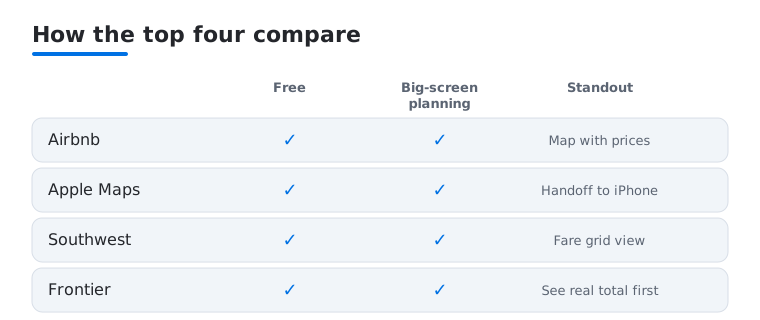
Searching stays on a Mac is where Airbnb shines, since comparing places is nicer with a big map and a wide grid of photos. We lined up three rentals in tabs, read every house rule, and messaged hosts without thumb cramp. It is free, and you pay only for the booking plus fees. The map view with prices on the pins made it fast to spot a good neighbourhood.
2. Apple Maps
Apple Maps on a Mac is quietly excellent for planning before you drive. We built routes, scouted a city in the gorgeous 3D Look Around view, then sent directions straight to the iPhone with one click. It is free and built in. The standout was handoff, which meant the route was already waiting on the phone in the car, no retyping addresses.
3. Southwest Airlines
Managing a Southwest trip from a Mac is refreshingly painless, and the bigger screen helps you actually see the fare grid. We booked using points, watched for the lowest dates, and picked our seat right at booking, since Southwest now has assigned seating and boards in Groups 1 to 8. It is free, and you pay in cash or Rapid Rewards points. Our full Southwest Airlines walkthrough covers the money saving tricks in more detail.
4. Frontier
Frontier rewards careful planning, and a Mac is the right place to do it without surprises. We priced a bare fare, added a carry on and seat deliberately, and saw the real total before paying instead of getting stung at the gate. It is free, with every extra fee clearly itemised. For the full rundown of getting a clean, low cost booking, see our Frontier tips piece.
5. Tesla
Tesla owners get a genuinely useful companion on the Mac for the planning side of a road trip. We checked the charge level, pre conditioned the cabin, and mapped a long drive around Superchargers before heading out. It is free with the car, and Premium Connectivity adds live traffic and satellite maps. We dig into pairing the car with your Apple gear in our Tesla guide.
6. Uber
Uber is mostly a phone thing at the kerb, but the Mac is handy for the planning bits. We priced an airport run in advance, scheduled a pickup for an early flight, and skimmed past trip receipts for an expense report with the keyboard. It is free, and you pay per ride. Safety matters here, so we walk through riding smart in our Uber safety guide.
7. Waze
Waze lives for the drive, yet checking it on a Mac before you set off is oddly satisfying. We previewed a route, saw where the traffic and police reports were clustering, and set a planned drive so the timing was sorted. It is free, powered by its famously chatty community of drivers. The big screen made it easy to compare two route options before leaving.
8. AXS
If your trip is built around a show, AXS on a Mac is a calmer way to sort tickets. We browsed event seating maps at full size, bought without the page timing out, and kept the confirmation handy for transfer. It is free, and you pay per ticket. Picking seats felt far less stressful on a laptop, where you see the whole venue instead of pinching a phone map.
9. Wanderlog
Wanderlog is a trip planner you use in Safari on a Mac, and the big screen suits it well. We dropped stops onto a map, built a day by day itinerary, and kept hotel and flight notes in one place without squinting. It is a website with a free tier, and a paid plan adds offline access and extra collaborators. The map and timeline side by side made it easy to see whether a day was too packed before we committed to it.
10. Passport Parking
Passport Parking takes the panic out of downtown meters, and planning a visit on a Mac helps. We looked up zone numbers and rates for a neighbourhood ahead of time, then knew exactly what to expect once we parked. It is free, and you pay for the parking session itself. Paying and extending time belongs on the phone, but the Mac is great for scouting easy parking first.
11. PayByPhone
PayByPhone is another cashless parking saver, and we liked using the Mac to get our account in order first. We added a vehicle and card, reviewed past parking history for an expense claim, and checked which cities it covers. It is free, with a small convenience fee per session. Topping up time is a phone job, but sorting the account on a laptop made that roadside tap quicker.
12. Royal Caribbean
Planning a cruise on a Mac feels properly indulgent, and Royal Caribbean gives you plenty to organise. We booked shore excursions, browsed dining, and read deck plans at a size where the ship finally made sense. It is free, and you pay for the cruise and add ons. The big screen really helped with a packed sea day, since the daily schedule is dense on a phone.
13. Turo
Turo is like Airbnb for cars, and browsing the listings on a Mac makes choosing one a pleasure. We compared vehicles, host ratings, and pickup spots across tabs, then booked a weekend car without squinting at photos. It is free, and you pay per rental plus protection. Reading the full vehicle details and host reviews on a big screen made it easier to avoid a dud.
14. Universal Studios
A theme park day runs smoother with a plan, and the Universal Studios app on a Mac is the place to make one. We mapped the parks, checked ride wait history, and bought tickets without the page feeling cramped. It is free, and you pay for tickets and express passes. The phone takes over inside for wait times, but the Mac is ideal for plotting the route the night before.
How to plan a trip on a Mac
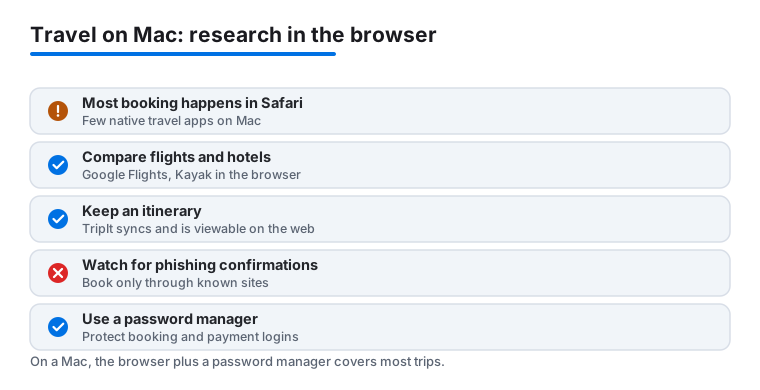
Here is the honest starting point. Most travel research and booking on a Mac happens in a web browser, not in a downloaded app. You search for flights and hotels in Safari, read airline and hotel websites, and compare prices across a few tabs. There are a handful of genuinely useful native Mac apps too, and we name them below, but the bulk of the work is just you, Safari, and a clear head. That is good news, because it means you can plan most of a trip on almost any Mac without installing much at all.
This guide is about how to choose the right tools and how to stay safe while you do it. It is deliberately calm and practical. The goal is a trip that is booked correctly, on real websites, with your money and personal details protected.
Comparing flights and hotels in the browser
For flights, a metasearch site is usually the fastest way to see the lay of the land. Google Flights and Kayak both run in Safari and let you scan many airlines at once, watch how prices move across nearby dates, and filter out the connections you do not want. These are websites, not Mac apps. Treat them as a map of your options, then click through to book.
Here is the part people skip. Once you have found a fare, it is often best to book directly on the airline website rather than through a third party. Direct bookings are simpler if a flight changes, gets cancelled, or needs a refund, because you are dealing with the airline and not a middle layer. The same logic applies to hotels. Compare on a search site if you like, then book on the hotel chain website or a booking site you already know and trust.
A few comparison habits that work well on a big screen:
- Open two or three options in separate tabs so you can read fares side by side.
- Note the full price, including bags and seat selection, not just the headline number.
- Check the cancellation and change rules before you pay, not after.
- Sleep on a large purchase if you can. Prices wobble, and a clear morning often beats a tired late night decision.
Keeping an itinerary and a budget
Once things are booked, you need somewhere to keep the pieces together. TripIt is a real service with a free account that you can view on the web in Safari, so it works perfectly well from a Mac. You forward confirmation emails to it, and it builds a single itinerary you can read in your browser, then check on your phone while you travel. It is a website and mobile app rather than a native Mac app, but the web view is genuinely usable on a laptop.
For money, a plain spreadsheet is hard to beat. Numbers, which is a real native Mac app from Apple, or a Google Sheets document in the browser, lets you list flights, lodging, transport, food, and a buffer for the unexpected. Seeing the whole trip add up in one place on a big screen stops nasty surprises and helps you decide where to spend and where to hold back.
Native Mac helpers versus websites
To be clear about what is what, here is how the common tools break down on a Mac.
- Native Mac apps: Apple Maps and Apple Numbers are built into macOS. Apple Maps is excellent for scouting a city and building a route, then handing it off to your iPhone.
- Websites you use in Safari: Google Flights, Kayak, TripIt, Google Sheets, and most airline and hotel pages. You do not install these. You open them in the browser.
- Apps that are mainly for the phone: boarding passes, rideshare pickups at the kerb, and parking payments. Plan these on the Mac if you like, but expect to finish on the phone.
Privacy and safety when booking travel
Travel touches some of your most sensitive information. Bookings reveal where you will be and when. Passports and payment details are exactly what fraudsters want. A little care here protects both your money and your peace of mind.
Book only through sites you know
Stick to the real airline, hotel, and booking websites. Reach them by typing the address yourself or using a bookmark, not by clicking a link in an email or an advert. Before you enter a card number, check that the address in Safari is the genuine company domain and that the connection is secure. If a deal feels far below everything else you have seen, slow down and look closer.
Watch for phishing and fake confirmations
A common scam is an email or text that looks like a booking confirmation, a flight change, or a refund offer, with a link or attachment urging you to act fast. Treat unexpected confirmations as suspicious. Do not click the link. Instead, open the airline or hotel website yourself and log in to check your real booking. Airlines and hotels will never need your full card details or passport sent by email reply.
Use a password manager
You will create accounts on several travel sites, and reusing one password across them is a real risk. A password manager generates a strong, unique password for each site and fills it for you. The iCloud Keychain and Passwords tools built into macOS do this for free in Safari, and standalone managers work too. This single habit does more for your safety than almost anything else, because it limits the damage if any one site is ever breached.
A simple, safe planning routine
- Research flights and hotels on a search site in Safari.
- Book directly on the airline or hotel website where you can.
- Save confirmations to TripIt and your trip spreadsheet.
- Build the route in Apple Maps and hand it off to your iPhone.
- Keep accounts protected with a password manager, and ignore unexpected emails asking you to act fast.
Do that, and the Mac earns its place as the calm command centre for the trip, while your phone handles the gate, the kerb, and the meter.
Not sure where to start with specific apps? Here is how our most used picks compare on the things that matter when you are planning from a Mac.
Frequently asked questions
Can I actually plan a whole trip from a Mac?
Yes, the planning side works beautifully on a Mac. Booking flights, comparing Airbnb and Turo listings, and mapping routes in Apple Maps are all faster on a big screen with a keyboard. The catch is the day of travel stuff, like boarding passes and quick parking payments, which still want your phone at the gate or meter. We plan on the Mac, then finish on the phone.
Are these travel apps free to use?
Every app here is free to download and use. You only pay for the actual travel, so flights, stays, rides, parking, or tickets, plus the usual fees. A couple offer paid extras, like Tesla Premium Connectivity for live maps, but none are required. Loyalty programs such as Southwest Rapid Rewards cost nothing and quietly save you money the more you travel.
Why use these on a Mac instead of just my phone?
Comfort and clarity. Comparing flights, reading a long route, or scanning seating charts is simply easier on a big screen. We found anything involving a lot of reading or a side by side comparison goes quicker on a Mac, while quick taps at a gate or kerb still belong on a phone. Handoff and iCloud keep the two in sync, so most people happily use both depending on the task.
Which Apple devices pair best with these travel apps?
An iPhone is the natural travelling partner, since boarding passes and on the go navigation live there. An iPad sits nicely in between, lovely for reading a guide or watching films on a flight. To round out your kit, see our guides to the best travel apps for iPhone and the best travel apps for iPad.
Do I need to download apps to book flights and hotels on a Mac?
No. Most flight and hotel research and booking on a Mac happens in Safari. You compare options on a search site like Google Flights or Kayak, then book on the airline or hotel website itself. The few native Mac helpers worth having, such as Apple Maps for routes and Numbers for a budget, are already built into macOS, so there is little to install.
How do I stay safe when booking travel on a Mac?
Book only through websites you reach yourself by typing the address or using a bookmark, not by clicking links in emails. Treat unexpected confirmation, change, or refund emails as possible phishing, and verify them by logging in to the real site rather than clicking. Use a password manager, such as the Passwords tool and iCloud Keychain built into macOS, so every travel account has its own strong password. No airline or hotel needs your full card details or passport sent by email.