
Booking Safer Uber Rides From Your Mac and iPad
There is no native Uber app for macOS, and the iPad version is really the iPhone app stretched onto a bigger screen. That sounds like a problem, but after weeks of booking rides both ways we actually prefer the larger display for the safety stuff that matters most. A wider map, a clearer view of your driver and plate, and roomier menus make it easier to double check a trip before you ever step outside. Here is exactly how we set Uber up on both devices, the features we lean on, and where the experience still falls short.
Getting Uber running on a Mac and on an iPad
Start with the iPad, because that part is simple. Open the App Store, search for Uber, and install the app named Uber - Request a Ride. It is the same iOS app that runs on an iPhone, so it works in portrait or landscape, and on an iPad Air the map fills enough of the screen to read street names without squinting. Sign in with the account you already use, approve the location prompt, and you are ready to request a ride. One thing to know up front: because it is the phone app scaled up, you will not find an iPad specific layout. Buttons sit where they would on a phone, just larger.
The Mac is where people get stuck. There is no Uber app in the Mac App Store, and Apple Silicon Macs will not let you install the iPhone app the way they do with some other titles, because Uber has chosen not to make it available there. We would also steer you away from the random desktop wrappers and sideloaded builds floating around. Tools like WebCatalog just load the website in a window, and the sketchier downloads ask you to hand your payment and location data to an unofficial build, which is the opposite of safe. Skip all of that.
Instead, open Safari or Chrome and go to m.uber.com, or use uber.com/go, which lands on the same web booking flow. You sign in with your phone number, the map loads, and you can request a ride straight from the browser. In our testing the web version handled pickup pins, fare estimates, and live driver tracking just fine. Two catches are worth flagging. First, web booking is not offered in every country, so if the page will not let you request a ride, that is why. Second, a Mac has no GPS and guesses your spot from Wi-Fi, so confirm and drag the pickup pin manually before you tap anything.
The safety features worth turning on first
Uber buries a few genuinely useful safety tools, and the larger screen makes them easier to find and actually use. Most of these live in the full mobile app, which is the iPad in our setup, so do the configuring there even if you later book from the Mac browser. These are the ones we set up on day one:
- Verify Your Ride PIN. Open the menu, go to Settings, tap Verify Your Ride, then turn on Use PIN to verify rides. You can apply it to every trip or only at night, which Uber defines as 9pm to 6am. After that, every ride request gives you a four digit code, and the driver cannot start the trip until they enter it into their own app. It is the cleanest way to be sure you are getting into the right car, and because it is account level it follows you to the Mac too.
- Share My Trip. Send your live route, driver name, car, and plate to someone you trust. On the iPad it is a couple of taps from the trip screen, and the bigger map makes the shared view genuinely readable for whoever is following along on their end.
- Trusted Contacts. Add up to five family members or friends once, and sharing a future trip becomes a single tap instead of digging through your contacts mid ride. You can also set a reminder so the app nudges you to share when you start moving.
- The Safety Toolkit and emergency button. Tap the blue shield during any trip to open the toolkit. From there you can call 911 with your live location, vehicle details, and plate ready to read out to the dispatcher. The same panel now includes Record Audio, which captures the trip audio to your device in case you ever need it, and a connection to an ADT safety agent you can reach by call or text. Worth knowing those exist before you are in a moment where you want them.
We also recommend matching the car color, make, and license plate against what the app shows before you open a door, and checking the driver photo. On a roomy iPad screen those details are large and obvious, which is the whole point of booking on the bigger device. The audio recording feature is region dependent and the recording stays encrypted on your phone until you choose to share it, so it is private by default, but do not assume it is available everywhere.
Practical tips we picked up using it daily
A few habits made the experience smoother and safer. First, set your home and work as saved places so you are not typing a full address while standing on a curb. Second, request from inside, then watch the driver approach on the map and only head out when the car is close. Standing on a sidewalk with your device out, fumbling with the booking, is exactly when phones and tablets get snatched.
On the iPad, Split View is a quiet winner. We kept Uber on one side and Maps or a calendar on the other, which made planning airport runs and back to back meetings far less stressful. The catch is that not every iPad app cooperates with Uber in Split View the way you would hope, since the scaled up phone layout sometimes resizes awkwardly, but for glancing at a map alongside a booking it holds up. On the Mac, browser booking pairs nicely with whatever else you have open, so you can line up a ride in one tab while finishing an email in another.
One more thing we learned the hard way: keep your phone within reach even when you book elsewhere. The text message with your ride status, and the call from a driver who cannot find you, both land on the phone number tied to the account, not on the Mac. 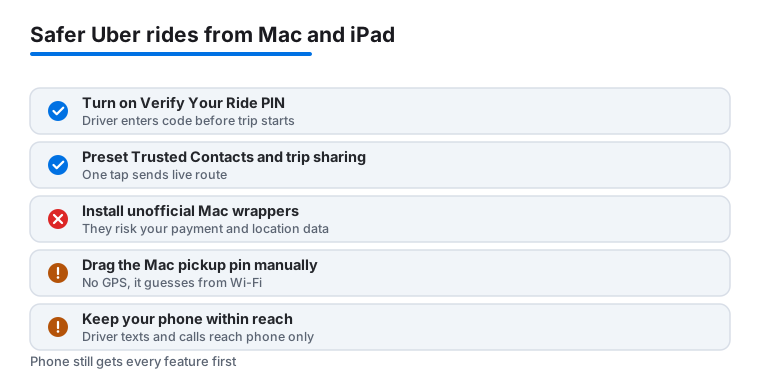
Where the experience falls short
We want to be honest about the limits, because the big screen does not fix everything. The Mac web version is the bigger compromise. Push notifications are unreliable in a browser tab, so if you switch away you can miss the alert that your driver has arrived. Location accuracy is weaker without GPS, the web booking flow is not available in every country, and some account level safety settings, including parts of the Safety Toolkit, are easier to reach or only present in the full mobile app. For a quick ride from a known address it is fine. For a tight airport pickup we still reach for the iPad or a phone, where the live tracking and notifications are reliable.
The iPad has its own quirks. Because it is the phone app scaled up, it does not always feel designed for the larger canvas, text and buttons can look oversized, and there is no Apple Watch style glance support tied to it. It is also not the device you want to hold up on a busy street, both for your safety and because it is awkward. None of this is a dealbreaker, but go in knowing that Uber treats the Mac and iPad as secondary surfaces, not as first class platforms it actively builds for. The phone remains the device that gets every feature first.
Good alternatives and companion apps
Uber should not be your only option. We always keep a backup rideshare installed so a surge price or a long wait does not strand us, and Lyft is the obvious one in the United States, where it also runs as a scaled up iPhone app on the iPad and has no Mac app of its own. Outside the US, Bolt covers a lot of cities and often runs cheaper. Having two apps means you can compare fares and pick the safer, faster pickup in the moment, though be aware that installing more rideshare apps means more companies holding your location and payment data, so only keep the ones you actually use.
For getting around more broadly, a maps app like Waze or Apple Maps pairs well with any rideshare for checking that your driver is taking a sensible route, and both run properly on the iPad. And if your travel leans toward owning the drive rather than hailing one, our look at the Tesla app on iPad covers a very different but equally screen friendly way to manage trips. For the full picture of what we install before a trip, browse our best travel apps for Mac roundup and the wider travel app guides.
FAQ
Is there a real Uber app for Mac?
No. There is no official Uber app in the Mac App Store, and Apple Silicon Macs cannot install the iPhone version because Uber has not made it available there. To book from a Mac, open Safari or Chrome and go to m.uber.com or uber.com/go, where you can sign in with your phone number and request rides from the browser. We would avoid any unofficial desktop build or wrapper, since it puts your payment and location data at risk and offers nothing the website does not.
Does the safety PIN work on the iPad and Mac?
Yes. Verify Your Ride and its PIN are tied to your account, so once you turn them on under Settings, Verify Your Ride, they apply no matter which device you book from. The driver enters your four digit code before the trip starts, which is the simplest way to confirm you are in the correct car. You set it up in the full app on the iPad, and it then carries over to a Mac web booking automatically.
Can I share my trip from an iPad?
Yes. During any ride, tap the blue safety shield or the share option on the trip screen and send your live route, driver, and plate to a trusted contact. You can preload up to five Trusted Contacts so it is a single tap. The iPad's larger map makes the shared view easy for the other person to follow, which is part of why we like booking on it.
Why does my Mac get the pickup location wrong?
A Mac has no GPS, so the website estimates your position from your Wi-Fi network, which can be off by a block or more. Always check and drag the pickup pin to your exact spot before confirming the ride so your driver meets you in the right place. On the iPad, the built in GPS makes this far more accurate.