
iPhone Battery Draining Fast, Here Is How to Fix It
A battery that empties by lunchtime feels personal. The good news: most of the time it is not your phone failing. It is one chatty app, a recent update still tidying up in the background, or an aging cell that has quietly crossed a line. This guide walks the checks in order, with the exact taps on an iPhone or iPad, the costs if you do need a new battery, and the popular advice that wastes your time. Set aside ten minutes and follow along.
What the battery health percent is actually telling you
Open Settings > Battery > Battery Health on an iPhone 15 or newer, or Settings > Battery > Battery Health & Charging on an iPhone 14 or older. The big number is Maximum Capacity: the charge your battery can hold now, measured against the day it left the factory. A new phone reads 100 percent. As the lithium-ion cell ages through normal use, that number drifts down. This is expected, not a defect.
One point of confusion worth clearing up: maximum capacity is not the same as how fast your battery drains right now. A phone at 92 percent capacity can still die early if one app is hammering it in the background. A phone at 84 percent can run fine all day with light use. Capacity is the long-term size of the tank; the drain you feel is how hard the engine is running.
Apple's design target gives a sense of the timeline. iPhone 14 and earlier are built to keep about 80 percent of their original capacity after 500 full charge cycles. iPhone 15 and later doubled that to 1000 cycles, so newer phones hold up longer before the number slips. A cycle is one full 0-to-100 worth of charge, which can spread across several days of topping up.
On iPhone 15 and later the same screen shows a Cycle Count. It is a useful sanity check: twelve hundred cycles on a two-year-old phone explains a lot; ninety cycles does not, and points you toward the software causes below.
Two quirks of the number itself. After a major iOS update it can briefly look off while the phone recalibrates how it estimates capacity, wobbling for a charge cycle or two before settling, so do not read too much into one odd figure right after an update. And it moves in steps, not smoothly: a healthy phone can sit at 95 percent for months, then drop a couple of points as the estimate catches up. What is not normal is a low cycle count paired with fast-falling capacity, or a warning that the battery needs service.
Just updated? Give it 48 to 72 hours before you panic
This is the most common reason a perfectly healthy iPhone suddenly drinks battery, and the fix is patience rather than fiddling. Installing a new version of iOS kicks off a pile of background housekeeping: rebuilding the Spotlight search index, re-optimizing your photo library, rebuilding caches, and re-syncing iCloud data. All of it runs quietly while the screen is off, and all of it costs power.
For most people this settles within 48 to 72 hours. A large photo library or many installed apps means more to process, so it can run longer. A worked example: a phone with 40,000 photos has far more to re-optimize than one with 2,000, so the same update might drain the first hard for three days and the second for one.
What helps it finish: plug in overnight and stay on Wi-Fi, because Photos and iCloud do their heavy lifting when charging and connected. What does not help: toggling settings, or restoring from a backup, which often restart the very indexing you are waiting out. Let it run. If it is still draining hard on day four, move to the next section.
If you install early builds, this drain is even more normal. Our walkthrough on installing the iOS 27 beta covers what to expect, and a fresh beta reindexes every time it updates.
Find the app that is doing the damage
Once you are past the post-update window, catch the culprit. Go to Settings > Battery and scroll to the usage breakdown. Tap View All Battery Usage (or Show Activity) to see each app and its share. Switch between the Last 24 Hours and Last 10 Days views and check both: a one-time video call spikes the 24-hour view but means nothing over ten days, while a steady background offender shows up in both.
Look for the label Background Activity under an app. That means it was burning power while you were not using it. A messaging app with a few minutes of background time is normal; one with hours of it is the problem. Tap the app row to see the split between screen-on and background use.
The honest worked example: if TikTok shows 38 percent but you genuinely watched it for two hours, that is just screen time on a bright, demanding app and nothing is wrong. But if a weather widget or delivery app shows 22 percent with almost all of it under Background Activity and barely any screen time, you have found your drain. Fitness trackers, navigation, and anything wanting constant location are the usual suspects; if a heavy health and fitness app is logging hours in the background, change its settings, which we do next.
The settings that genuinely move the needle
Now we fix the offender, not the whole phone. These four changes do real work. Apply them to the apps you flagged, not to everything; switching every toggle off can break notifications you actually want.
1. Background App Refresh. Go to Settings > General > Background App Refresh. Turn it off for a specific app, or set the master control to Wi-Fi only so apps refresh at home but go quiet on cellular. Wi-Fi only is the gentlest fix and noticeably helps midday battery on many phones.
2. Location. Open Settings > Privacy & Security > Location Services. Tap each app and, for most, choose While Using the App instead of Always. An app set to Always can ping your position all day; While Using keeps maps and local features working while stopping the silent drain. Leave Always on only for apps you genuinely want in the background, like a sleep tracker or turn-by-turn navigation.
3. Push notifications. If an app constantly wakes your screen, go to Settings > Notifications, tap the app, and turn off what you do not need. A point that surprises people: turning off Background App Refresh does not stop your email, messages, or social notifications, because those are pushed from the app maker's servers through Apple's notification service, not generated by the app waking up. You can cut background activity without going dark.
4. Low Power Mode and Adaptive Power. Turn on Low Power Mode from Settings > Battery > Power Mode or Control Center. It trims background refresh, some visual effects, and mail fetch, and switches itself off once you charge above 80 percent. On iPhone 15 Pro, the iPhone 16 line, and iPhone 17 models, the same screen offers Adaptive Power, which uses your patterns to make small adjustments and can switch on Low Power Mode at 20 percent. It is on by default on the iPhone 17 and off on the others, so enable it if you can. For tools that report on what is running, see our utility apps roundup; the privacy apps guide pairs well with tightening location access.
Heat, screen, and the quiet drains people miss
A few culprits never appear in the per-app list because they are not apps.
Heat is the big one. A lithium battery hates being hot. Charging in a sunny car, gaming until the phone is warm, or leaving it on a dashboard all speed up both daily drain and long-term aging. If the phone feels warm and the battery is sliding fast, take the case off and let it cool before charging.
Screen. The display is usually the biggest consumer when the phone is in your hand. In Settings > Display & Brightness, lower the brightness and set Auto-Lock to 30 seconds or 1 minute. On iPhone 14 Pro and later, the Always On Display option on that same screen keeps a dimmed clock visible and sips power all day; turning it off is a small, real win.
Poor signal. A phone hunting for a weak cellular signal works the radio hard, and hours in a basement or dead zone can flatten a battery on its own. Wi-Fi Calling, or Airplane Mode in a known dead spot, helps.
When it is time for a new battery, and what it costs
Apple's own guidance is to consider a replacement once Maximum Capacity reaches 80 percent or below, or sooner if you see a service message. At that point the cell holds noticeably less, and on some phones iOS may start managing peak performance, which feels like sluggishness as well as short runtime.
Apple's out-of-warranty prices in the United States as of 2026:
- iPhone 16 Pro and 16 Pro Max, iPhone 17 Pro and 17 Pro Max: $119
- iPhone 16, iPhone 15, iPhone 14: $99
- Most iPhone 13 and older: $89
- iPhone SE and iPhone 8: $69
Two ways to pay less or nothing. If you have AppleCare+ and your battery is below 80 percent capacity, the replacement is free. Independent shops often charge less than Apple, though quality varies and a non-genuine battery can trigger a warning on the Battery Health screen. To start an official repair, check coverage under Settings > General > AppleCare & Warranty, then book through Apple Support. A new battery is far cheaper than a new phone and often makes an older model feel new again.
Advice you can safely ignore
A surprising amount of battery folklore is wrong or counterproductive. Skip these.
Force-closing apps to save battery. Swiping every app out of the App Switcher does not help and can hurt. iOS already freezes background apps and reclaims memory on its own, and reopening a cold-closed app takes more power than resuming a parked one. Reserve force-quitting for an app that is genuinely misbehaving.
Worrying about overnight charging. You will not overcharge a modern iPhone; it stops drawing power when full. The wear comes from sitting at a high charge while warm for hours, which is what Optimized Battery Charging reduces by holding at 80 percent overnight and finishing just before your usual wake time. Find it under Settings > Battery > Charging.
Draining to 0 to recalibrate. Lithium-ion batteries do not want full drains; they are happiest cycling roughly between 20 and 80 percent. Deep discharges stress the cell rather than help it.
Always charging only to 80 percent. Not a myth, but misunderstood. Capping charging at 80, 85, 90, or 95 percent (iPhone 15 and later, in Settings > Battery > Charging) does extend lifespan over years by limiting time at full charge. The trade-off is less capacity each day. If you regularly need a full day of runtime, leave it at 100 and let Optimized Battery Charging do the quieter version of the same job.
A ten-minute routine to put it together
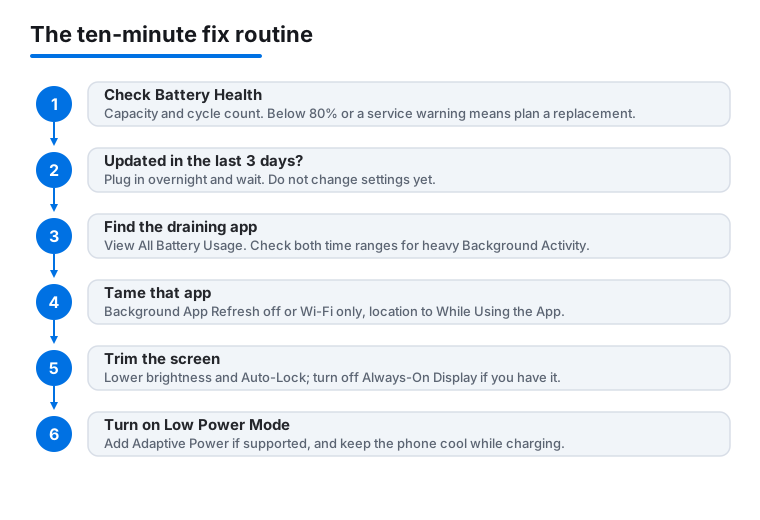
The process in order:
- Check Settings > Battery > Battery Health for capacity and cycle count. Below 80 percent or a service warning means plan a replacement.
- Updated in the last three days? Plug in overnight and wait; do not change settings yet.
- In Settings > Battery, tap View All Battery Usage and check both time ranges for an app with heavy Background Activity.
- For that app, set Background App Refresh to off or Wi-Fi only, and switch its location to While Using the App.
- Lower brightness and Auto-Lock in Settings > Display & Brightness, and turn off Always-On Display if you have it.
- Turn on Low Power Mode, and Adaptive Power if supported, from Settings > Battery > Power Mode.
- Keep the phone cool while charging.
Most fast-drain complaints are solved in the first four steps. If you have done all of this on a phone with a low cycle count and it still dies by afternoon, that is your cue to talk to Apple Support. While you are tidying up, our guide to adjusting display and readability settings pairs nicely, and if the post-update photo reindex is what got you here, the best photo and video apps can help you keep that library tidy.
Sources worth keeping
The settings paths, capacity targets, charging behavior, and 2026 prices here were checked against official and well-established references:
- Apple Support: If the battery in your iPhone or iPad drains too quickly
- Apple Support: About Charge Limit and Optimized Battery Charging on iPhone
- Apple Support: About recalibration of battery health reporting
- Apple: Maximizing battery performance
- MacRumors: iPhone 17 ships with Adaptive Power enabled by default
Prices are Apple's United States out-of-warranty figures as of 2026 and can change; always confirm the current cost for your model before booking a repair.
FAQ
Is it bad to charge my iPhone to 100 percent every day?
It is fine, and you will not overcharge it. Charging to full daily adds a little long-term wear because the battery spends more time at a high charge, but for most people the convenience is worth it. Leave Optimized Battery Charging on under Settings > Battery > Charging so the phone holds at 80 percent overnight and tops off just before you wake. If you rarely need a full day of power, cap charging at 80 percent on an iPhone 15 or later to stretch lifespan over years.
My battery health is at 88 percent. Should I replace it?
Not yet. Apple suggests considering a replacement at 80 percent or below, or sooner if you see a message saying the battery needs service. At 88 percent the cell is still in good shape, so any fast drain you are seeing is more likely a background app, a recent update, or screen and location settings. Work through those first.
How long should the battery drain after an iOS update?
Usually 48 to 72 hours. After an update your iPhone rebuilds its search index, re-optimizes photos, and re-syncs iCloud in the background, all of which use power; large photo libraries take longer. Plug in overnight on Wi-Fi to help it finish, and avoid changing settings or restoring backups, which can restart the process. If it is still draining hard after the fourth day, start checking which app is responsible.
Does closing apps from the App Switcher save battery?
No. iOS already suspends apps you are not using and manages memory for you. Force-closing then reopening an app actually uses a bit more power, because the app has to load from scratch instead of resuming. Only force-quit an app that is frozen or clearly misbehaving.
Will turning off Background App Refresh stop my notifications?
No, in most cases. Email, messages, and social notifications are pushed from the app maker's servers through Apple's notification service, not by the app refreshing in the background. So you can turn Background App Refresh off, or set it to Wi-Fi only under Settings > General > Background App Refresh, and still get alerts. What you lose is silent background updating, like a news app pre-loading articles before you open it.
How much does an Apple battery replacement cost in 2026?
In the United States, out of warranty: $119 for the iPhone 16 Pro, 16 Pro Max, 17 Pro, and 17 Pro Max; $99 for the iPhone 16, 15, and 14; $89 for most iPhone 13 and older; and $69 for the iPhone SE and iPhone 8. If you have AppleCare+ and your battery is below 80 percent capacity, the replacement is free. Check your coverage under Settings > General > AppleCare & Warranty before booking.