
How to Turn Off Apple Intelligence and Whether It Saves Battery
Turning off Apple Intelligence is one of the most common iPhone settings questions, and many of the answers floating around are outdated or overpromise. The short version: yes, you can switch the whole thing off in about four taps, yes, you get several gigabytes of storage back, and the battery gains are real for some people and close to zero for others. This guide walks through the master switch in iOS 26, the per-feature toggles for people who only hate one part of it, and an honest look at what the battery numbers actually show.
What Apple Intelligence is actually doing in the background
Apple Intelligence is not one feature. It is a bundle: Writing Tools, notification and Mail summaries, Genmoji, Image Playground, Clean Up in Photos, priority notifications, Visual Intelligence, and the ChatGPT hand-off inside Siri. To run the on-device parts, your iPhone downloads a set of local models that occupy up to about 7 GB of storage, and it keeps them ready at all times.
Two kinds of background work matter for battery. First, indexing: after a major iOS update or a restore from backup, the phone spends days quietly processing your mail, messages and photos so the features feel instant later. Second, on-demand work: every summarized notification and every Writing Tools pass spins up the Neural Engine for a moment. The first is the real battery story. The second is mostly noise on modern chips.
Hardware check before you go further: Apple Intelligence runs on iPhone 15 Pro and newer, iPads with an A17 Pro chip or M1 and later, and Apple silicon Macs. If your phone is older than that, there is nothing to turn off, and your drain has other causes, covered in our guide to fixing an iPhone battery that drains fast.
The master switch in iOS 26
The all-or-nothing route takes under a minute:
- Open Settings.
- Tap Apple Intelligence & Siri.
- Turn off the Apple Intelligence toggle at the top.
- Confirm by tapping Turn Off Apple Intelligence in the dialog.
That confirmation step matters. If you dismiss the dialog instead of tapping the confirm button, the switch flips back on and nothing changes.
This switch has a history worth knowing. On iOS 18, point updates and the post-update setup screens had a habit of re-enabling Apple Intelligence or nagging you to turn it back on. iOS 26 behaves better in day-to-day use, but some users still report finding the feature re-enabled after a major version update, so make checking this screen part of your post-update routine. It costs five seconds.
One thing this switch does not do: it does not disable Siri. Siri stays on the same settings screen with its own controls and simply reverts to its pre-AI behavior, handling timers, calls, HomeKit and dictation exactly as before.
What actually changes in daily use
With the master switch off, here is what disappears:
- Notification and Mail summaries, including the digest-style grouped notifications.
- Writing Tools in the text selection menu, everywhere in the system.
- Genmoji creation in the emoji keyboard, plus Image Playground and Image Wand.
- Clean Up in the Photos editor.
- Priority messages in Mail and the priority notifications ranking.
- The ChatGPT hand-off when Siri cannot answer something itself.
And here is what people wrongly expect to lose but keep: autocorrect and predictive text (older machine learning, not part of this bundle), dictation, Face ID, photo search for objects and people, Live Text, and every standard Siri command. Your phone does not get dumber in any way you will notice minute to minute.
In practice, most people who flip the switch report the same two observations after a week: notifications read like they used to, and nothing else feels different. If you never opened Image Playground and always found the summaries slightly off, the honest daily-use cost of turning this off is close to zero.
Only hate the notification summaries? Turn off just those
Summaries are the feature that pushes most people to search for the off switch, and they have their own controls that do not require touching the master toggle:
- Go to Settings > Notifications > Summarize Notifications.
- Turn off Summarize Notifications entirely, or leave it on and use the category switches below it.
iOS 26 splits summaries into three categories: News & Entertainment, Communication & Social, and All Other Apps. This is new. Apple pulled news summaries offline in early 2025 after the feature mangled several headlines, then brought them back in iOS 26 with a red warning on the News & Entertainment category that summarization may change the meaning of the original headline. Summaries render in italics so they are visually distinct from the original notification text.
The category split is genuinely useful. A common setup: keep Communication & Social on so a 40-message group chat collapses to one line, and keep News & Entertainment off so headlines arrive as written. You can also go per app: Settings > Notifications, pick the app, and flip its individual Summarize Notifications switch.
Trimming single features without the master switch
If you want to keep summaries or Clean Up but remove specific tools, the controls live in an unexpected place: Screen Time.
- Open Settings > Screen Time > Content & Privacy Restrictions and turn the restrictions switch on.
- Tap Intelligence & Siri.
- Set Writing Tools, Image Creation, or Intelligence Extensions to Don't Allow as needed.
Image Creation covers Image Playground, Genmoji and Image Wand in one switch. Intelligence Extensions blocks third-party providers such as the ChatGPT integration. This Screen Time route is also the only way to remove Writing Tools from the text menu while leaving everything else running, and it is the right tool if you are managing a kid's phone.
Two smaller cleanups. The Image Playground app itself deletes like any app: press and hold its icon, tap Remove App, then Delete App. And the ChatGPT extension has its own switch back on the Apple Intelligence & Siri screen if you only want Siri to stop offering the hand-off.
One caveat with the restrictions route: enabling Content & Privacy Restrictions turns on a whole permissions layer. If you later find an unrelated setting greyed out, this screen is the first place to look.
So does turning it off save battery? The honest answer
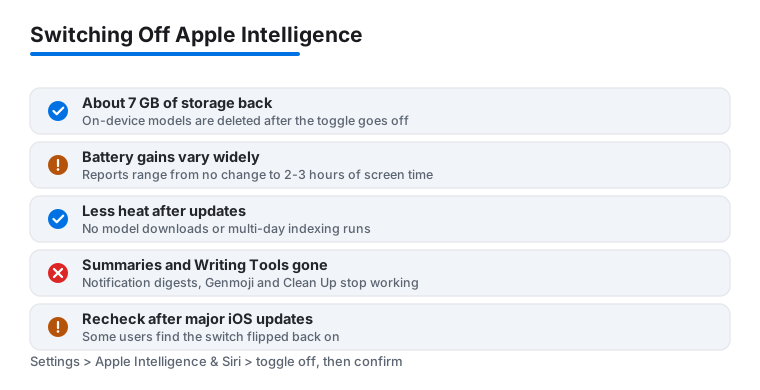
User reports span the full range from no measurable change to two or three extra hours of screen time per charge. Both ends are telling the truth, and the difference is mostly about timing and hardware.
The case where you gain a lot: your phone is still in the days-long indexing phase after a major update or a restore, or it re-downloaded the models recently. That work is heavy, and cutting it off shows up immediately in the battery graph. This is why the loudest success stories, including the 2 to 3 hour claims, cluster in the weeks after each big iOS release.
The case where you gain almost nothing: your phone finished indexing months ago and you rarely trigger the features. Idle models sitting in storage cost nothing, and the Neural Engine work for the occasional summary is a rounding error. On a recent iPhone in mid-cycle, most careful testers see little to no difference.
There is no controlled Apple benchmark either way, so run your own test: note your screen-time and battery numbers in Settings > Battery for a normal week, flip the switch, and compare the next week under similar use. Treat 2 to 3 hours as the best case and zero as the common case, and you will not be disappointed.
Heat, and why the first week after an update lies to you
The same indexing that eats battery also makes the phone run warm, especially while charging overnight in the first days after a major update. If your complaint is heat more than drain, disabling Apple Intelligence removes one of the biggest post-update heat sources, but check the other usual suspects too, covered in our guide to why an iPhone overheats and how to fix it.
Give any update 48 to 72 hours before judging it. A phone that runs hot for two days and then settles is behaving normally; one that is still warm and draining a week later has a real problem. And if you run pre-release software, expect the full download-and-index cycle with every major build. Beta battery complaints are largely this cycle on repeat, which is one more reason to follow the advice in our iOS 27 beta installation guide and keep betas off your main phone.
Getting the storage back: about 7 GB
The on-device models occupy up to 7 GB, and turning the master switch off queues them for deletion. Two things people get wrong here:
- It is not instant. The space frees up in the background, sometimes within minutes, sometimes after a few hours or a restart. Do not toggle it back and forth trying to force it.
- You will not see a line item called Apple Intelligence. The models count under the system portion of Settings > General > iPhone Storage. Note the total before and after rather than hunting for a named entry.
The exact size varies by device and language pack, but 4 to 7 GB back is typical, and the same trick works per device. On an iPad it is the same Settings path. On a Mac running macOS Tahoe 26, go to System Settings > Apple Intelligence & Siri and turn the toggle off there; Macs give back several gigabytes as well. If you disable it on three devices, the combined recovery is substantial, which is exactly the kind of space that decides whether a 128 GB phone stays livable.
If you change your mind
Re-enabling is the same switch in reverse: Settings > Apple Intelligence & Siri, toggle on. Plan for two things. The phone needs roughly 7 GB free to re-download the models, and it wants Wi-Fi and some patience; features come back gradually over the following hour rather than all at once. Expect a warm phone and elevated drain for a day or two while it re-indexes, which is normal.
Anything you changed individually stays changed. Screen Time restrictions on Writing Tools or Image Creation, notification summary categories you turned off, and a deleted Image Playground app all keep their state, so walk back through those screens if you want the full experience restored. Deleted Image Playground reinstalls free from the App Store.
Whichever way you land, put a recurring reminder on the settings check after major updates. The iOS 26 switch is far better behaved than the iOS 18 one, but a five-second glance after each big update is cheaper than discovering a re-downloaded 7 GB the hard way.
FAQ
Does turning off Apple Intelligence also turn off Siri?
No. Siri has separate controls on the same Settings > Apple Intelligence & Siri screen. With Apple Intelligence off, Siri reverts to its pre-AI behavior: timers, messages, calls, HomeKit and dictation all work exactly as before. You only lose the ChatGPT hand-off and the newer conversational abilities.
Will an iOS update turn Apple Intelligence back on?
It should not on iOS 26, and point updates generally respect the off state. Some users still report finding it re-enabled after major version updates, so check Settings > Apple Intelligence & Siri after each big update. If it did come back on, the models re-download too, so recheck your free storage as well.
How long does it take to get the 7 GB of storage back?
Usually within a few hours, sometimes faster. The models are deleted in the background after you confirm the toggle off. If Settings > General > iPhone Storage still shows no change after half a day, restart the phone and check again. The space returns to the system category rather than appearing as a named item.
Is turning off just the ChatGPT extension enough to save battery?
No meaningful amount. The ChatGPT integration runs in the cloud, so it barely touches your battery, and it only activates when Siri hands a request over. Disable it for privacy or preference reasons if you like, but the battery-relevant parts are the on-device indexing and models, which only the master switch removes.
Can I keep Clean Up in Photos but turn everything else off?
Mostly, yes. Clean Up requires the master Apple Intelligence toggle to stay on, so leave that enabled, then turn off Summarize Notifications under Settings > Notifications and use Screen Time's Intelligence & Siri restrictions to block Writing Tools, Image Creation and Intelligence Extensions. That leaves Photos features running with most of the rest silenced.
Does Apple Intelligence wear out the battery faster long term?
Only indirectly. Battery aging tracks charge cycles and heat, so anything that makes you charge more often adds a little wear over years. The bigger factor is the multi-day indexing heat after each major update. If your Maximum Capacity is already low, that is an aging cell, not an AI problem, and no toggle fixes it.