
iPhone Stuck on the Apple Logo? Here Is How to Fix It
You turn on your iPhone and it never gets past the white Apple logo on a black screen. Sometimes the logo just sits there, sometimes it flashes on and off in a loop. It is unsettling, but it usually does not mean your phone is dead or your photos are gone. This is almost always software stuck mid-boot, and most cases clear with a force restart that takes ten seconds. This guide walks the fixes in order from safest to last resort, gives the exact button combination for your model, and is honest about the one step that erases your phone so you can avoid it unless you truly have to.
First, what the stuck Apple logo actually means
When you power on an iPhone, it loads iOS in stages, and the Apple logo is the screen it shows while the system is starting up. If it gets stuck there, something interrupted that startup: a system file was missing or corrupted, an update did not finish writing, or storage was so full there was no room to complete a step. The phone keeps trying, fails, and either freezes on the logo or restarts and tries again, which is the dreaded boot loop.
The key thing to understand is that your personal data (photos, messages, contacts, app data) lives in a separate area of storage from the system files that are failing to load. So a stuck logo does not, by itself, delete anything. Your job is to get the phone booting again without wiping that data area. That is why the order below matters: we try the gentle, data-safe fixes first and only reach for the erase-everything option at the very end.
One quick check before you start: make sure the phone has charge. Plug it into a wall charger (not a laptop USB port, which is slower) with a cable and adapter you trust, and leave it for 30 minutes. A critically low phone can show odd startup behavior, and you do not want it dying mid-fix.
Step 1: Force restart (do this first, it is completely safe)
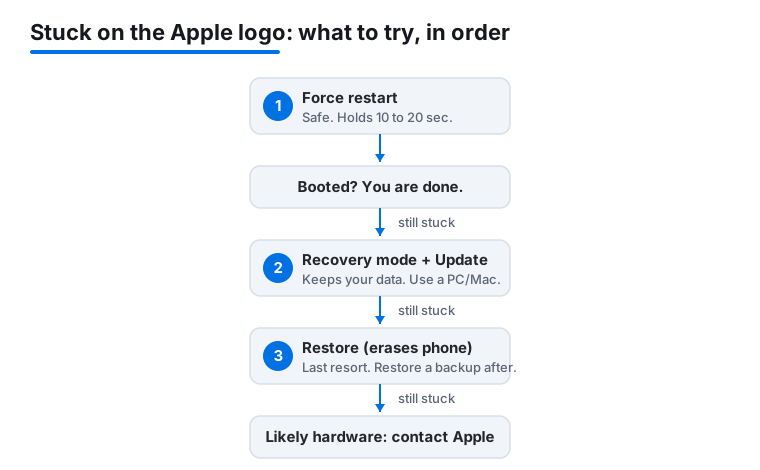
A force restart cuts the power and reboots the phone from scratch. It does not erase any data, it is the single most effective fix for a stuck logo, and it works on the vast majority of cases. The exact buttons depend on your model, so use the right one. If you are not sure which iPhone you have, the version with a Home button is an iPhone 8 generation device or older; everything with Face ID uses the first method.
iPhone 8, iPhone SE (2nd and 3rd gen), and every Face ID iPhone (X, 11, 12, 13, 14, 15, 16, 17 and their variants)
- Press and quickly release the Volume Up button.
- Press and quickly release the Volume Down button.
- Press and hold the Side button (the power button on the right). Keep holding even though the logo is already showing.
- After about 10 to 20 seconds the screen goes black, then the Apple logo appears again. Let go once you see it reappear.
iPhone 7 and iPhone 7 Plus
- Press and hold the Volume Down button and the Side button at the same time.
- Keep holding both until the screen goes black and the Apple logo reappears, then release.
iPhone 6s, iPhone SE (1st gen), and older
- Press and hold the Home button and the Side (or Top) button at the same time.
- Hold until the screen goes black and the Apple logo reappears, then release.
The most common mistake is letting go too soon. These combinations can take a full 15 to 20 seconds, and nothing visible happens for most of that time. Hold steady. Apple documents these exact steps on its official support site if you want to confirm the sequence for your model.
If the phone boots normally after this, you are done. Genuinely. Many stuck-logo cases are a one-time hiccup, and a force restart is all they ever need.
What causes a boot loop in the first place
Knowing the cause helps you pick the right next step and avoid a repeat. The usual reasons an iPhone gets stuck on the logo:
- An update that did not finish. If the phone lost power, lost Wi-Fi, or was unplugged partway through installing iOS, the system files can be left half-written. This is the single most common cause, and it is exactly what the Finder "Update" repair below is designed to fix.
- Storage that was completely full. iOS needs free space to unpack and install updates and to do routine startup tasks. A phone running with almost no free storage can fail to boot after an update. If this sounds familiar, our guide on iPhone storage staying full after you delete things is worth a read once you are back up.
- A bad app or a failed app update. Less common now, but a corrupted app or a jailbreak tweak can interfere with startup.
- An interrupted restore or transfer. Stopping a backup restore or a phone-to-phone transfer midway can leave the system in a confused state.
- A hardware fault. Liquid damage, a failed storage chip, or a logic-board problem can all cause a loop. This is the least likely cause and the one to suspect only after the software fixes fail, covered at the end.
The good news is that the first four causes are all software, and software is fixable, usually without losing anything.
Step 2: Charge, then check the cable and computer
If a force restart did not work, do not jump straight to a restore. A few quick checks rule out the easy stuff and set you up for the recovery steps.
- Charge for at least 30 minutes on a wall adapter. A boot loop drains a battery fast, and a near-empty phone can fail to complete startup.
- Try a different cable and a different power source. A frayed or cheap cable can drop the connection at the worst moment. Use an Apple cable or a well-known certified one.
- Have a computer ready. The next two steps need either a Mac, or a Windows PC. On a Mac with macOS Catalina or later you use the Finder. On an older Mac, or on Windows, you use the Apple Devices app or iTunes. Make sure the computer's software is up to date first, because an old version may not recognize a phone running newer iOS. You can get the Windows app from the Microsoft Store or directly from Apple.
With a computer and a good cable ready, you can move to recovery mode, which is the data-safe repair.
Step 3: Recovery mode and the data-safe "Update" option
Recovery mode is a special state where your iPhone connects to a computer so the computer can repair or reinstall iOS. The screen will show a computer-and-cable image. The important part: recovery mode gives you a choice, and one of the two choices keeps your data.
How to enter recovery mode
- Connect the iPhone to your computer with a cable.
- Open Finder (Mac, Catalina or later) or the Apple Devices app / iTunes (older Mac or Windows).
- Now perform the same button sequence as a force restart for your model, but keep holding the final button past the Apple logo until you see the recovery-mode screen (the cable-pointing-to-a-laptop image), then release.
- Face ID models, iPhone 8, SE 2nd/3rd gen: Volume Up (quick press), Volume Down (quick press), then hold the Side button until the recovery screen appears.
- iPhone 7: hold Volume Down and the Side button until the recovery screen appears.
- iPhone 6s and older: hold Home and the Side/Top button until the recovery screen appears.
Choose Update, not Restore
A box pops up on the computer offering two buttons: Update and Restore.
- Update reinstalls iOS and tries to repair the system files while keeping all your data. This is the data-safe option. Always click Update first.
- Restore erases the phone completely and installs a fresh copy of iOS. Do not click this yet.
Click Update. The computer downloads the current iOS for your model and reinstalls it without touching your photos, messages, or apps. The download can take a while on a slow connection. If it takes longer than 15 minutes, the phone may drop out of recovery mode and the download stops; if that happens, let the download finish, then redo the recovery-mode button sequence and choose Update again. Often a single successful Update is all it takes, and you keep everything.
Step 4: DFU mode, when even recovery will not take
If recovery mode does not appear, or the Update fails repeatedly, the next tool is DFU mode (Device Firmware Update). DFU is a deeper restore state than recovery mode: it can reload the phone's firmware even when the normal startup software is too broken for recovery mode to work. Think of recovery mode as repairing the operating system, and DFU as reloading everything beneath it.
Two honest warnings before you use it:
- DFU mode almost always pairs with a full Restore, which erases all data on the phone. There is no data-safe DFU option. Treat this as a last-resort software fix.
- The button timing is fussy and differs slightly by model, so be prepared to try a couple of times. If you let go a moment too early or too late, you land in recovery mode instead and have to start over.
General sequence for Face ID models and the iPhone 8 generation: with the phone connected to the computer, press Volume Up and release, press Volume Down and release, then press and hold the Side button for about 5 seconds, then (while still holding Side) also hold Volume Down for about 5 seconds, then release the Side button but keep holding Volume Down for another 5 seconds. A correct DFU screen is completely black, with no Apple logo and no cable image, while the computer says it detects an iPhone in recovery mode. Because the timing varies by model and changes across iPhone generations, look up the exact seconds for your specific model on Apple Support before you start.
Once in DFU, the computer will offer to Restore. This wipes and rebuilds the phone, which clears almost any software fault. You will set the phone up fresh afterward and can bring your data back from a backup, covered next.
Step 5: Restore, and getting your data back afterward
A Restore (from recovery mode or DFU) erases the phone and installs a clean copy of iOS. It is the most reliable software fix because it removes whatever was broken, but it is also the step that costs you data if you have no backup. Here is how to handle it sensibly.
If you have a backup
This is the easy case. After the Restore finishes, the phone reboots to the setup screen. Follow the prompts and, when offered, choose to restore from your iCloud backup or from a backup on your computer. Your apps, photos, messages, and settings come back. If you regularly back up to iCloud (Settings > your name > iCloud > iCloud Backup) or to your computer, a Restore costs you little more than time. Our guide on moving everything to a new iPhone covers the same backup-and-restore tools if you want the full walkthrough.
If you do not have a backup
Be honest with yourself here. A Restore will erase data that is not backed up, and there is no built-in way to recover it afterward. If the data is important and you have no backup, stop before restoring and take the phone to an Apple Store or an authorized provider first. They cannot magic data off a wiped phone either, but they may be able to coax the current phone into booting once (via the data-safe Update or other tools) so you can back it up before any erase. Third-party recovery software makes big promises, but it generally cannot read a modern, encrypted iPhone that will not boot, so do not pay for it expecting miracles.
The lasting lesson: turn on iCloud Backup now, while your phone is healthy, so the next time this happens a Restore is a non-event.
When it is a hardware fault, and what to do
If you have force restarted, run a recovery-mode Update, and even tried a DFU Restore, and the phone still hangs on the logo or loops, the problem is probably no longer software. Signs that point to hardware:
- The phone was dropped or got wet shortly before the loop started.
- A Restore in recovery mode or DFU fails partway with an error code every time, often a number like 4013 or 4014, which commonly indicates a connection or component problem.
- The phone gets unusually hot, or the screen shows artifacts or flickering during the logo.
- It will not stay in recovery or DFU mode no matter how carefully you time the buttons.
Common hardware causes are a failed storage chip, a damaged display or cable connection, liquid corrosion, or a logic-board fault. These are not home-fixable for most people. Your move is to contact Apple Support or book a visit at an Apple Store or Apple Authorized Service Provider. If the phone is under warranty or covered by AppleCare+, a hardware failure like this may be repaired at no or low cost; check your coverage first. You can start the process and check coverage on Apple Support. Before you hand it over, mention whether you have a recent backup, because the repair or replacement may erase the device.
FAQ
Will a force restart delete my photos or data?
No. A force restart simply cuts the power and reboots the phone from scratch, exactly like turning a frozen computer off and on. It does not touch your photos, messages, apps, or settings. It is the first thing to try for a stuck Apple logo precisely because it is both safe and effective, and for most people it is the only step needed.
What is the difference between Update and Restore in recovery mode?
Update reinstalls iOS and repairs the system files while keeping all your data, so it is the data-safe choice and you should always try it first. Restore erases the entire phone and installs a fresh copy of iOS, which fixes more stubborn software faults but deletes everything not backed up. The pop-up offers both buttons when your phone is in recovery mode connected to a computer. Click Update first; only click Restore if Update fails and you have a backup.
How long should I leave the phone on the Apple logo before forcing a restart?
If the logo has been frozen with no progress for more than about 10 to 15 minutes, or if it keeps flashing on and off in a loop, go ahead and force restart. A normal startup, including the first boot after an iOS update, can legitimately sit on the logo for a few minutes, so give it a little patience first. But a logo that has not moved in a quarter of an hour is stuck, and a force restart will not harm anything.
My phone died during an iOS update and now it is stuck. What do I do?
This is one of the most common causes, and it is usually fixable without losing data. First charge it for 30 minutes on a wall charger, then force restart for your model. If that does not work, connect it to a computer, enter recovery mode, and choose Update, which reinstalls iOS while keeping your data and is designed for exactly this half-finished-update situation. Only move to a Restore if the Update repeatedly fails.
Can I fix a stuck Apple logo without a computer?
Sometimes. The force restart in step one needs no computer at all and resolves the majority of cases, so always try it first. But if the phone needs a recovery-mode Update or a Restore, you do need a Mac or a Windows PC with a cable, because those repairs reinstall iOS from the computer. If you have no computer and the force restart fails, an Apple Store or authorized service provider can run the same recovery steps for you.
Is a boot loop always a software problem?
Usually, but not always. The large majority of stuck-logo and boot-loop cases are software: an interrupted update, full storage, or a bad app, all of which the force restart, recovery-mode Update, or Restore can clear. Suspect hardware only if those software fixes all fail, or if the phone was recently dropped or got wet, gets very hot, shows screen glitches, or a Restore fails with a repeating error code. In that case, contact Apple Support, since storage, display, or logic-board faults need professional repair.