
Best Food & Drink Apps for iPad (2026)
An iPad is a funny thing to order lunch on. Nobody balances a tablet at the drive-thru, yet for browsing a menu from the sofa, planning a group order or stacking up rewards before a coffee run, the big screen is genuinely pleasant. We spent a few weeks actually ordering, reserving and redeeming on iPad to see which food and drink apps reward the larger canvas and which just stretch the phone view.
Here are our favorites, best first. For more picks you can browse the wider food and drink hub, or see everything we rate in our best iPad apps roundup.
1. Starbucks
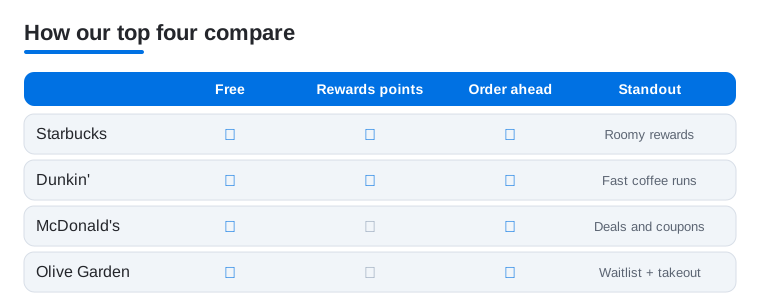
Starbucks is the food and drink app we open most, and on iPad the rewards dashboard finally has room to breathe. You can build a complicated order, track stars toward a free drink and reload your balance without squinting. It is free, and you pay through the app or a linked card. In our testing, customizing a drink with every syrup and milk swap was far less fiddly on the larger screen than thumbing through it on a phone.
2. Dunkin'
Dunkin' is our pick for fast, no-nonsense coffee runs, and the iPad layout makes scanning the menu and mobile ordering ahead a breeze. Dunkin' Rewards points pile up quickly, and the app regularly drops bonus offers worth tapping into. It is free to use. We like browsing the full menu board on the bigger display the night before, then firing off an order in the morning so it is waiting at the counter when we walk in.
3. McDonald's
The McDonald's app is worth installing for the deals alone, and on iPad those rotating offers and the full menu are easy to read at a glance. Mobile order and pay, plus weekly coupons, can shave real money off a family meal. It is free, with deals refreshing often. In our testing the deal tiles were genuinely tempting laid out on the larger screen, and curbside pickup through Drive Thru worked without a hitch.
4. Olive Garden
Olive Garden is the sit-down app we reach for when planning a family dinner out. On iPad you can browse the full menu, join the waitlist before you leave the house and order takeout with photos that actually look appetizing on the big screen. It is free. We found checking the wait time and adding our name to the list ahead of arrival saved a hungry crowd from loitering by the door.
5. Popeyes
Popeyes earns a spot for its app-only pricing, and the iPad screen makes building a big family bucket order pleasantly clear. You can customize sides, claim deals and set up pickup or delivery in a few taps. It is free to download. The larger canvas helped when we were comparing combo deals side by side, and the rewards points quietly added up across a couple of weekend orders.
6. Publix
Publix is less about takeout and more about smart grocery runs, and it is excellent on iPad for exactly that. Clipping digital coupons, building a shopping list and browsing the weekly ad all feel roomy and readable on the tablet. It is free. We liked planning a full week of meals on the bigger screen, then ordering deli subs ahead for pickup so they were sliced and ready when we arrived.
7. Chick-fil-A
Chick-fil-A is one of the most polished rewards apps we tested, and the iPad version is a comfortable place to plan an order. You earn points on every purchase, redeem them for free items and order ahead for curbside or pickup. It is free to use. In our testing the rewards tiers were easy to track on the larger display, and the occasional surprise free item dropped into the account felt like a nice little bonus.
8. Buffalo Wild Wings
Buffalo Wild Wings is the app to have for game day, and on iPad the menu of sauces and combos is genuinely fun to scroll. You can order takeout, join the Blazin' Rewards program and browse every flavor from mild to dangerously hot. It is free. We enjoyed lining up a big group order on the bigger screen before the kickoff, picking sauces by committee, then collecting it all without a single phone call.
9. Dutch Bros
Dutch Bros is a treat for fans of the West Coast coffee chain, and the iPad app keeps the cheerful ordering experience intact. You collect Dutch Rewards points, send drinks to friends and check out the seasonal menu with its endless flavor combos. It is free to use. We found the rewards balance and free-drink progress easy to read on the larger screen, and reloading the app card ahead of a run took only a moment.
10. Jersey Mike's
Jersey Mike's is our go-to sub app, and on iPad customizing a sandwich is refreshingly clear. You pick the bread, toppings and Mike's Way extras, earn points toward free subs and order ahead for pickup or delivery. It is free. In our testing, building an exactly-how-you-like-it sub was much easier on the bigger screen, and the rewards added up fast enough that a free sandwich never felt far away during a busy month.
11. Jimmy John's
Jimmy John's lives up to its freaky-fast reputation, and the iPad app makes setting up a quick lunch order painless. You browse the menu, customize a sub, save favorites for repeat orders and earn Freaky Fast Rewards along the way. It is free to use. We liked saving a regular order on the larger screen so reordering took seconds, and delivery tracking kept us informed right up to the knock at the door.
12. Wingstop
Wingstop is the app for serious wing cravings, and the iPad layout makes mixing and matching flavors a pleasure. You can build a custom order across multiple sauces, claim deals and set up pickup or delivery without fuss. It is free to download. We found planning a shared feast far easier on the bigger screen, picking a spread of flavors for the table, and the order tracker gave a reliable read on when the wings would be ready.
13. Too Good To Go
Too Good To Go is the most rewarding app here if you hate waste, letting you buy surprise bags of surplus food from local cafes and bakeries at a steep discount. On iPad the map and listings are easy to browse, and the bigger screen helps when you are scanning nearby spots. It is free to use, and you only pay for the bags you reserve. We genuinely enjoyed the lucky-dip element, and the savings on bakery surplus were hard to argue with.
How to choose food and drink apps for iPad
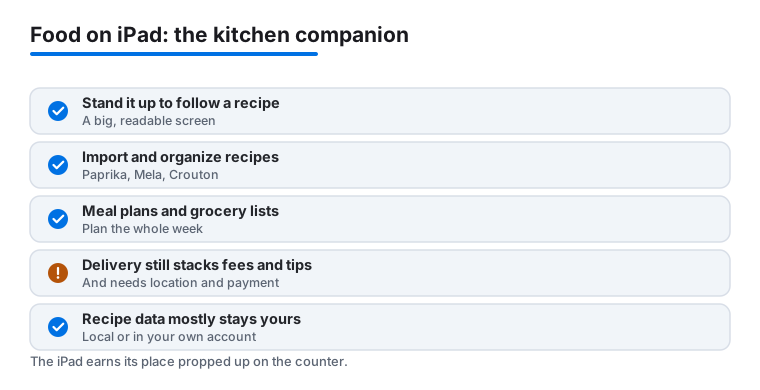
The iPad is a natural kitchen companion. You can stand it on the counter and follow a recipe with a big, readable screen, and some apps let you advance steps hands-free or by voice so you are not smearing dough across the glass. It is also a comfortable place to plan a weekly shop, build a group takeout order or check a reservation. Because the food and drink category covers everything from cooking at home to ordering in, the right pick depends on which of those jobs you actually do most. Below is a calm, practical way to sort through them, with honest notes on cost and on what each kind of app does with your data.
Start with the job, not the app
Before installing anything, it helps to name the task. Most people want one or more of three things, and the categories barely overlap.
- Cooking from recipes. You want to collect, organize and follow recipes on the counter. This is where a dedicated recipe app earns its place.
- Planning and shopping. You want to plan meals for the week and turn them into a grocery list, ideally one that survives the trip to the store.
- Ordering and reserving. You want food delivered or a table booked, and you are happy to let a chain or a delivery service handle it.
An app that is excellent at one of these is rarely the best at the others, so it is fine, and usually better, to run two or three rather than hunt for a single tool that claims to do everything. Naming the job first also makes the honest trade-offs easier to weigh, because a recipe app and a delivery app ask for very different things from you.
Recipe apps that import and organize
If you cook, the most useful thing an iPad app can do is pull a recipe in from anywhere and keep it tidy. A good recipe manager lets you import from a website, strip out the long preamble, scale the quantities and then show clean steps in a kitchen-friendly view. A few solid, long-standing choices on iPad and iPadOS in 2026:
- Paprika is the steady, well-known recipe manager. It clips recipes from the web, builds a pantry and grocery list from them, and works across iPhone, iPad and Mac with your data syncing through your own account. It is a paid app rather than a subscription, which many people prefer.
- Mela is a more modern take with a clean reading view, a built-in browser for importing, and a cook mode that keeps the screen awake while you work. It also handles recipe websites and feeds nicely on the larger screen.
- Crouton leans into the cooking session itself, with timers tied to steps and a hands-free mode, which is handy when your fingers are busy. It can import from links and photos and organize what you save.
The honest point in their favor is privacy. Recipe apps like these mostly keep your collection on your device or in your own iCloud or app account, rather than building a profile to sell you things. You are organizing your own cookbook, not feeding a marketing engine. When you compare two recipe apps, the questions that matter are how reliably they import from the sites you actually use, whether the cook view is easy to read from a step back, and whether sync across your devices is included or costs extra.
Meal planners and grocery lists
Once you can collect recipes, planning the week is the next step. Some recipe apps, including the three above, can generate a shopping list from the dishes you have chosen and group items by aisle. That is often enough, and it keeps everything in one place. If you want a calendar-style planner with drag-and-drop meals, there are dedicated options, but it is worth checking first whether your recipe app already covers it before adding another subscription. A grocery list that syncs to your phone is the part you will use most, since the iPad rarely comes to the store. Look for a list that updates live across devices so the version in your pocket matches the one you built on the counter.
Delivery and reservation apps that also run on iPad
The usual delivery and booking apps run on iPad too, and the larger screen genuinely helps when you are browsing a long menu or coordinating a group order. The picks above, from coffee chains to sit-down restaurants, cover ordering ahead and loyalty rewards. For wider delivery, the major services and their own restaurant apps work on iPadOS, and a reservation app is useful for booking a table from the sofa.
Here the honest notes cut the other way. Delivery apps stack costs: on top of the menu price you will usually see a delivery fee, a service fee and a suggested tip, so the total can run well above what the same food costs in person. They also need your location and payment details to work, and many build a history of what you order. None of that is hidden, but it is easy to forget when you are hungry. A few practical habits help: check the full total before you confirm, not just the food subtotal; order pickup instead of delivery when you can, which often drops the added fees; and review the location and tracking permissions you have granted if you only order occasionally.
A sensible setup
For most people, a good iPad food shelf is small. Pick one recipe app you will actually keep recipes in, lean on its built-in grocery list, and add only the ordering or reservation apps for the places you visit often. That keeps your cooking data in your own hands, limits how many services hold your payment and location details, and leaves the big screen doing what it is best at: showing you a clear recipe while your hands are full, or a full menu while you decide.
Frequently asked questions
Why order food on an iPad instead of my phone?
You would not use it at the counter, but the iPad shines for the planning stage. Browsing a full menu, building a big group order, comparing deals and tracking rewards all read more comfortably on the larger screen. Once the order is placed, it syncs to your account, so you can still grab your phone to scan a code or check in at the store.
Do these apps make proper iPad layouts or just enlarge the iPhone view?
It varies. Starbucks, Olive Garden and Publix made good use of the extra room in our testing, with menus and rewards laid out clearly. A few others simply scale up the phone view, which still works fine for ordering but wastes some space. When an app feels cramped, its website in Safari is often a perfectly good backup on iPad.
Are the loyalty rewards actually worth it?
For the places you already visit, yes. Starbucks, Chick-fil-A and Dunkin' rewards add up quickly if coffee or lunch is a habit, and most chains layer on app-only deals on top. If you only visit occasionally, the free items take longer to reach, but there is no cost to collecting points in the meantime, so there is little reason not to.
Can I use these same apps on my iPhone and Mac?
Most do, and your account, rewards and saved orders follow you once you sign in. If you order across devices, our best food and drink apps for iPhone and best food and drink apps for Mac guides cover the standout picks on each, including a few that simply feel better on one screen than another.
What is the best app for following recipes on an iPad in the kitchen?
A dedicated recipe manager beats a delivery app for this. Paprika, Mela and Crouton all run on iPad, import recipes from the web and show a clean, step-by-step cook view that stays awake while you work, with Crouton adding step timers and a hands-free mode. They mostly keep your collection in your own account rather than building a marketing profile, so your cooking stays private. Pick the one whose import and reading view you like, then let it build your grocery list too.
Are delivery apps more expensive than ordering in person?
Usually, yes. On top of the menu price, delivery apps tend to add a delivery fee, a service fee and a suggested tip, so the total can be noticeably higher than the same food bought at the counter. Choosing pickup instead of delivery often removes some of those added fees. It is worth checking the full total before you confirm, since the food subtotal is only part of the picture, and reviewing the location and payment permissions you have granted if you order only now and then.