
How to Recover Deleted Photos on iPhone
Deleting a photo on an iPhone almost never means it is gone forever, at least not right away. Apple keeps deleted photos in a hidden holding area for 30 days, and if you use iCloud or have a backup, you usually have more than one way to get a picture back. The catch is that your options shrink with every day that passes, and some of the louder "recover anything" apps promise more than they can actually deliver. This guide walks through every realistic recovery path in order, from the safest and most likely to work to the genuine last resorts, and finishes with a simple backup setup so a slip of the thumb never costs you a memory again.
Start here: the Recently Deleted album (your 30-day safety net)
When you delete a photo or video on an iPhone, it does not disappear. It moves to a special album called Recently Deleted, where it sits for 30 days before iOS permanently erases it. This is the first place to look, and for most people it is also the last place they need to look.
How to find and restore it
- Open the Photos app.
- Tap the Albums tab at the bottom (on iOS 18 and later, scroll down to the Utilities group).
- Tap Recently Deleted.
- On recent versions of iOS this album is locked. Unlock it with Face ID, Touch ID, or your passcode.
- Tap Select in the top corner, then tap each photo you want back (or tap Recover All).
- Tap Recover, then confirm.
Recovered photos return to your main library and reappear in the correct spot in your timeline based on their original date, not today's date, so do not panic if you do not see them at the very bottom of your camera roll. Apple documents this whole flow on its official support site.
Important: the 30-day clock starts from the moment you deleted the photo, not from today. A photo deleted three weeks ago has only about a week left. That is why the next rule matters so much.
Why acting fast matters
Recovery on a phone is a race against time and against your own daily use. Two clocks are ticking:
- The 30-day timer. Once a photo leaves Recently Deleted, iOS marks that storage as free space. There is no built-in way to get it back after that.
- The overwrite problem. When storage is freed, the phone is allowed to reuse it. Every new photo, app download, software update, or even a system that quietly saves caches can write over the spot where your old photo lived. Once that happens, the data is genuinely unrecoverable by any tool, paid or free.
The practical takeaway: if a photo is truly important and it is not in Recently Deleted, stop taking new photos and avoid installing apps or large downloads until you have tried a backup. The less you write to the phone, the better your odds.
Check iCloud Photos (and iCloud.com)
If you use iCloud Photos, your library is synced across every device signed into the same Apple Account. That sync cuts both ways: deleting on one device deletes everywhere, but it also means there is a second place to recover from.
From another Apple device
Open Photos on your iPad or Mac that shares the same Apple Account and check its Recently Deleted album. The 30-day window is the same, but it is worth confirming the deletion actually synced before you assume the photo is lost.
From a web browser
- Go to iCloud.com and sign in with your Apple Account.
- Open Photos.
- In the sidebar, click Recently Deleted.
- Select the items and click Recover.
One common point of confusion: iCloud Photos is not the same as iCloud Backup. iCloud Photos is a live sync of your library. iCloud Backup is a full snapshot of your device taken on a schedule. They are separate features with separate settings, and you can recover from each in different ways. You can read Apple's explanation of how iCloud Photos works on the Apple Support site.
Recover from a backup (the older-than-30-days path)
If a photo is past the 30-day window and you never used iCloud Photos sync, a backup is your best remaining hope. A backup is a frozen snapshot from a point in time. If the photo existed when that snapshot was taken, restoring the snapshot brings it back.
Read this warning first
Restoring a full device backup is an all-or-nothing operation. It wipes the iPhone and rebuilds it from the snapshot, which means any photos, messages, or notes created after the backup date will be lost. You are trading your current state for an older one. Never restore a backup without first making a fresh backup of the phone as it is right now, so you can change your mind.
Restoring from an iCloud Backup
- Go to Settings > General > Transfer or Reset iPhone > Erase All Content and Settings.
- During the setup that follows, choose Restore from iCloud Backup and pick a backup from a date before you deleted the photos.
Restoring from a computer backup
If you ever backed up to a Mac (Finder) or a Windows PC (the Apple Devices app or older iTunes):
- Connect the iPhone to that computer with a cable.
- On a Mac, open Finder and select your iPhone in the sidebar. On Windows, open the Apple Devices app.
- Choose Restore Backup and select a snapshot dated before the deletion.
A local computer backup is often the most complete option because, unlike the free iCloud tier, it is not limited by storage caps.
The honest truth about third-party recovery apps
Search the App Store or the web and you will find dozens of tools promising to "recover any deleted photo" from an iPhone. Here is the reality, stated plainly.
- The iPhone is locked down by design. Apple does not give apps raw, low-level access to the phone's storage the way a desktop drive recovery tool can scan a hard drive. On a non-jailbroken iPhone, no app can simply "undelete" a photo that has left Recently Deleted.
- What desktop recovery software actually does. The legitimate paid tools (the kind you run on a Mac or PC and connect your phone to) almost always work by reading an existing backup or the synced iCloud data, then extracting items from it. They are backup readers, not magic scanners. If you have no backup, they have nothing to read.
- Be skeptical of bold guarantees. Any app claiming it can recover photos that are gone from both Recently Deleted and every backup is, at best, overpromising. Watch for free "scan" results that show blurry thumbnails and then demand payment to "unlock" them, which can be a recovery rate you cannot verify before paying.
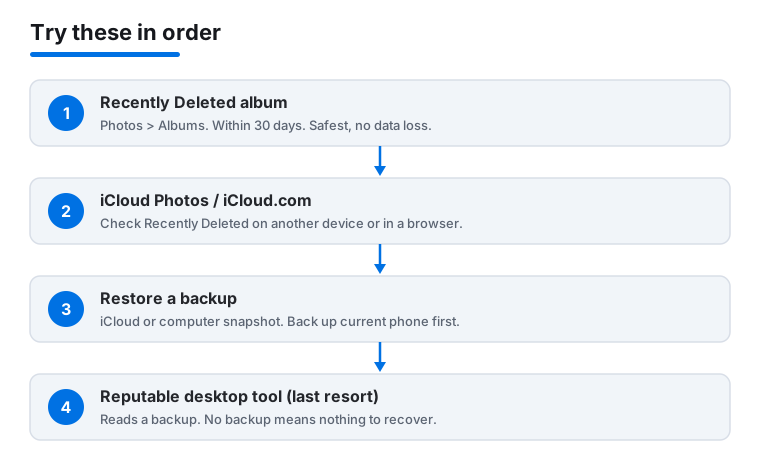
Safety first: never jailbreak a phone just to attempt recovery. It voids your warranty, removes Apple's security protections, and can itself wipe data. If you do try a desktop tool, pick a reputable vendor, and never enter your Apple Account password into a sketchy app or website. The order that gives you the best odds is below.
What if it was never in Photos? (Messages, WhatsApp, email)
Not every picture lives in the Photos app. If the image you lost was never saved to your camera roll, look where it originally arrived:
- Messages. Open the conversation and scroll up, or tap the contact name and look under shared photos. Texted images often still sit in the thread even if you deleted them from Photos.
- WhatsApp, Signal, Telegram. These apps keep their own media stores and many keep their own backups. Check the chat itself and the app's backup settings.
- Email. If you ever emailed the photo to anyone or received it, search your sent and received mail. The attachment is a perfectly good copy.
- Shared Albums and group chats. If you shared the photo with family, someone else may still have it. Asking is faster than any recovery tool.
This is the easiest win people forget. A photo deleted from one place often still exists in another.
Back up so this never hurts again
Recovery is stressful precisely because it is uncertain. A good backup turns a future deletion from a crisis into a shrug. Set this up once and you are protected going forward.
Turn on iCloud Photos
- Go to Settings and tap your name at the top.
- Tap iCloud > Photos.
- Turn on Sync this iPhone.
Now your library lives on Apple's servers as well as your phone. The free tier is only 5 GB, which fills up fast, so you may want to upgrade your iCloud+ plan or use a second free service as below. Apple explains the plans on apple.com.
Add a second, independent copy
The strongest setup follows the simple 3-2-1 idea: keep at least one extra copy somewhere that is not your phone and not the same account. Good options:
- Google Photos. Install the app and turn on backup for a separate cloud copy. Google describes setup on google.com.
- A computer backup. Periodically plug the iPhone into a Mac or PC and run a full backup, or simply import your photos to a folder you control.
- An external drive. Copy your photo folder to a drive you keep at home.
Turn on iCloud Backup too
Separately from Photos, enable a full-device snapshot: Settings > [your name] > iCloud > iCloud Backup > turn on Back Up This iPhone. It runs automatically when the phone is charging, locked, and on Wi-Fi.
With a synced library plus one independent copy, a deleted photo is never more than a few taps from coming back, and the 30-day clock stops being something you have to worry about.
FAQ
Can I recover photos deleted more than 30 days ago?
Not through the phone itself. Once a photo leaves the Recently Deleted album, iOS treats its storage as free and there is no built-in undo. Your only real options are restoring an older backup that still contains the photo, or finding a copy elsewhere (a backup, iCloud, another device, Messages, or email). If none of those exist, the photo is almost certainly gone for good.
I do not see a Recently Deleted album. Where is it?
Open Photos, tap the Albums tab, and scroll to the bottom. On iOS 18 and later it lives inside a Utilities group. The album is locked by default, so you will need Face ID, Touch ID, or your passcode to open it. If it is genuinely empty, the items have either been recovered already or passed the 30-day limit.
Will restoring a backup delete my newer photos?
Yes, and this is the single most important warning. Restoring a full device backup wipes the phone and rebuilds it from the snapshot, so anything created after that backup date is lost. Always make a fresh backup of the phone in its current state first, so you can undo the restore if you change your mind.
Are paid iPhone photo recovery apps worth it?
Sometimes, but with realistic expectations. The legitimate ones are desktop tools that read an existing backup or your iCloud data and extract photos from it. They cannot magically scan a locked iPhone for files that left Recently Deleted with no backup behind them. If you have no backup at all, no app can help, and any tool that promises otherwise is overselling.
Does deleting a photo on my iPhone also delete it on my iPad and Mac?
If you use iCloud Photos, yes. The library is synced, so a deletion on one device removes the photo everywhere within a short time. The upside is that the Recently Deleted album also syncs, so you can recover from whichever device is handy, or from iCloud.com in a browser, within the same 30-day window.
How can I stop this from happening again?
Set up redundancy once. Turn on iCloud Photos so your library is synced to the cloud, then add at least one independent copy such as Google Photos or a regular computer backup. Also enable iCloud Backup for a full-device snapshot. With a synced library plus a separate copy, any future deletion is quick to reverse.