
How to Find and Delete Duplicate Photos on iPhone
Duplicate photos pile up without you noticing. You save the same picture twice, an app copies an image into your library, or a shared photo lands back in your Camera Roll. Over time that adds up to real storage. The good news is your iPhone already has a tool that finds exact duplicates and cleans them up for you, and it does it safely. This guide walks through the built-in feature step by step, explains what it keeps and what it throws away, shows you how to actually get the freed space back, and tells you honestly where the native tool falls short and whether a third-party app is worth it.
Where the Duplicates feature lives
Your iPhone scans your library on its own and groups identical photos and videos into one place. You do not turn anything on. On a current iPhone running iOS 26, open the Photos app and tap the Collections tab at the bottom. Scroll down to the Utilities section and tap Duplicates.
If you came from an older version of iOS, the path is the same idea. The Duplicates album has been part of Photos since iOS 16. In iOS 26 Apple brought back the tab bar, so Library and Collections are separate tabs again, and Utilities sits inside Collections.
If Duplicates is missing or empty, that is usually normal. The scan only runs when your iPhone is locked and connected to power, and it can take anywhere from a few minutes to a couple of days depending on how big your library is and what else the phone is doing. Plug it in overnight and check again the next morning. If your library genuinely has no exact duplicates, the album will not appear at all.
What Merge actually does
This is the part people worry about, so let me be clear about it. When you tap Merge, your iPhone does not just pick one photo at random and bin the rest. It looks at the set, keeps the highest-quality copy (the one with the most resolution and the richest data), and folds in useful information from the others, such as captions, favourites status, and keywords. The single best version stays in your library. The leftover copies move to Recently Deleted.
So you are not losing your sharpest shot. You are keeping it and letting the duplicates go. That is why merging is safer than hand-deleting, where it is easy to keep the worse copy by mistake.
Merge duplicates one set at a time
If you only have a handful of duplicate sets, or you want to glance at each pair before committing, do it manually:
- Open Photos, tap Collections, tap Utilities, then tap Duplicates.
- Scroll to a set you want to combine.
- Tap Merge next to that set.
- Tap Merge [number] Items to confirm.
The set disappears from the album and the extra copies head to Recently Deleted. Repeat for the next set. This is the approach I use when some of the "duplicates" are actually slightly different shots I want to eyeball first.
Clear the whole album in one go
If you trust the matching (and for exact duplicates it is reliable), you can clear everything at once instead of tapping through dozens of sets.
- In the Duplicates album, tap Select in the top corner.
- Tap Select All.
- Tap Merge.
- Confirm when prompted.
Every detected set collapses to its best copy and the rest go to Recently Deleted. On a large library this can clear hundreds of items in seconds. There is no separate Delete button in this album, because Merge is the safe way to handle exact duplicates here.
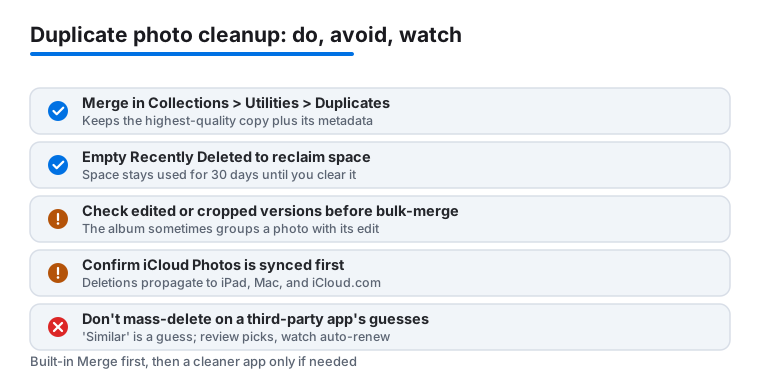
One caution before you bulk-merge: the album sometimes groups a photo together with its edited or cropped version. They are not always identical to your eye even when the system treats them as duplicates. If you have edits you care about, scroll the album first and merge those sets by hand.
Get your storage back from Recently Deleted
Here is the step most people skip, then wonder why their storage did not change. Merging or deleting photos does not free space straight away. The discarded copies sit in Recently Deleted for 30 days so you can change your mind. Until that timer runs out, or until you clear them yourself, they still count against your storage.
To reclaim the space now:
- Go to Photos, tap Collections, then Utilities, then Recently Deleted.
- Authenticate with Face ID or Touch ID to open it.
- Tap Select, then Delete All (or pick specific items, tap the More button, and choose Delete).
- Confirm Delete From This iPhone.
Once you do that, the space comes back. If you would rather not bother, just leave it and the items clear automatically after 30 days. Either works. The point is that the deletion is not instant by design, and that is a feature, not a bug.
How iCloud Photos changes the picture
If you use iCloud Photos, your library is one shared library across every device signed in to your Apple Account. Delete or merge on your iPhone and the same change syncs to your iPad, your Mac, and iCloud.com. You do not need to repeat the cleanup on each device, and you cannot "keep" a copy on another device by leaving it alone there. It is all the same library.
This cuts both ways. Cleaning up once everywhere is convenient. But it also means a mistake propagates everywhere too. Recently Deleted is your safety net, and it syncs as well, so a recovered photo comes back on all devices. Before a big cleanup, it is worth confirming your library is fully synced (Settings, your name, iCloud, Photos) so you are not merging on a device that is mid-upload. If iCloud Photos is switched off, deletions stay local to that one device and nothing syncs.
What the built-in tool misses
The native Duplicates feature is built for exact matches: two files that are genuinely the same image. It is honest and conservative, which is exactly what you want from a tool that deletes your photos. But it deliberately ignores the messier clutter most libraries are full of.
It will not flag near-duplicates: the ten almost-identical frames from a burst, three tries at the same sunset, a photo and its lightly edited twin, or the same scene shot a second apart. To your eye those are redundant. To the system they are different images, so they stay. If your storage problem is really a burst-and-similar problem rather than an exact-copy problem, the built-in tool will only get you part of the way.
When a third-party app is worth it
This is where a cleaner app from the App Store can help, and where you should be careful. These apps use visual matching to surface similar shots, bursts, screenshots, and near-duplicates that Photos ignores, then let you pick the keeper from each group. For a library bloated with burst frames, that can clear far more than the native tool.
The honest tradeoffs:
- Most charge a subscription, often around five to thirty dollars a year, and some push a free trial that auto-renews. Check the price before you tap install.
- "Similar" is a judgement call. The app guesses which photos look alike, so review its picks rather than mass-deleting on trust. It can suggest binning a shot you actually wanted.
- Prefer an app that processes photos on your device rather than uploading them, and check what library access it asks for. Your whole photo history is sensitive.
Whatever the app deletes still goes to Recently Deleted, so you keep the same 30-day undo. A reasonable plan: run the built-in Duplicates merge first to clear exact copies for free, then reach for a third-party app only if you still have a burst-and-similar mess to sort out.
FAQ
Why is there no Duplicates album on my iPhone?
Two common reasons. Either the library scan has not finished, or you have no exact duplicates. The scan only runs while the iPhone is locked and charging, and it can take from a few minutes to a couple of days on a large library. Plug in overnight and check again. If there are genuinely no exact duplicates, the album does not show up at all.
Does merging duplicates delete my best photo?
No. Merge keeps the highest-quality copy, the one with the most resolution and metadata, and pulls in useful details from the others such as favourites and keywords. The leftover copies move to Recently Deleted. You keep the best version, not the worst.
Why did my storage not change after I merged duplicates?
Because the discarded copies go to Recently Deleted and sit there for 30 days before clearing. They still count against storage until then. To get the space back now, open Collections, Utilities, Recently Deleted, then Select and Delete All, and confirm Delete From This iPhone.
If I delete duplicates on my iPhone, do they disappear from my other devices?
Yes, if you use iCloud Photos. Your library is shared across every device on your Apple Account, so a merge or delete on the iPhone syncs to your iPad, Mac, and iCloud.com. If iCloud Photos is turned off, the change stays on that one device.
Why does the Duplicates album miss obvious similar photos?
The built-in tool only catches exact duplicates, identical files. Burst frames, near-identical shots, and a photo plus its edited version are treated as different images, so they are left alone on purpose. For those, you need a third-party app that does visual matching.
Are duplicate photo cleaner apps safe to use?
They can be, with care. Pick one that processes photos on-device rather than uploading them, check what library access it requests, and review its suggestions before deleting since "similar" is a guess. Watch for auto-renewing subscriptions. Anything it removes still lands in Recently Deleted, so you keep the 30-day undo.