
How to Use Stage Manager and an External Display on iPad
Stage Manager turns your iPad into something closer to a windowed computer. You get overlapping app windows you can resize, group windows you switch between, and on the right iPad, a real second screen over USB-C. It is genuinely useful once you set it up, but there are a couple of hardware facts worth knowing before you plug anything in. This guide walks through turning it on, working the windows, and getting an external display going the way you actually want it.
Check your iPad first (the part nobody tells you)
Stage Manager itself runs on a wide range of iPads in iPadOS 26. The external display part is the picky bit. Here is the honest split.
Stage Manager as a feature works on most current iPads, including models like iPad (A16), iPad mini (A17 Pro), iPad Air (M2 and M3), and the iPad Pro line. So you can use grouped, resizable windows on the iPad screen itself without anything special.
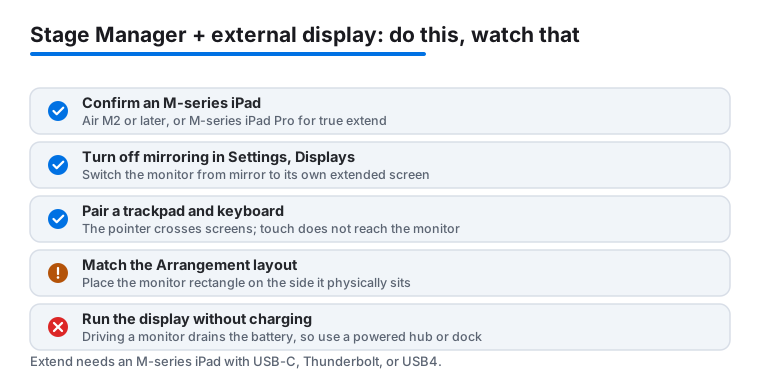
Extending to an external display is the line that matters. To use a monitor as a true second screen (not just a mirror), you need an iPad with an Apple M-series chip and a USB-C, Thunderbolt, or USB4 port. That means iPad Air (M2 or later) and iPad Pro (M-series). Older iPads can still connect to a monitor, but they only mirror what is on the iPad. No separate windows over there.
One more requirement people skip: for the external display to actually be useful, you want a keyboard and trackpad or mouse paired to the iPad. Dragging windows across two screens with your finger is awkward, and the iPad's own touch screen does not reach the monitor anyway. A trackpad is what makes the whole thing click.
Turn Stage Manager on or off
There are two ways in, and both take about three seconds.
From Control Center: swipe down from the top-right corner of the screen to open Control Center. Tap the Stage Manager button to switch it on. If you tap and hold that same button, you get a small panel where you can toggle between Stage Manager and Windowed Apps modes, plus options for showing the recent apps strip and the Dock.
From Settings: open Settings, go to Multitasking & Gestures, and choose Stage Manager. Picking Full Screen Apps or Off there is how you leave it again.
When it switches on, your current app shrinks into a centered window and you will see a strip of recent apps appear down the left edge. That strip is the heart of how you move around, so it is worth getting comfortable with it.
The recents strip and how you switch apps
The column of app thumbnails on the left is the recents strip. Each thumbnail is either a single app or a group of windows you have stacked together. Tap one to bring it to center stage. The app or group you had in front slides off to the strip so you can grab it again later.
Think of each entry as a saved arrangement. If you tuck Mail and Safari into one group, that group lives in the strip as a unit. Tap it and both windows come back exactly how you left them. This is the difference between Stage Manager and plain full-screen switching. You are switching whole scenes, not just one app at a time.
If the strip is in your way, you can hide it from that Control Center tap-and-hold panel, or in Multitasking & Gestures. Apps that are off to the side still exist and still respond to switching, they just are not shown as thumbnails. Most people leave the strip on once they get used to it.
Resize, move, and group windows
Each window has a curved handle at its bottom-right corner. Drag that handle to resize the window. Drag the window by its top edge to move it. Apps snap to sensible sizes as you drag, so you do not have to be precise.
Grouping is the trick worth learning. To add a second app to your current stage, drag its window in from the recents strip and drop it onto the screen next to the one you have. Now both share the stage and both stay together when you switch away. To pull a window back out of a group, drag it onto the recents strip. You can also open a second window of the same app, which is handy for comparing two notes or two web pages side by side.
At the top of each window you will find the window controls. Tapping them gives you options to close the window, make it full screen, or split and tile it with another app. iPadOS 26 dropped the old hard cap on how many windows you could pile into one stage, so you can keep adding within reason. The real limit now is your iPad's memory and your own patience, not a fixed number.
Connect an external display and extend, not mirror
Plug the monitor into your iPad's USB-C or Thunderbolt port. If the monitor has a USB-C input, a single cable does it. If it only has HDMI or DisplayPort, run it through a USB-C hub or a docking station that supports display output. By default the iPad will often mirror its screen at first, which is not what you want here.
To switch from mirror to extend, open Settings, go to Displays (or Display & Brightness on some builds), and find the Arrangement options for the connected display. Turn off mirroring. Now the monitor becomes its own canvas with its own set of windows, and you can drag apps onto it.
With a trackpad connected, you move your pointer off the right edge of the iPad and it crosses onto the monitor. Grab a window by its top edge and drag it across. Each screen keeps its own stages and its own recents strip, so you can run one set of grouped apps on the big screen and another on the iPad. This is where Stage Manager earns its keep.
Some apps and games will still take over the whole display on their own terms, and a few do not resize freely. That is the app's choice, not a setting you can force.
Arranging the two screens so the pointer flows right
The Arrangement screen also controls how the two displays sit next to each other. Drag the on-screen rectangles so they match how the monitor physically sits relative to your iPad. If the monitor is to the right of the iPad, place its rectangle on the right. Get this wrong and your pointer will seem to jump to the wrong screen, which feels broken even though nothing is.
You can also pick which screen is the main one, meaning where new apps and the menu-style controls appear first. Most people set the larger external monitor as the main display when they are docked at a desk, then let the iPad act as a second surface for chat, music, or a reference window.
A realistic desk setup
If you are using this every day, a few habits make it smoother. Pair a Bluetooth or USB-C trackpad and a keyboard so both hands stay on the desk. Use a powered hub or dock so the iPad charges while it drives the monitor, because pushing an external display draws real power and your battery will drain otherwise. Keep your busy, text-heavy work on the big screen and park lighter apps on the iPad.
Be honest about what this is. It is a very capable second-screen setup, not a full desktop. Some pro apps you would expect on a Mac either do not exist on iPad or behave differently. Window management is better than it used to be, but it is still iPad software underneath. For a lot of writing, browsing, email, and reference work, though, the two-screen flow is comfortable enough that you stop thinking about it.
FAQ
Which iPads can use an external display with Stage Manager?
You need an iPad with an Apple M-series chip and a USB-C, Thunderbolt, or USB4 port. In practice that means iPad Air with M2 or later, and any M-series iPad Pro. Other iPads can connect to a monitor but only mirror the iPad screen rather than extending to a separate workspace.
How do I turn Stage Manager on quickly?
Swipe down from the top-right corner to open Control Center and tap the Stage Manager button. Tap and hold that button for extra options like the recents strip and the Dock. You can also switch it on under Settings, Multitasking & Gestures, Stage Manager.
Why is my monitor just mirroring the iPad screen?
That is the default until you change it. Open Settings, go to Displays, find the Arrangement options for the connected display, and turn off mirroring. The monitor then becomes its own screen with its own windows that you can drag apps onto.
Do I need a keyboard and trackpad for the external display?
You should have them. The iPad's touch screen does not reach the monitor, so a trackpad or mouse is how you move the pointer across and drag windows between the two screens. A keyboard makes the whole setup practical for real work.
How many windows can I open in one stage?
iPadOS 26 removed the old fixed cap on windows per stage, so you can keep adding more. The practical limit now is your iPad's memory and how cluttered you are willing to let it get, not a set number.
How do I group two apps together so they switch as a unit?
With one app on screen, drag a second app's window in from the recents strip and drop it beside the first. They now share the stage and stay together when you switch away. To separate them again, drag one window back onto the recents strip.