
Google Slides on Apple Vision Pro, iPad and iPhone: a Hands-On Guide
There is no headset native Google Slides app, so the first thing to know is what you actually run on each device. We spent a couple of weeks building, editing and presenting decks with Google Slides across an Apple Vision Pro, an iPad Pro and an iPhone 15, from a rushed last minute edit on the train to a full rehearsal on that giant floating window in the headset. It held up better than we expected for quick work, and stumbled in a few predictable places. Here is the honest picture, plus the features that earned their keep.
Getting Google Slides running on each device
Setup is quick, but it looks different depending on what you are holding. On iPhone and iPad, grab the free Google Slides app from the App Store, sign in with your Google account, and your whole Drive shows up in seconds. It is a small download and it opens fine on any recent iPhone or iPad. If your school or work uses Google Workspace, the same login pulls in shared drives without any extra fuss. There is no separate purchase and no in app subscription for the editing itself; the cost only shows up if you run low on Drive storage and decide to pay for a Google One plan.
On Apple Vision Pro the story is different, because Google has not built a visionOS app for Slides, Docs, Sheets or Drive. As of mid 2026 it still has not, and there is no public sign that one is coming. That leaves you two routes. The first is to check whether the iPad Slides app appears in the Compatible Apps section of the App Store on the headset; Google currently keeps most of its iPad apps out of that list, so do not count on it being there. The second, and the one we used for real work, is to open slides.google.com in Safari and float a large browser window in your space. The full desktop site gives you the menu bar, the right click context menus and the keyboard shortcuts that the touch app hides, which matters more than it sounds once you are doing anything past a quick text fix.
One setup step saved us real friction in the headset: pair a Bluetooth keyboard and trackpad before you start. Pinching at tiny toolbar buttons in the air gets old within minutes, and a trackpad lets you place the cursor precisely instead of fighting the eye tracking on small targets. Sign in once on each device and your recent files list follows you across all three through Drive, so a deck you opened on the iPad is one tap away on the phone or in Safari on the headset.
The features that actually earn their keep
Slides does a lot, but a handful of features did most of the heavy lifting for us across these devices. These are the ones we kept reaching for, with the honest caveat about where each one actually works.
- Real time collaboration. You watch colleagues' cursors move and edit the same deck live, on any of the three devices. This is still the single strongest reason to pick Slides over the alternatives, and it works the same in the mobile apps and in Safari.
- Offline mode. In the iPhone or iPad app, open a deck, tap the three dot menu and turn on Make available offline, and you can keep editing on a flight or in a dead zone. Changes sync the moment you reconnect. Set this up while you still have signal; you cannot flip it on after you have lost the connection.
- Present from your phone. The iPhone can show your speaker notes and a timer while the slides play on a bigger screen, which is handy if you cast or mirror to a display. Worth knowing: there is no clean way to drive a Safari presentation on the Vision Pro from the phone, so on the headset you present from the same window you built in.
- Comments and suggestions. Tag someone by typing a plus and their email, leave feedback, and resolve threads without leaving the deck. This is identical across devices and is one of the few advanced features that is not watered down on mobile.
- Templates and themes. A solid starting set that keeps a rushed deck looking tidy. The theme picker is available in both the app and the web view.
- Drive sync and recent files. Everything lives in your Google account, so the same file opens everywhere with no export or import step.
If your workflow already lives in the Google world, Slides pairs naturally with the other apps we cover, like Google Docs on iOS for drafting the script before you build the deck.
Practical tips from our testing
A few habits made the whole thing smoother. First, on Vision Pro, position and lock the Safari window before you settle in. Anchoring it to a fixed spot in the room, rather than letting it follow your head, made an hour of editing far more comfortable and cut down on that floaty feeling. Place it at a comfortable arm's length and resize it large, since slide text is small and your eyes will thank you. We found a slightly off centre placement, a little below eye level, eased neck strain over a long session.
Second, match the device to the task. Do your heavy structural work, like rearranging sections, building tables, or setting animation order, in the Safari desktop view on the headset or on the iPad with a keyboard. Save the iPhone for quick text fixes and last minute typos. The phone screen is genuinely useful for a fast edit and frustrating for layout, because precise dragging on a small touch target is fiddly.
Third, before any talk, turn on offline access for the deck. A shaky conference network is the most common thing that derails a presentation, and offline mode sidesteps it. Do this the night before, not in the room.
Fourth, learn a few shortcuts on a connected keyboard. Command B for bold, Command Z for undo, Command Shift M to add a slide, and the arrow keys to move between slides all work in the iPad app and the Safari view, and they beat tapping menus in the air. The desktop site exposes more of them than the mobile app does, which is another reason we leaned on Safari in the headset. Last, keep your decks lean and compress large images, because the headset and the older iPhone both slowed down on image heavy files.
The limits and downsides worth knowing
It is not all smooth, and a little honesty will save you frustration. 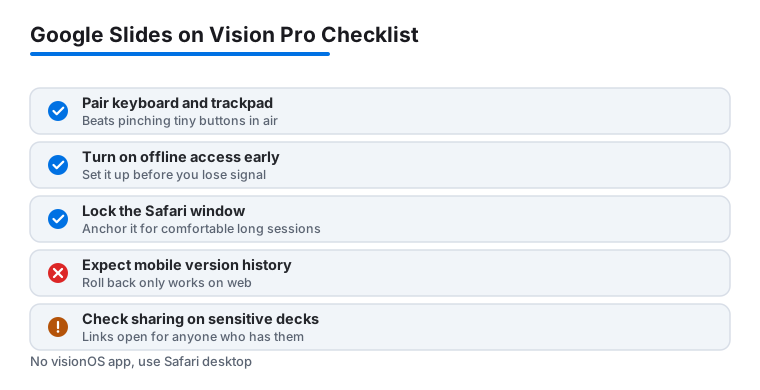
The mobile apps also hide real tools behind the desktop version. Version history, the feature that lets you roll back to an earlier save, is one of them: it is missing from the iPhone and iPad apps and only available on the web, so on mobile you cannot recover an older state of a deck. Detailed animation timing, precise object alignment and grouping, and add ons are likewise awkward or absent in the touch apps, so a complex build still pulls you back to the Safari desktop view or a real computer. We treated the iPad app as a viewer and light editor rather than a build tool.
Performance dipped on very large, image heavy decks, with the occasional lag while scrubbing through fifty plus slides on both the headset and the iPhone. And because everything lives in your Google account, a flaky connection genuinely slows you down unless you set up offline access first. There is also a privacy angle: your decks sit on Google's servers, shared links can be opened by anyone who has them, and Workspace admins can often see files in shared drives. If a deck holds anything sensitive, check the sharing setting before you send it. Treat Slides as a strong collaborative editor, not a heavyweight design studio.
Good alternatives if Slides is not the fit
Slides is one of several solid choices, and the right pick depends on what the rest of your work uses. If you already pay for Microsoft 365, PowerPoint for iPhone and iPad is the obvious rival, with deeper animation and design tools, and it is the one option here that Microsoft has actually built a native Vision Pro version of, so it behaves like a real headset app rather than a floating webpage. Apple's own Keynote is the natural choice for anyone in the Apple ecosystem; it is free, runs on iPhone, iPad and Vision Pro, and has the cleanest touch editing on the iPad of the bunch. Canva is worth a look if you want ready made templates and care more about visual polish than live co editing.
For most people the honest answer is to stay with Slides for anything collaborative and reach for Keynote or PowerPoint when a single deck needs serious design work. On the headset specifically, if a native experience matters to you, PowerPoint and Keynote both beat the Slides browser workaround today. To see how these tools stack up against the wider field, browse our best productivity apps for Vision Pro guide and the full Productivity hub. For another Google tool we leaned on across the same devices, our take on Google Sheets on iOS is a useful companion read.
FAQ
Is there a dedicated Google Slides app for Apple Vision Pro?
No. As of mid 2026 Google has not built a visionOS app for Slides, and the iPad app is usually not listed in the headset's Compatible Apps. The route that works is to open slides.google.com in Safari and float a large window in your space. In our testing that Safari desktop view was the better choice for real editing, since it exposes the full menus and keyboard shortcuts the touch app hides.
Can I edit Google Slides offline on iPhone or iPad?
Yes. Open the deck in the Slides app, tap the three dot menu, and turn on Make available offline while you still have signal. You can then keep working on a flight or in a dead zone, and your edits sync the moment you reconnect. We relied on this constantly, and it is the safest way to protect a presentation against a shaky network before a talk.
Will my decks sync across iPhone, iPad and Vision Pro?
They will, as long as you sign in with the same Google account everywhere. Your files and your recent files list follow you across devices through Drive. In our tests we started a deck on the iPad and picked it up in Safari on the Vision Pro without re-entering anything or losing a change. The one catch is that the headset uses the website, not an app, so it is the same file but a different interface.
Is Google Slides good enough for serious presentations?
For most talks, yes, especially when more than one person is editing. Where it lags is heavy design work. Fine animation timing, precise alignment, grouping, and add ons are awkward on the mobile apps and really want the desktop site. Version history is also web only, so you cannot roll back an older save from the iPhone or iPad app. If your deck needs that polish, build it in Keynote or PowerPoint and keep Slides for the collaborative pieces.