
Running and Growing Your Patreon From an iPad (and iPhone)
For the past two years I have managed a small membership almost entirely from an iPad on the couch, posting updates, answering members, and tweaking my tiers between cups of coffee. Patreon is the app I open first thing in the morning, and the iPad turns out to be a comfortable place to do creator work that I used to chain myself to a desktop for. One thing to clear up before we start: there is no longer a separate "Creator app" the way there once was. Patreon ships a single iOS app, and creator tools live right inside it. In this guide I will walk you through getting set up, the features that actually move the needle on engagement, the habits that grew my membership, and the rough edges worth knowing before you lean on it.
Getting Patreon running on your iPad and iPhone
Patreon is one universal app that installs on both iPad and iPhone, and it is a free download from the App Store. Sign in with the same account you use on the web and everything syncs. If you have heard people talk about a separate Creator app, that idea is out of date. Patreon used to split creators and members into different apps, but today it is a single app, and your creator tools appear once you are signed in to a page. The current build needs iPadOS 17 or iOS 17 or later, so an older tablet stuck on an earlier system will not run it.
There is no Mac version. The app is built for iPhone and iPad only, and while it will technically open on an Apple silicon Mac through the iOS compatibility layer, Patreon does not ship a real macOS app, and the experience there is unsupported and clunky. On a Mac I just use the website in a browser, which is the fuller tool anyway. So treat this as a tablet and phone story, not a desktop one.
On the iPad the extra screen space helps. Writing a post, scrolling your member list, and checking earnings all feel roomier than on a phone, and a Magic Keyboard turns it into a tidy publishing station. The iPhone still wins for the quick stuff because it is always in your pocket. My tip is to install the app on both, sign in on each, and keep it in your iPad dock. You will draft on the larger screen and answer members on the phone, and having both ready saves friction.
Finding your way around the app as a creator
The whole thing hangs off a bottom bar with five tabs, left to right: Home, Library, Create, Chats, and Profile. Once you know what each one does, the daily work falls into a rhythm.
- Home is the feed. You see posts from creators you support, and it is also where Patreon surfaces prompts about your own page.
- Library holds content you have saved or started as a member, so it matters less when you are wearing your creator hat.
- Create is the button you will use most. Tap it and you get three choices: a Quip, which is a short public update aimed at fans and potential fans; a full Post, which is your normal members update with images, audio, or video; and a Live stream when you want to go on camera. The Quip is newer and worth knowing about, because it is a low effort way to stay visible to people who have not joined yet.
- Chats is where you talk to members, both in group chats and one to one direct messages. This is the retention engine, and I will come back to it.
- Profile opens your creator overview and settings. Two shortcuts sit at the top: View page, which shows your page exactly as a member sees it, and Manage posts, which is where your published posts, drafts, and scheduled posts live.
That is genuinely the whole map. Nothing important is buried more than a tap or two deep, which is the reason the app became my morning habit rather than a chore.
The features that actually grow a membership
After two years of daily use, these are the parts of the app I lean on to keep people subscribed.
Posting from anywhere. From the Create tab you can write a members only update, attach images or audio, and choose which tiers see it, all from the iPad. Being able to post the moment something is ready has kept my page far more active than back when I waited to sit at a computer. Drafts and scheduling live under Manage posts in the Profile tab, so you are not forced to publish the instant you finish writing.
Quips for reach. The short public Quip is the closest thing the app has to a social post. I use one to tease what members are getting that week, which gives non members a reason to click through and join. It costs me about a minute.
Chats and comments. Replying to members personally is the single biggest driver of retention I have found, and the Chats tab plus comment notifications mean nothing slips past me. A short reply on the day someone writes does more than any fancy feature.
Knowing who just joined. Push notifications tell me when a new patron signs up, and that little buzz nudges me to send a welcome within minutes. The Profile overview also shows your active patron count and earnings, so after a post I can see whether it actually pulled people in. It is a rough read rather than deep analytics, but it is enough to tell a hit from a dud.
Practical habits from running a real page
A few habits made the iPad useful rather than just a smaller screen. First, I batch my week. On a quiet evening I draft two or three posts and schedule them through Manage posts, so the page keeps a steady rhythm even when I am busy. Consistency, more than polish, is what kept my members around.
Second, I treat notifications as a to do list. When a new patron alert lands, I send a short personal welcome that same day. It takes thirty seconds and it is the warmest first impression a membership can make. Third, I use the iPad for anything visual. Sketching a quick graphic in another app and dropping it into a post is far nicer on a tablet than on a phone. Finally, I keep a running note of member questions and turn the common ones into a public post or a Quip once a month, which saves me answering the same thing ten times and gives outsiders a reason to subscribe.
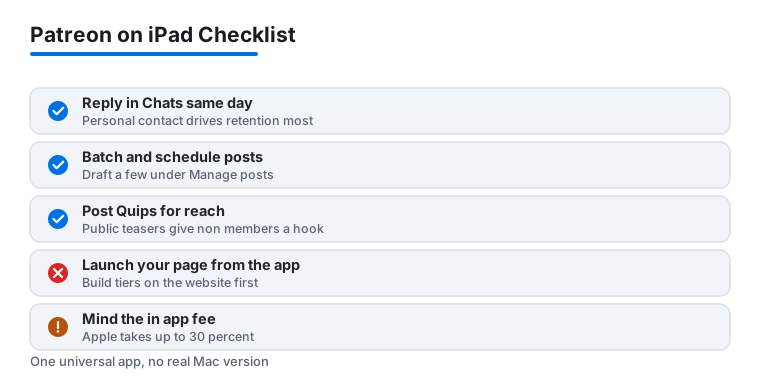
One more thing I learned the hard way: do not run your launch from the app. Setting up tiers, writing your welcome note, and getting your first posts staged is smoother on the website. The app is for keeping a running page warm, not for building it from zero.
The limits, fees, and privacy notes to know
Patreon on iPad is not the full studio, and a few gaps matter before you rely on it. The biggest one is that heavier setup still pushes you to the web. Building a brand new tier from scratch, reworking your page layout, and pulling detailed payout reports are all easier in a desktop browser, and parts of it are not in the app at all. I treat the app as my daily cockpit and the website as my workshop.
Then there is the money question, and it changed in 2026, so pay attention. Apple now requires Patreon memberships bought inside the iOS app to go through Apple's in app purchase system, which carries up to a 30 percent fee. Creators still on Patreon's older legacy billing have to migrate to subscription billing by November 1, 2026, or they lose the ability to sell in the app. There are two practical wrinkles. First, in the United States a fan signing up inside the app can choose web checkout instead of Apple's payment, which skips the fee, so it is worth telling US supporters to pick that option. Outside the US, purchases in the app must use Apple's system, and the fee applies. Second, you decide how to handle the cut: you can absorb it, or let Patreon raise your in app list price by roughly 43 percent so your take stays the same, which means iOS members pay more than web members for the identical tier. Many creators simply steer new patrons to a browser join link to sidestep the whole thing. Whatever you choose, understand it before you share a link, because it quietly changes what reaches you.
On privacy, the app asks for notification permission and, if you post photos, access to your library, both of which you can scope down in iOS Settings. Your member list and message history sit in your Patreon account in the cloud, not just on the device, so signing out on a shared iPad is the sensible move. The app also does not offer a true multi window view for creators, so keeping a draft and your stats open side by side is clunkier than on a computer. None of these are dealbreakers, but they shaped how I split work between tablet and desktop.
Good alternatives and companions worth comparing
Patreon is the hub of my membership, but it rarely works alone. If your community lives on chat, Discord pairs well with Patreon and can sync member roles automatically, so your paying supporters land in private channels without you sorting them by hand. For one off support rather than recurring tiers, Ko-fi is lighter and lets fans tip or buy without a subscription, which suits creators who post less often. Buy Me a Coffee sits in similar territory and has a clean mobile experience if monthly billing feels like too much commitment for your audience. Both of those also face the same Apple in app fee rules when a purchase happens inside their iOS apps, so the web checkout habit carries over.
It also helps to see where a creator income app sits next to other ways people earn from an iPad. If you are weighing membership against gig style income, our look at advanced tips for the iPad Dasher app shows a very different earning rhythm, and anyone treating their creative work as a career move should skim our guide to navigating your career path with iPad ZipRecruiter apps. For the wider toolkit, browse our best business and jobs apps for iPad roundup, or open the full Business & Jobs hub to see every category we cover.
FAQ
Is there a separate Patreon app for creators?
No, not anymore. Patreon used to split creators and members into different apps, but today it is one universal iOS app for both. Your creator tools, the Create tab, Chats, and your page overview, appear once you sign in to a page. It is a free download for iPhone and iPad.
Can I run Patreon from a Mac app?
There is no real Mac app. Patreon builds the app for iPhone and iPad only. It may open on an Apple silicon Mac through the iOS compatibility layer, but that is unsupported and awkward, so on a computer you are better off using the Patreon website in a browser, which is the fuller tool anyway.
Can I do everything from the iPad, or do I still need a computer?
You can handle the daily work, posting, Quips, replying to members, and watching your patron count, from the iPad. For deeper setup like building tiers from scratch, reworking your page, or pulling detailed payout reports, the desktop website is still easier and sometimes required.
Do I lose money when someone joins through the app?
You can. As of 2026, memberships bought inside the iOS app go through Apple's in app purchase system, which carries up to a 30 percent fee, and creators on legacy billing must migrate by November 1, 2026. In the US, fans can pick web checkout inside the app to skip the fee; outside the US, in app purchases must use Apple's system. Many creators send new patrons a browser join link to keep more of each pledge.
What is the best way to keep members from cancelling?
In my experience, personal contact wins. Replying in the Chats tab and sending a quick welcome to every new patron does more for retention than any feature, and the app pushes those notifications to you so you can respond the same day.